What to look for when buying
First, decide whether you want two physical screens, several windows on one screen, or to connect two computers. This will determine the right monitor setup, the connections you need and the display features that matter.
Ultrawide plus a second screen
A good fit if: You want to keep your gallery or image selection on the wider display and use a separate screen for editing or checking your work.
The trade-off: You’ll need enough desk space and connections for both displays. The ultrawide’s specifications don’t determine the colour performance of your second screen.
Two separate monitors
A good fit if: A dedicated checking view or targeted calibration matters more to you than a continuous gallery space.
The trade-off: There’s a bezel between the images, and both displays need to be assessed individually for colour-critical work.
A single ultrawide
A good fit if: You want to place several windows side by side without a bezel between them, and have enough desk space for the specific model.
The trade-off: A single panel isn’t a second, independently adjustable checking display. Image width and height vary depending on the resolution.
Two signal sources on one monitor
A good fit if: The two views come from different computers and you want them displayed at the same time.
The trade-off: Picture-by-Picture splits one display between signal sources; it doesn’t automatically replace two physical screens.
| What matters |
What to check before buying |
Who will find this especially important |
| Gallery space and windows |
Compare the resolution, aspect ratio and planned window layout for the specific model. Resolutions of 3440 × 1440, 3840 × 1600, 5120 × 1440 and 5120 × 2160 pixels provide different amounts of workspace. |
If I want to see my gallery, image selection and tools at the same time, it matters whether the windows remain readable at my chosen scaling. Around 31 % of consumers put usable gallery space first. |
| Colour when editing images |
Check the colour gamut you need, calibration options and display uniformity; assess the second screen separately. |
For colour-critical editing, I don’t want to judge colours based on a wide panel alone. Around 25 % of consumers prioritise a view that lets them assess colour. |
| Connecting screens and computers |
Check the video outputs and supported resolutions of your computer or dock, as well as the monitor’s inputs, Picture-by-Picture and, where relevant, KVM. |
If my views come from two devices, I want to know in advance how they’ll connect and display. Around 25 % of consumers put suitable connectivity first. |
| Space and setup costs |
Measure the body and footprint of both displays, allowing room to move them; factor in any mounts and connection accessories you need. |
If space is limited, I want to know whether both displays and their stands will fit on my desk. Around 19 % of consumers prioritise desk space and the cost of the complete setup. |
Joybuy products for wider workspaces
The Joybuy products below include ultrawides to pair with a second screen, as well as single wide displays for viewing galleries. Some models also feature PIP or PBP for use with multiple signal sources.
 No image available
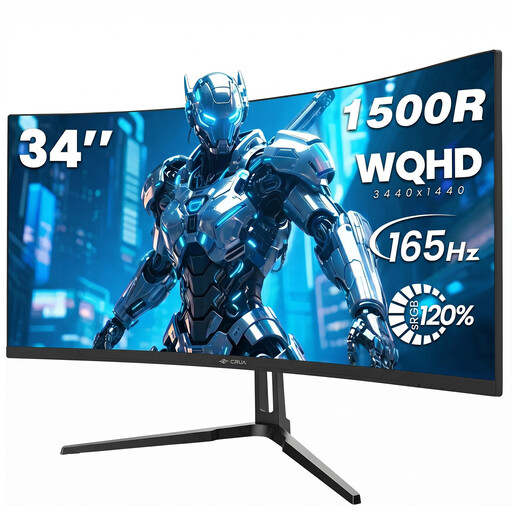
CRUA CR340QA-H 34-inch WQHD monitor
As an ultrawide paired with a second screen, this model can provide a wide space for your gallery and tools. Specifications include a 34-inch screen, 21:9 aspect ratio, 3440 × 1440 pixels, 1500R curvature and 165 Hz. The title also mentions VESA compatibility with 75 × 75 mm.
View at Joybuy
 No image available
CRUA 49-inch DQHD monitor
This single 49-inch panel is designed for viewing lots of windows side by side, provided you have room for it on your desk. Specifications include a 32:9 aspect ratio, 5120 × 1440 pixels, 165 Hz and 1500R curvature. Its resolution doesn’t provide the 2160-pixel image height of a 5K2K display. The title lists HDMI 2.1 and DisplayPort 1.4 as connections.
The product title also lists 120 % sRGB and HDR.
View at Joybuy
 No image available
INNOCN E34A1R 34-inch curved monitor
If you want to display two signal sources on one monitor at the same time, the listed PIP and PBP features are worth considering. The model is described as having a 34-inch screen, 21:9 aspect ratio, 3440 × 1440 pixels, a VA panel, 200 Hz and 1500R curvature.
View at Joybuy
 No image available
INNOCN 40C1U 40-inch 5K2K ultrawide monitor
This model may suit you if you want more image height as well as a wide gallery view; the title lists PIP and PBP for two signal sources. Specifications include a 40-inch screen, 21:9 aspect ratio, 5120 × 2160 pixels, IPS and 100 Hz. The title also lists USB-C with 65 W Power Delivery.
View at Joybuy
 No image available
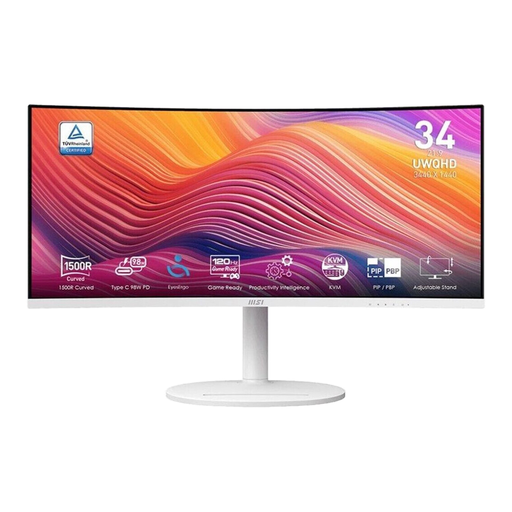
MSI Modern MD342CQPWDE 34-inch UWQHD monitor
As a companion to a second screen, this model offers a wide workspace for gallery and tool windows. The product title lists a 34-inch screen, 21:9 aspect ratio, curved VA panel and 120 Hz. The product description gives a resolution of 3440 × 1440 pixels, 98 % DCI-P3, 99 % sRGB and USB-C with up to 140 W Power Delivery, as well as a built-in USB hub.
View at Joybuy
Frequently asked questions
Do I need Picture-by-Picture to view my gallery and edits side by side?
No, not if both windows are coming from the same Windows computer: you can arrange them side by side using Windows Snap. Picture-by-Picture is useful if you want the monitor to display two input signals at the same time; check that the specific model supports it.
How do I set up an ultrawide and a second monitor in Windows?
Connect both displays, then arrange them in Windows display settings to match their actual positions once they’ve been detected. Next, check that you can move the mouse between screens as expected and that your computer or dock can output both resolutions you need.
Is factory calibration enough for a photo gallery?
It can provide a starting point, but it doesn’t guarantee how the display will perform once set up and in use. For colour-critical decisions, you need the right colour gamut and calibration suited to your workspace, repeated when necessary. A colour gamut that is too small or uneven display performance cannot be corrected through calibration.
Who should I contact in Germany if a monitor I’ve just bought is faulty?
For a consumer purchase, the seller is responsible for the statutory warranty, which is separate from a voluntary guarantee. The Verbraucherzentrale generally states that this lasts for two years and explains a one-off 12-month extension, in effect since 31 July 2026, if you choose a repair rather than a replacement for a purchase contract made on or after that date.
Do workplace screen rules apply to my personal gallery setup at home?
Germany’s ASR A6 sets out requirements for workplaces and teleworking spaces within its scope. The Federal Institute for Occupational Safety and Health explains that the rule does not apply to using screen equipment at home outside such workplaces; this does not mean there is a general requirement to buy particular monitors for private use.


