Creators of digital photo galleries
You review and organise lots of pictures at your desk, judging them mainly on screens. Clearly visible detail and a digital colour workflow you can control are important.


For a mostly digital photo gallery, look for a suitable sRGB workflow, clearly visible detail and a monitor that works with your desk and computer. If you’re preparing prints, documented colour gamut, calibration and a suitable print profile become more important. EIZO Germany points out that a gamut that’s too small or an uneven display can’t simply be fixed through calibration. For a slideshow, you should also consider a suitable playback source, where you’ll position the screen and how long it will be in use.
You review and organise lots of pictures at your desk, judging them mainly on screens. Clearly visible detail and a digital colour workflow you can control are important.
You select pictures to print and need a clear, reliable process from your monitor to the intended printing method.
You want to show the finished gallery on a display in your home office, so you’ll need to plan for the playback source, screen position and operating time.
First, decide whether you’ll mainly be viewing pictures digitally, preparing prints or showing them as a slideshow.
| Requirement | What to check when buying | Who is this important to? |
|---|---|---|
| Digital image selection | Check the sRGB mode on the specific model, along with its resolution and how clearly content can be scaled. | If I mainly select pictures for a digital gallery, I want to assess detail and see colours as part of a suitable digital workflow. Around 37% of consumers prioritise digital image selection. |
| Preparing prints | Check the Adobe RGB specification for the exact model, its calibration method and the print profile. | If I’m preparing gallery prints, I want to assess colours for the intended printing method. Around 27% of consumers focus on print preparation. |
| Slideshow | Consider viewing distance, video input and a playback source that’s actually suitable. | If I want to show the finished gallery on a display, I need a suitable source for the slideshow as well as the screen. Around 18% of consumers put slideshow display first. |
| Fitting into your workspace | Check the dimensions with the stand, the adjustment options you need, and the video connection and charging capacity. | If my monitor also needs to fit my home-office setup, I want to check that it’ll work with my desk space and computer connections. Around 18% of consumers prioritise this. |
A monitor can display colours, but that doesn’t mean it sets the conditions for the final print.
Decide on your output first. Preparing prints involves calibration, suitable profiles and soft proofing.
Calibration takes time, and you may need a suitable measurement device.
A connection such as HDMI doesn’t mean the monitor can manage photos or play them as a slideshow on its own.
Before you buy, work out which device will store the pictures and handle playback. For example, Apple Support explains how to play slideshows in the Photos app on a connected Mac.
You may need an additional compatible device for playback.
The stand, adjustment range and preferred screen orientation all affect whether a monitor will fit your intended workspace.
Compare the dimensions with the stand in place, and check the documented VESA mount if you’re planning to use a monitor arm.
Depending on your setup, you may need a suitable mount or a different workspace layout.
LG explains that leaving static images on an OLED monitor for long periods can cause image retention.
If gallery pictures will be displayed without changing for a long time, check the usage guidance and warranty terms for the specific OLED model, and compare it with an LCD option.
Large areas of static imagery over long periods can make a monitor less suitable for continuous use; warranty terms vary by model.
The ProArt PA279CRV is a documented 27-inch 4K model with colour modes for digital work and print preparation.
The PD2705U is designed for an sRGB-focused workflow, while the SW272U and PD2732U are specified with features for more demanding colour and print workflows.
The ColorEdge CS2740 is aimed at people who regularly edit images with colour accuracy in mind and prepare prints.
The UltraFine 27UP850K-W is a 27-inch 4K model with USB-C, suited to a combined office and image-editing setup.
The Joybuy monitors below are worth considering for reviewing digital photos and using at your home-office desk. If you’re preparing prints, compare the specifications for each model with the colour management workflow you need.
 No image available
The product name lists 4K UHD at 3840 × 2160 pixels and 100% sRGB for digital image selection.
Other specifications in the product name include 3000R curvature and HDR10.
 No image available
The product name lists 99% sRGB and 99% Adobe RGB (1931), which may be relevant when choosing a digital colour workflow.
Other specifications in the product name include QHD resolution, an IPS display and Mini LED with 1152 zones. The monitor is described as a gaming model.
 No image available
The wide 40-inch display may be useful for reviewing lots of pictures at your desk; check that it fits your available space.
The product name lists 5120 × 2160 pixels, an IPS display, USB-C with 65 W Power Delivery and a height-adjustable stand.
 No image available
The 4K resolution may help when assessing fine image detail; check how it looks with your preferred scaling.
The product name lists 3840 × 2160 pixels, an IPS display and USB-C with 90 W Power Delivery.
 No image available
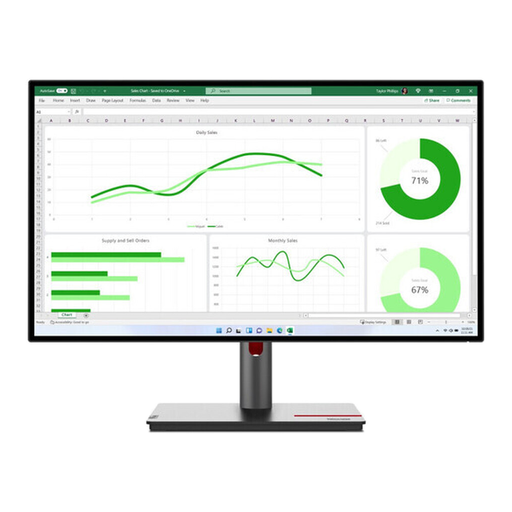
The product name describes a 27-inch monitor for office work and creative applications that may suit image selection at your desk.
Specifications include 2560 × 1440 pixels, an IPS display and 60 Hz.
No, not just because you’re creating a photo gallery. For mostly digital output, a suitable sRGB mode and colour management may be enough. Consider a wider gamut especially if your actual editing and printing workflow uses it.
You can’t tell from an HDMI or USB-C connection alone. For example, Apple Support explains how to play a slideshow in the Photos app on a connected Mac. A display’s ability to play slideshows independently should be clearly stated for that specific model.
If you edit images regularly, calibration and profiling should be part of your workflow. EIZO Germany distinguishes between creating a profile through profiling and adjusting the device through calibration. Neither can simply fix a gamut that’s too small or an uneven display.
If you’ll use it for long periods, compare the EU energy label for the specific monitor and consider how long you plan to use it. Your actual electricity costs also depend on its consumption and your electricity tariff.
The German consumer advice centre generally gives a 14-day cancellation period for online purchases; when the period starts and whether any exceptions apply depends on the type of contract and the goods. If there’s a fault, statutory rights against the seller are separate from a voluntary guarantee.