What should you look for when buying?
First, measure the available desk space, including the stand. Then decide whether your workflow is shaped more by regular colour-critical print work or by occasional prints.
| Buying consideration |
What to check |
Who is it important to? |
| Assessing print colours |
Check the colour gamut coverage of the exact model, as well as the output profile and soft proof for your intended printing method. |
If I regularly prepare prints, I want to assess the printing conditions in a soft proof rather than rely on a wide colour gamut alone. For around 31% of consumers, assessing print colours is the top priority. |
| Desk space |
Compare the available desk width and depth with the full dimensions, including the stand. |
On my small desk, I need room for my keyboard and print samples as well as the stand. That is why around 31% of consumers prioritise the space a monitor takes up. |
| Screen space for images and tools |
Compare the resolution and aspect ratio with your software layout, and check that everything remains readable at your chosen scaling. |
When editing, I want to see both the image and my tools without the interface becoming too small for me to use. For around 25% of consumers, the screen space available for images and tools is the most important consideration. |
| Laptop connectivity |
Check that your laptop’s video output is compatible with the monitor’s connections. If you use USB-C, also consider your laptop’s power requirements. |
When I work on a laptop, I want to choose a connection that suits my devices and keep cables tidy at my workstation. Around 13% of consumers put laptop connectivity first. |
Joybuy products
The Joybuy options below include compact monitors for a range of workstations. The product specifications alone do not establish that they are suitable for colour-critical print assessment.
 No image available
KOORUI MB24V29FS4 24-inch FHD IPS monitor
As an sRGB-focused monitor, it may be worth considering for occasional print preparation. However, the stated sRGB coverage alone does not guarantee an accurate preview for a particular printing method.
24 inches; Full HD; IPS; 99% sRGB; HDMI and VGA; VESA 100 × 100 mm; tilt-adjustable stand.
View at Joybuy
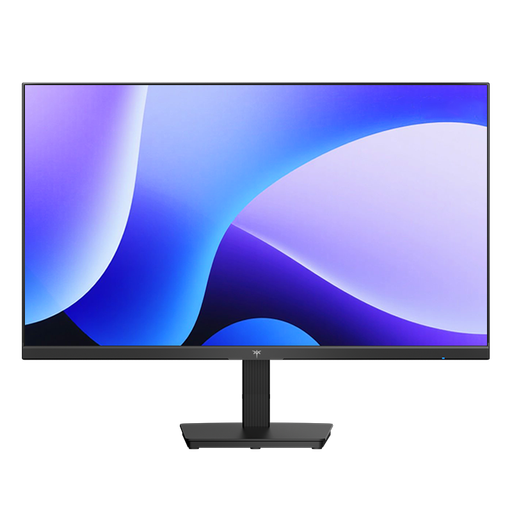 No image available
KTC H24B9S 24-inch gaming monitor
If gaming or office work matters as well as image editing, this model may be worth considering. Its product specifications do not establish that it is suitable for colour-critical print assessment.
24 inches; Full HD (1920 × 1080); IPS; 144 Hz; 5 ms; 116% sRGB according to the product title.
View at Joybuy
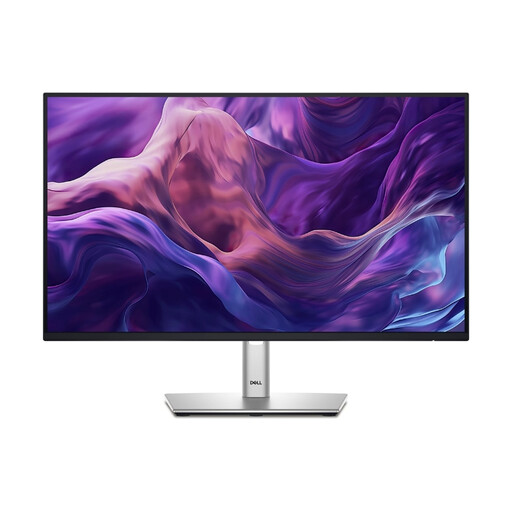 No image available
Dell P2425HE 24-inch FHD IPS monitor with USB-C
If you need a USB-C connection for your laptop workstation, this model may be suitable. Check that the power delivery meets your laptop’s requirements and confirm the details in the specific listing.
24 inches; FHD; IPS; USB-C; 3-year warranty according to the product title.
View at Joybuy
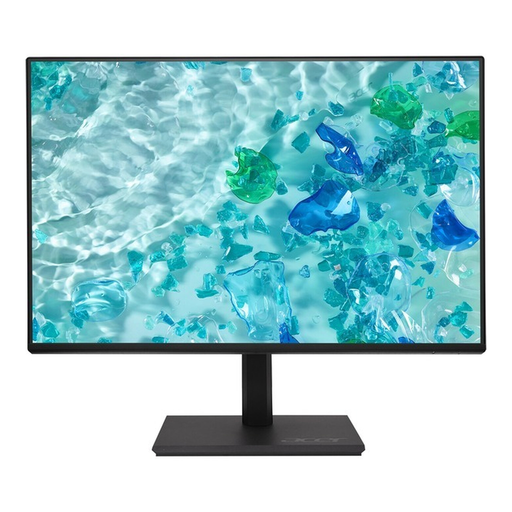 No image available
Acer Vero B247YGbmiqprx (24 inches)
As a 24-inch monitor, it may be worth considering for a compact workstation. Before buying, check that its footprint and connections suit your setup.
24 inches according to the product title.
View at Joybuy
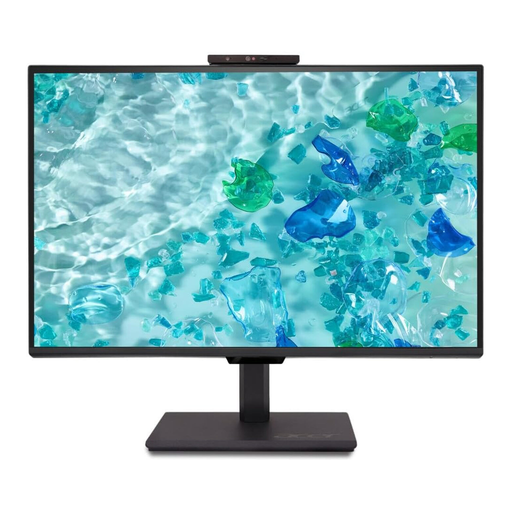 No image available
Acer Vero B248YGbemiqprcuzx 24-inch business monitor
If video calls are part of your working day as well as image editing, the webcam mentioned in the product title may be useful. Check that it meets your needs.
24 inches; 5 MP IR webcam with microphone according to the product title.
View at Joybuy
Frequently asked questions
Is 100% sRGB enough for my photo prints?
An sRGB monitor can be a starting point for occasional print preparation. ASUS lists 100% sRGB for the PA248QFV, but this does not prove Adobe RGB coverage or show how a particular print will look. Where available, use the appropriate output profile for your soft proof.
How do I set up a workstation for print previews?
As well as making room for the stand and your work materials, consider the printing conditions, lighting and surroundings. Fogra also lists uniformity, viewing angle and warm-up behaviour as factors to check in soft-proofing monitors.
Does a factory calibration report mean the monitor is ready for soft proofing?
No. A calibration report or colour gamut specification does not automatically simulate your printing method. Set up a proof for the actual output and take the lighting and surroundings into account; Adobe explains how to work with colour profiles in Photoshop.
What additional costs should I check before buying?
Check whether your workflow requires a separate measurement device, a suitable monitor arm or additional connection cables. Also check what accessories are included in the specific listing and whether your chosen mounting option is compatible with both the monitor and your desk.
What rights apply when buying a monitor online in Germany?
When you buy from a trader, the statutory minimum legal guarantee is generally two years; an additional manufacturer’s warranty does not replace it. For most online purchases, you generally have 14 days from receiving the goods to cancel. Your Europe outlines the exceptions and notes that return costs should be taken into account.


