Which option is right for you?

Photobook creators on the move

If you want to view photos and book pages side by side in different places, you can weigh up a laptop with two built-in displays against the set-up and accessories needed for a separate monitor. ASUS and Lenovo offer this type of design, with specifications varying by model.

Creators at a fixed workstation

If you already have a monitor, or would prefer to choose one separately from your laptop, check how the two devices connect. Microsoft Support explains how to arrange multiple connected displays in Windows.

Colour-critical photo editors

If you want to check print colours before placing an order, the settings on your monitor and a colour workflow suited to your photobook service are important. Saal Digital explains how to soft proof with an ICC profile for its own service.

What should you look for when buying?

Two built-in displays

A good fit if: you often want to have photos and your page layout open at the same time without being tied to a desk.

Things to weigh up: the set-up space, input devices and what’s included with the specific configuration. Two displays don’t replace a suitable colour workflow.

Laptop with an external monitor

A good fit if: you mainly work at a fixed workstation or want to choose your second screen separately.

Things to weigh up: the monitor, available space and connection need to suit your laptop and the workstation you have in mind. Microsoft Support explains how to set up multiple displays in Windows.

What you need What to look for Who it matters to most
Two workspaces Check the set-up modes and input devices on a dual-screen device. For an external monitor, check the video output, monitor input and connection. If I want to see photos and book pages at the same time, the right workspace is essential. Around 40% of consumers prioritise having two usable workspaces.
Colours before printing Check the screen you’ll use for colour assessment, its settings and an ICC profile supported by your photobook service, along with compatible soft-proofing. Saal Digital describes this process for its own workflow. If you want to check the colours of your photobook in advance, consider the display and print workflow together. Around 30% of consumers prioritise checking colours.
Portable set-up Check the dimensions, space required and whether a keyboard, stand and power supply are included with the specific configuration. If I want to create photobooks in different places, it matters whether I can set up the device there with the input devices I need. For around 20% of consumers, portability is the main consideration.
Files and software Check the operating system and photobook service support, as well as SSD capacity, memory requirements and memory card format, against how you plan to use the device. If you have a large collection of photos stored locally or need specific design software, your own set-up matters. Around 10% of consumers prioritise file and software requirements.

Common misconceptions

  • Two OLED displays mean print-accurate colours

    What you see on screen won’t automatically match the finished photobook. For its own workflow, Saal Digital recommends using suitable soft proofing and a suitable, well-calibrated monitor.

    Check which screen you’ll use to assess colours, and whether your photobook service supports a suitable profile and soft proofing with your software.

  • Screen size is all that matters with an external monitor

    The monitor needs to connect to the video output on your specific laptop. Choosing the right setting in Windows won’t replace the physical connection.

    Before buying, check that the video output, monitor input and cable you need are all compatible.

  • Similar laptop models come with the same accessories

    Accessories and ports can vary depending on the exact model and configuration. ASUS states that the ASUS Zenbook DUO UX8406CA-QL331W doesn’t include a power adapter; for the Yoga Book configuration shown, Lenovo lists a keyboard, folio, mouse and pen among the included items.

    Check what’s included using the full model name, and factor in any extra accessories you’ll need.

    You may need to buy a compatible power adapter separately for the ASUS UX8406CA-QL331W.

Key brands at a glance

ASUS

The Zenbook DUO range includes models with two built-in displays; specifications and ports vary by model.

  • ASUS describes the UX8407 as having two 14-inch OLED displays.
  • For the separate UX8406CA-QL331W model, ASUS lists HDMI 2.1 and two Thunderbolt 4 ports; ASUS states that a power adapter isn’t included. These details don’t automatically apply to other models.

Lenovo

The Yoga Book 9i Gen 10 is an option for anyone weighing up two built-in displays and the accessories included with a specific configuration.

  • Lenovo lists a 14-inch OLED display for configuration 83KJCTO1WWDE1, along with a keyboard, folio, mouse and pen.
  • The listed specifications, including a 512 GB SSD, apply to this configuration; other models may differ.

Acer

The Swift Go 16 is a conventional laptop with a larger built-in screen; you’ll need to choose a second monitor separately.

  • For the SFG16-72-518S, Acer lists a 16-inch OLED display, 16 GB RAM, 512 GB SSD and a microSD reader.
  • To connect an external monitor, check that the ports on the exact variant work with the screen you want. These details don’t apply to the entire range.

Dell

The Dell 16 DC16256 is a conventional 16-inch laptop for a workstation where you choose your second screen separately.

  • The configuration shown lists 16 GB RAM, 1 TB SSD and a non-touch FHD+ display.
  • Dell states that this configuration doesn’t include a charger; this doesn’t confirm the display and port options available on other configurations.

Laptops at Joybuy

Depending on their specifications, these laptops are suitable for creating photobooks on the move or working with an external monitor.
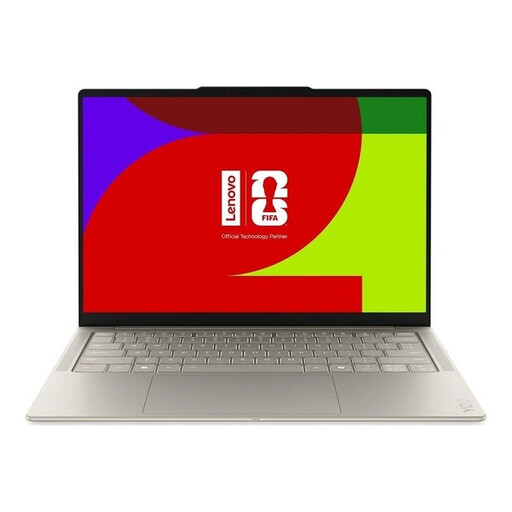
Lenovo Yoga Slim 7i Aura Edition, 14-inch

Lenovo Yoga Slim 7i Aura Edition, 14-inch, Core Ultra 7 355

For creating photobooks on the move using the built-in display, with locally stored photo files and your chosen software on the laptop.

14-inch 2.8K OLED display with 120 Hz; 16 GB RAM, 1 TB SSD and Windows 11.

Listed weight: 1,14 kg.

View at Joybuy
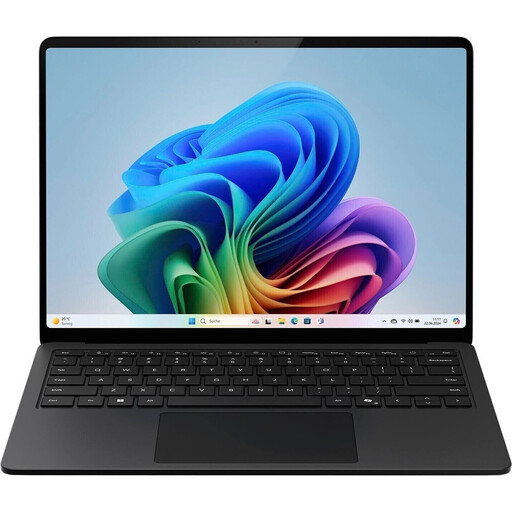
Microsoft Surface Laptop for Business, 7th Edition, 15-inch

Microsoft Surface Laptop for Business, 7th Edition, 15-inch

An option for a workstation with an external monitor, provided it’s compatible with the screen you already have.

15-inch touchscreen with 2.496 × 1.664 pixels and 600 cd/m²; Thunderbolt 4 is listed as a video output.

16 GB RAM, 512 GB SSD and Windows 11 Pro; listed weight: 1,66 kg.

View at Joybuy
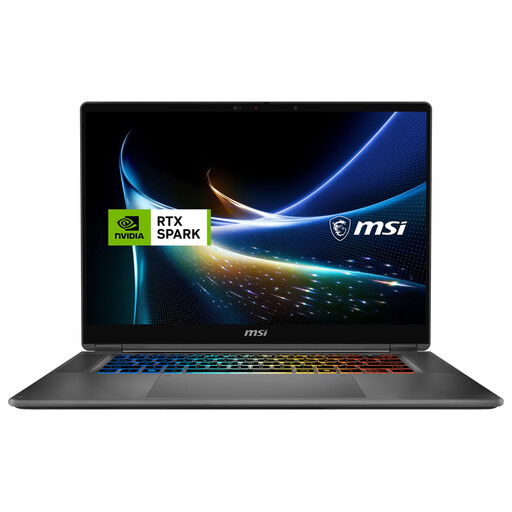
MSI Prestige N16 Flip AI+ C1XMT-029Y, 16-inch

MSI Prestige N16 Flip AI+ C1XMT-029Y, 16-inch

For editing images on the touchscreen and working at a desk where you’d like to connect an external display.

16-inch OLED touchscreen with 2.880 × 1.800 pixels and 120 Hz; 360° flip design and MSI Nano Pen.

32 GB DDR5, 1 TB SSD and Windows 11 Pro; HDMI and DisplayPort are listed as video outputs.

View at Joybuy
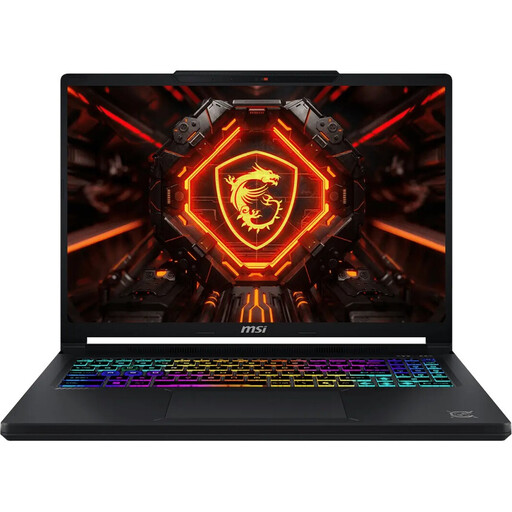
MSI Crosshair 16 Max HX E2WGXK-023 with NVIDIA GeForce RTX 5070

MSI Crosshair 16 Max HX E2WGXK-023, NVIDIA GeForce RTX 5070 12 GB

An option for editing images at a fixed workstation if you want to use an external display.

16-inch OLED display with QHD+ resolution of 2.560 × 1.600 pixels and 165 Hz; HDMI is listed as a port.

16 GB DDR5, 1 TB SSD, NVIDIA GeForce RTX 5070 12 GB and Windows 11 Home.

View at Joybuy
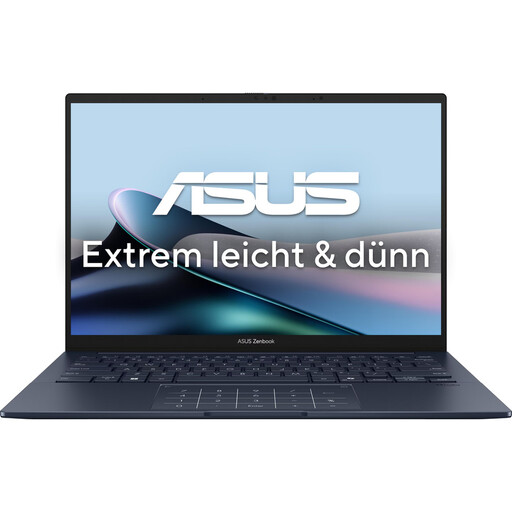
ASUS Zenbook 14 UX3405CA-QD1303W

ASUS Zenbook 14 UX3405CA-QD1303W

For creating photobooks on the move using the built-in display; HDMI 2.1 and Thunderbolt 4 are listed as ports for an external monitor.

14-inch WUXGA OLED touchscreen with 60 Hz and 400 cd/m²; 16 GB RAM and 1 TB SSD.

Windows 11 Home; listed weight: 1,22 kg.

View at Joybuy

Frequently asked questions

Do I need to buy a laptop with two built-in displays to make a photobook?

No, a laptop with an external monitor can work just as well. In Windows, you can arrange connected displays as long as the laptop, monitor and connection are compatible. Two built-in displays are particularly worth considering if you want to take that workspace with you without carrying a separate monitor.

What software can I use to create a CEWE photobook on my laptop?

CEWE offers an online editor and its Fotowelt software. According to CEWE, the desktop software is available for Windows, Mac and Linux. Also check that the current version works with your specific device and operating system.

How do I set up an external display in Windows?

First, connect the monitor and laptop using a compatible connection. You can then arrange the detected displays in Windows display settings to match how they’re positioned on your desk. Microsoft Support also explains what to do if a display isn’t detected.

How can I check print colours before ordering a photobook?

If your photobook service supports it, you can use its ICC profile with software that supports soft proofing and a well-calibrated monitor. For its own workflow, Saal Digital notes that the finished product won’t be as bright as a monitor. This advice won’t necessarily apply to other photobook services.

What should I check about accessories and warranty cover?

Check the power adapter and input accessories for the exact configuration. ASUS states that the UX8406CA-QL331W doesn’t include a power adapter, while Lenovo lists a keyboard and folio among the accessories for the Yoga Book configuration shown. For goods bought from a trader in the EU, Your Europe explains that the legal guarantee lasts for at least two years from receipt. This is separate from a voluntary guarantee.