Checking double-page spreads
If you regularly check page layouts, image crops and small captions, you’ll need a clear overall view and the option to zoom in on details.


Choose a monitor based on whether you mainly check double-page spreads and details, or want to assess print colours for a specific photobook. For print previews, calibration, suitable software and the output profile for the photo product also matter; 4K or a high Adobe RGB figure alone won’t guarantee a match with the finished book. If several people or laptops share the desk, also check the connections, required charging power and adjustability of each model.
If you regularly check page layouts, image crops and small captions, you’ll need a clear overall view and the option to zoom in on details.
If you’re assessing images for a specific photobook, the monitor, calibration and soft proof need to match the product’s output profile. Saal Digital explains how to use a suitable ICC profile for this.
If several people or computers use the same desk, suitable connections, an adjustable screen position and the lighting at the workspace are important considerations.
First decide whether you’ll mainly be checking layout details or print colours. If the monitor will be shared, you’ll also need to consider connections for the different computers and how it can be adjusted to suit the workspace.
| What matters when buying | What to check | Who is it important to? |
|---|---|---|
| Double-page spreads and details | Screen size, resolution and scaling in your design software; room for toolbars. | If I want to check double-page spreads and small captions, I need an overview as well as details I can enlarge. Around 33% of consumers make an overview of the layout their main priority. |
| Checking print colours in advance | Calibration options, the measuring device required, soft-proofing functionality and the ICC profile for the photo product and its finish. | To assess a specific photobook, I need a colour profile and soft proof that are a good match. Around 27% of consumers prioritise print colours. |
| Switching between computers | Video inputs, data connection, cables and the charging power required by each laptop; KVM if needed. | If several laptops are used at the same desk, I don’t want to reconnect everything or sort out the power supply every time I switch. Around 20% of consumers prioritise switching between computers. |
| Adjusting to the workspace | Desk space, including the stand, height and tilt adjustment, and reflections from the available light sources. | If seating positions and lighting change at a shared desk, I need a monitor I can position to suit. Around 20% of consumers prioritise adjusting their setup to the workspace. |
Colour gamut coverage describes one feature of a monitor. The result also depends on the specific photo product, its finish and the right output profile.
Before making colour-critical decisions, check the whole workflow, including the monitor, software and profile for your chosen product.
Calibration can also take time, including setup and creating a soft proof for the specific product.
A double-page spread needs to remain easy to read at your software’s scaling settings. The screen and stand also need to fit on the shared desk.
Check the overall and detailed views you want, and compare the model’s dimensions with the space available.
The connector type and stated charging power alone don’t confirm that a particular laptop will transfer video and power as needed through the connection you’re using.
Check video output, cables and charging requirements for every computer you use.
The examples below refer to specific model ranges and are no substitute for checking your individual colour and connection workflow.
The ProArt PA279CRV is a 27-inch 4K model for checking layouts and working with photos.
According to BenQ, the PD2732U is designed for layouts and print preparation with compatible Thunderbolt computers.
The ColorEdge CS2740 is an option for anyone who wants to calibrate their colour assessment regularly.
The U2725QE is a 27-inch 4K option designed for office use, with useful connections and adjustability.
This selection includes portable FHD second screens for laptop setups, as well as 27-inch office monitors with docking or adjustment features. These features can help with layout previews and shared use, but they don’t by themselves guarantee colour-accurate print previews.
 No image available
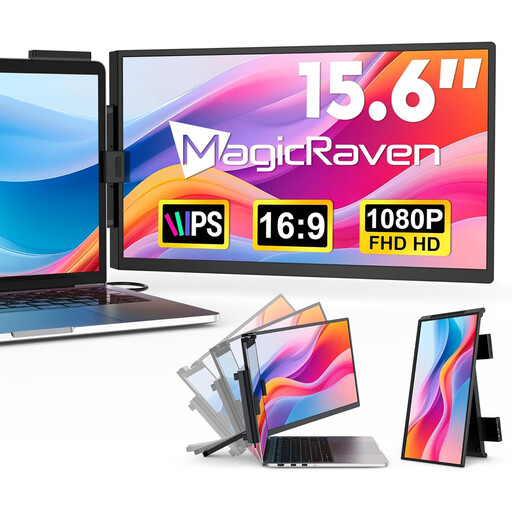
Described as an additional laptop screen for previewing layouts on the move.
1080p FHD, IPS and 60 Hz, with HDMI, USB-A and USB-C. According to the product name, it’s compatible with Windows, Mac and Android, and designed for laptops measuring 14 to 16.5 inches.
FHD has fewer pixels than 4K for checking small text and image details.
 No image available
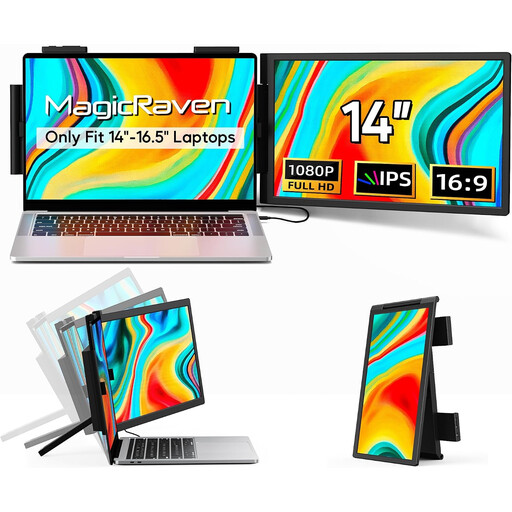
Described as a way to expand a laptop setup with additional screen space.
FHD with 1080p, IPS and 60 Hz; connections include HDMI, USB-A and USB-C. The product name states that it’s compatible with 14 to 16.5-inch laptops, as well as Windows, Mac and Android.
FHD has fewer pixels than 4K when you want to check small image details.
 No image available
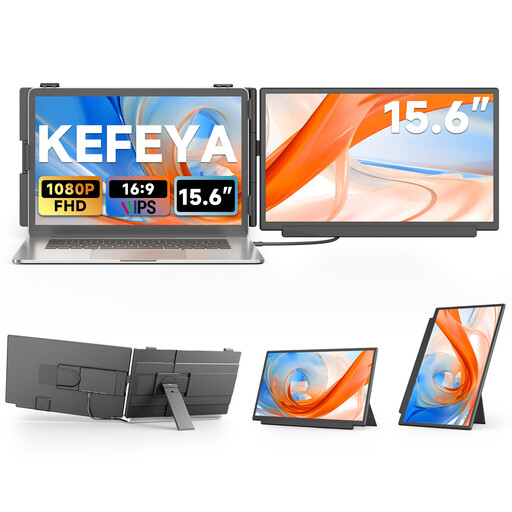
Described as a portable second screen for laptop setups.
15.6 inches, FHD with 1080p and IPS, with USB-C and HDMI. The product name states that it’s compatible with Windows, Mac and Android.
FHD resolution has fewer pixels than 4K for viewing double-page spreads and checking details.
 No image available
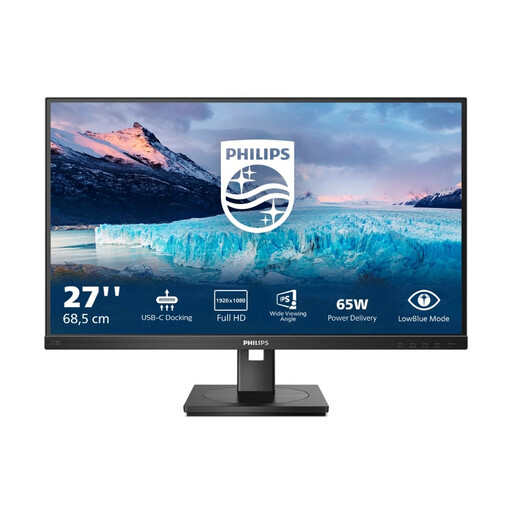
The docking connections and height-adjustable stand are useful for a shared office workspace.
1920 × 1080, 75 Hz, USB-C with 65 W, RJ45, USB hub, HDMI and DisplayPort; the product name also mentions speakers.
At 27 inches, Full HD has fewer pixels than 4K for small text and image details.
 No image available
The docking and KVM features, along with the adjustable stand, are useful when sharing the workspace with different computers and seating positions.
IPS, 100 Hz and 1 ms MPRT; USB-C with 98 W Power Delivery, daisy chain, KVM and built-in webcam.
WQHD has fewer pixels than 4K for checking very small text and image details.
No. 4K describes the resolution, not the soft proof. Saal Digital also recommends a well-adjusted, calibrated monitor, suitable software and an ICC profile for the specific photo product.
Use the ICC profile for the specific product and its finish in software with a soft-proofing feature. Saal Digital’s instructions apply to its products and advise against embedding the soft-proof profile in the image file sent to Saal. Other providers have their own output requirements.
For each computer you use, check that the relevant connection supports video and that the cable and charging power are suitable for the laptop. A compatible connector alone doesn’t confirm that video and power will be transferred as needed.
The Federal Institute for Occupational Safety and Health describes ASR A6 for display-screen equipment at workplaces on business premises. It isn’t a general product approval and doesn’t automatically apply to every private use of a shared room.
Check whether you have a suitable measuring device and the software needed for your calibration. For soft proofing, you’ll also need the profile for the specific photo product and a suitable feature in your image-editing software.