Designers with limited desk space
You want to see both pages at once, while also having to account for the monitor’s width, stand and available working distance.


When choosing a monitor for a small desk, start with its overall width, stand depth and the preview area you can actually use – not just the screen size in inches. A 27-inch 4K model can be a good choice for checking full pages regularly, provided it fits on your desk. For colour-critical print decisions, you’ll also need calibration, a suitable profile and the photobook provider’s output specifications. No monitor specification alone can guarantee that the colours on screen will match the finished book.
You want to see both pages at once, while also having to account for the monitor’s width, stand and available working distance.
You regularly check full spreads, small text and image details, so you need to weigh up the benefit of extra screen space against the room it takes up.
You want to assess colours for a specific printing process. The monitor profile and output specifications are key.
First, measure the free space on your desk, including the area needed for the stand. Then decide whether a compact layout view will do or whether you’ll often want to see full spreads. For colour-critical work, you should also consider calibration, profiles and print specifications.
| Concern | What to look for when buying | Who should pay particular attention? |
|---|---|---|
| Space required | Compare the available desk width and depth with the dimensions of the specific monitor and its stand. | If I have little free space on my desk, I want to keep the actual footprint in mind. Around 31% of consumers say the space required is their main concern. |
| Viewing spreads | Check a typical spread in your software at full-page view and zoom in on details; remember to consider the binding and centre of the page. | If I want to check full spreads and then small image details, the usable preview area matters to me. Around 31% of consumers prioritise seeing the full spread. |
| Print colours | Check the model’s colour-gamut coverage and calibration options, and ask the photobook provider for its output specifications or a suitable profile. | If I want to assess colours for a specific photobook print, I need a suitable colour-managed workflow. Around 23% of consumers put print colour first. |
| Laptop connection | Check your laptop’s video output and power requirements against the monitor’s video mode and Power Delivery capabilities. | If I want to connect my laptop with as few cables as possible, port compatibility is essential. Around 15% of consumers prioritise laptop connectivity. |
The diagonal measurement doesn’t tell you how much desk space the monitor and stand will take up.
Measure your desk and the specific model. Allow room for cables and, if you plan to use one, the dimensions and fittings of a monitor arm.
Wide colour-gamut coverage is no substitute for calibration or a suitable output profile. Lighting and print conditions also affect how accurate a preview will be.
Calibrate and profile your monitor, and use the photobook provider’s actual output specifications.
You may also need a calibration device or a proof print to check the results.
With a standard binding, a visible crease may appear down the middle; not every photobook is available with layflat binding. Saal Digital explains the difference between standard and layflat binding.
Check the binding type of the photobook you’ve chosen and preview the centre of the spread. Don’t assume that information about layflat binding applies to every photobook.
The features below relate to the models listed and the manufacturers’ specifications. They don’t apply to every product from each brand, nor are they an independent assessment of print accuracy.
The ProArt PA248CRV and PA279CRV offer a more compact 24.1-inch option and a larger 27-inch 4K option.
The ColorEdge CS2400S is a 24.1-inch option for colour-critical work when screen size is limited.
The PhotoVue SW272U is a 27-inch 4K option for larger layout previews and a colour-managed workflow.
The UltraSharp U2725QE is a 27-inch 4K monitor for general image and layout work, with laptop connectivity as a key focus.
The Joybuy models below include compact Full HD and QHD options, as well as 27-inch models for larger previews. Compare their resolution and footprint with your desk and the design software you use.
 No image available
The 27-inch 4K resolution is an option for frequent full-page previews, provided the monitor fits on your desk.
Specifications include a resolution of 3840 × 2160 pixels, 120 Hz, USB-C with 90 W Power Delivery and 99% Adobe RGB.
With the stand, it measures 613.4 mm wide and 195 mm deep; check that you have enough room for it.
 No image available
The 27-inch screen could suit layout previews if QHD meets your needs and you don’t require 4K.
Specifications include a resolution of 2560 × 1440 pixels, USB-C with up to 65 W Power Delivery and a USB hub.
This is a QHD, not a 4K, monitor; check that the resolution is sufficient for full-page and detailed views.
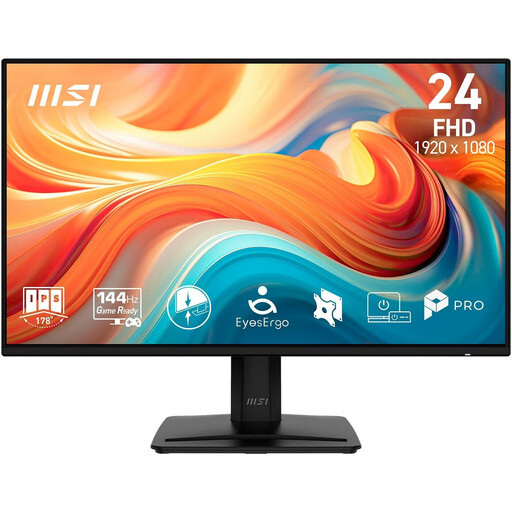 No image available
This model is a compact option for checking layouts, with specific dimensions you can compare against your small desk.
Specifications include a resolution of 1920 × 1080 pixels, and dimensions of 54.01 cm wide and 18.8 cm deep with the stand.
This is a Full HD, not a 4K, monitor; you may need to switch between the full-page view and zoom to see a spread alongside the software controls.
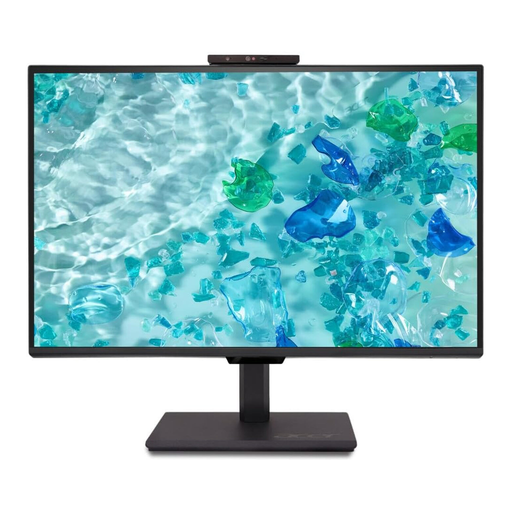 No image available
A compact screen could work well for checking layouts when desk space is limited.
The model is listed as 23.8 inches with Full HD (1920 × 1080 pixels); its stand is height-adjustable and supports pivot.
Check that Full HD is enough for viewing full spreads and inspecting the details you need.
 No image available
This model is worth considering for a compact layout view if Full HD is enough for your workflow.
Specifications include a 24-inch IPS panel, Full HD and 99% sRGB. VESA 100 × 100 mm and a tilting stand are also listed.
The sRGB specification alone doesn’t prove accurate print colours for a specific photobook.
A 24-inch monitor may be enough to see the overall layout, but you should zoom in to check small text and image details. Whether you can see the full spread and toolbars clearly at the same time depends on the book format and design software.
Calibrate and profile your monitor, and keep the lighting as consistent as possible. You’ll need suitable output specifications or a suitable print profile for soft proofing; check the requirements with your photobook provider. This won’t guarantee identical colours on screen and paper.
For each specific product, compare the EU energy label and the consumption figures shown on it. If a product is faulty, your statutory rights against the seller are separate from any voluntary manufacturer’s warranty; check the warranty terms for the particular model. The Verbraucherzentrale explains the difference between statutory rights and a warranty.
The European Commission generally places electronic displays on the EU energy efficiency scale from A to G, with some exceptions. Check the label and product information sheet for the specific model rather than assuming its efficiency class based on the product category alone.
No. According to the Committee for Workplaces and the Federal Institute for Occupational Safety and Health, ASR A6 applies to display screen workstations in workplaces and teleworking workplaces; use in private settings outside such workplaces is expressly excluded. If you use your workstation for work, check whether the regulation applies in your particular case.