If you’ll be carrying your drive around frequently or switching between devices, a portable SSD is likely to suit you better. For a large collection that will mostly stay in one place, a portable HDD could be a good option. The key is to choose the right capacity and connections, and to test that you can restore your files: Germany’s Federal Office for Information Security recommends checking that backed-up data can be restored. If your scans contain sensitive information, also check how to set up access protection and how to regain access if needed.
Who should take extra care to back up their scans?
People moving home with irreplaceable scans
If you’re digitising important documents, don’t keep just one copy on the drive you’re taking with you. Germany’s Federal Office for Information Security recommends checking that you can restore your data, too.
People moving home with confidential documents
If your scans contain personal information, it’s important to make sure that anyone who finds your drive after it’s lost can’t easily access the files. Germany’s Federal Office for Information Security describes encryption as a way to protect portable storage devices.
People moving home with several devices
If you want to open your scans on different computers before and after your move, check the connections, file access and recovery process on the devices you actually use. Germany’s Federal Office for Information Security recommends taking both backing up and restoring data into account.
Which buying criteria matter?
Portable SSD
A good fit if: you carry your drive around often or regularly transfer scans between devices.
Keep in mind: manufacturers’ peak speed figures don’t tell you how quickly your folder will actually copy. Protection ratings apply only to the specific model and the conditions stated.
Portable HDD
A good fit if: you have a large collection of scans that will mostly stay in one place and you mainly need plenty of storage.
Keep in mind: protect the drive from damage when you move it. A single HDD is not a substitute for a separate backup copy.
Choose a capacity and connection to suit your files and devices. Also decide how you’ll make a separate copy and test that you can restore it.
| What matters |
What to check before buying |
Who it matters most to |
| Separate copy you can restore |
Check that your scan folder will fit on the drive and that you can open a file from a separately stored copy. |
If I don’t want to risk a fault or loss affecting my only readable copy during a move, I need a separate backup. Around 29% of consumers prioritise having a copy they can restore. |
| Privacy while travelling |
Check how to set up access protection for the specific model or operating system, and whether you can test that it works. |
If my personal scans are on a drive I’m taking with me, I want to protect them from unauthorised access if the drive is lost. Around 23% of consumers put privacy first. |
| Access on several devices |
Compare connections and cables, and test whether you can read and restore files on the computers you use. |
If I need to open documents on several devices I already own, I want to try out the connection and backup process on them. Around 18% of consumers prioritise compatibility with their devices. |
| Space for your scans |
Check the size of your folder and allow for expected additions. The capacity available after formatting may differ from the stated capacity. |
If my collection of scans is large or likely to grow, the drive needs enough space for the files I plan to store. Around 18% of consumers prioritise capacity. |
| Ease of use when moving |
Check the dimensions, cable and model-specific protection details. Don’t transport separate copies together as your only backup set. |
If I carry my drive around often, I want to know whether its design and stated protection conditions suit the way I’ll transport it. Around 12% of consumers prioritise portability. |
Which mistakes should you avoid?
-
Moving your only collection of scans to the new drive
If the drive is damaged or lost, you won’t have another copy that you can restore.
Copy the files rather than simply moving them. Keep another copy separately and test that you can open a file.
You’ll need extra storage or another separate storage location for a separate copy.
-
Assuming a protection rating guarantees your files won’t be damaged
Samsung lists an IP65 rating for the 1 TB T7 Shield, tested under specified conditions. Samsung says that liquid and dust damage are not covered by the warranty; this does not mean your data is guaranteed against loss.
Check the details and conditions for the specific model, and keep a second copy regardless.
-
Choosing a drive solely on its advertised peak SSD speed
Manufacturers’ figures may not reflect the copying performance you’ll get on your computer. For storing scans occasionally, capacity, connections and the ability to restore your files may matter more.
First compare the size of your scan collection and your devices’ connections with the specific drive and your backup process.
Which brands and product ranges are worth considering?
Samsung
The portable T7 Shield is an SSD option if a protective casing for the specific model is important when you’re travelling.
- For the 1 TB MU-PE1T0S/EU variant, Samsung lists USB 3.2 Gen 2 and an IP65 rating tested under controlled conditions.
- Samsung says the warranty does not cover liquid or dust damage. A protection rating is not a guarantee against data loss.
Western Digital
The portable My Passport HDD is worth considering if you want to store a collection of scans of a suitable size on a drive you can take with you.
- Western Digital lists a 2 TB version with a USB connection.
- Details about the included backup software come from the manufacturer. Check whether it supports the backup and recovery process you need.
Kingston
The portable XS1000 is an SSD option if you use devices with USB-A and USB-C.
- Kingston lists 1 and 2 TB versions, along with a USB-A cable and a USB-C adapter.
- The stated speed of up to 1,050 MB/s is a manufacturer figure, not a measured copying time for document folders.
Crucial
The X10 Pro is a portable SSD option. Check that its connections and specific model version suit your needs.
- For the X10 Pro range, Crucial lists an IP55 rating and model-specific maximum sequential speeds.
- Crucial says performance may vary. Compatibility depends on factors including formatting and the host device.
Seagate
The portable Expansion HDD is an option for a collection of scans that you back up over USB and only carry around occasionally.
- According to Seagate’s data sheet, the documented portable Expansion drive is powered through its USB cable.
- Seagate’s details about Rescue Data Recovery Services are subject to country-specific terms. They don’t establish that the service is available in Germany or guarantee a successful recovery there.
Joybuy products for backing up scans
The drives below include portable SSDs for taking with you and a portable HDD for a collection of scans that will mostly be kept in one place.
 No image available
Samsung Portable SSD T7, 1 TB, Grey
A good option for a portable copy of your scans if 1 TB is enough for your collection and the connection suits your devices.
According to the product details, Samsung software is required for the password protection described.
View at Joybuy
 No image available
KIOXIA Exceria Plus G2 Portable SSD, 2 TB
This portable SSD could suit you if 2 TB is right for your collection of scans and planned backup copies.
If you want to use the password protection described, check how to set it up using the KIOXIA SSD management software.
View at Joybuy
 No image available
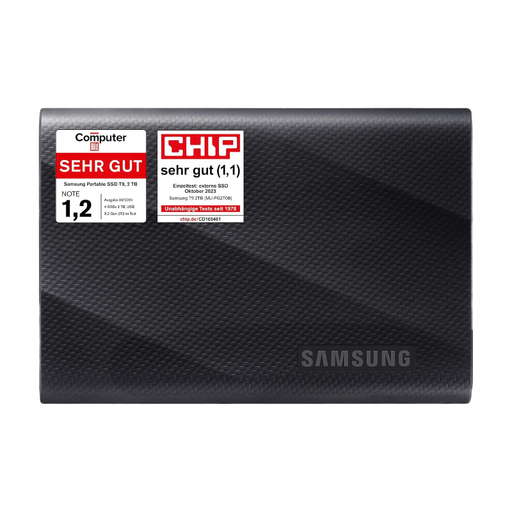
Samsung MU-PG2T0B, 2 TB
This portable SSD could suit your collection of scans if 2 TB is enough and your devices support the stated USB-C connection.
The product description states that it can withstand drops from up to 3 m. Check the conditions for the specific model and keep a separate copy.
View at Joybuy
 No image available
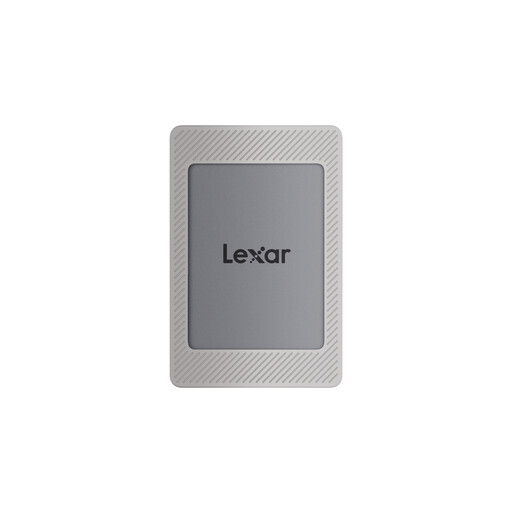
Lexar ES4 Portable SSD, Magnetic Set, 2 TB
This portable SSD could suit you if you need 2 TB and want to store your scans on a drive you can take with you.
According to the product details, you’ll need to install and activate Lexar DataShield software to use the encryption described.
View at Joybuy
 No image available
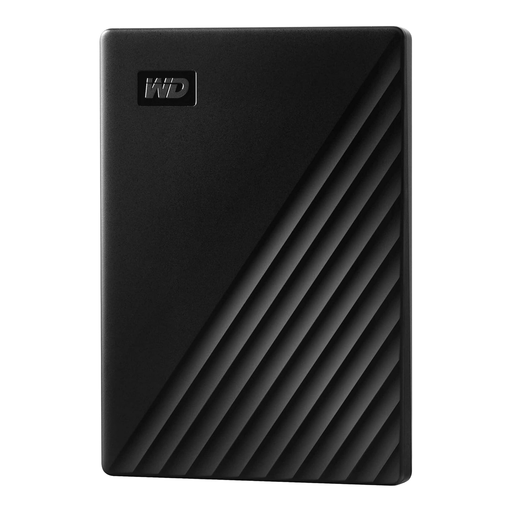
WD My Passport External Hard Drive, 2 TB
This portable HDD could suit you if 2 TB is enough for your scans and the drive will mostly stay in one place.
The product description advises against exposing the mechanical drive to knocks or jolts, so bear this in mind when moving home.
View at Joybuy
Frequently asked questions
Is it enough to move my scans to a single external drive before moving home?
No, not if you want to be able to restore the files if the drive is lost or damaged. Keep another copy separately and test that you can read a file from it.
How do I set up a backup I can restore in Windows?
Microsoft describes File History, which saves personal files to an external drive or network storage. Check that your scan folder is included, then try restoring a file.
How can I protect personal scans when travelling?
Germany’s Federal Office for Information Security recommends encryption to prevent others from reading data if portable storage devices are lost. Before moving, check that you can open the files again using your login details.
What happens to your statutory rights and manufacturer’s warranty if a drive develops a fault?
Statutory consumer rights and a voluntary manufacturer’s warranty are separate. If a product is faulty, contact the seller about your statutory rights. A warranty claim does not replace a separate copy of your scans.
Can you put a disused external hard drive in your household rubbish in Germany?
No. Section 10 of the German Electrical and Electronic Equipment Act (ElektroG) requires waste electrical equipment to be collected separately. Germany’s Federal Environment Agency lists recycling centres and suitable retail take-back points. Back up any files you need elsewhere first, and deal with any personal data on the device before handing it in.


