For a large family archive that mostly stays at home, a portable HDD is an obvious place to start. If you often transfer large amounts of data and regularly take the drive with you, an SSD may be a better fit. The amount of data to back up, your backup method, the ports on both computers and the file system also matter. A single drive is no substitute for a backup that you’ve tested and stored separately.
Which drive is right for you?
Backing up a family archive
If you need long-term storage for photos, videos and documents, consider how much data you already have and allow room for future backups. The German Federal Office for Information Security (BSI) also highlights that backed-up data must be recoverable.
Regularly transferring files between computers
If you regularly take a drive with you to use with a work computer and copy large folders, consider the ports and potential transfer speeds together.
Protecting confidential files on the go
If you’re carrying personal documents on a drive, both access protection and the ability to recover your data if the drive is lost are important. The BSI explains how encryption can make it harder for anyone to access lost portable storage devices without permission.
What should you look for when buying?
Portable HDD
A better fit if: You have a large family archive that will mostly stay at home, and storage space matters more than shorter copying times.
Bear in mind: An SSD may be a better choice if you often transfer large amounts of data. According to Netzwelt, SSDs generally cost more per terabyte.
Portable SSD
A better fit if: You often copy large amounts of data or regularly take the drive with you when you travel.
Bear in mind: Advertised maximum speeds depend on the drive, cable and computer port. They don’t, by themselves, tell you how quickly your own files will copy.
Start by checking the size of your backup and the requirements of both computers. Then choose a capacity, ports and drive type to suit how you’ll actually use it.
| What matters |
What to check before buying |
Who is it important to? |
| Room for future backups |
Compare the storage you’re already using and expected growth with the capacity of the specific model. |
If I want to back up a growing family archive, I look for room for my files and future backups. Around 31% of consumers prioritise storage capacity. |
| Recoverability |
Choose a backup method for your operating system and try restoring a test file. |
It’s not just about copying files: I want to be able to restore them when needed. Around 25% of consumers put recovery at the top of their list. |
| Portability and copying time |
Check how often you’ll carry the drive and the USB capabilities of your computer, cable and drive together. |
If I often transfer large folders between the family computer and my work computer, the port and copying time matter most. Around 19% of consumers prioritise this kind of mobile transfer. |
| Compatibility with both computers |
Check the operating systems, USB ports, cables and backup software requirements before formatting the drive. |
I want to use the drive for the planned backups on both computers; having the right connector isn’t enough. Around 13% of consumers prioritise device compatibility. |
| Privacy on the go |
Check encryption and unlocking on both computers, as well as your recovery options. |
If I take personal documents with me, I want to make it harder for anyone to access them if the drive is lost, without losing access to my backups. Around 12% of consumers put privacy first. |
For Time Machine, Apple recommends a backup volume with at least twice the storage capacity of your Mac. This recommendation applies to Time Machine; it isn’t a general minimum for every Windows backup plan.
Common mistakes when choosing a backup drive
-
Mistaking a file copy for a tested backup
A copy alone doesn’t tell you whether the files and versions you need have been included or can be restored. The BSI stresses that restoring the data must work too.
Set up your backup method, check what it covers and regularly try restoring a file.
Folders that weren’t included or older versions may be missing when you need them later.
-
Assuming a drive that works on multiple devices is suitable for Time Machine
According to Apple, a volume formatted for Windows can’t be used directly as a Time Machine destination.
Decide on your backup method first and save any existing files somewhere else before reformatting a drive.
Reformatting may delete files already stored on the volume.
-
Choosing an SSD based only on its advertised speed
Usable transfer speeds also depend on your computer and connection; manufacturers’ figures don’t guarantee a particular copying time.
Check the USB specifications of your computer, cable and drive together. If you only back up occasionally, capacity may matter more than a high maximum speed.
-
Relying on a drive you carry with you as your only backup
If it’s lost, damaged or kept in the same place as the original, both the original and your only backup could be lost at the same time. The BSI recommends keeping backups separately.
Plan an additional backup stored separately, and encrypt confidential data on portable drives in a way that works with your devices.
If your only backup is kept in the same place as the family computer, a single incident could affect both sets of data.
Key brands to consider
Toshiba
The Canvio Flex range includes portable HDDs in different capacities and may suit computers with different types of USB port.
- Toshiba lists 1, 2 and 4 TB models, supplied with USB-A and USB-C cables.
- Being able to share files between devices doesn’t automatically mean the preformatted drive is suitable as a Time Machine volume.
Seagate
The Expansion Portable is a USB-powered HDD for mobile use, with a particular focus on capacity.
- Seagate’s datasheet lists the 2-TB version under the model number STKM2000400.
- According to the datasheet, you’ll need to reformat it for Time Machine. Check the details of the specific model before buying.
Samsung
The T7 Shield is a portable SSD for more frequent transfers and carrying around.
- For the 2-TB MU-PE2T0S/EU model reviewed, Samsung lists sequential read speeds of up to 1.050 MB/s, USB-C-to-C and USB-C-to-A cables, and an IP65 rating.
- The read speed is a manufacturer’s figure. Samsung notes that liquid and dust damage isn’t covered by the warranty.
Kingston
Kingston offers portable SSDs with different USB interfaces, as well as a model with built-in USB-A and USB-C connectors.
- In its range comparison, Kingston lists USB 3.2 Gen 2x1 for the XS1000 and Gen 2x2 for the XS2000.
- Any potential speed advantage of the XS2000 depends on having a suitable connection. Even with built-in connectors, compatibility still depends on the device.
Portable HDDs for family backups
This selection includes portable HDDs for family backups, with capacities from 1 to 5 TB and models suited to switching between computers. Check the file system and your backup software’s requirements before setting up the drive.
 No image available
WD Elements Portable 5TB USB-C
With 5 TB of storage, this portable HDD is an option if you need plenty of space for a large family archive.
USB-C and USB 3.2 Gen 1 are listed, and the product description mentions Windows and Mac compatibility. Check that your backup software and file system work with both computers.
View at Joybuy
No image available
WD Elements Portable 4TB USB-C
This portable 4-TB HDD may suit you if you’re allowing space for a large family archive and future backups.
USB-C and USB 3.2 Gen 1 are listed, and the product description mentions Windows and Mac compatibility. Make sure the file system and backup software work with both computers.
View at Joybuy
 No image available
WD Elements 2TB Portable External Hard Drive, USB-C, USB 3.2 Gen 1, exFAT
This 2-TB model may suit you if your data will fit in the available storage space.
USB-C, USB 3.2 Gen 1 and exFAT are listed. A file system that can be read on different computers isn’t automatically suitable for Time Machine; Apple rules out a volume formatted for Windows as a direct destination.
View at Joybuy
 No image available
WD 2TB Elements Portable External Hard Drive, USB 3.0
This portable 2-TB HDD is an option if it has enough space for your family photos, videos and documents.
The specifications list USB 3.0 and formatting for PC and Mac. Before backing up, check that the format works with your chosen backup method.
View at Joybuy
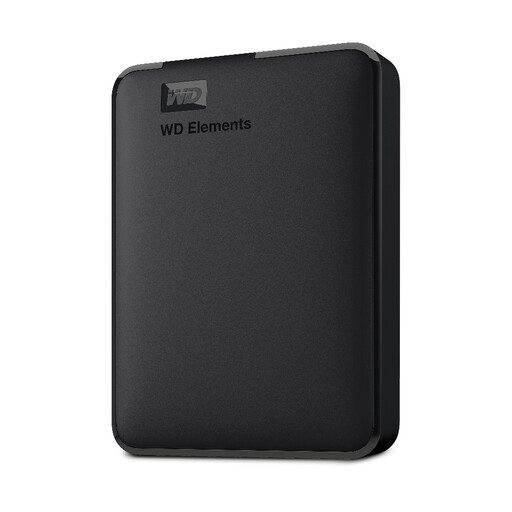 No image available
Western Digital Elements Portable External Hard Drive 1TB
With 1 TB of storage, this portable HDD is only an option if your planned backup will fit within its capacity.
Specifications list USB 3.0, USB 2.0 backward compatibility and a weight of 130 g. It comes preformatted as NTFS; according to the product details, macOS requires a compatible file system.
View at Joybuy
Frequently asked questions
How large should a drive be for Time Machine?
Apple recommends a backup volume with at least twice the storage capacity of your Mac. This recommendation applies to Time Machine and isn’t a blanket rule for every Windows backup plan.
Can I use an HDD that works on both Windows and Mac with Time Machine without changing it?
Not necessarily. Apple recommends APFS or APFS (Encrypted); a volume formatted for Windows can’t be used directly as a Time Machine destination. Reformatting will erase the existing data on that volume.
What should I check if my external backup stops running?
First, check the connection and the selected storage location. In Windows, File History needs a connected external drive or an accessible network location. Then check whether you can restore a file you need.
Are a warranty and your statutory rights the same thing?
No. The Verbraucherzentrale distinguishes between your statutory rights against the seller and a voluntary warranty from the manufacturer or retailer. Check any additional warranty terms for the specific drive separately.
Can you put an old external hard drive in household rubbish in Germany?
No. Electrical and electronic waste must be collected separately; the German Environment Agency provides information on disposal. Protect or delete your personal data before giving away or disposing of the drive.


