First, choose a monitor that lets you read minutes and reference notes at your usual font size, and that fits safely on the table alongside your laptop. Then check that your laptop and monitor are compatible for both video and power: a more compact display takes up less space, while a larger one gives you more physical screen area. If you’re working with confidential content, you’ll also need to check whether you can work safely from your chosen seat and in line with the requirements that apply to you.
Who is a portable monitor suitable for?
Comparing minutes and notes
If you want to read a draft of the minutes alongside your notes or agenda, check that the text is easy to read at your preferred font size and that both devices fit on the available table space. The display specifications mentioned here are taken from information provided by Lenovo and ASUS.
Working on the move
If you often set up and pack away your workspace, you’ll need room for the monitor, stand and cables alongside your laptop. Check the dimensions and positioning for your specific setup; ViewSonic recommends placing the TD1655 on a flat, stable surface.
Working with confidential minutes
If you want to open sensitive documents in a café, check the applicable requirements and how to prevent others from seeing your screen first. Germany’s Federal Office for Information Security recommends measures to prevent people viewing the screen from the side; this does not amount to general permission to work in a café.
What should you look for when buying?
Start by checking that your usual documents are easy to read, then check video and power compatibility, followed by the space needed for your complete setup.
| What matters |
What to check before buying |
Who is this important to? |
| Readable text |
View a typical set of minutes in your usual software and display scaling; screen size alone does not tell you whether the text will be comfortable to read. |
If I want to read the minutes and reference notes side by side, the font size at my actual workspace matters. Around 28% of consumers say readability is their top concern. |
| Video connection |
Check that your laptop port’s video output, the monitor input and the cable you need are compatible; for touchscreens, also check how touch input is transmitted. |
When I connect the monitor, I want to know that the picture will come through the intended connection. Around 22% of consumers prioritise connection compatibility. |
| Desk space and portability |
Compare the overall dimensions and stand position, including cables, with the space available on your table and in your bag; make sure you have a stable surface to set it up on. |
If space is limited in the café and I need to pack everything away afterwards, I look at the total space required rather than just the screen size. Around 22% of consumers prioritise space and portability. |
| Power |
For the amount of time you plan to work, check whether a USB connection will provide enough power or whether you’ll need a separate power source. |
If I want to use a second screen throughout my working day, the power setup needs to work for both my laptop and monitor. Around 17% of consumers pay particular attention to power when working on the move. |
| Confidentiality |
For sensitive content, check the applicable requirements, your seat and the screen’s position; choose a suitable location if necessary. |
If my minutes contain confidential information, I need to check whether I’m allowed to work on them at a public table and how to prevent others from seeing them. Around 11% of consumers prioritise confidentiality. |
Common buying and usage mistakes
-
Assuming every USB-C port supports video
The shape of the connector alone doesn’t prove that a laptop can provide video and power through that port. For the TD1655’s single-cable setup, ViewSonic requires DisplayPort 1.2 Alt Mode and power from the source device.
Compare the specifications for your specific laptop port with the monitor’s requirements, and check the video connection and power supply separately.
-
Comparing screen size alone
Your laptop, monitor, stand and cables all need space. A smaller display gives you less physical screen area, while a larger one can make it harder to set everything up on a small café table.
Plan your complete setup on the available surface and check a typical page of minutes at your preferred display scaling.
-
Assuming touch or a second screen will keep your information confidential
Touch input won’t resolve connection issues or stop others from seeing the minutes. An additional screen can create another visible surface when you’re working with sensitive documents.
Choose a touchscreen only if you have a specific need for direct input. Before working with sensitive documents, check the applicable requirements and how to prevent others from seeing them.
Notable brands to consider
Lenovo
The ThinkVision M14t Gen 2 is a 14-inch option for a more compact text display.
- Lenovo lists a resolution of 2240 × 1400 pixels, a 16:10 aspect ratio, two USB-C ports, touchscreen functionality and an adjustable stand for this model.
- Touchscreen functionality is only worth considering if you need it for your workflow and it works with your laptop and software. These specifications do not apply to the entire ThinkVision range.
ASUS
The ZenScreen MB16AHV is a 15.6-inch option with several types of connection.
- ASUS lists Full HD, an anti-glare surface, two USB-C ports, Mini-HDMI and a stand for portrait or landscape orientation.
- The larger visible area needs more space. The manufacturer’s anti-glare specification doesn’t guarantee that text will be easy to read in every lighting condition.
ViewSonic
The TD1655 is an option if you want to edit on the move using direct touch input.
- ViewSonic lists ten-point touch, USB-C and a foldable stand.
- According to the manufacturer, the single-cable setup requires DisplayPort 1.2 Alt Mode and power from the laptop. If you only use a keyboard, touch functionality has no proven added benefit.
Philips
The Business Monitor 16B1P3302D/00 is a 15.6-inch Full HD option with two USB-C ports.
- Philips lists a tilting stand and USB power delivery.
- For video over USB-C, your laptop must support DisplayPort Alt Mode. Having two compatible-looking ports alone does not prove that they’ll work together.
Joybuy products for a portable second screen
This selection includes portable second screens and laptop extenders for working on the move. Before buying, check that the connection, available setup space and screen format suit your laptop and workflow.
 No image available
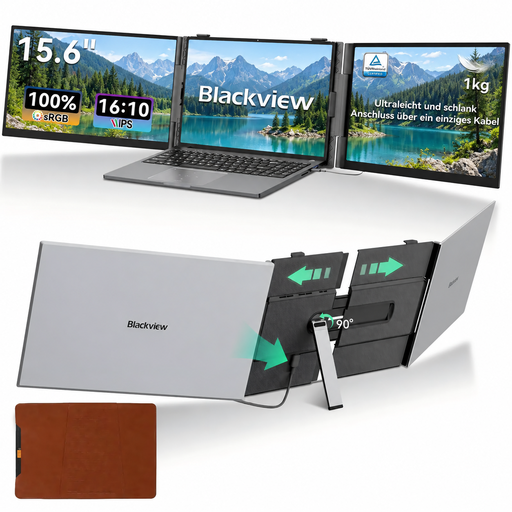
Blackview DCM6 PRO, 14-inch Full HD laptop extender
For an extra text display when you’re on the move, with a laptop listed in the title as measuring 13–17.3 inches.
14 inches; Full HD; USB-C plug and play, according to the product title.
View at Joybuy
 No image available
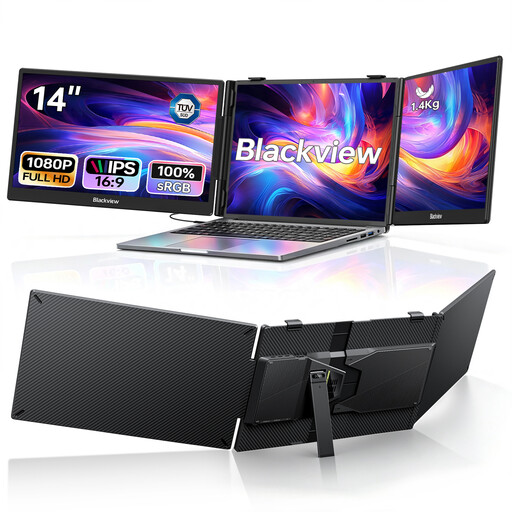
Blackview DCM5, foldable dual-monitor laptop extender
For working with minutes and reference notes across two additional laptop screens; the title lists laptops measuring 13–17.3 inches.
Two 14-inch 1080p IPS screens; 100 W PD; USB-C plug and play; compatible with Mac, Windows and Android, according to the title.
View at Joybuy
 No image available
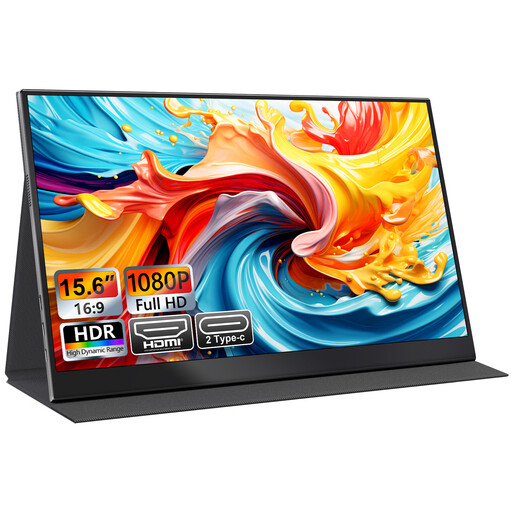
UFYQL M156F04, portable 15.6-inch Full HD IPS monitor
For a larger visible second screen, provided the monitor, laptop and stand all fit on the table together.
15.6 inches; Full HD 1080p; IPS; USB-C and HDMI; smart-cover stand, according to the product title.
View at Joybuy
 No image available
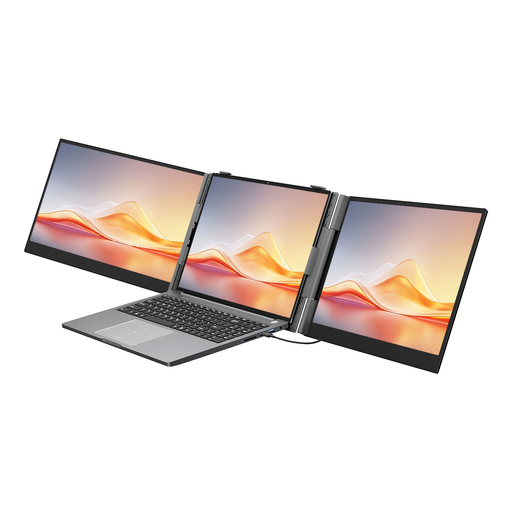
Blackview DCM6 Pro, 14-inch dual-monitor laptop extender
For working with documents and notes across two additional laptop screens; the title lists laptops measuring 13–17.3 inches.
Two 1080p IPS screens; 100 W PD; a case is included, according to the title.
View at Joybuy
 No image available
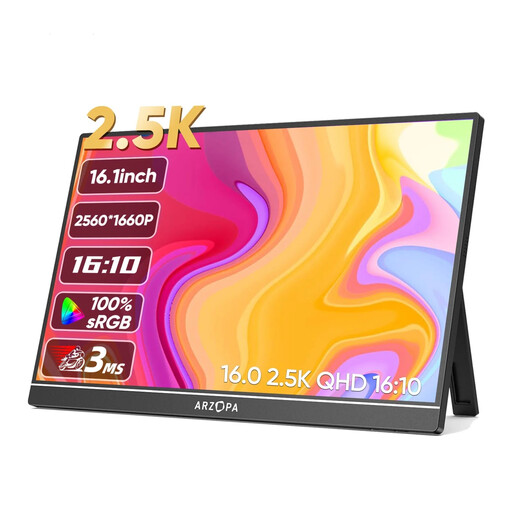
Arzopa Z1RC, portable 16-inch 2.5K monitor
For displaying text on a portable second screen, if you have enough table and bag space for a 16-inch model.
16 inches; 2560 × 1600 pixels; 16:10 aspect ratio; IPS; USB-C and HDMI, according to the product title.
View at Joybuy
Frequently asked questions
Is a USB-C port on my laptop enough for video and power?
No, the USB-C port alone isn’t enough to confirm compatibility. For the TD1655’s single-cable setup, ViewSonic requires DisplayPort 1.2 Alt Mode and power; Philips specifies DP Alt Mode for USB-C video on the 16B1P3302D/00. Check these requirements against your laptop’s specifications.
How can I set up a portable monitor safely when I’m out and about?
Place the monitor on a flat, stable surface and follow the instructions for your specific model. ViewSonic specifies this setup condition for the TD1655; the advice does not automatically apply to other models.
What are my rights when buying a monitor online in Germany?
According to the Verbraucherzentrale, consumers buying online generally have a 14-day right to cancel, starting from the day they receive the goods. Statutory rights relating to faulty goods are separate from a voluntary manufacturer’s warranty; under § 438 BGB, claims covered by that provision are generally subject to a two-year limitation period from delivery. Check the terms of your specific purchase, and bear in mind that different conditions apply to cancellation rights and faulty-goods claims.


