Writers working with lots of sources
If you want to read your dissertation and research side by side, look for a screen that makes text easy to read. Make sure there’s room on the desk for your monitor, laptop and papers, too.


First, check that your laptop port supports video output and can power the monitor you have in mind. Then consider how much desk space you have and how you want to view your text: the Lenovo ThinkVision M14 has a 14-inch screen and weighs 598 g, according to Lenovo Germany; the ASUS ZenScreen MB16ACV offers a 15.6-inch screen, according to ASUS Germany, but its height is not adjustable.
If you want to read your dissertation and research side by side, look for a screen that makes text easy to read. Make sure there’s room on the desk for your monitor, laptop and papers, too.
Whether a single-cable set-up will work depends on whether your laptop’s specific port supports the video output and power supply required.
If you regularly set up and pack away your workspace, consider the monitor’s weight, stand, protective case and power supply when choosing a model.
When writing your dissertation in the library, your priorities will depend on how much space you have and which ports your laptop offers.
| What matters | What to check before buying | Who is it most relevant to? |
|---|---|---|
| Reading sources and your manuscript | Match the screen size, aspect ratio and resolution to your text scaling. If light falls on the screen, check whether it has an anti-glare finish. | If I want to read my manuscript and sources at the same time, I need a second screen that makes text easy to read. Around 33% of consumers say readability is their top buying priority. |
| Video signal and compatibility | Check that your specific laptop port supports video output, and that it meets the monitor’s video input and power requirements. | If I’m not sure whether my laptop outputs video over USB-C, I need to check the connection requirements for my exact model. Around 27% of consumers prioritise port compatibility. |
| Portability and desk space | Consider the monitor’s dimensions, including its stand, and its weight. Check how much desk space it takes up and whether a protective case is included. | If I carry my monitor to the library often and have little room on the desk, I need a set-up that’s easy to transport. Around 20% of consumers prioritise portability and desk space. |
| Power supply | Check how the monitor will be powered during your session and whether your preferred connection requires a separate power adapter. | If I’m planning longer writing sessions, I want to know in advance whether my set-up needs a separate power source. Around 20% of consumers prioritise power supply. |
The presence of a USB-C port alone doesn’t tell you whether your laptop can output a video signal. Lenovo specifies DisplayPort 1.2 Alternate Mode and USB Power Delivery 2.0 as requirements for the ThinkVision M14; ASUS notes that not every USB-C port supports video.
Before choosing a connection, check your laptop’s documentation against the requirements of the specific monitor.
According to the manufacturer, the Verbatim 49590 model needs an additional power adapter when connected via HDMI.
If you want to use HDMI, check the power connection and what’s included with the specific model first.
Your laptop, monitor stand and papers all need to fit on the available desk space. A larger screen won’t necessarily be the best choice for every library desk.
Compare the device’s dimensions, including its stand, with the space you expect to have available.
The features below refer to the models mentioned and don’t necessarily apply to a brand’s entire range.
The ZenScreen range includes portable second screens. The 15.6-inch MB16ACV is one example.
The ThinkVision M14 is a 14-inch option; the M14t Gen 2 is a different model with touch input.
The portable Dell Pro P1425 is a 14-inch option with a 16:10 aspect ratio.
The 49590 is a portable 14-inch Full HD option with USB-C and HDMI.
These portable monitors could give you an additional screen for your manuscript and sources. Check the connection, power supply and space requirements for your own set-up.
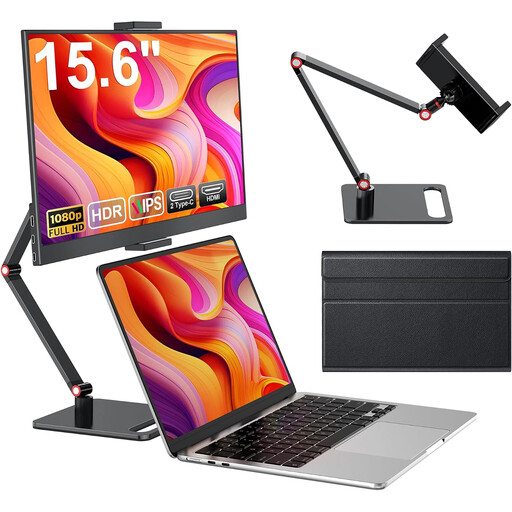 No image available
For an additional text view at the library desk; the product title lists HDMI and USB-C ports, as well as a stand.
15.6 inches, 1080p Full HD, 60 Hz and an IPS panel; check that your laptop’s specific port supports the video output required.
 No image available
An option if you’re looking for an additional text view in 16:10 format.
15.3 inches, 1920 × 1200 pixels, 16:10 and 1.2 kg; bear the weight in mind if you’ll be carrying it regularly.
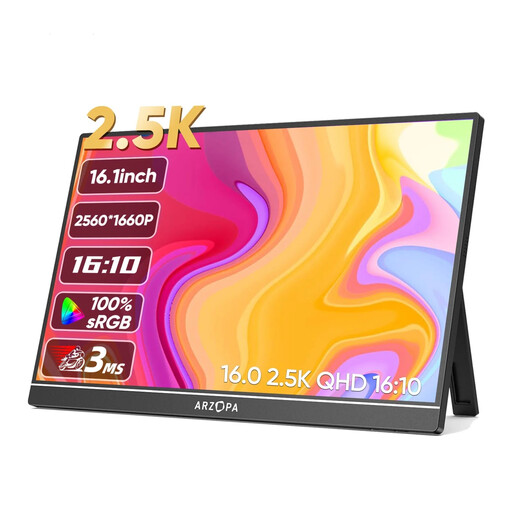 No image available
If you’d like a larger text view for your manuscript and sources, this model has a 16-inch screen.
2560 × 1600 pixels, 16:10, IPS and 810 g; USB-C and HDMI are listed as connection options.
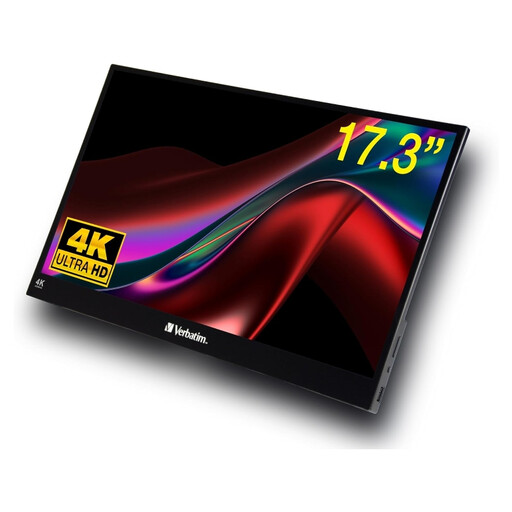 No image available
Touch input may be useful if you want to operate the extra screen directly. It isn’t essential if you’ll only be reading and writing on your laptop.
17.3 inches, Full HD, IPS, 1.63 kg, plus USB-A, USB-C and HDMI; factor in the weight if you’ll be carrying it often.
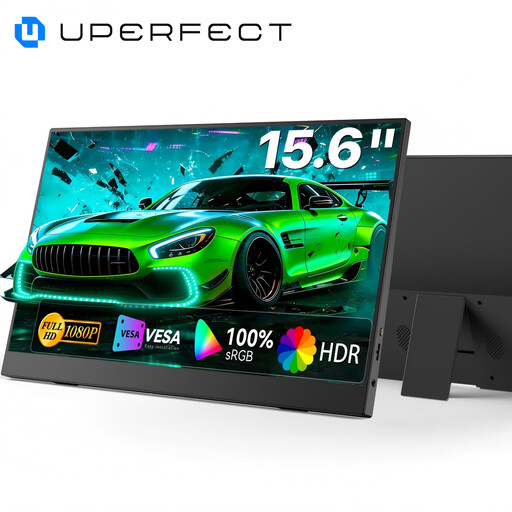 No image available
An additional text view for the library desk; an integrated adjustable stand is listed.
1920 × 1080 pixels, IPS, USB-C and Mini-HDMI; VESA compatibility is also listed.
No. The port alone doesn’t confirm that video output and power supply are supported. Lenovo Germany specifies DisplayPort 1.2 Alternate Mode and USB Power Delivery 2.0 for the ThinkVision M14; ASUS notes that not every USB-C port supports video. Check the requirements of your specific monitor and laptop.
You can extend your display to read your dissertation and a source side by side, as long as your devices support this feature. Lenovo says the ThinkVision M14 can be used as an extended or duplicated display in Windows. For other hardware, check your system’s display settings.
Check whether a protective case is available for your specific model, and use it when carrying the monitor. Lenovo lists a case for the M14, as does Verbatim for model 49590. Follow the cleaning instructions in the manual for your particular model.
The German Environment Agency explains that the EU energy label for monitors uses efficiency classes from A to G. Compare the details for the specific device; its efficiency class alone won’t tell you how long your laptop battery will last with the monitor connected.