Workshop hosts with people following along
When several people are following steps around the table, readable text, suitable viewing angles and a practical set-up all matter. ASUS and ViewSonic list anti-glare IPS displays for specific models.


Choose a monitor that keeps the guide readable from the seats around the table and fits on your kitchen table with its stand and cables. Then check that its video input and power requirements match your laptop or tablet. Touch is most useful if you want to interact with steps directly on screen and both your source device and the app support it. The model features mentioned are manufacturers’ specifications, not a test of readability at your table.
When several people are following steps around the table, readable text, suitable viewing angles and a practical set-up all matter. ASUS and ViewSonic list anti-glare IPS displays for specific models.
If you connect a laptop or tablet depending on the session, check the video output, cable and power supply for each device. ASUS notes that USB-C can support different functions depending on the port.
If you want to scroll through a guide or enter information on the additional screen, check touch support, the connection and the app together. Lenovo and Verbatim describe requirements that vary by model.
Start by checking readability and the space available. Then check the video signal and power supply, and decide whether touch is useful for the way you work.
| Consideration | What to check before buying | Who is it especially important for? |
|---|---|---|
| Readability for people following along | Open a typical guide at the intended text size and check the viewing angle, tilt and screen finish from the seats around the table. | When several people need to read the text and see the images, I want the guide to be clear from their seats. Around 29% of consumers put readability first. |
| Suitable video connection | Check the video output on your specific laptop or tablet, as well as the monitor input and the cable you need. | When I switch between a laptop and tablet, I want to know in advance whether each device can output a picture. Around 23% of consumers put connection compatibility first. |
| Space and set-up | Measure the space needed for the monitor, stand, source device and cables; also consider where people will be sitting around the table. | When I also need room for workshop materials on the kitchen table, I need a set-up that leaves enough space. Around 18% of consumers pay particular attention to the space needed. |
| Power supply | Check the power requirements of the specific monitor against your source device or power adapter, and allow for a mains socket if needed. | When the guide needs to stay on throughout the workshop, I want to plan the power supply reliably. Around 18% of consumers prioritise power. |
| Touch controls | Check that the monitor, source device and app support the input you want to use, and find out which connection is needed. | When I want to interact with steps directly on the additional screen, touch needs to work with my device and app. Around 12% of consumers put touch first. |
A compatible-looking connector doesn’t prove that your source device’s port can output video.
Check the port specifications on your laptop or tablet and compare them with the monitor’s video requirements.
For HDMI use with the Verbatim PMT-14, the manufacturer also requires a power adapter.
Plan the signal and power connections separately, using the instructions for the specific model.
When setting up the Verbatim PMT-14 with HDMI, you’ll also need a suitable power supply and a free mains socket.
The stand, cables and source device also take up space on the kitchen table.
Compare the available space with your planned set-up and check the viewing angles for everyone following along.
Video and touch may need different connections; your source device and app also need to support touch input.
Check both for the specific model. The Verbatim PMT-14 may need an additional USB cable for touch.
This may mean having another cable on the table when using the Verbatim PMT-14.
The ZenScreen MB16AHV is a 15.6-inch option with a stand, two USB-C ports and Mini-HDMI.
The ThinkVision M14t Gen 2 combines a compact 14-inch display with touch.
The VA1655 is a 15.6-inch option with a stand, USB-C and Mini-HDMI; the TD1655 is a separate touch model.
The 16T20E2 is a portable 15.6-inch Full HD monitor with an IPS display.
The PMT-14 is a 14-inch touchscreen option with USB-C and HDMI.
These portable monitors are worth considering if you want a larger view for your workshop and different signal options, such as USB-C or HDMI. Before choosing, check compatibility with your source device and how it will be powered.
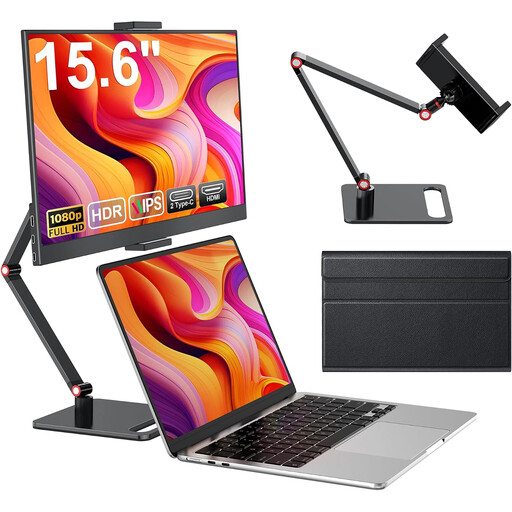 No image available
For a larger workshop view, provided your source device supplies a compatible video signal.
15.6 inches, 1080p Full HD, 60 Hz, IPS, HDR, HDMI, USB-C and stand.
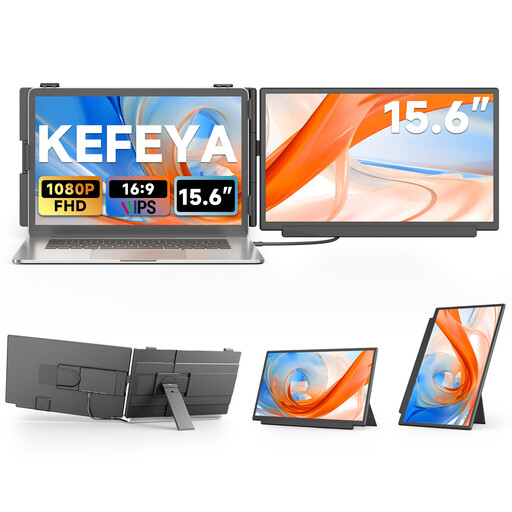 No image available
For a larger guide on the table, provided your source device has a compatible connection.
15.6 inches, 1080p Full HD, IPS, USB-C and HDMI. According to the product information, HDMI also requires USB-A for power.
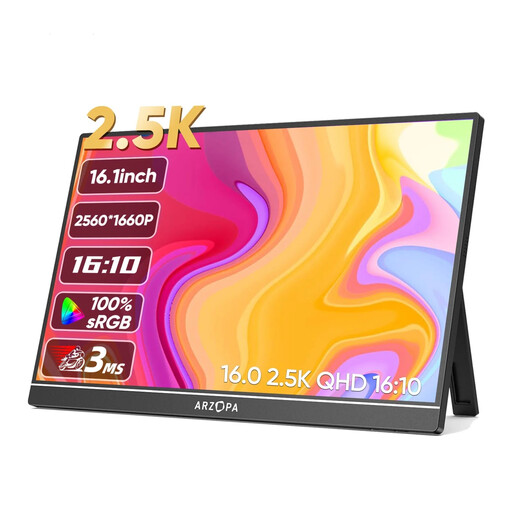 No image available
For a 16-inch display, if that screen size suits your table space and source device.
IPS, 16:10 aspect ratio, HDR, 500 nits, USB-C and HDMI.
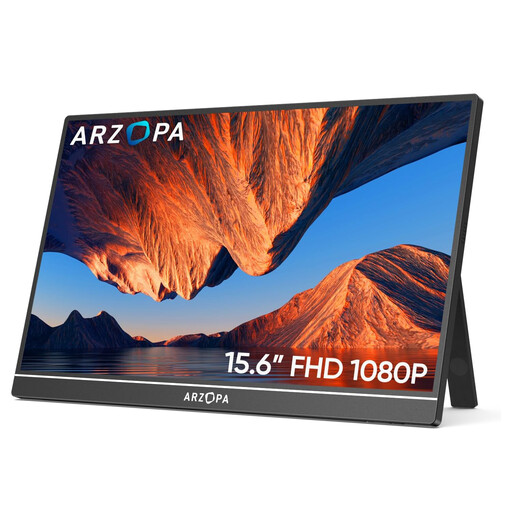 No image available
For a larger guide on the table, provided your source device has a compatible video output.
1920 × 1080 pixels, IPS, USB-C and HDMI.
 No image available
For a flexible set-up on the table, if an integrated adjustable stand suits your needs.
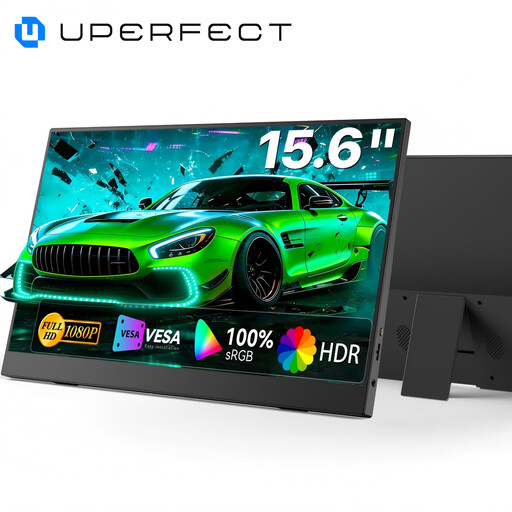
15.6 inches, 100 % sRGB, adjustable stand and USB-C.
Not just because of its shape. Check the specifications for the specific port to see whether it outputs video, and compare its available power with the monitor’s requirements. ASUS describes DisplayPort Alt Mode as one way to send video over USB-C; requirements vary by device and model.
You can’t tell from the HDMI input alone. The manufacturer requires a power adapter when using HDMI with the Verbatim PMT-14; check the instructions for the model you choose.
No. Touch depends on the specific monitor, source device, connection and app. Check the connections you’ll need in advance; for the Verbatim PMT-14, the manufacturer specifies an additional USB connection for touch.
ASUS recommends switching off its monitors, disconnecting them and using a microfibre cloth. Apply only a small amount of liquid to the cloth and don’t spray it directly onto the display; also follow the care instructions for your model.
No. The German Environment Agency recommends collecting old electrical equipment separately and taking it to a recycling centre or an appropriate retailer take-back point.