Choose a portable monitor with a video connection and power supply that work with your source device, and a display that makes a typical manual page easy to read at your preferred scaling. If space is limited, a 14-inch model such as the Dell P1425 could be a good fit; Dell lists a 1920 × 1200 resolution and an anti-glare surface. For more room to view documents, ASUS lists a 16-inch screen and 2560 × 1600 resolution for the MB16QHG. Touch is most useful if you want to navigate on the display itself and your device supports the necessary connection.
Who is a portable monitor suitable for?
Business travellers reading manuals
If you want to view text, tables and diagrams alongside your source device on a hotel-room desk, screen space, positioning and suitable scaling all matter. Model specifications are taken from manufacturers including ASUS and Dell.
Travellers using different source devices
If you use different devices while travelling, check in advance that video output, cables and power supply are compatible. ASUS, ViewSonic and Verbatim list different connection requirements for their respective models.
Those who want to navigate directly on the display
If you want to use touch to navigate pages or a compatible app on the additional screen, the entire connection must support touch input. ViewSonic describes this feature for the TD1655.
What should you look for when buying?
For reading manuals in a hotel room, make sure the display is easy to read and the connection works as it should. Size when packed, desk space and touch functionality matter when they suit the way you travel and use your monitor.
| Priority |
What to check before buying |
Who is it important to? |
| Easy-to-read manual pages |
View a typical page at your preferred text size; compare screen size, resolution, surface and orientation. |
If I want to read tables and diagrams in a manual, I check how they look in the actual file I’ll be using. Around 36% of consumers put readability first. |
| Video connection and power |
Check the source device’s video output, the monitor input, cable and power requirements together. |
I want to connect the monitor without any surprises when it comes to video output or power. Around 29% of consumers name this as their main priority. |
| Transport and positioning |
Check the dimensions, weight and stand against your travel bag and the desk space available. |
If I take the monitor with me when I travel, its packed size and footprint need to suit my luggage and setup. Around 21% of consumers put transport and positioning first. |
| Touch functionality |
Check touch support, the data connection and usability with the manual app you plan to use. |
I want to navigate pages directly on the additional screen, so I check whether my device and app support touch input. Around 14% of consumers name touch functionality as their main priority. |
Common buying and connection mistakes
-
Assuming USB-C guarantees video output
A USB-C connector alone does not mean that your source device can output video through that port.
Before buying, check your device’s video output, the monitor input, cable and power supply as parts of the same connection.
-
Forgetting about power when using HDMI
According to the manufacturer, the Verbatim PMT-14 also needs a power adapter for an HDMI connection.
Check the power requirements of the model you choose and plan where to set it up in your hotel room.
Allow space for the power adapter and make sure there’s a socket within reach; according to Verbatim, the adapter is included with the PMT-14.
-
Assuming resolution means text will be easy to read
Screen size and pixel count alone don’t tell you how large the text on your manual page will appear at your chosen scaling.
Open a typical page and check the text size, orientation and readability on the specific model.
Key brands at a glance
Dell
The Dell Pro 14 Plus P1425 is a compact option for viewing a second document.
- Dell lists a 14-inch screen, 1920 × 1200 resolution, anti-glare surface and tilting stand for this model.
- Check the text size on a page from your own manual; these specifications apply to the P1425, not all Dell monitors.
ASUS
The ZenScreen models featured here offer different options for document space and orientation.
- ASUS lists a 16-inch screen, 2560 × 1600 resolution and a stand for portrait and landscape orientation for the MB16QHG.
- The laptop must support USB-C video output for the MB16AHV; ASUS describes automatic orientation via DisplayWidget Center software. These specifications apply to the respective models.
Lenovo
The ThinkVision M14t Gen 2 combines a 14-inch display with touch, while the L15 is a separate 15.6-inch Full HD model.
- Lenovo lists a 2240 × 1400 resolution, 10-point touch and a weight of 700 g for the M14t Gen 2.
- The M14t Gen 2 and L15 are different models; their features shouldn’t be assumed to apply to the entire ThinkVision range.
ViewSonic
The TD1655 is a touch option for direct use on an additional screen.
- ViewSonic lists 10-point touch, a folding stand and USB-C.
- The single-cable USB-C setup described requires the source device to support DisplayPort 1.2 Alt Mode and power delivery. Also check that touch and video output work with your specific device.
Verbatim
The LIGHT #49590 is a 14-inch secondary display, while the PMT-14 adds touch and HDMI.
- According to Verbatim, the LIGHT #49590 weighs 540 g and has an integrated stand.
- According to the manufacturer, the PMT-14 also needs a power adapter for an HDMI connection.
Joybuy product selection
This selection includes portable monitors for reading manual pages at a hotel-room desk, from compact 14-inch models to larger displays with USB-C and HDMI connections.
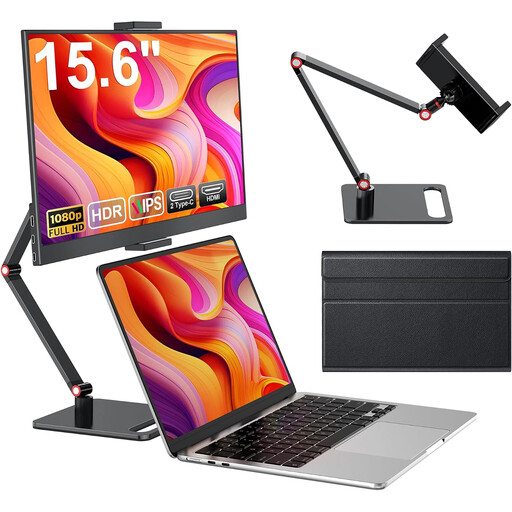 No image available
Portable 15.6-inch monitor, 1080p FHD
An option for viewing manual pages on a portable second screen; check that the connections and power supply are compatible with your source device.
15.6 inches, 1080p FHD, 60 Hz, IPS, HDR, built-in speakers, HDMI and USB-C; with stand.
View at Joybuy
 No image available
PM14R, portable 14-inch monitor
The 16:10 format could work well for viewing documents on a compact screen; check how a typical manual page looks at your preferred scaling.
1920 × 1200 pixels, IPS, 16:10, Type-C and Mini-HDMI.
View at Joybuy
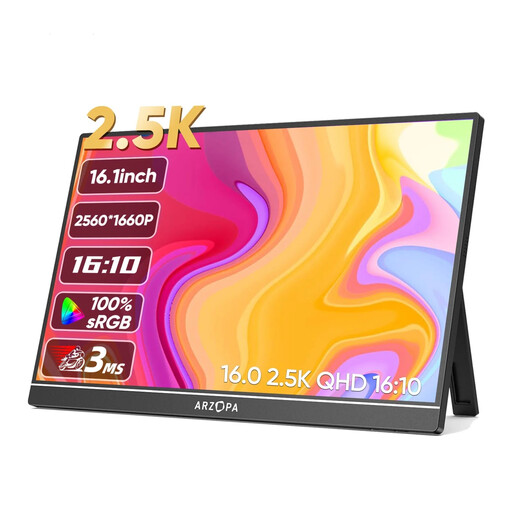 No image available
ARZOPA Z1RC 2.5K, 16 inches
A larger display may suit manuals with tables or diagrams, provided you have enough desk space and the scaling works for you.
2560 × 1600 pixels, 16:10, IPS, HDR, 500 nits, 8 bit, USB-C and HDMI.
View at Joybuy
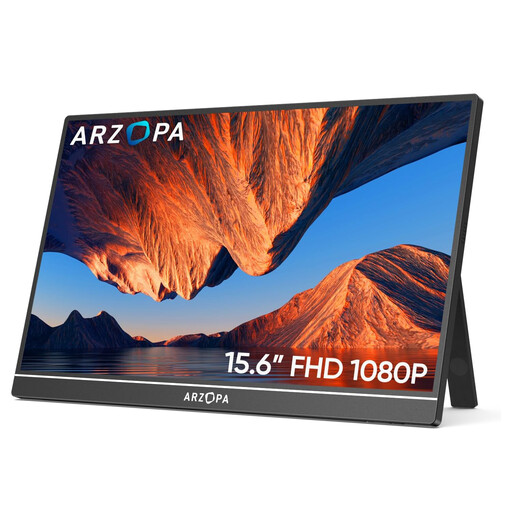 No image available
ARZOPA A1, 15.6 inches
An FHD option for viewing manual pages on a second screen; check that its inputs match the connections on your source device.
1920 × 1080 pixels, IPS, USB-C and HDMI; with stand.
View at Joybuy
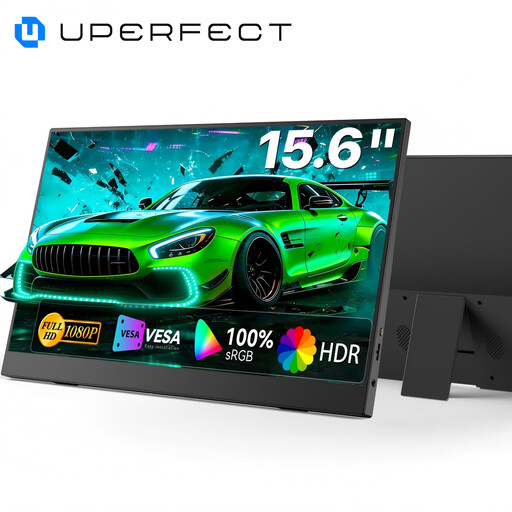 No image available
UPERFECT portable monitor, 15.6 inches
The adjustable stand could be useful when setting up on a hotel-room desk; check that the available connections suit your device.
FHD, IPS, 100% sRGB, USB-C and Mini-HDMI; integrated adjustable stand, speakers and VESA compatibility.
View at Joybuy
Frequently asked questions
Is a USB-C port on my laptop enough to provide video and power over one cable?
No, the connector alone isn’t enough. For the single-cable setup for the TD1655 described by ViewSonic, the source device must support DisplayPort 1.2 Alt Mode and power delivery; the laptop must support USB-C video output for the ASUS MB16AHV. Check the connection specifications for your specific device.
How can I display long manual pages in portrait orientation?
Check both the monitor’s physical portrait setup and the screen orientation on your source device. ASUS describes automatic orientation for the MB16AHV via DisplayWidget Center software when the monitor is connected to a laptop.
Do I need a separate power adapter for HDMI?
It depends on the model. Verbatim states that the PMT-14 needs a power adapter for an HDMI connection, and that one is included.
What rights do I have when buying online from a business seller?
For a qualifying distance purchase, you generally have a 14-day right to cancel from the date of delivery, subject to statutory exceptions. The EU consumer portal also explains that goods bought in the EU are covered by a statutory guarantee of at least two years; this is separate from any voluntary manufacturer’s guarantee.
What should I look for in safety markings?
When monitoring the market for electrical and electronic products, the German Federal Network Agency lists points to check including correct CE marking, identifiable manufacturer details, and any required instructions and warnings. A visible marking alone doesn’t prove that a specific offer has been independently assessed.


