Storyboard reviews without a mains socket
If you want to show drafts without relying on mains power, plan for the battery life of your whole setup, not just the monitor. ASUS and RICOH list battery options for their respective models.


For storyboard reviews without access to a mains socket, a monitor with its own battery may be a good option, provided both the monitor and source device have enough power and the connection works with your device. A USB-C monitor may also be suitable if the source device supports the right video mode and can provide enough power. For viewing fine details, resolution and screen size matter, while a colour gamut specification alone does not guarantee colour-accurate display.
If you want to show drafts without relying on mains power, plan for the battery life of your whole setup, not just the monitor. ASUS and RICOH list battery options for their respective models.
When comparing sequences, captions or annotations, look for a suitable combination of resolution, screen size and viewing distance. Lenovo and Verbatim publish specifications for their respective monitors.
When several people need to review drafts together, positioning, input options and the limitations of assessing colour on the move can all influence your choice. RICOH describes touch features for supported systems, while EIZO explains why a calibrated workflow matters for colour-critical work.
First, work out how both the monitor and source device will be powered without a mains socket. Then check the video output and how your storyboard files will look on the surface you plan to work on.
| What matters | What to check before buying | Who will find this most important? |
|---|---|---|
| Power | Check whether the monitor has a battery or can be powered by a suitable portable power source. Also consider the source device’s power requirements and the conditions attached to any stated battery life. | If I need to get through a meeting without mains power, the battery life of both devices matters. Around 28% of consumers put power autonomy first. |
| Video connection | Check the video output on your specific source device against the monitor’s supported connections. USB-C alone does not guarantee video output; HDMI may require a separate power supply. | If I want to connect my existing laptop, tablet or phone, my main concern is making sure it will actually send a picture. Around 28% of consumers prioritise device compatibility. |
| Fine details | Compare the resolution and screen size of the specific model, then check your files at the intended scaling and in the place where you plan to set it up. | If I need to assess small captions and differences between panels, readability on the mobile workspace is essential. Around 17% of consumers focus primarily on fine image details. |
| Collaborative review | Check the viewing angle and visibility from the seats you plan to use. Also confirm whether touch or pen input works with your operating system and chosen connection. | If I want to discuss drafts with others in person, everyone needs a clear view and the setup must support adding comments. Around 16% of consumers prioritise reviewing together. |
| Colour assessment | Distinguish between viewing work on the move and approving colour-critical work. The latter requires a suitable workflow and, where appropriate, calibration. | If I need to make colour-critical decisions, I won’t rely on a colour gamut specification alone. Around 11% of consumers put colour assessment first. |
A matching connector alone won’t display an image on the monitor. For the ZenScreen Go MB16AHP, ASUS requires the source device to support DisplayPort Alternate Mode.
Before buying, check that the specific USB-C port supports the video mode you need.
If the port isn’t suitable, you may need a different source device or a compatible way to connect.
The Verbatim PMT-15-4K needs a separate power supply when connected via HDMI.
Plan for the video signal and power separately, and check whether a suitable portable power source is available.
You may need a portable power source and extra cables.
ASUS states that the ZenScreen OLED MQ16AH covers 100% of the DCI-P3 colour gamut, but this figure alone does not prove that it reproduces colour accurately. EIZO highlights the importance of monitor calibration for colour-critical work.
Use the portable display to review your work, and make colour-critical decisions using a suitable, calibrated colour management workflow.
This type of workflow may require additional calibration and suitable colour management components.
Even a monitor with its own battery still needs a source device that has enough power. Manufacturers’ battery life figures also apply under specific conditions.
Before your meeting, test your planned connection, brightness and session length with both devices.
Remember to allow for the extra power needed to charge your laptop, tablet or phone.
The ZenScreen range includes battery-powered and OLED options for different mobile needs.
According to RICOH, the 150BW combines battery power with wireless presentation and touch functionality for collaborative meetings.
The ThinkVision M14d is a compact USB-C option for viewing details alongside a laptop.
According to Verbatim, the PMT-15-4K combines high native resolution and touch functionality with HDMI as an alternative video connection.
According to ARZOPA, the A1 is a 15.6-inch Full HD option for use as a portable second screen.
These portable monitors offer different ways to review storyboards on the move, including battery-powered models and a monitor with HDMI and USB-C. Check the video connection and power requirements of your specific setup before you buy.
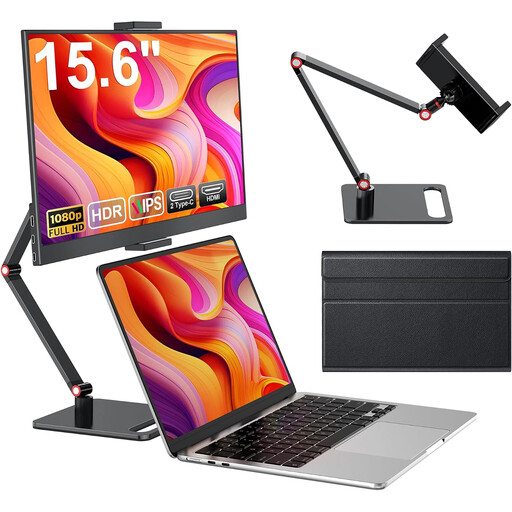 No image available
For reviewing storyboards on the move, this model has HDMI and USB-C connections and a stand, according to the product information. Check which connection works with your source device.
15.6 inches; 1080p Full HD; 60 Hz; IPS panel; HDR; built-in speakers.
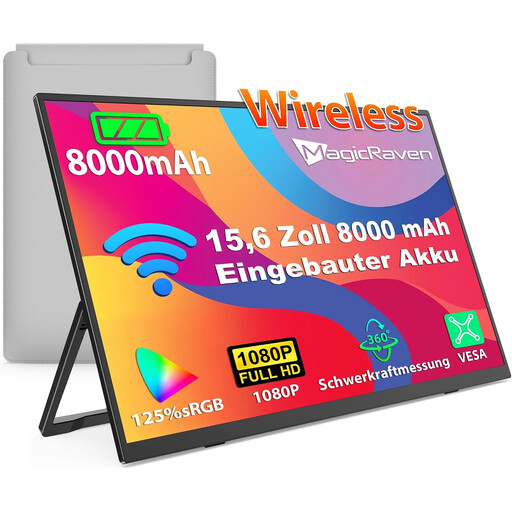 No image available
The built-in battery is useful for reviewing work without a monitor power adapter. Check in advance that the stated wireless transmission works with your source device.
15.6 inches; 1080p Full HD; 60 Hz; IPS panel; 8,000 mAh; AirPlay/Miracast according to the product title.
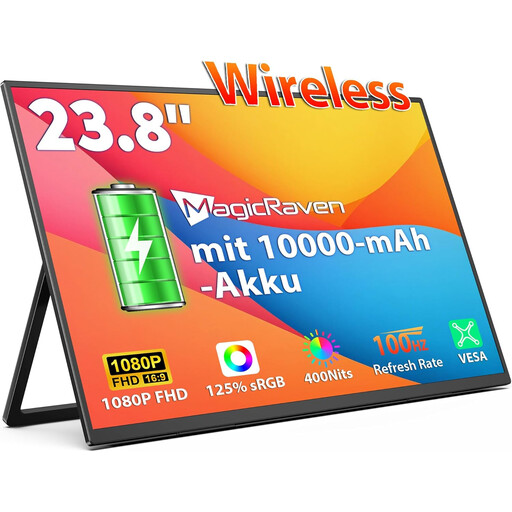 No image available
The larger screen may be useful for reviewing work together. Check that you have enough room to set it up and that it connects to your source device.
23.8 inches; 1080p Full HD; 100 Hz; IPS panel; 10,000 mAh; two built-in speakers; VESA wall mounting according to the product information.
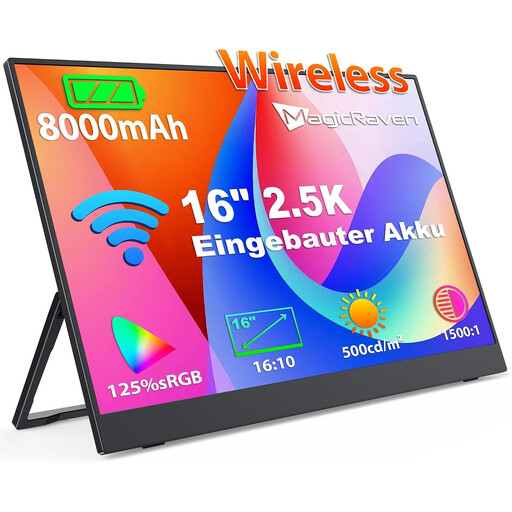 No image available
The stated resolution may be useful when checking storyboard details. Also consider the screen size, scaling and power requirements of your whole setup.
16 inches; 2.5K or 1600p; IPS panel; 8,000 mAh; AirPlay/Miracast and VESA option according to the product information.
 No image available
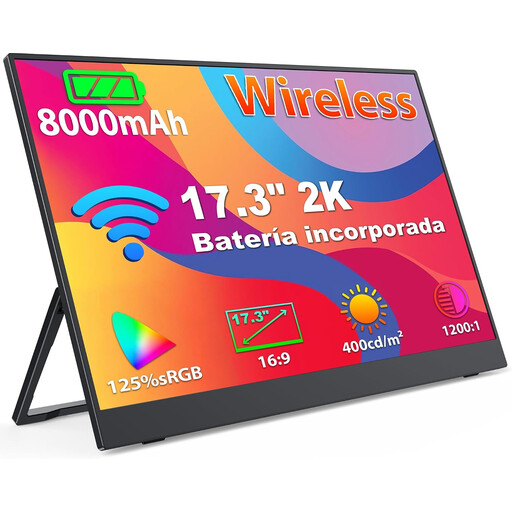
According to the product title, this model offers a larger screen and a battery for reviewing work on the move. Check that the wireless connection works with your specific source device.
17.3 inches; 2K/1440p; IPS panel; 8,000 mAh; AirPlay/Miracast and VESA mounting option according to the product information.
Only if your specific source device supports a suitable USB-C video mode and can provide enough power. ASUS requires DisplayPort Alternate Mode for the ZenScreen Go MB16AHP; with RICOH, connectivity and advanced features also depend on the capabilities of the device in question.
HDMI alone does not power the Verbatim PMT-15-4K: Verbatim also requires a mains adapter. If you won’t have access to a socket, plan for a portable power supply that’s suitable for the specific model before using it.
No. RICOH says touch functionality depends on operating system support and describes the stylus as optional. Wireless connectivity is not guaranteed with all PCs and smartphones.