Choose your monitor based on whether you mainly want to view storyboard panels side by side, annotate them directly or assess colours. For annotations, touch or pen input must work with your computer and software; for colour decisions, a colour-space specification alone isn’t enough. Also check video output, power requirements and how the monitor can be set up for your travel kit.
Who can benefit from a portable monitor?
Comparing panels
If you want to view storyboard panels and reference notes at the same time in your hotel, resolution, positioning and a suitable connection are important. HP lists a 14.36-inch screen and 2560 × 1600 pixels for the 514pn; check the text scaling on your own computer to make sure it’s comfortable to read.
Adding annotations directly
If you want to mark up changes on the extra display, touch or pen input must work with both your device and the software you’re using. Lenovo lists 10-point touch and active pen support for the ThinkVision M14t Gen 2.
Checking colours
If you also want to make colour decisions in the meeting, you need more than a colour-space specification. What matters is a suitable monitor used as part of an appropriate, calibrated colour-management workflow. EIZO points out that calibration can’t correct a colour gamut that’s too small or panel uniformity issues.
What should you look for when buying?
Before reviewing your work in a hotel, decide what matters most: viewing panels side by side, making direct inputs, assessing colours or setting up quickly and easily.
Compact second screen
A good fit if: you want to view panels and notes side by side, with limited space for luggage and setting up.
The trade-off: The Dell and HP models mentioned aren’t touchscreens; check their resolution, scaling and connection against your laptop.
Touchscreen model for annotations
A good fit if: you want to mark up storyboard panels directly on the extra screen and your device and app support input.
The trade-off: A touchscreen alone doesn’t guarantee that your app will work with it or that a suitable pen is included; Verbatim says the PMT-14 needs an additional power supply when connected via HDMI.
Display for assessing colours
A good fit if: colour decisions are part of the meeting and you’ll use the monitor as part of a suitable colour-management workflow.
The trade-off: Manufacturer specifications for colour gamut or Delta E don’t replace checking your entire workflow.
| What to consider |
What to look for |
Who it matters most to |
| Viewing panels at the same time |
Check the display format, native resolution, practical scaling and stand position against your laptop. |
If I want to check panels and notes at the same time, I look for a clear, readable display and a suitable stand. Around 40% of consumers would put comparing panels side by side at the top of their buying priorities. |
| Annotating directly |
Check that the operating system and storyboard app support touch, and confirm pen compatibility and what’s included. |
If I want to mark up changes directly on the extra display, input needs to work with both my computer and app. Around 20% of consumers would make touch or pen input their top buying requirement. |
| Assessing colours |
Consider the required colour gamut, calibration options, display settings and lighting where you’ll be working. |
For colour decisions, I check more than the display specifications: calibration and workflow matter too. Around 20% of consumers would make colour assessment their deciding purchase criterion. |
| Connection and set-up |
Check the host port’s video output, power requirements, cables needed and available space before travelling. |
If I want to set up the monitor quickly in a hotel, I check the video output, power supply and space beforehand. Around 20% of consumers would put connection and travel practicality first. |
Avoid common buying mistakes
-
Assuming colour gamut coverage guarantees accurate colour
A manufacturer’s colour-space specification alone doesn’t prove that colours will be displayed accurately in your particular set-up.
If you’re making critical colour decisions, assess the monitor’s suitability, calibration and colour-management workflow together.
Depending on the connection, you may need to pack an extra cable or power supply.
-
Assuming touch means you can use a pen straight away
Input also depends on whether your computer and storyboard app support touch or pen input.
Check the operating system, app, pen compatibility and what’s included with the specific model separately.
You may need a compatible pen for the input method you want.
Key brands at a glance
ASUS
The ZenScreen MB16QHG is a 16-inch option for viewing larger panels, with USB-C and HDMI.
- ASUS lists 2560 × 1600 pixels, an anti-glare surface, 100% DCI-P3 and a net weight of 1.2 kg.
- Colour gamut coverage alone doesn’t prove colour accuracy in your own workflow.
Lenovo
The ThinkVision M14t Gen 2 is aimed at travellers who want to make inputs on a second screen.
- Lenovo lists 2240 × 1400 pixels, 10-point touch and support for an active pen.
- Input also depends on the connected device and software you’re using.
ViewSonic
The VP16-OLED is an option for meetings where colour matters.
- ViewSonic lists a hood to reduce glare and colour specifications such as Delta E < 2.
- Manufacturer specifications don’t replace checking your colour-critical workflow.
Dell
The Pro 14 Plus P1425 is a tiltable second screen for viewing content side by side.
- Dell lists a 14-inch screen, 1920 × 1200 pixels and a tiltable stand.
- The German product page describes this model as non-touch.
HP
The Series 5 Pro 514pn is a compact option with a high native resolution.
- HP lists a 14.36-inch screen and 2560 × 1600 pixels.
- Check that the text size is comfortable for you and that the connection works with your computer.
Verbatim
The PMT-14 is designed for touch input; the PM-14 and LIGHT models are portable second screens.
- Verbatim lists touch and USB-C and HDMI connection options for the PMT-14.
- The manufacturer says an additional power supply is needed for HDMI. When buying, take care not to confuse the PMT-14 with other model names.
Portable monitors for comparing panels
This selection features portable second screens for viewing storyboard panels and notes side by side.
 No image available
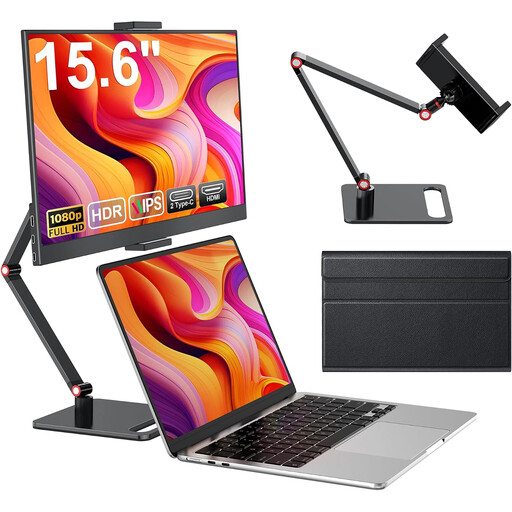
Portable 15.6-inch monitor, Full HD
For an extra view of panels and reference material.
15.6 inches, 1080p Full HD, 60 Hz and IPS panel; with HDMI, USB-C and stand.
View on Joybuy
 No image available
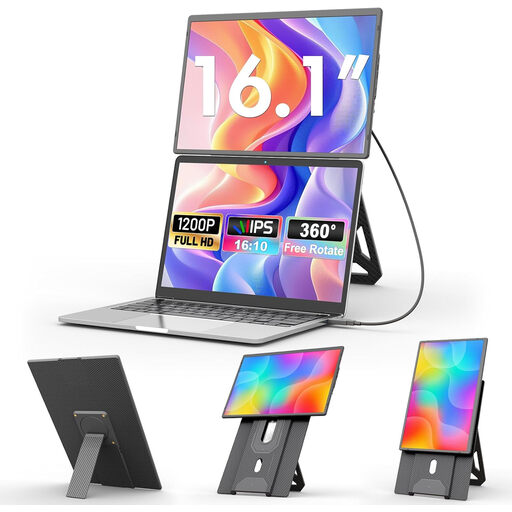
KEFEYA 16-inch monitor with rotating magnetic stand
For extra screen space when you want to view storyboard panels beside your laptop.
16 inches, FHD 1200P and a 360° rotating magnetic stand.
View on Joybuy
 No image available
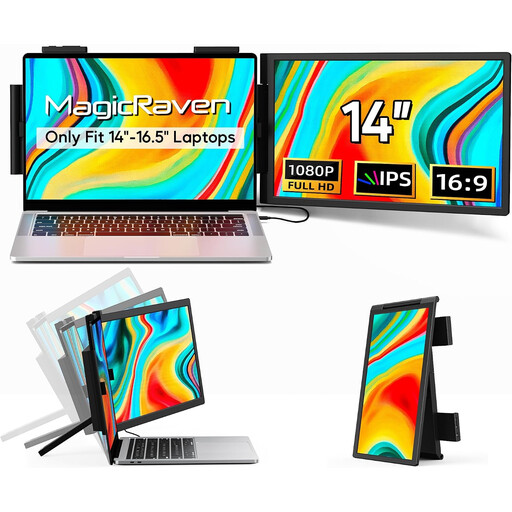
14-inch dual-screen extender, Full HD
For a dual-screen set-up when you want to display panels beside your laptop screen.
14 inches, 1080p Full HD, 60 Hz and IPS panel; connections: HDMI, USB-A and USB-C. The product title says it’s designed for 14–16.5-inch laptops.
View on Joybuy
 No image available
PM14R, 14-inch monitor, 1920 × 1200
For viewing panels and notes on an extra portable screen.
14 inches, 1920 × 1200, IPS and 16:10 aspect ratio; with Type-C and Mini-HDMI.
View on Joybuy
 No image available
Blackview DCM8 Pro, 15.3 inches, Full HD
For a portable set-up with extra screen space when you’re on the move.
15.3 inches, Full HD, single-cable USB-C according to the product title, and 1.2 kg.
View on Joybuy
Frequently asked questions
Is USB-C on my laptop enough for video and power over one cable?
No. The connector shape alone isn’t enough: the specific laptop port must support the required video mode and provide sufficient power. ASUS lists USB-C with DisplayPort Alt Mode for the MB16QHG; Verbatim describes the PMT-14’s single-cable set-up for compatible devices.
Can I use a portable monitor over HDMI without a separate power supply?
It depends on the model. Verbatim says that the PMT-14 needs a power supply when connected via HDMI, and that one is included.
Will touch or a pen work automatically with my storyboard app?
Not necessarily. Input must be supported by both the connected device and the software you’re using. Also check that your preferred pen is compatible and included.
How do I prepare a monitor for a colour-critical review?
Make sure the required colour gamut, a suitable monitor and a calibrated colour-management workflow all work together. EIZO points out that calibration can’t correct a colour gamut that’s too small or panel uniformity issues.
What rights do I have if a monitor is faulty or I buy one online in Germany?
For consumer purchases in the EU, there’s a statutory guarantee of at least two years from receipt of the goods; this is separate from any additional manufacturer’s warranty. Online purchases generally come with a 14-day right to cancel. Verbraucherzentrale explains that the period starts depending on when the contract is concluded or the goods are received, and that exceptions apply. Your statutory rights for faulty goods are separate.


