Readers of detailed PDF manuals
If you want to view technical diagrams and text on an extra screen, pay particular attention to image quality and positioning.


Choose a portable monitor with a video connection that works with your laptop or tablet, and dimensions that suit your usual seat. For reading longer manual pages, a screen that’s easy to position and ideally has an anti-glare finish, along with enough room to set it up, are key. Touch is most useful if you want to interact with pages directly on the extra screen. Also plan how you’ll power both the monitor and your source device: Deutsche Bahn says many ICE seats have fixed or fold-down tables and power sockets, but the facilities available depend on the seat and train model.
If you want to view technical diagrams and text on an extra screen, pay particular attention to image quality and positioning.
If you regularly take both a monitor and laptop with you, their weight and the space they need must suit your luggage and the room available at your seat. Deutsche Bahn notes that many ICE seats have fixed or fold-down tables.
If you want to interact with manual pages directly on the extra screen, check that the source device supports the monitor’s touch function.
| What matters to you | What to check when buying | Who it matters most to |
|---|---|---|
| Readability | Compare the screen size, aspect ratio, resolution, finish and adjustability of the specific model. | If I want to read long PDF pages and technical diagrams, screen quality matters to me; around 25% of consumers prioritise the readability of manual pages. |
| Video connection | Check the laptop or tablet’s video output, the monitor’s input and the right cable against the device specifications. | If I want to use my existing laptop or tablet, the connection must actually be able to transmit an image; around 25% of consumers put connection compatibility first. |
| Space and portability | Compare the monitor’s dimensions when set up and its weight with your usual seat and luggage. | If there’s little room beside my laptop and I take the monitor with me regularly, its footprint and weight are key; around 20% of consumers prioritise space requirements and portability. |
| Power | Check how the specific model is powered and what the full setup requires. | If I want to use both my monitor and source device during the journey, I need a suitable power plan for both; around 20% of consumers consider power on the go first. |
| Direct interaction | Check the monitor’s touch function, and whether the source device and connection support it. | If I want to scroll or zoom in on pages directly on the extra screen, touch is a key consideration for me; around 10% of consumers prioritise using the monitor itself to interact with content. |
A USB-C port on your source device won’t necessarily send an image to a portable monitor. ASUS distinguishes between video transmission via DisplayPort Alt Mode and USB DisplayLink solutions, which may require a driver.
Check the connection and transmission specifications for both your source device and monitor, and confirm which cable you’ll need.
If the ports you already have aren’t compatible, you may need a different connection method or display technology.
A suitable power supply can pass through the monitor, but pass-through itself doesn’t generate power.
Check separately how both the monitor and source device will be powered with your planned connection.
Some connections may also require an external power supply.
Screen finishes, stands and connections vary between models. ASUS specifies a glossy finish for the ZenScreen OLED MQ16FC, while an independent review of the Lenovo ThinkVision M16 describes a matt finish.
If you often read next to a train window, compare the screen finish and positioning options as well as the display specifications.
The ThinkVision M16 and M14t Gen 2 cater for different screen sizes and ways of interacting with content.
The ZenScreen MB16ACV and MQ16FC differ in several respects, including their screen finishes and connections.
The PM14 LIGHT is a 14-inch model, while the PMT-15-4K is a higher-resolution touch option.
According to AOC, the 16T20E2 is a portable 15.6-inch Full HD IPS monitor.
The Dell P1425 is a more compact 14-inch option with a 16:10 aspect ratio.
These portable monitor options are intended for reading manuals. Compare the connection, screen size and setup with your device and seat.
 No image available
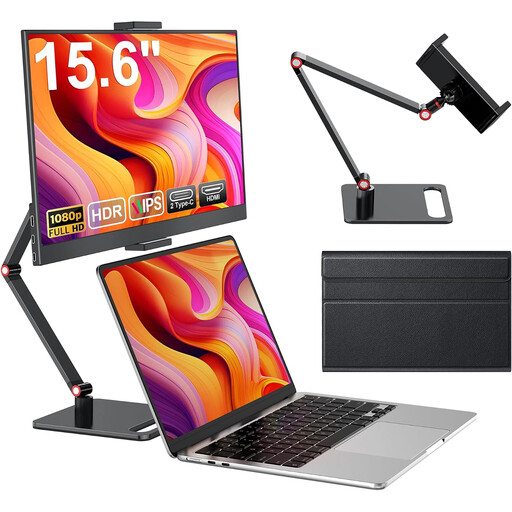
Could suit manual pages if the connection works with your source device and there’s enough room to set it up.
The title specifies Full HD at 1080p, an IPS panel, USB-C and HDMI, as well as a built-in stand.
 No image available
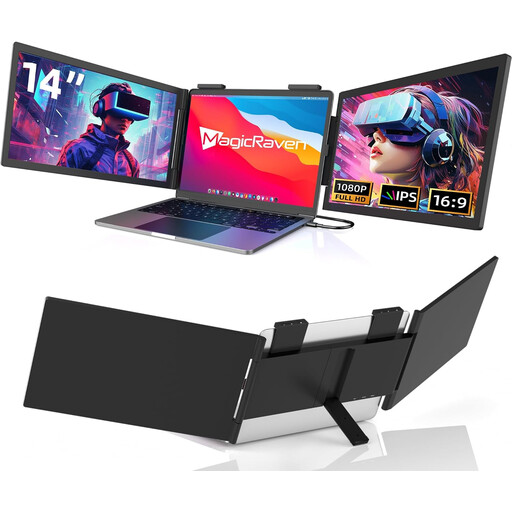
The smaller format could be a good fit if you need less screen space and the USB-C connection works with your laptop.
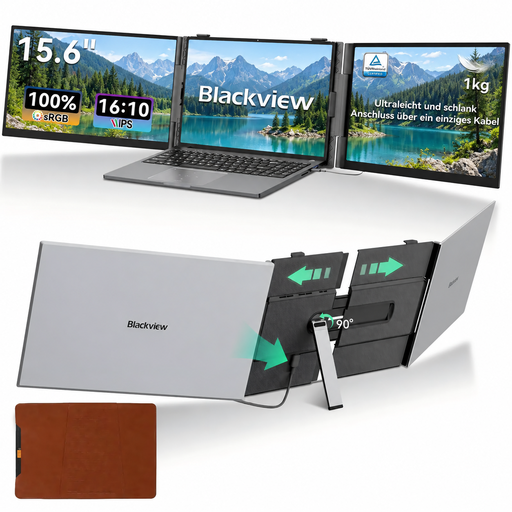
Described as a laptop extension for 14- to 16-inch laptops; the title lists USB-C and excludes HDMI.
 No image available
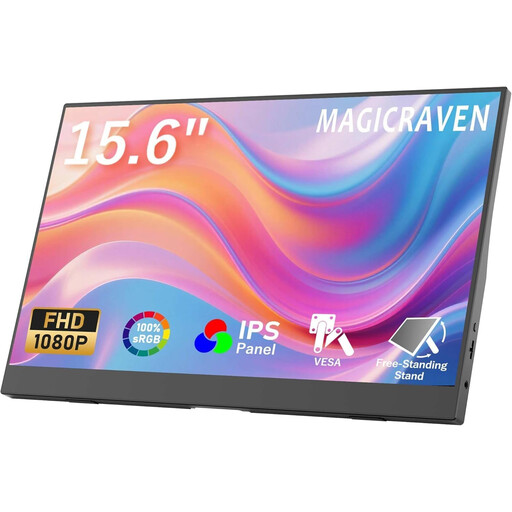
The two stands described give you a choice of setups; check whether the assembled monitor will fit on your train table.
The product details specify Full HD at 1920 × 1080 pixels and an IPS display.
 No image available
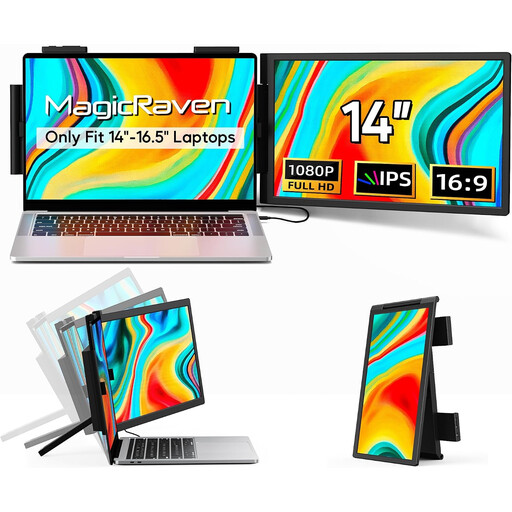
The choice of connections could be useful if you need an input that works with your source device.
Specifications include Full HD at 1920 × 1080 pixels, HDMI, USB-A and USB-C. It’s described as a laptop extension for laptops from 14 to 16.5 inches.
 No image available
The 14-inch format could suit manual pages if you’re looking for a more compact screen.
The product details specify Full HD at 1920 × 1080 pixels and use as a laptop extension for laptops from 13 to 17.3 inches.
No. Check whether your laptop or tablet’s USB-C port can output video, and what type of transmission the monitor requires. ASUS distinguishes between DisplayPort Alt Mode and USB DisplayLink solutions, which may require a driver.
Compare the monitor’s dimensions in its intended setup with the space at your seat, and remember to allow room for your laptop too. Deutsche Bahn says many ICE seats have fixed or fold-down tables; check the facilities at your specific seat for your journey.
It depends on the model. Verbatim explicitly states that the PM14 LIGHT needs a power adapter for an HDMI connection. Check the specifications for your chosen monitor to see how it needs to be powered.
Check that the monitor supports touch and that your source device can handle the input you want to use over the intended connection. Touch or a high resolution alone doesn’t guarantee that it will work with every device.