Who is a portable monitor suitable for?

Teams who need to read instructions together

When several people need to follow the same steps, the text size, viewing distance and screen position should all work for the space in question. The BAuA sets out requirements for screen work within its scope, while ASUS and Verbatim list different positioning options depending on the model.

Organisers using different laptops

If you use different source devices, check the video output, cables and power supply for each one. ViewSonic and Verbatim list connection and power requirements that vary by model.

Groups who need to interact with steps directly

Touch may be useful if participants need to interact with or edit instructions on the additional display themselves. Lenovo and Verbatim list touch functions for specific models; you’ll still need to check that the source device and signal path are compatible.

What should you look for when choosing one?

First, check that the screen is easy to read from its planned position, then confirm the video signal and power supply. Finally, decide whether you’ll actually need touch controls for the workshop.

The percentages below relate to consumers choosing a portable monitor to display workshop instructions in a shared space. Manufacturer information can help you check a model’s features, but it can’t tell you how readable the screen will be in your particular room.

Consideration What to look for Who is it particularly important to?
Readability Check a typical set of instructions at the planned scale from the intended viewing positions; compare the screen size and angle with the viewing distance. If I want several people to be able to read the steps clearly, I check the display in the intended location. Around 29% of consumers put readability first.
Video connection Check the video output on the specific source device against the monitor input and cable; for USB-C, confirm that the device supports video output. When using different laptops or tablets, I want to know in advance which video connection will work with each device. Around 23% of consumers prioritise connection compatibility.
Positioning Check the footprint, viewing angle and, if needed, a suitable mount. Take light sources and possible reflections in the planned location into account. When several people are looking at the screen, I want it to be stable and positioned at the right angle. Around 18% of consumers prioritise positioning.
Power supply Check the exact model’s and source device’s power requirements against the available socket, power adapter and planned cable routing. At the intended location, I want to plan the video signal and power supply together, rather than just checking the connection. Around 18% of consumers prioritise power supply.
Touch controls Check touch support on the exact model, the operating system and the data connection required; HDMI video alone doesn’t confirm touch functionality. If participants need to open or edit steps directly on the additional display, I check that touch will work with the connection. Around 12% of consumers consider touch controls first.

Avoid common selection mistakes

  • Assuming USB-C will automatically provide a one-cable solution

    The connector shape alone doesn’t tell you whether the source device outputs a video signal or can supply enough power to the monitor. ViewSonic notes that HDMI carries picture and sound, but doesn’t supply power.

    Check the video and power functions of the specific device, along with the cable and power connection required to complete the setup.

    Depending on the connection, you may need an extra cable or a separate power supply.

  • Assuming HDMI video means touch will work

    An HDMI video signal doesn’t prove that touch input will be sent to the source device. According to the Verbatim PMT-14 manual, using touch over HDMI also requires a USB data connection and a power supply.

    If you need touch, check the data connection and device compatibility for the specific model.

    For touch over HDMI on the Verbatim PMT-14, the manufacturer’s manual specifies an additional USB data cable, which is listed as not included.

  • Assuming a tripod thread means a tripod is included

    A tripod thread gives you more positioning options, but it doesn’t come with an elevated mount. ASUS states that a tripod isn’t included with the ZenScreen MB16AHG.

    Check what’s included and plan for a stable surface or suitable mount to achieve the viewing angle you want.

    You’ll need a separate tripod to mount the ASUS ZenScreen MB16AHG on a tripod.

Brands to consider

ASUS

The ZenScreen range includes models with different connections and positioning options. According to ASUS, the ASUS ZenScreen MB16AHG has a 15.6-inch visible diagonal, USB-C, Mini-HDMI and a tripod thread.

  • The folding stand and tripod thread give you different ways to position the screen.
  • ASUS states that a tripod isn’t included. The 144 Hz specification doesn’t indicate improved readability for workshop text.

Lenovo

The ThinkVision M14t Gen 2 is a 14-inch model with touch input and a 16:10 aspect ratio.

  • Lenovo lists a resolution of 2240 × 1400 pixels, 10-point touch and two USB-C ports for this model.
  • These features don’t replace the need to check that your source device and connection are compatible, or that the text is easy to read in the room.

Dell

The Dell Pro P1425 is a 14-inch model with a tilt-adjustable stand and a compact footprint.

  • Dell lists a resolution of 1920 × 1200 pixels and IPS technology for the P1425.
  • Consider the smaller screen size in relation to the intended viewing distance and the text size you need.

Verbatim

According to the manufacturer, the Verbatim PMT-14, product number 49591, combines a 14-inch display with touch and USB-C or HDMI video connections.

  • Verbatim lists a built-in stand and 10-point touch.
  • The manufacturer’s manual specifies a separate power supply for HDMI; touch over HDMI also requires an additional USB data cable. The manual states that iOS/iPadOS isn’t supported for touch functionality.

ViewSonic

ViewSonic offers portable models for different uses, such as the VG1655 for business use and the TD1655 with touch.

  • The manufacturer’s documentation explains USB-C functions and connection options that vary by model.
  • The HDMI video connection described requires an additional power supply. This information doesn’t necessarily apply to every ViewSonic model.

Portable monitors at Joybuy

This selection includes portable monitors for displaying workshop instructions, with a range of screen sizes, connection options and positioning features. Touch models are worth considering if the group needs to interact with steps directly on the screen.
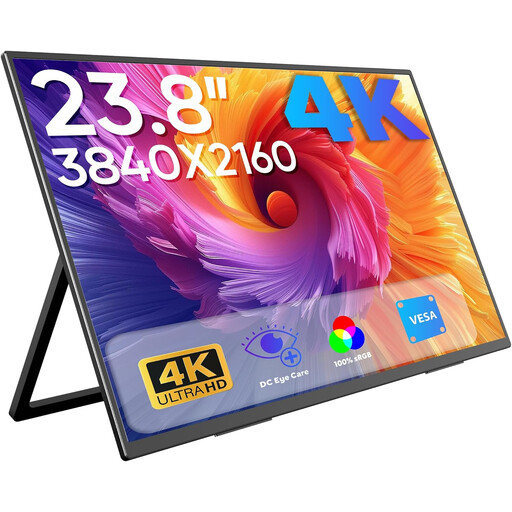
Portable 23.8-inch 4K monitor with built-in stand

Portable 23.8-inch 4K monitor

Could be a good option for displaying instructions to a group, provided you have enough room and the viewing distance suits the larger screen.

23.8 inches; 3840 × 2160; 60 Hz; 100% sRGB; built-in stand; USB-C and Mini-HDMI.

View at Joybuy
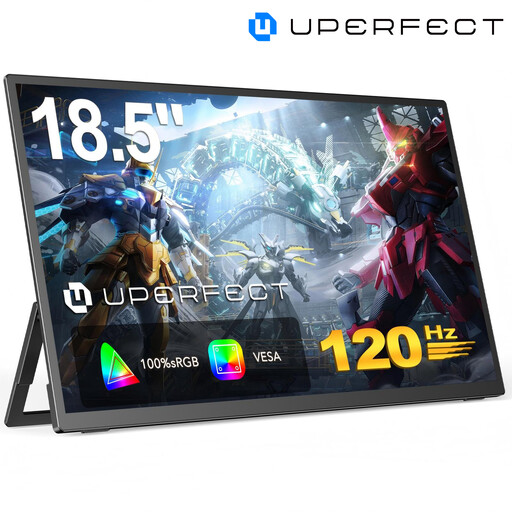
UPERFECT 18.5-inch monitor with matte IPS display

UPERFECT 18.5-inch monitor, Full HD, IPS

An option for workshop instructions if you have enough space for an 18.5-inch screen and the matte display suits the intended location.

18.5 inches; 1920 × 1080 Full HD; matte IPS display; USB-C and Mini-HDMI; VESA-compatible.

View at Joybuy
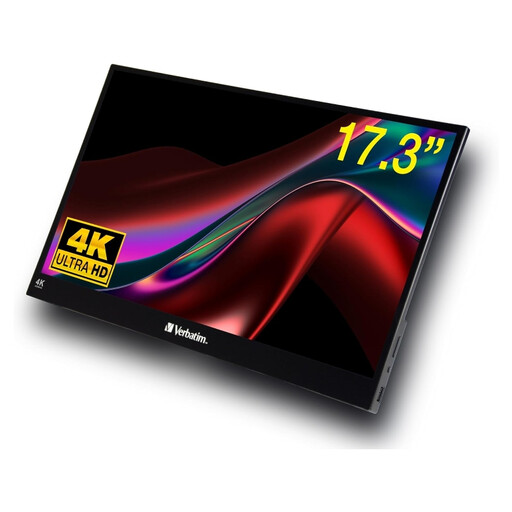
Verbatim PMT-17 portable touchscreen monitor

Verbatim PMT-17, portable touchscreen monitor, 17.3 inches

Could be a good fit if participants need to interact with the instructions directly on the screen and their operating system is supported.

17.3 inches; Full HD; IPS; USB-A, USB-C and HDMI. The product description states that Windows is supported; functionality with other operating systems may vary.

View at Joybuy
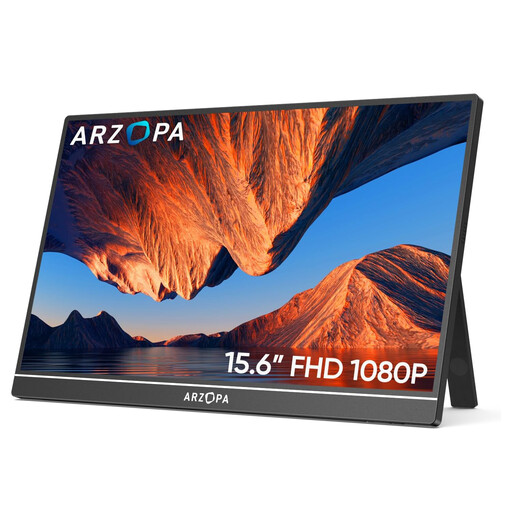
ARZOPA A1 portable 15.6-inch monitor with stand

ARZOPA A1, portable 15.6-inch monitor

The built-in stand may make it easier to position instructions at a shared workstation; check the viewing angle in the actual location.

15.6 inches; 1920 × 1080 Full HD; IPS; built-in stand; two USB-C ports and HDMI.

View at Joybuy
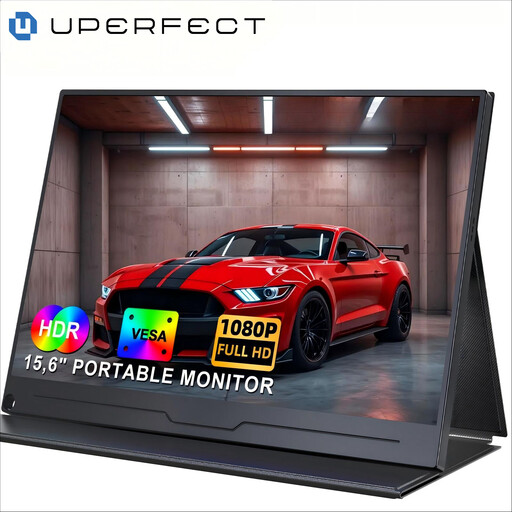
UPERFECT portable 15.6-inch monitor with IPS display

UPERFECT portable 15.6-inch monitor, 1080p, IPS

A possible choice if you want a 15.6-inch display for your instructions and a VESA-compatible mount suits your setup.

15.6 inches; 1920 × 1080 Full HD; IPS; USB-C; VESA-compatible.

View at Joybuy

Frequently asked questions

Is one USB-C port on my laptop enough for video and power over a single cable?

No, the connector shape alone doesn’t guarantee that. Check the video output and power supply supported by the specific laptop port, and choose a cable that meets the monitor’s requirements. For the USB-C connection described, Verbatim specifies DisplayPort Alt Mode and Power Delivery.

How do I connect the Verbatim PMT-14 via HDMI and still use touch?

According to Verbatim’s manual, as well as an HDMI cable you’ll need a separate power supply and an additional USB-A-to-USB-C data cable. The manual says the extra data cable isn’t included and should be connected before the power cable.

How should you position a monitor that’s shared by several people?

Place the monitor on a stable surface and angle it to suit the actual viewing positions and light sources. The ViewSonic VG1655 manual warns against using an unstable surface; follow the instructions for cleaning and handling the specific model.

What additional items might you need to position the monitor?

It depends on the setup you want. You may need a separate tripod to raise the ASUS ZenScreen MB16AHG, as ASUS doesn’t list one as included. For each model, check what’s in the box and make sure the cables, power adapter and mount suit your planned connections and positioning.

Do workplace screen safety requirements apply to a shared space in Germany?

If the space and its use fall within the scope of ASR A6, the relevant requirements should be taken into account when setting up and using the screen. In ASR A6, July 2024 edition, the German Federal Institute for Occupational Safety and Health describes, among other things, fixed-location screen equipment and the regular use of portable screen equipment at changing locations within workplaces; occasional, non-regular use at changing locations is outside its scope. Whether a particular workshop is covered depends on the circumstances.