Planners who use different laptops
If you take your laptop to different library workspaces, check in advance whether its port can output video and whether it can provide enough power to the monitor.


First, check whether your laptop can output video through the connection you’ve chosen, and how the monitor will be powered at the library table: a USB-C plug alone doesn’t guarantee video output. Next, consider how much screen space you need for schedules and lists, and how much room you have to set it up. A more compact model can be easier to carry and use on smaller tables. Touch is most useful if you want to edit content directly on the second screen during a planning meeting.
If you take your laptop to different library workspaces, check in advance whether its port can output video and whether it can provide enough power to the monitor.
If you need to view the schedule, registrations and notes at the same time, a second screen with a display area that suits your table can help.
Touch can be useful in a small planning meeting if attendees want to interact with content directly on the extra screen, and the computer and application support the feature.
| What to consider | What to check before buying | Who is this particularly important for? |
|---|---|---|
| Compatible video connection | Check the video output of the specific laptop port and make sure it matches the monitor input and cable. For USB-C, video output must be supported. | If I want to use the monitor with different laptops, I want to make sure in advance that the connection can carry video. Around 28% of consumers prioritise a suitable video connection. |
| Screen space for documents | Measure the space available next to your laptop and compare the screen size and aspect ratio of the specific models. | For consumers who want to view a schedule, spreadsheet and notes at the same time, usable space on the library table matters. Around 22% prioritise viewing documents side by side. |
| Power supply | Check the power requirements, cable and adapter for your chosen connection, as well as the power source available at your workspace. | If I’m setting up the monitor at a different workspace, I want to plan the video and power connections separately. Around 22% of consumers focus primarily on the power supply. |
| Carrying and setting up | Compare the weight, dimensions and stand with your bag and the space available on the table. | If you’re carrying a laptop and monitor between workspaces or have limited table space, you’ll need a combination of size and stand that suits your needs. Around 17% of consumers prioritise portability. |
| Direct touch control | Check the touch functionality of the specific model and whether your computer, operating system, software and connection support it for the way you plan to use it. | If I want to interact with entries directly on screen during a small planning meeting, touch could be useful; it isn’t essential if you only need to display lists. Around 11% of consumers prioritise direct input. |
A USB-C plug alone doesn’t tell you whether your laptop can output video to the monitor through that port.
Before choosing how to connect the monitor, check the video capabilities of the specific laptop port against the monitor’s requirements.
According to the manufacturer, the Verbatim models #49590 and #32238 also need a power adapter when connected via HDMI.
Plan the video connection and power supply separately, and check whether a suitable power source is available at your chosen workspace.
An extra power adapter takes up a socket and can make setting up at the table more complicated.
A larger monitor needs more space and may be heavier to carry. Touch is mainly useful when direct input is part of your workflow.
First, decide how much space you need for your documents and whether you want to interact with content on the extra screen. Then compare size, weight and touch functionality.
The ThinkVision M16 is designed to provide more screen space for spreadsheets, while the ThinkVision M14t Gen 2 is a more compact touchscreen second display.
Model #49590 is a compact 14-inch monitor; #32238 is a 15.6-inch touchscreen model with 4K resolution.
The ZenScreen MB16ACV is a 15.6-inch second screen with an anti-glare IPS display.
The Dell Pro P1425 is a 14-inch second screen for a more compact workspace.
The HP E14 G4 is a 14-inch monitor with an anti-glare Full HD display.
The Joybuy products below are portable second screens for use with a laptop. Before buying, compare the video output, power supply and space needed on your library table.
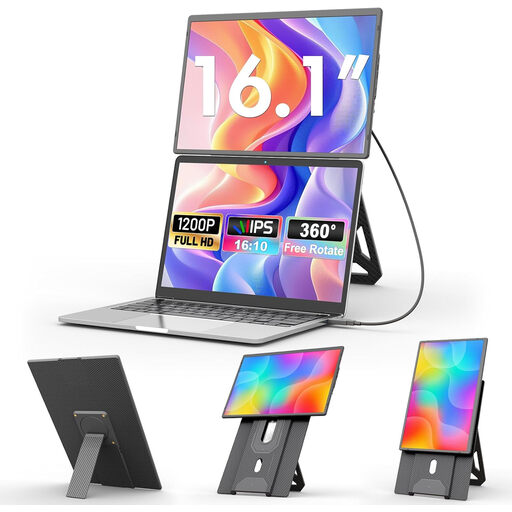 No image available
An option for a larger second screen if you have enough space to set it up at your workspace.
Listed in the product title: 16-inch, FHD 1200P, USB-C, Mini-HDMI and a rotating magnetic stand. Check that your laptop port can output video and that your chosen connection provides power.
 No image available
The smaller screen size may suit a more limited workspace, provided the listed connections are compatible with your laptop.
Listed in the product title: 14-inch, 1920 × 1200, IPS, Type-C and Mini-HDMI. Check that your specific laptop can output video through your chosen connection.
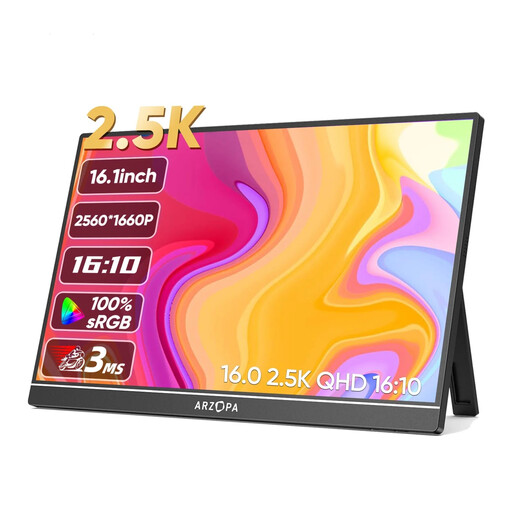 No image available
A 16-inch option for planning documents, if you have room on the table for the monitor alongside your laptop.
Listed in the product title: 2560 × 1600, 16:10, IPS, USB-C and HDMI. Check that the video connection and power supply suit your planned set-up.
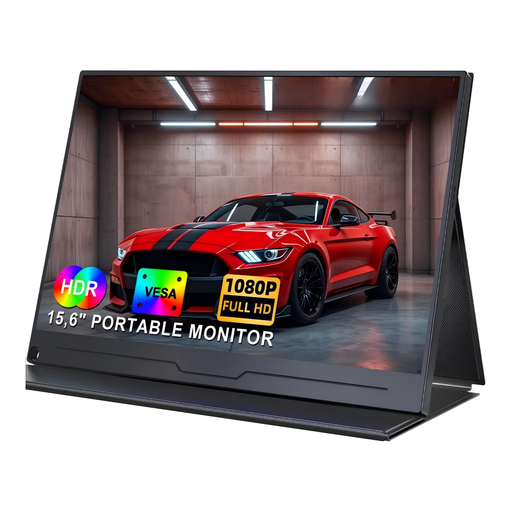 No image available
A portable second screen for planning on a laptop, if its resolution and connections suit your intended use.
Listed in the product title: 15.6-inch, 1920 × 1080, IPS and USB-C. Check that your laptop’s USB-C port supports the video output you need.
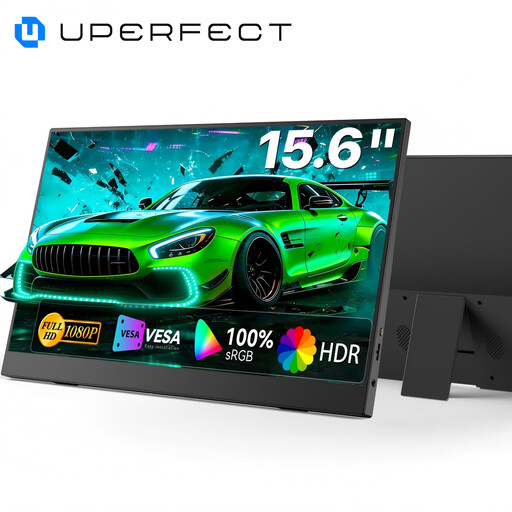 No image available
The adjustable stand mentioned in the title may come in handy when setting up at your planning table.
Listed in the product title: 15.6-inch, 100% sRGB, built-in adjustable stand and USB-C. Check that video output is supported by the specific laptop connection.
No. Check whether the specific laptop port can output video. HP explicitly requires USB-C with integrated DisplayPort for the E14 G4; for its single-cable USB-C connection, Verbatim specifies DisplayPort Alt Mode and sufficient power delivery.
It depends on the model and the power source available. For the Verbatim models #49590 and #32238, the manufacturer requires an additional power adapter when using HDMI. So plan the video connection and power supply separately.
Position the laptop and monitor securely, then connect them using video and power connections that are suitable for your devices. Next, check on your laptop that the screen is set to extend the display rather than mirror it, and test your set-up before the event.
Compare the specific model’s weight, stand and included accessories with your bag and intended workspace. Verbatim lists a neoprene sleeve and integrated stand for the #49590; you can’t assume other devices will come with the same accessories.
Products sold on the EU market that require labelling must meet the relevant conformity requirements, including the prescribed CE marking. Germany’s Federal Network Agency explains that by applying the CE marking, the manufacturer declares under its own responsibility that the applicable requirements have been met; it is not an independent product test. Old monitors should be disposed of separately, for example at a local recycling centre.