On-site detail checkers
If you need to make out lines and labels on a floor plan, prioritise the display and check the resolution and screen size using a typical plan view.


When reviewing floor plans on site, the right monitor depends on whether you need to see fine details, discuss plans together using touch, or carry it between appointments regularly. Then check whether your laptop or tablet can send both video and power through the connection you plan to use: a USB-C connector alone doesn’t guarantee a single-cable setup.
If you need to make out lines and labels on a floor plan, prioritise the display and check the resolution and screen size using a typical plan view.
If you discuss different plan options together, touch control may be useful for navigating the plan directly. The key is whether your devices and plan app support touch.
If you’re regularly setting up and packing away your monitor, pay particular attention to its weight, protective case, stand and the number of cables you’ll need.
Start by deciding what matters most for your needs, then check the connections and power requirements against the specific laptop or tablet you’ll be using.
| Buying criterion | What to look for | Who is it important to? |
|---|---|---|
| Floor plan details | Compare the screen size and native resolution; check a typical plan at the size you intend to view it. | If I need to make out fine lines and small labels, I check how my own plan looks on screen. Around 33% of consumers put detail above all else. |
| Connection and power | Check the source device’s video output, monitor input, cable and power requirements individually. | If I want my existing device to display an image without extra steps, I check its supported video mode and power supply. Around 27% of consumers prioritise connectivity. |
| Touch for collaborative reviews | Check that the device and plan app support touch, and that the touch signal can be transmitted; only count on a stylus if one is included with the exact model. | When navigating a plan together, I want to be able to interact directly with the screen. Around 20% of consumers prioritise interaction. |
| Portability and set-up | Compare the weight, including any accessories you’ll need, as well as the protection and stand options available for your work location. | If I often need to carry and set up the monitor between appointments, the accessories I’ll need to pack matter too. Around 20% of consumers put portability above all else. |
The source device’s video output and power supply need to be compatible with the monitor. The right USB-C connection also depends on what the devices involved can support.
Check the exact connection specifications for both devices, as well as the cable and power requirements. Depending on the connection, you may need an adapter, an extra cable or a power supply.
Touch functionality also depends on the source device, connection and software you’re using.
Before buying, check whether your operating system and plan app support touch, and how the touch signal is transmitted.
Resolution, screen finish and brightness specifications describe different features. A manufacturer’s brightness rating isn’t a measurement taken in the lighting conditions at your work location.
Look at a typical floor plan at the scale you intend to use, and take reflections and ambient light into account.
The ThinkVision M14t Gen 2 is an option if you need touch control and higher resolution for viewing floor plans.
The PM-14 is a compact non-touch display, while the PMT-14 is for users who want to interact directly with the screen.
The Series 5 Pro 514pn is a higher-resolution option for views with small labels.
The ZenScreen MB16ACV offers a larger Full HD display with an anti-glare finish.
This selection includes portable monitors for viewing detailed floor plans, as well as a touch model for discussing plans together.
 No image available
The listed resolution makes this an option for detailed plan views; still, check how it looks with your plan app and display scaling.
16 inches, 2560 × 1600 pixels, 16:10, 450 Nits and 1200:1; with Mini-HDMI and Type-C. The brightness rating isn’t a measurement of how easy it is to read on site.
 No image available
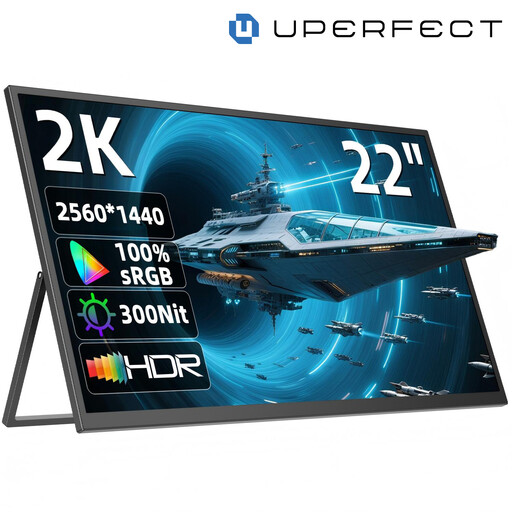
The larger format may be useful if you want to view more of your plan at once; consider how much space it will take up when travelling.
22 inches, 2560 × 1440 pixels and IPS. The title lists USB-C, Mini-HDMI and a stand adjustable up to 180°.
 No image available
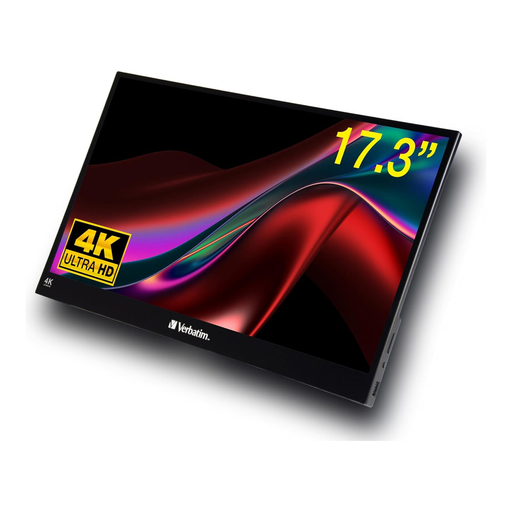
Touch can be useful when discussing plans together, provided your source device and plan app support it.
17.3 inches, 3840 × 2160 pixels and 10-point touch; USB-C and HDMI. The product description says to use the included power adapter for a stable power supply.
 No image available
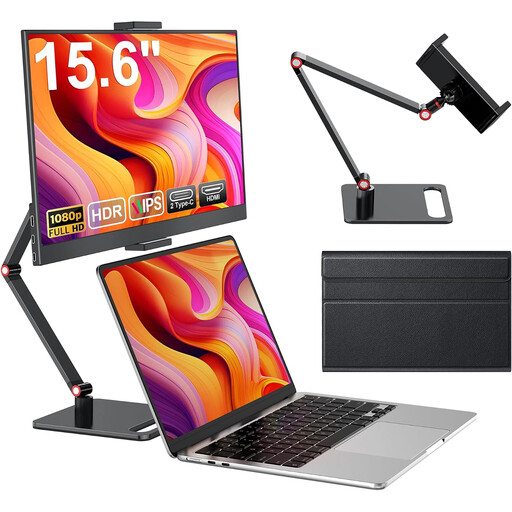
A Full HD option for working on the go; check that the labels on a typical floor plan are clear enough at the size you intend to view them.
15.6 inches, 1920 × 1080 pixels, 60 Hz and IPS. HDMI, USB-C and a stand are also listed.
 No image available
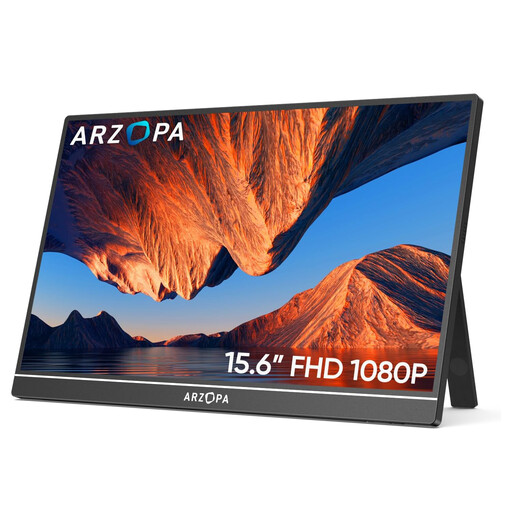
The listed weight can help you compare monitors for frequent travel; remember to factor in any accessories you’ll need.
15.6 inches, 1920 × 1080 pixels and IPS; USB-C and HDMI. The listed weight is 780 g and typical brightness is 250 cd/m².
The connector type alone doesn’t determine this. Check whether the port on your specific laptop or tablet outputs video using a supported mode, and whether the monitor, cable and power supply are compatible.
As well as the video signal, check that the touch signal can be transmitted and that your operating system and plan app support it. Some models may have additional requirements.
It depends on the model. Verbatim specifically states that its 14-inch PM-14 monitor needs a power supply when connected via HDMI; don’t assume the same applies to other monitors.