For workshop guides that are mainly there to be read, a clear document view and a stable viewing angle matter most. If you often pack up between client appointments, give more weight to the monitor’s weight and footprint. Touch is useful when your source device and application support the input you need. Before buying, check with the laptop or tablet you plan to use whether its USB-C port outputs video and how the monitor and HDMI connection are powered. A USB-C connector alone does not guarantee video output, and Verbatim requires a power supply for HDMI on the PMT-14.
Who is a portable monitor suitable for?
Workshop leaders who present instructions
If you demonstrate steps on different tables, look for a clear display and a suitable viewing angle. ASUS lists a stand for the MB16AHV, while the BAuA identifies clients’ premises as one possible location for flexible working.
Field workers who move between locations frequently
If you often pack and unpack between appointments, consider weight, packed size and how easy it is to set up at each location. Verbatim gives the PM-14 a weight of 540 g; the BAuA lists clients’ premises as one possible workplace.
People who annotate directly on screen
Touch matters if you want to edit instructions on a compatible device using a suitable application. Lenovo lists touch functionality on the ThinkVision M14t Gen 2, while Verbatim describes the PMT-14 as a touch model.
What to look for when buying
| What you need |
What to look for when buying |
Who it matters most to |
| Easy-to-read instructions |
Open a typical guide in your application and check the aspect ratio, text size, reflections and desk space. ASUS lists a 15.6-inch Full HD display for the MB16AHV; Lenovo gives the M14t Gen 2 a 14-inch, 2240 × 1400-pixel, 16:10 display. |
If I want to read instructions without constantly zooming in, a suitable document view matters more to me than extra features. Around 36% of consumers put readability first. |
| Video connection and power |
Check whether your specific laptop outputs video over USB-C. For HDMI, check that the monitor has the right input, that you have the right cable and whether a separate power supply is needed. Verbatim requires one for the PMT-14. |
If I need my monitor to work with the exact laptop I take to appointments, I want to check video and power requirements in advance. Around 29% of consumers prioritise connections and power. |
| Portability and set-up |
Allow space in your bag for the monitor, case and cables, and check that the stand will fit on the tables you plan to use. Verbatim gives the PM-14 a weight of 540 g; ASUS lists the MB16AHV at 0.9 kg. |
If you often move between client appointments, you need a portable set-up that will actually fit on the table. Around 21% of consumers prioritise portability and set-up. |
| Direct input or annotation |
Check that the application you want to use is compatible with your source device and the touch functionality of the specific model. Lenovo and Verbatim list 10-point touchscreens for the M14t Gen 2 and PMT-14 respectively. |
If I want to tap through steps on screen or add notes, my device and application need to support the touch input I need. Around 14% of consumers put direct input first. |
Common buying misconceptions
-
USB-C automatically guarantees a video signal
To display video over USB-C on the ASUS ZenScreen MB16AHV, the laptop’s port must support video output.
Check the video output on your specific source device against the inputs on the monitor you’re considering.
-
HDMI always powers the monitor
Verbatim requires an additional power supply for the PMT-14’s HDMI connection.
Check the video cable and power requirements separately, and confirm what’s included with the specific model.
-
A touchscreen is all you need to add digital annotations
Touch hardware alone doesn’t tell you whether your source device and application support the input you need.
First decide how you want to edit your instructions, then check that your device and application are compatible. If you only need to read, touch functionality doesn’t have to be a requirement.
Key brands at a glance
ASUS
The ZenScreen MB16AHV and MB166C differ in the connection options listed for each model.
- ASUS lists USB-C, Mini HDMI, a stand and a tripod socket for the MB16AHV.
- The MB16AHV’s single-cable USB-C set-up requires video output from the source device; the German spec sheet lists USB-C as the only input for the MB166C.
Lenovo
The ThinkVision M14t Gen 2 is designed for users who want a compact 16:10 document view with touch input.
- Lenovo lists a 14-inch display, 2240 × 1400 pixels, a weight of 700 g and 10-point touch.
- Whether touch and the stylus work as you’d like also depends on the source device and application.
Verbatim
The PM-14 is a lightweight display option; the PMT-14 is a separate 14-inch touch model with USB-C and HDMI.
- Verbatim gives the PM-14 a weight of 540 g.
- The manufacturer requires an additional power supply for HDMI on the PMT-14. The similarly named models are not interchangeable.
AOC
The 16T3EA is a 15.6-inch Full HD option with USB-C power and a built-in stand.
- AOC lists a built-in stand for this portable monitor.
- According to AOC, the supplied i-Menu software must be enabled for Auto-Pivot. USB-C does not guarantee video output from every source device.
Joybuy products for workshop guides
The Joybuy products below are portable secondary screens for workshop guides. Compare the display format and the connections listed for each specific model with your source device.
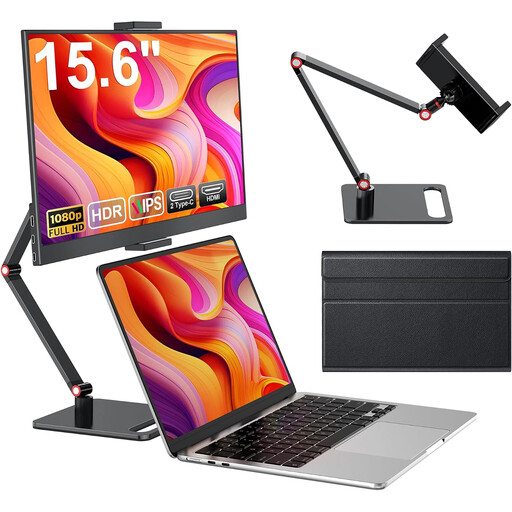 Image unavailable
Portable 15.6-inch monitor, Full HD, 60 Hz
For displaying workshop guides on a larger second screen, provided your source device supports the connection you choose.
15.6 inches, 1080p Full HD, 60 Hz and IPS, plus HDR, built-in speakers, HDMI and USB-C. The product title lists compatibility with PCs, smartphones, PS4/PS5 and Xbox, as well as a stand.
View at Joybuy
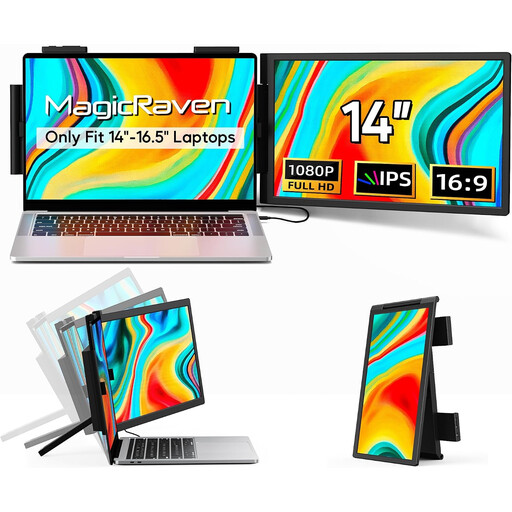 Image unavailable
14-inch second screen for laptops, Full HD, 60 Hz
A compact second-screen option if the display size and connections suit your laptop.
14 inches, 1080p, IPS and 60 Hz. The product title lists USB-C, HDMI and USB-A, as well as support for 14–16.5-inch laptops and compatibility with Windows, Mac and Android.
View at Joybuy
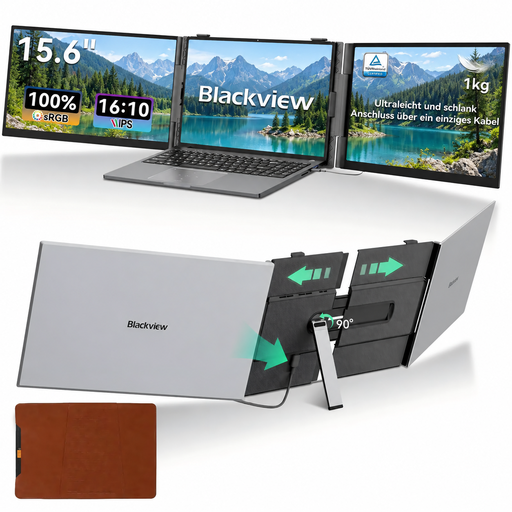 Image unavailable
Blackview DCM6 PRO, 14-inch laptop extension
For adding an extra display to your laptop, provided it’s within the laptop size range listed in the product title.
The product title lists a 14-inch Full HD display and compatibility with 13–17.3-inch laptops.
View at Joybuy
 Image unavailable
UPERFECT, portable 16-inch monitor, 2560 × 1600
A 16:10 display option if this format and resolution suit your guides and application.
16 inches, 2560 × 1600 pixels, 16:10, 144 Hz and QLED. The product title also lists 450 nits, USB-C, Mini HDMI and VESA compatibility.
View at Joybuy
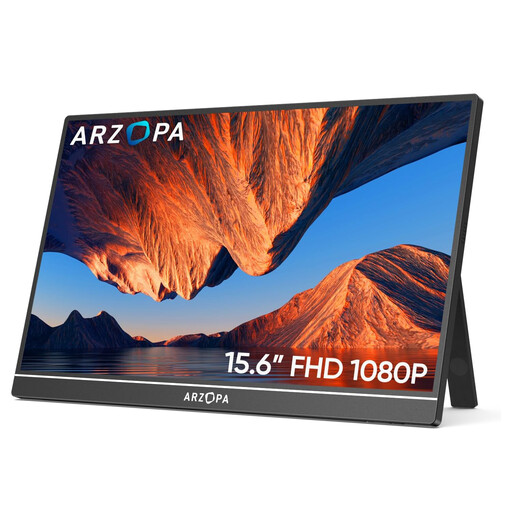 Image unavailable
ARZOPA A1, portable 15.6-inch monitor
For viewing workshop guides on a portable second screen, provided its connections match your source device.
15.6 inches, 1920 × 1080 Full HD and IPS. The product title lists USB-C and HDMI, as well as compatibility with laptops, PCs, Macs and games consoles.
View at Joybuy
Frequently asked questions
Is a USB-C port on my laptop enough to connect a monitor with a single cable?
No, the connector shape alone isn’t enough. Check that your specific laptop supports video output over USB-C, and check the monitor’s requirements for video and power. ASUS specifically notes that the laptop port must support video output for the MB16AHV.
What should I consider when setting up between client appointments?
Make sure there’s room for your stand, cables and laptop on the available surface. The BAuA notes that clients’ premises may not always be ergonomically designed workplaces, so assess the environment you’ll be working in, particularly if you’ll be using a screen for an extended period.
Do I need a power supply when using HDMI?
It depends on the model. Verbatim requires a power supply for the PMT-14’s HDMI connection; check the connection requirements and what’s included with other monitors.
Will touch work for annotations with every laptop and application?
Not automatically. Check that your specific source device and application support the touch or stylus input you need. If you only want to display instructions, touch functionality doesn’t have to be a buying requirement.


