First, check how much space your film and project folders take up, then allow room for future backups. Next, choose an SSD with a connection that suits your computer and how you transfer files. High transfer speeds require compatible ports and cables. The German Federal Office for Information Security (BSI) recommends keeping an additional copy and making sure you can restore your data.
Who is this selection for?
Room for a film collection
If you’re backing up a large collection of digitised films and editing projects, check how much space your existing files take up and allow room for more folders. A general recommendation for capacity won’t replace this stocktake.
Frequent transfers of large files
If you regularly copy or edit large film files, check which USB interface your computer actually supports. Only then can you tell whether a higher speed quoted by the manufacturer is relevant to your connection.
Protecting irreplaceable recordings
If you want to be able to retrieve your family films reliably in future, you’ll need another copy stored separately as well as an SSD. A rugged design alone doesn’t make a drive a fail-safe archive.
What should you look for when buying?
When backing up digitised family films alongside large project folders, your priorities depend on the files you have, the devices you use and how you want to restore them.
| What matters |
What to check before buying |
Who should pay particular attention |
| Space for films and projects |
Check the size of all the folders you want to back up and allow for expected growth; take the usable capacity of the specific model into account. |
If I want to back up film files, exports and editing projects together, I’ll add up how much space they need first. Around 40% of consumers are likely to prioritise having enough space. |
| Backups you can restore |
Keep another copy stored separately and try restoring selected files. |
If I want to retrieve irreplaceable recordings in future, I won’t rely on a single drive. Around 30% of consumers are likely to prioritise being able to restore their files. |
| Speed for large files |
Check the USB specifications of your computer and cable against the requirements for the quoted speed. |
If I transfer large film files often, I’ll want to know whether my computer can make use of the quoted speed. Around 20% of consumers are likely to prioritise frequent transfers of large files. |
| Set-up and compatibility |
Check the backup process for Windows or macOS and the port available; test that you can restore your files. |
If I want to set up the SSD for automatic backups on my existing devices, I’ll check the right process first. Around 10% of consumers are likely to prioritise set-up and compatibility. |
Common selection mistakes
-
Assuming a USB-C plug guarantees top speeds
Samsung quotes speeds of up to 2,000 MB/s for the T9, provided the host device and cable support USB 3.2 Gen 2x2 and UASP is enabled. Having the right type of plug alone doesn’t mean these requirements are met.
Before relying on a top speed, check that your computer’s interface and the cable you’re using meet the requirements for the specific model.
If your computer isn’t compatible, you could end up choosing a drive based on a speed you can’t achieve in everyday use.
-
Treating a protected SSD as a fail-safe archive
Samsung says the T7 Shield’s IP65 rating is based on controlled tests and notes that liquid and dust damage aren’t covered by the warranty. The BSI also stresses that the lifespan of storage media can’t be predicted precisely, and that you need to be able to restore your data.
Keep another copy stored separately and try restoring selected film and project files.
-
Adding up only the size of your video files
Your backup should also include the project folders you’ve selected. And after formatting, some of the stated capacity won’t be available for storing files.
Check the size of all the folders you want to back up and allow extra space for future growth before choosing a capacity.
Key brands to consider
Samsung
The T7 Shield and T9 cater to different connection and capacity requirements; the specifications apply to the models named.
- Samsung lists a 4-TB version of the T7 Shield and an IP65 rating under controlled test conditions.
- Samsung notes that liquid and dust damage aren’t covered by the warranty. The T9’s speed of up to 2,000 MB/s requires a compatible host and cable, with UASP enabled.
Kingston
Kingston says the XS2000 is available in capacities up to 4 TB and supports USB 3.2 Gen 2x2.
- Kingston quotes speeds of up to 2,000 MB/s for the XS2000 and includes a removable rubber sleeve.
- The quoted top speed requires USB 3.2 Gen 2x2; a protective sleeve is no substitute for another backup copy.
Crucial
The X9 Pro is an option if you’re considering a 4-TB model with USB 3.2 Gen 2.
- Crucial quotes speeds of up to 1,050 MB/s and an IP55 rating for the X9 Pro.
- According to Crucial, maximum sequential performance was measured under defined test conditions; formatting and host features affect compatibility.
SanDisk
The Extreme PRO with USB4 may be worth considering for frequent large transfers if you have a compatible port.
- For the 2-TB version, SanDisk quotes read speeds of up to 3,800 MB/s and write speeds of up to 3,700 MB/s.
- These manufacturer figures don’t guarantee the same speeds when connected to older USB ports.
Portable SSDs at Joybuy
The following Joybuy products are portable SSDs for film and project folders. Before choosing, check the capacity you need and your computer’s connection against the specifications for the specific model.
 No image available
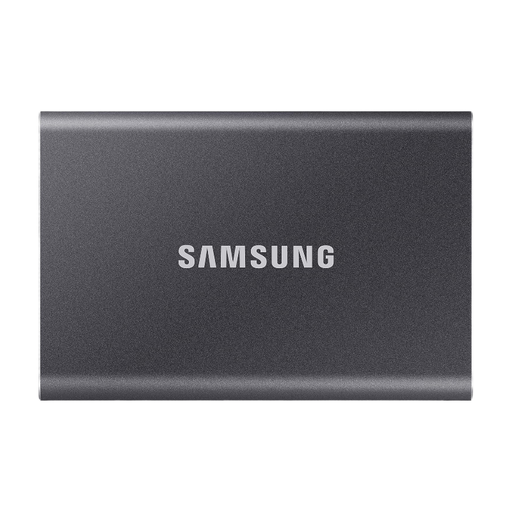
Samsung T7 4 TB, USB 3.2 Gen 2, Titanium Grey
For backing up film and project folders together, if you’re looking for the 4-TB version specifically listed in this selection.
4 TB; USB 3.2 Gen 2; quoted speeds of up to 1,050 MB/s read and 1,000 MB/s write.
Don’t rely on it as your only backup; it’s important to keep another copy separately.
View at Joybuy
 No image available
Samsung T7 2 TB, USB 3.2 Gen 2, Titanium Grey
For keeping film and project files on an external drive, if 2 TB is enough for the folders you’ve counted.
2 TB; USB 3.2 Gen 2; quoted speeds of up to 1,050 MB/s read and 1,000 MB/s write.
Don’t rely on it as your only backup; it’s important to keep another copy separately.
View at Joybuy
 No image available
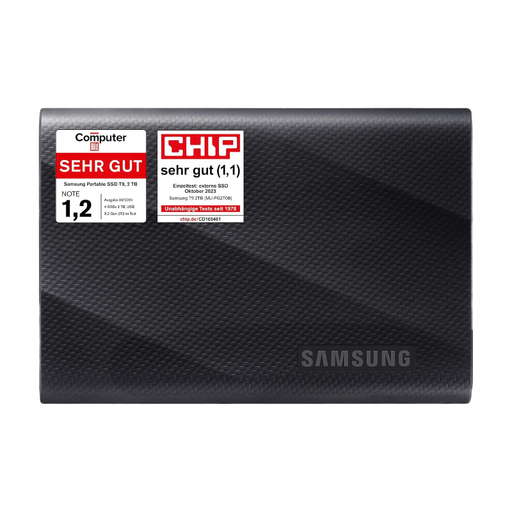
Samsung T9 2 TB, MU-PG2T0B
For frequent transfers of large film files, if your computer and the cable you’re using support the required connection.
2 TB; Samsung quotes speeds of up to 2,000 MB/s with USB 3.2 Gen 2x2 and UASP enabled.
Don’t rely on it as your only backup; it’s important to keep another copy separately.
View at Joybuy
 No image available
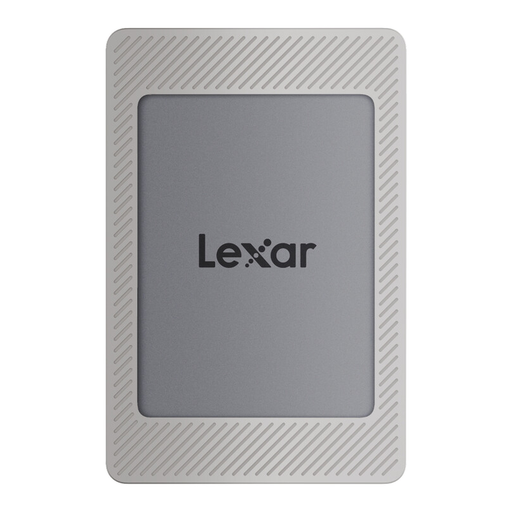
Lexar ES4 Portable SSD with magnetic set, 2 TB
For film and project folders on a portable drive, if 2 TB suits your storage needs.
2 TB; USB 3.2 Gen 2; quoted speeds of up to 1,050 MB/s read and 1,000 MB/s write.
Don’t rely on it as your only backup; it’s important to keep another copy separately.
View at Joybuy
 No image available
KEXIN Portable SSD, 1 TB, USB-C
For portable external backup, if 1 TB is enough for the files you’ve selected.
1 TB; USB 3.1; quoted speeds of up to 500 MB/s.
Don’t rely on it as your only backup; it’s important to keep another copy separately.
View at Joybuy
Frequently asked questions
Is one portable SSD enough to back up my family films?
Don’t rely on this drive alone. The BSI notes that the lifespan of storage media can’t be predicted precisely, and that you also need to be able to restore your files. Keep another copy stored separately and try restoring selected files.
How do I set up the SSD for automatic backups?
On a Mac, you can use an external drive connected to a compatible port as a Time Machine destination. In Windows, you can select an external drive for File History; make sure you specifically include any project folders outside the libraries it backs up. After setting it up, check that you can restore a file.
Is a manufacturer’s warranty the same as my rights if I buy a faulty product?
No. The consumer advice centre distinguishes between your statutory rights against the seller and a voluntary warranty. For a specific offer, check the warranty terms and seller information separately; neither is a substitute for backing up your data.
Can I put a retired external SSD in household rubbish in Germany?
No. The German Environment Agency advises that electrical and electronic equipment must not go in household rubbish. It lists recycling centres and retailers among the return options. Back up any files you need and take steps to protect your personal data on the SSD before handing it in.


