Draw directly on the portrait
If you want to work on outlines and colour transitions right where you can see them, a connected pen display fits this way of working. Make sure you have space on your desk and a suitable connection to your computer.


If your computer and monitor already suit your workspace, a graphics tablet is an obvious choice. If you want to draw directly on the portrait you can see, consider a connected pen display. A standalone tablet is the right fit if you want to draw without a home computer. With all three options, check that your specific device and pen are compatible, and that your drawing app supports them. For a pen display, you’ll also need to check the video connection, cables and power supply.
If you want to work on outlines and colour transitions right where you can see them, a connected pen display fits this way of working. Make sure you have space on your desk and a suitable connection to your computer.
If your computer and monitor are already set up, you can draw on a separate surface with a graphics tablet and view your artwork on the monitor. Check that the active area and the tablet’s dimensions suit your desk.
If you want to create portraits directly in a tablet app, or already own a tablet, check that your specific device model is compatible with the pen. The drawing app you want to use should also suit your workflow.
First decide whether you want to work on an existing monitor, directly on the image or independently of your home computer. Then compare the connections, available space and the features your drawing app actually uses.
| What you need | What to check before buying | Who this matters most to |
|---|---|---|
| Draw directly on the portrait | Visible drawing area, desk space, and suitable video and data connections. For the Kamvas 16 (Gen 3), Huion specifies particular USB-C requirements. | If I want to draw lines directly on the image on screen, I’ll consider the setup and connection. Around 36 % of consumers prioritise drawing directly on the image. |
| Use an existing PC | Active area and overall dimensions, space for your hand, and whether you’ll need a driver and drawing app. Wacom lists an active area of 263 × 148 mm and overall dimensions of 291 × 206 mm for the Intuos Pro Medium. | If my computer and monitor are already set up, I want to fit a separate drawing surface into my workspace. Around 27 % of consumers prioritise using their existing PC and the space required. |
| Draw without a home computer | Exact tablet model, compatible pen variant and drawing app. Apple and Samsung list compatibility by device. | If I want to draw in a tablet app without relying on my home computer, I’ll first check that the device and pen work together. Around 19 % of consumers prioritise standalone drawing. |
| Use pressure-sensitive brushes | Pressure functionality on the specific pen and support from the app. Adobe describes pressure controls for brush size or opacity in Photoshop. | If I want brush size or opacity to respond to pen pressure, I’ll check that the feature is supported by both the pen and the app. Around 18 % of consumers prioritise pressure-sensitive brushes. |
The USB-C socket alone doesn’t tell you whether it can transfer video and data. For the direct connection described for the Kamvas 16 (Gen 3), Huion specifies particular requirements for the port and cable.
Check the specifications for your computer, the exact pen display and the cable. Also check whether your chosen connection needs an additional power supply.
Apple lists pressure sensitivity for Apple Pencil Pro, but not for Apple Pencil (USB-C). Compatibility also depends on the iPad and Pencil generation.
First identify your exact iPad model. Then choose a compatible version that supports the brush controls you want.
A graphics tablet takes up more desk space than its active area. A pen display also needs room for its stand and cables.
Measure the space for the device and for your hand movements. Compare the device’s overall dimensions, rather than just its active area or screen size.
Graphics tablets for drawing on an existing computer and monitor.
The Artist Pro 16 (Gen 2) is a connected pen display for drawing on the portrait shown on screen.
The Kamvas 16 (Gen 3) is a pen display that connects to a compatible device.
Apple Pencil models for compatible iPads, for a standalone tablet workflow.
S Pen for compatible Galaxy devices, for drawing on a standalone tablet.
The M908 is a graphics tablet with a separate drawing surface for use with a computer.
This selection includes pens and tablets for digital drawing without a connected home computer. Before buying, check compatibility with your device and drawing app.
 No image available
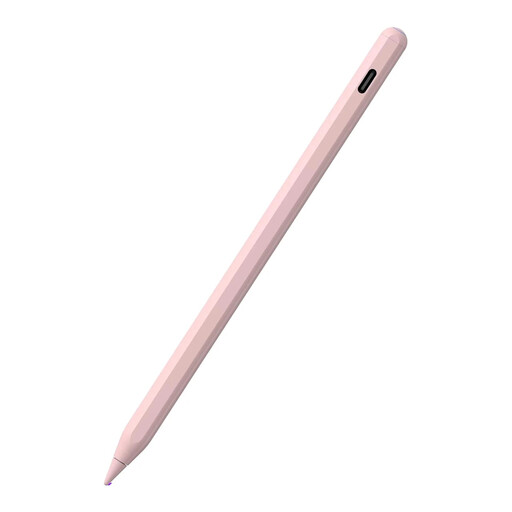
Could be an option if you want to sketch or illustrate on a compatible iPad.
The product name lists tilt recognition, palm rejection, a USB-C charging port and an LED battery indicator. Compatible only with the listed iPad models. According to the description, the magnetic attachment is for storage, not wireless charging.
 No image available
May suit drawing and writing on a supported iOS or Android touchscreen.
The product name describes a rechargeable model with dual-touch functionality. Check that it’s supported by your specific device.
 No image available
Could work for sketching and shading on one of the supported iPad models.
The product name lists tilt recognition, palm rejection and an LED battery indicator. A USB-C cable is included, according to the description. Compatible only with the listed iPad models. The magnetic attachment isn’t designed for wireless charging.
 No image available
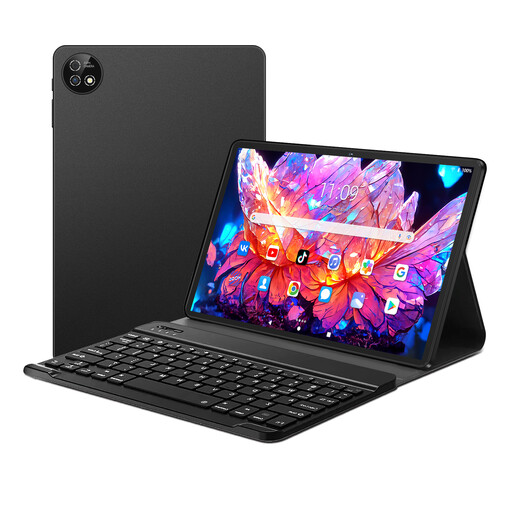
Could be an option if you want to draw portraits on a tablet rather than using a home computer.
The product name lists Android 16, 256 GB storage, 36 GB RAM, a 6000-mAh battery, a keyboard and a stylus. The description lists drawing and note-taking among its uses.
 No image available
Could suit you if you want to draw on a tablet with the included pen, without connecting to a home computer.
The product name lists a 13.4-inch 2K display, a T-Pen with 4096 pressure levels, Helio G99, 20 GB RAM (8+12 virtual), 256 GB storage and Android 15.
Not necessarily. For the direct USB-C connection described by Huion for the Kamvas 16 (Gen 3), the port and cable must support the required data and DisplayPort functions. Depending on the connected device, you may need an additional power supply. Check the requirements for the specific model.
Apple doesn’t list pressure sensitivity for Pencil (USB-C), but it does for Pencil Pro. If you want your brush to respond to pressure, first check compatibility with your exact iPad model, then check your drawing app’s settings.
Check whether the brush you’re using responds to pen pressure for size or opacity. Adobe describes these settings for Photoshop, but that doesn’t mean other apps have the same menus or features.
For consumer contracts made at a distance, you generally have a statutory right to cancel, subject to legal exceptions. The cancellation period is usually 14 days. The Federal Ministry of Justice and the Federal Office of Justice list the relevant provisions in § 312g BGB and § 355 BGB; the Verbraucherzentrale explains the time limit. If goods are faulty, statutory claims against the seller are separate from a voluntary manufacturer’s guarantee.