Portrait restorers
If you’re correcting a scanned print and working with layers, check your computer against the requirements of the specific image-editing software you use. Adobe publishes system requirements for each version of Photoshop.


A compact desktop is a sensible starting point for retouching an old portrait if you also need room on your desk for a monitor, input devices and the original image. Then compare the requirements of your specific software version with the memory, storage and ports available on each model. A Windows mini PC and a Mac mini also differ in their operating systems and available configurations. For colour-critical adjustments, it’s important to use a suitably set up and profiled monitor – the computer alone can’t guarantee reliable colour reproduction.
If you’re correcting a scanned print and working with layers, check your computer against the requirements of the specific image-editing software you use. Adobe publishes system requirements for each version of Photoshop.
You’ll need room for a monitor, input devices and the original image as well as the computer. Apple’s Mac mini dimensions and Lenovo’s guidance on different placement options for the ThinkCentre M75q Gen 5 Tiny show why the case design and ports need to suit where you plan to put it.
If you want to assess skin tones and potential prints, consider your monitor profile and the lighting at your workstation as well as the PC. Adobe notes that an inaccurate monitor profile can lead to unnecessary adjustments.
A good fit if: you want to use Windows software or devices you already own, while taking up as little desk space as possible.
Bear in mind: memory, SSD and ports vary by model and configuration.
A good fit if: the software you need runs on macOS and the ports on the specific model suit your monitor.
Bear in mind: memory and SSD depend on the configuration you choose.
A good fit if: the option to change the hardware later matters more than having free desk space, and you have a suitable place for it.
Bear in mind: its larger case takes up more room. The case size alone doesn’t mean it will perform better when retouching a single portrait.
| Consideration | What to check before buying | Who it matters most to |
|---|---|---|
| Software and storage | Check the requirements for the software version you use, along with the RAM and available SSD space in the specific configuration. For Photoshop 27.x, Adobe lists 8 GB RAM as the minimum and at least 16 GB as the recommendation. For available storage, Adobe lists 10 GB as the minimum and 100 GB as the recommendation on Windows. | If I want to use my retouching software and image files without avoidable bottlenecks, I’ll match the exact configuration to my workflow. Around 33% of consumers prioritise having enough performance for retouching. |
| Desk space and ports | Measure the case, power supply and cable layout in the intended space. Check the monitor and USB ports, as well as what’s included with the selected version. | If I need to fit a monitor, mouse and original image on a small desk, I’ll check the dimensions and connections. Around 27% of consumers prioritise a clear desk. |
| Assessing colour | Check that you can connect your monitor. For colour-critical work, you should profile the monitor and aim for stable lighting conditions. | If I want to assess skin tones and future prints, I’ll factor in the monitor profile and workstation lighting. Around 20% of consumers prioritise colour control. |
| Backing up image files | Allow space for the original scan and the edited version, and consider a separate backup drive. An internal SSD alone isn’t a substitute for separate backup copies. | If I want to keep the original scan and the edited version, I’ll make separate copies on different media. Around 20% of consumers prioritise backing up their image files. |
A compact computer on its own doesn’t make a ready-to-use retouching workstation. Your monitor, input devices, ports and colour setup all matter too.
Check which devices you already own, then compare their connections with what’s included in the exact version on offer.
If you still need a monitor, keyboard, mouse, suitable cables or a backup drive, you’ll need to choose and set these up separately.
A barebone system may come without RAM, an SSD or an operating system. The specification of other models can also depend on the version you choose.
Before ordering, check exactly which components and operating system are included.
You’ll need to choose, install and, where necessary, set up any missing components before you can start editing images.
A model range may include different processors, memory specifications and ports. A similar product name doesn’t mean the version you’re buying has the same features.
Compare the full model and product numbers, along with the RAM, SSD and ports listed for the offer, with what you need.
Any upgrades you may need and the extra setup involved will depend on the configuration that’s actually supplied.
GEEKOM describes the A5 Pro 2026, with Ryzen 5 7530U, 16 GB RAM, 1 TB SSD and Windows 11 Pro, as a compact mini PC.
The Cubi NUC 1M range includes compact Windows desktops with specifications that vary by version.
The ThinkCentre M75q Gen 5 Tiny is a compact Windows option for a limited amount of space.
The Mac mini is a compact macOS option if the specific model works with the software and devices you need.
The Pro Mini 400 G9 is an example of a compact Windows desktop where the full product number matters.
These Joybuy picks include compact Windows mini PCs and Mac mini configurations for a space-saving workstation. Check that your image-editing software runs on the operating system, and that the storage and monitor connections suit your workflow.
 No image available
This compact Windows 11 mini PC could be worth considering if its listed specification suits your software and files.
It’s listed with 8 GB DDR4, a 256 GB SATA SSD, Bluetooth 5.2 and Wi-Fi 5. For Photoshop 27.x, Adobe lists 8 GB RAM as the minimum and at least 16 GB as the recommendation. Check the other requirements for your software version too.
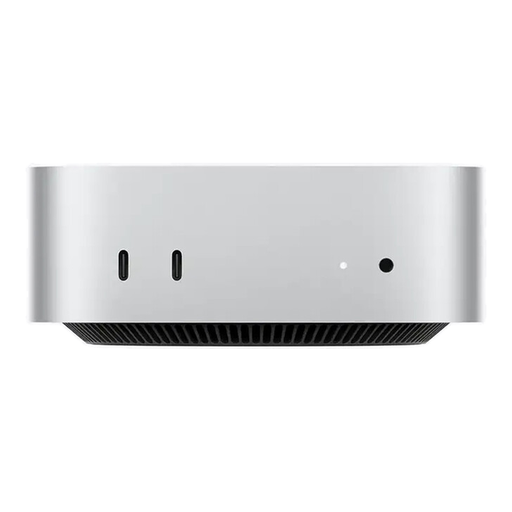 No image available
This Mac mini configuration suits a compact workstation if your image-editing software is compatible with macOS.
The offer title lists an M6 with a 12-Core CPU and 12-Core GPU, 16 GB Unified Memory, a 256 GB SSD, Thunderbolt 4 and HDMI. Before buying, check that the ports suit your monitor.
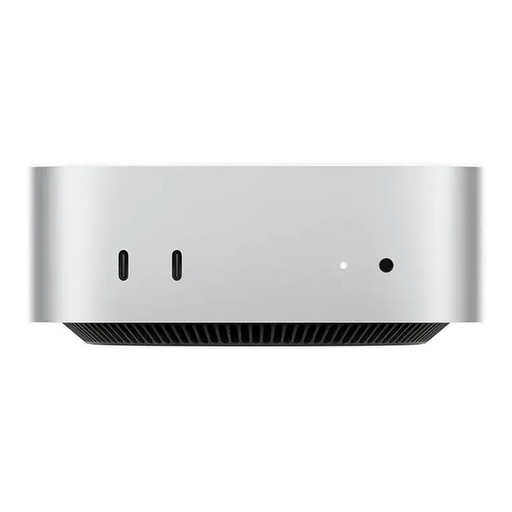 No image available
This Mac mini configuration is an option if your software runs on macOS and you’ve allowed for the listed storage capacity in your workflow.
The offer title lists an M6 with a 12-Core CPU and 12-Core GPU, 24 GB Unified Memory, a 512 GB SSD, Thunderbolt 4 and HDMI. Check that the ports match your monitor.
 No image available
This compact Windows 11 Pro mini PC could be suitable if your software is compatible with the listed operating system and specific configuration.
The offer title lists an Intel Celeron N5095, 16 GB LPDDR4X, a 256 GB M.2 2280 SATA SSD, HDMI 2.0 and 4K/60Hz. Check the monitor connections and software requirements.
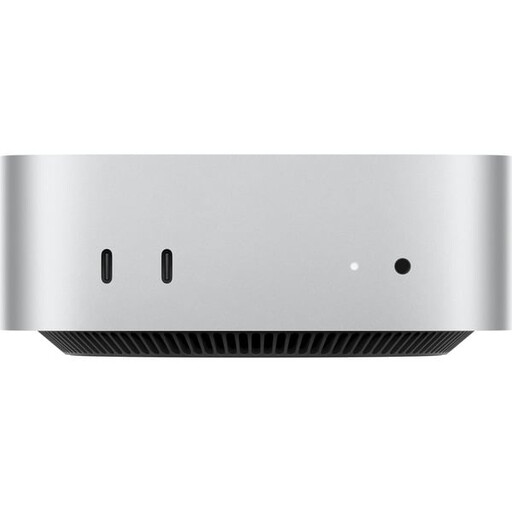 No image available
This Mac mini configuration is an option for a space-saving retouching workstation, provided the software you need runs on macOS.
The offer title lists an M6 with a 12-Core CPU and 12-Core GPU, 24 GB Unified Memory, a 1 TB SSD, Thunderbolt 4 and HDMI. Check that the ports suit your monitor.
For Photoshop 27.x, Adobe lists 8 GB RAM as the minimum and at least 16 GB as the recommendation. If you use Photoshop, follow the recommendation and check the other requirements for your version. Other programmes have their own requirements.
Connect a suitable monitor and set up its profile in as stable lighting conditions as possible. Adobe recommends calibration hardware for colour-critical work; a faster PC won’t replace this step.
Keep the original separate from the edited version, and back up important files on different media in separate locations. That way, you’re not relying solely on the internal SSD to preserve the portrait.
When consumers buy online from a business in Germany, they generally have a 14-day right to cancel from the date of delivery; statutory exceptions apply. Your Europe, the European Union’s information portal, lists this period. If goods are faulty, consumers also generally have statutory rights against the seller for at least two years from receipt. These are separate from any manufacturer’s guarantee.