Presenters using a second computer
You want to capture its HDMI slide feed and, if needed, display it on a monitor at the same time. The key things to check are signal compatibility and, if required, HDMI passthrough.


If your slides are running on the computer you’re recording on, OBS screen capture is all you need to start with; you don’t need an external capture card. For a second presentation computer or an HDMI camera, a USB capture device is suitable, provided it supports the signal. If you also need to connect a separate monitor, make sure the device has HDMI passthrough. Test the captured picture, slide audio and microphone together before your presentation.
You want to capture its HDMI slide feed and, if needed, display it on a monitor at the same time. The key things to check are signal compatibility and, if required, HDMI passthrough.
You’d like to add your camera feed alongside your slides. Check that the camera outputs an unencrypted, compatible HDMI signal and that your recording computer has the required connection.
If you’re presenting and recording on the same computer, screen capture and selecting your audio sources separately are more important to begin with than adding a capture card. OBS can capture the computer’s screen as a source.
First, work out which device your slides will run on. Then choose the signal path and computer connection. If you need a second screen, the device must also have a suitable HDMI output.
| What matters | What to check before buying | Who needs this? |
|---|---|---|
| Capturing the right source | Slide source and HDMI signal; supported recording resolution for the specific model | If my slides are coming from a second computer or a camera, I want to capture that exact picture, rather than accidentally recording the desktop of my recording PC. Around 33% of consumers put choosing the right video source first. |
| Voice and presentation audio | HDMI audio input and the option to select a separate microphone in the recording software | When I speak, I want my voice and, where relevant, the slide audio to be audible in the recording; a picture on its own isn’t enough. Around 27% of consumers prioritise clear presentation audio. |
| Recording and monitoring | HDMI passthrough output; compare display and recording formats separately | If I need a separate monitor during the presentation, the signal must reach it while the recording is running. Around 20% of consumers put simultaneous display first. |
| Connection to the recording computer | A suitable USB port or free PCIe slot; operating system and system requirements | For a laptop setup, I want to use the right USB port; for a desktop, an internal PCIe card may be an option. Around 20% of consumers prioritise compatibility with the computer they already have. |
Passthrough and recording use different signal paths. AVerMedia specifies a maximum of 1080p60 for both on the GC311, while one UGREEN model lists 4K60 passthrough alongside 1080p60 recording.
Check the input, passthrough and recording specifications separately for the exact model number.
If the device doesn’t support your preferred recording resolution, you may need to replace it later.
A visible picture doesn’t confirm that your separate speaking microphone or the audio from your presentation computer is being recorded too.
Make a short test recording before your presentation and listen back to your voice and, if applicable, the slide audio.
According to the manufacturer, the AVerMedia GC573 requires a PCI Express Gen 2 x4 connection; it isn’t a USB solution for a laptop.
First, check which connections are available, along with the operating system and system requirements.
The Elgato 4K S requires an unencrypted HDMI input, while AVerMedia explicitly excludes HDCP-protected signals for the GC311.
Before your event, test the output signal from the specific source device that you’re legally entitled to use, and check the usage rights rather than trying to bypass copy protection.
The Cam Link 4K is an HDMI-to-USB 3.0 input for a single camera or another HDMI source. The Game Capture 4K S is a different product range, with HDMI passthrough.
The range includes external USB devices such as the GC311 and GC553G2, as well as the internal GC573 desktop card.
The USB Capture HDMI Gen 2 is designed for a single HDMI input, such as a software-based presentation setup.
The model with product code 15390A-AMZ is described as an HDMI-to-USB-C/A capture device with loop-out.
The USB capture cards below are described as working with external HDMI sources and offering passthrough to an additional screen. For the models listed, 4K input or passthrough doesn’t mean 4K recording.
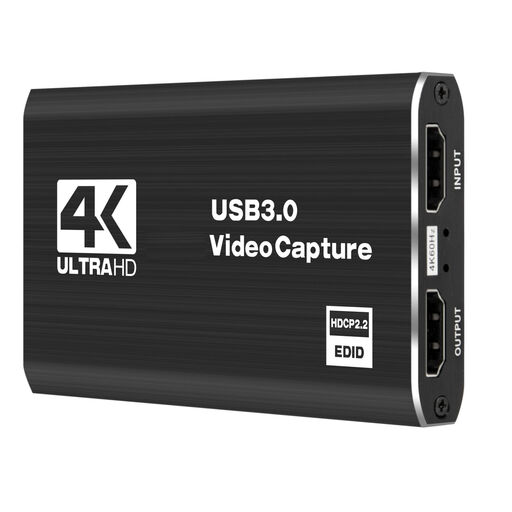 No image available
For an external HDMI source when you also want to connect a monitor.
4K/60 input and passthrough; recording up to 1080p/60.
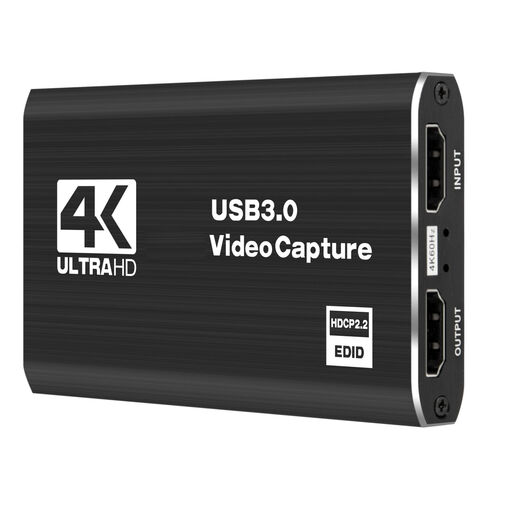 No image available
For capturing an external HDMI picture with an additional loop-through display.
4K/60 input and loop-through; recording up to 1080p/60.
 No image available
For connecting an HDMI source to your computer when you also want to use a second display during recording.
HDMI input up to 4K 30 Hz; recording at 1080p 60 Hz. HDMI passthrough is specified.
 No image available
For external sources such as a camera, when you also want to send the picture to a monitor or projector.
4K/60 input and passthrough; recording up to 1080p/60.
 No image available
For an external HDMI source with an additional display via passthrough.
Video recording up to 1080p and 4K passthrough; with microphone input and headphone output.
Not to capture what’s on your own screen: OBS has a screen capture source. A capture card only becomes relevant if you’re using an additional external video signal.
Select your speaking microphone as an audio source in OBS and listen back to a short test recording. OBS notes that selecting the same audio source both as a scene source and globally can cause an echo. Also check the HDMI audio from your source device.
OBS recommends MKV for many local recordings and describes it as reliable if a recording is interrupted. You may need to convert it afterwards to a more compatible format for some editing programmes.
If you buy from a trader in the EU as a consumer, you’re entitled to a legal guarantee of at least two years from the date you receive the goods. This is separate from any additional manufacturer’s warranty.
Not simply because the technology makes it possible. If personal data is processed, you need an appropriate legal basis under the GDPR. For distributing or publicly displaying recognisable images, § 22 KunstUrhG generally requires consent. Before recording and publishing, check which legal basis and possible exceptions apply in your specific case.