A USB stick is usually the handiest choice for individual presentation files, provided the ports and file system are compatible with both the source and destination devices. If you regularly copy large files, compare the write performance of the specific model and check whether an external SSD is compatible with the port at your workplace. For confidential slides, controlled access and a separate backup matter more than simply promising faster speeds.
Who are the different options best suited to?
Presenters using different computers
If you transfer slides between different devices, the ports and file system need to be compatible. Kingston and Verbatim offer USB sticks with USB-A and USB-C connectors; Apple Support explains the formatting options for use with Windows and Mac computers.
Teams handling confidential slides
If you hand over presentations at a shared workstation, consider who needs access and how unlocking the drive will be managed. The German Federal Office for Information Security warns that malware can spread via USB storage devices; the Federal Commissioner for Data Protection and Freedom of Information explains that security measures should reflect the risk and type of data involved.
Anyone regularly copying large presentation folders
If you transfer large folders or update them regularly, the write performance of the specific storage model is key to choosing the right option. A quoted read speed alone does not tell you how long it will take to write files on a shared computer.
What should you consider when choosing?
USB stick
Best for: carrying individual presentations between computers.
Things to consider: Write speeds and connectors vary between models.
External SSD
Best for: regularly copying larger folders or presentations with embedded media, provided the workstation has a compatible port.
Things to consider: Manufacturer figures are maximum speeds; they do not guarantee a particular copy time on a shared computer.
External HDD
Best for: carrying other large files as well as presentations.
Things to consider: For just a few slides, a cabled hard drive is usually more equipment than you need.
| Criterion |
What to look for |
Who is it important to? |
| Connector and compatibility |
Check for USB-A or USB-C on both devices, as well as the file system, and test that a presentation opens. |
If I open slides on different computers, the connector and file system need to be compatible. Around 40% of consumers put compatibility with both devices first. |
| Access protection |
Consider file confidentiality, workplace policies, the unlocking method and a separate backup. |
Anyone transferring confidential slides via a shared workstation may want to restrict access and organise how the drive is unlocked. Controlled file access is a priority for around 30% of consumers. |
| Copying time |
Consider the write performance of the exact model and the port at your workplace; do not confuse read speeds with write speeds. |
If I copy large or frequently updated folders, the write performance of the specific model matters to me. Around 20% of consumers prioritise shorter copy times. |
| Storage space and backup |
Allow for the size of the entire folder and keep important files in a separate location. |
If I carry several versions or media files, I need enough space and a copy I can find again. Around 10% of consumers put this need first. |
What buying and usage mistakes should you avoid?
-
Confusing read speed with write speed
Read speed alone does not show how quickly presentations can be written to the drive.
Check the write-speed figures for the exact model and capacity, and take the port at your workplace into account.
If you write files frequently, longer waits can interrupt your workflow.
-
Assuming a matching connector guarantees full compatibility
A compatible connector is not enough if the destination device cannot read the file system or the presentation.
Check the ports and file systems on both computers, then open a test file on the destination device before handing it over.
Reformatting may require extra time to back up and copy your files again.
-
Using your transfer drive as the only copy
The German Federal Office for Information Security points out that the lifespan of storage media cannot be predicted precisely.
Keep important presentations in a separate location too, and regularly check that the files still open.
-
Buying access protection without planning how to unlock the drive
A drive that requires a code is only practical if authorised users can manage access as part of their everyday work.
Before buying, decide who will manage the code and whether the unlocking method can be used at your workplace.
Managing the code and coordinating access can interrupt your team’s workflow.
Which brands are worth considering?
Kingston
The DataTraveler Duo is designed for switching between USB-A and USB-C computers; the DataTraveler Exodia is a USB-A alternative.
- Kingston lists two connectors, 128 and 256 GB capacities, and a five-year limited warranty for the DataTraveler Duo.
- According to the manufacturer, the DataTraveler Exodia has a USB-A connector. A different connection solution is needed for USB-C devices without a USB-A port.
Verbatim
A dual USB stick for different connectors; the Keypad Secure is an option for controlled access that you should assess separately.
- Verbatim lists USB-A and USB-C connectors for its Dual USB stick. For the Keypad Secure #49429, the manufacturer lists a keypad and AES-256 hardware encryption.
- The Keypad Secure #49429 has a USB-A connector and requires a code management process. These features do not automatically apply to the Dual USB stick.
SanDisk
The range includes models for different connection and copying requirements.
- The Extreme Pro USB 3.1 Gen1 and Ultra Dual Drive Luxe USB Type-C are different models to compare when looking at specific options.
- Specifications for one model cannot necessarily be applied to other SanDisk USB sticks. Check the write performance of the exact model.
Samsung
The Portable SSD T7 Shield is worth considering if you regularly copy larger folders and its interface is compatible with your workplace.
- For the German 1 TB model MU-PE1T0S/EU, Samsung lists USB 3.2 Gen 2 and read speeds of up to 1,050 MB/s.
- The read speed is a manufacturer figure, not a measured copy time on a shared computer.
Toshiba
The Canvio Basics is a portable 2.5-inch HDD for when you need extra storage space as well as somewhere to keep presentations.
- Toshiba lists 1, 2 and 4 TB models, powered via USB.
- According to Toshiba, the range is designed for Windows; check compatibility with other destination devices separately.
Joybuy products for transferring files
The product options below include USB sticks, external SSDs and hard drives for transferring presentations and other files.
 No image available
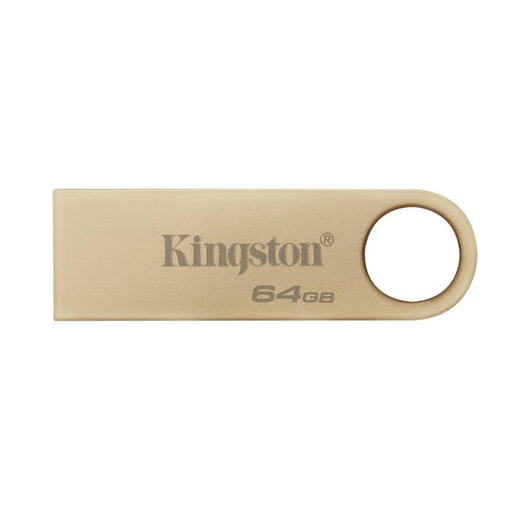
Kingston DataTraveler SE9 G3, 64 GB, USB 3.2 Gen 1
For presentations on a computer with a compatible USB-A port.
64 GB; product specifications state read speeds of up to 220 MB/s and write speeds of up to 100 MB/s.
View at Joybuy
 No image available
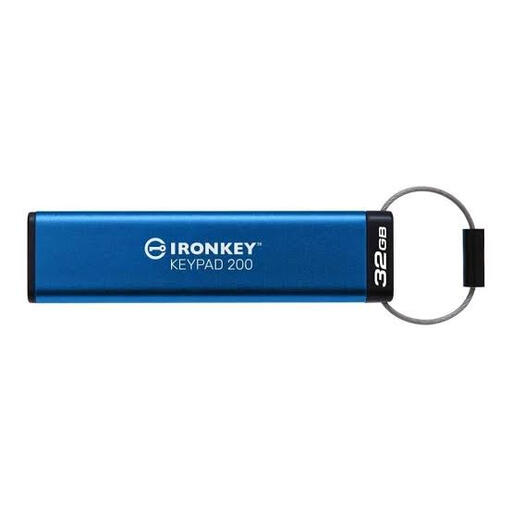
Kingston IronKey Keypad 200, 32 GB
For confidential presentations when entering a PIN on the drive suits your workflow.
32 GB; keypad and XTS-AES-256 hardware encryption. PIN and code management need to be organised.
View at Joybuy
 No image available
WD Elements Portable, 5 TB, USB-C
For large collections of files and media, if an external hard drive is suitable for your workplace.
5 TB; 2.5-inch design and weighs 240 g according to the product description. Listed as suitable for Windows and Mac computers.
View at Joybuy
 No image available
WD Elements Portable, 2 TB, USB-C, exFAT
For larger folders transferred between Windows and macOS computers.
2 TB; USB 3.2 Gen 1 and exFAT according to the product description. An adapter may be needed for USB-A ports.
View at Joybuy
 No image available
KEXIN external SSD, 256 GB, USB 3.1 Type-C
For portable file transfers, provided the computer you use supports the right connector.
256 GB; the product description states speeds of up to 500 MB/s and compatibility with PCs, Macs and Android devices. This figure does not guarantee a particular copy time at your workplace.
View at Joybuy
Frequently asked questions
Which file system should I check for Windows and Mac?
exFAT is one possible format for using an external drive with Windows and Mac computers, as explained by Apple Support. Back up your files before reformatting, then check that the presentation opens on the destination computer.
How should I disconnect the drive after copying?
In Windows, eject the drive using ‘Safely Remove Hardware and Eject Media’ before disconnecting it. Microsoft recommends this to help prevent data loss.
Which edition of Windows do I need for BitLocker To Go?
Microsoft lists Windows Pro, Enterprise or Education for manually setting up BitLocker drive encryption; Windows Home does not include this feature. If you are using a managed workplace computer, check your IT department’s requirements too.
What should I check about a USB stick’s warranty?
Kingston lists a five-year limited warranty for the DataTraveler Duo. Check the terms for the exact model, and find out whether you need an additional cable or adapter for your devices.


