Who this choice is for

Teams sharing a printer

If several work devices need to print checklists, compatibility with your existing network is a key consideration. Brother Deutschland and Kyocera Document Solutions Deutschland list LAN and Wi-Fi connections for the relevant models.

Teams that print lists regularly

For regular print jobs, it’s worth considering paper handling, duplex printing and suitable consumables together, based on your print volume. Brother Deutschland lists separate toner and drum units for the HL-L2445DW, while Epson Deutschland describes the WF-M5399DW as having automatic duplex printing.

Teams with specific checklist workflows

If checklists contain confidential information, need colour coding or completed sheets need to be digitised, choose a printer that suits the way you print and process them. Kyocera Document Solutions Deutschland lists “Confidential Print” for the ECOSYS PA4000wx; Epson Deutschland describes the WF-C5390DW as a colour printer.

What to consider when buying

Mono laser printer

A good choice if: Your lists are mostly text and tick boxes, and several work devices need to print.

Bear in mind: The mono printers mentioned here do not print in colour or scan.

Mono business inkjet printer

A good choice if: A business inkjet model with automatic duplex printing could suit your regular mono printing needs.

Bear in mind: Manufacturer claims about low total cost of ownership are no substitute for comparing models against your own print volume and the relevant consumables.

Colour or multifunction printer

A good choice if: You need colour codes or have to scan completed paper lists.

Bear in mind: Colour and extra features aren’t necessary if you only print in mono and don’t need to scan.

Buying priority What to check Who it matters most to
Network access Check for LAN or Wi-Fi, which work devices are supported and how to set up the specific model. If several work devices need to access the same printer, connecting it to the existing network matters to me. Around 36% of consumers rank network access as their top buying priority.
Consumables and paper Compare suitable ink or toner, any separate drum units, the basis for stated yields and the paper handling options against your print volume. For regularly printed lists, I want to plan for consumables and paper handling together rather than focus only on the printer’s features. Around 29% of consumers see ongoing printing costs as their main concern.
Secure printing Check whether lists contain confidential information, who collects the printouts and whether the device needs a suitable print-release function. If lists contain sensitive information and the output tray is shared, I want a controlled collection process. Around 21% of consumers name print security as their top buying priority.
Colour or digitisation Check whether templates remain legible in mono and whether completed sheets need to be scanned or copied. If I need colour codes or have to process completed lists digitally, a suitable colour or multifunction printer is relevant. Around 14% of consumers make colour or digitising documents a key factor in their choice.

Avoiding common buying pitfalls

  • Forgetting to factor in consumables

    The Brother HL-L2445DW uses separate toner and drum units. For a meaningful comparison, look at the compatible supplies and their stated yields at a similar print volume. Manufacturer yields don’t guarantee the same page count in your own setup.

    Check which consumables are compatible with the exact model and how the stated yield has been measured.

  • Assuming Wi-Fi means secure printing

    A network connection makes print jobs accessible, but it doesn’t stop other people from seeing printouts left in the output tray.

    If lists contain sensitive information, plan how they’ll be collected and who can access them. Also check whether secure print release is suitable for the specific device and workflow.

  • Assuming duplex printing and paper capacity without checking

    Whether a printer can handle double-sided templates depends, among other things, on paper size and weight. Maximum paper capacity may also require optional accessories.

    Check that the paper size and weight, standard tray and any necessary accessories suit your templates.

Key brands at a glance

Brother

The HL-L2445DW is an example of a mono laser printer with network connectivity and automatic duplex printing.

  • Brother Deutschland lists LAN, Wi-Fi and a 250-sheet paper tray for this model.
  • The toner and drum are separate consumables; the model doesn’t print in colour or scan.

Kyocera

The ECOSYS PA4000wx is a mono network printer for workflows where controlled print release may be important.

  • Kyocera Document Solutions Deutschland lists LAN, Wi-Fi and the “Confidential Print” function.
  • According to the manufacturer, maximum paper capacity requires compatible optional add-ons. Claims about low running costs come from the manufacturer and aren’t an independent comparison between models.

Epson

The WorkForce Pro WF-M5399DW and WF-C5390DW meet different mono and colour printing needs.

  • Epson Deutschland lists automatic duplex printing for the WF-M5399DW and colour printing for the WF-C5390DW.
  • Manufacturer claims about low total cost of ownership don’t prove a cost advantage across different models.

Canon

The i-SENSYS LBP246dw II is a mono printing option, while the MAXIFY GX7150 PRO is a multifunction printer for workflows that involve scanning.

  • Canon Deutschland lists secure printing and a 250-sheet standard cassette for the LBP246dw II. COMPUTER BILD describes the MAXIFY GX7150 PRO as a multifunction printer with scanning and printing capabilities.
  • According to Canon, the LBP246dw II needs add-ons to reach its higher maximum paper capacity. Test results for the MAXIFY GX7150 PRO can’t be applied to other Canon models.

HP

According to HP Deutschland, the LaserJet Pro 4002dw is a mono printer for workgroups, with duplex printing and dual-band Wi-Fi.

  • HP Deutschland lists network and duplex features for this model.
  • HP notes that dynamic security measures may block cartridges with a chip from another source, including after firmware updates. Check the cartridge requirements for the exact model.

Joybuy product options

The models below include mono laser printers and wireless inkjet multifunction printers. Choose based on print colour, network connectivity and whether you need to scan or copy as well as print.
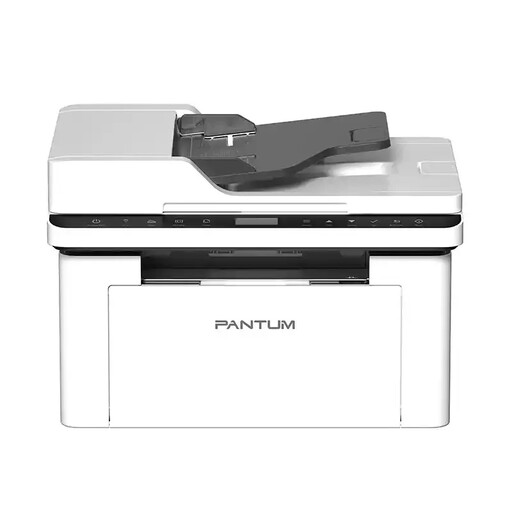
PANTUM BM2300AW A4 mono laser multifunction printer

PANTUM BM2300AW A4 mono laser multifunction printer, 22 ppm, Wi-Fi, ADF

For wireless A4 mono printing if a multifunction printer could also suit your needs.

Features listed in the product name: 22 ppm, Wi-Fi and ADF.

Joybuy
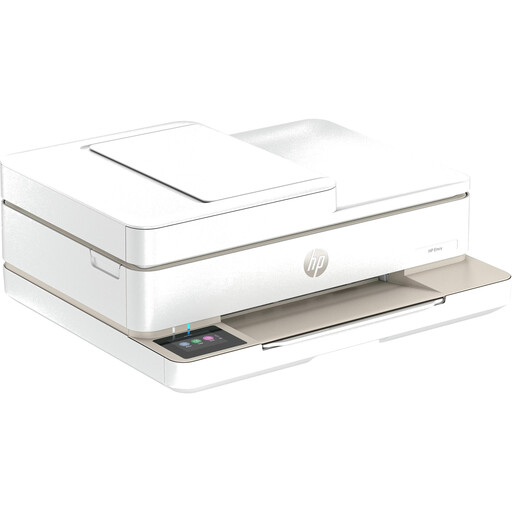
HP Envy 6520 all-in-one wireless inkjet printer

HP Envy 6520 all-in-one wireless inkjet printer

An option if a wireless inkjet multifunction printer is a better fit for your checklist workflow than a mono printer.

Features listed in the product name: all-in-one, Wi-Fi and inkjet printing.

Joybuy
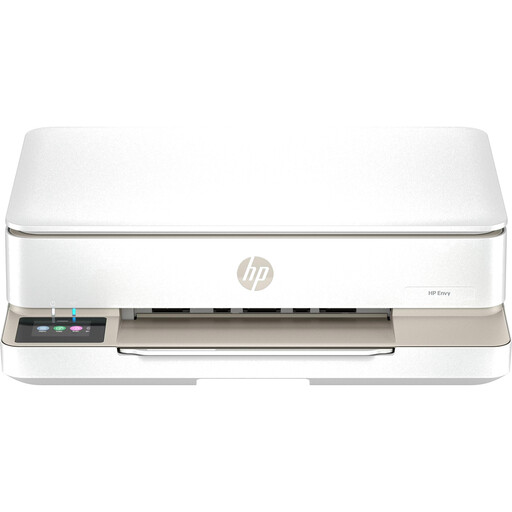
HP Envy 6120 all-in-one wireless inkjet printer

HP Envy 6120 all-in-one wireless inkjet printer

For a shared wireless inkjet multifunction setup; check that the printer suits the scanning and copying tasks you have in mind.

Features listed in the product name: all-in-one, Wi-Fi and inkjet printing.

Joybuy
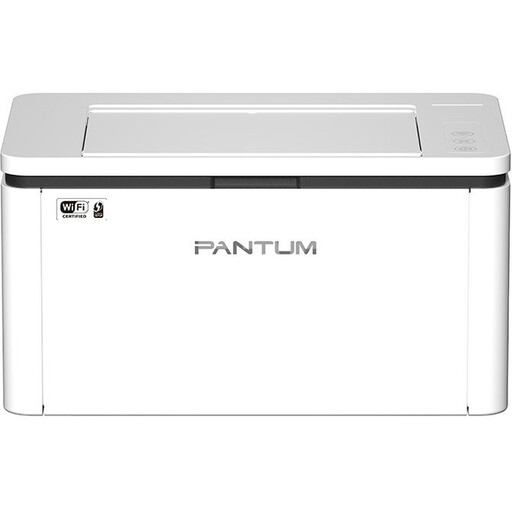
PANTUM BP2300W A4 mono laser printer

PANTUM BP2300W A4 mono laser printer, 22 ppm, Wi-Fi and Bluetooth

For A4 mono checklists if Wi-Fi or Bluetooth suits your planned connection options.

Features listed in the product name: 22 ppm, Wi-Fi and Bluetooth.

Duplex printing is manual; you’ll need to turn the paper over by hand.

Joybuy
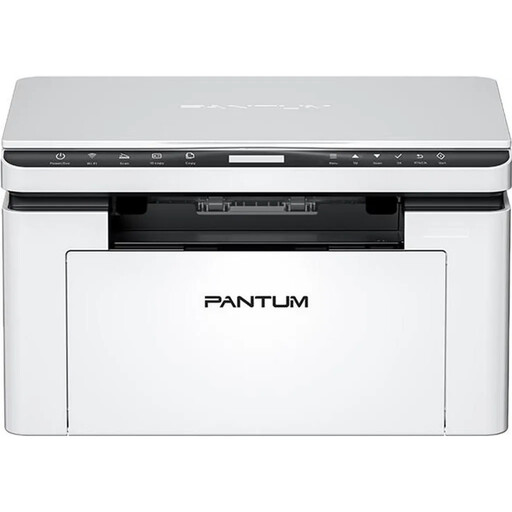
PANTUM BM2300NW A4 mono laser multifunction printer

PANTUM BM2300NW A4 mono laser multifunction printer, 22 ppm, dual-band Wi-Fi, Ethernet

For a shared printing area if you need a multifunction printer as well as mono printing, with wired or wireless network options.

Features listed in the product name: 22 ppm, dual-band Wi-Fi and Ethernet.

Duplex printing is manual; you’ll need to turn the paper over by hand.

Joybuy

Frequently asked questions

Do I automatically need a scanner for equipment checklists?

No, not if you only print templates. If you need to digitise or copy completed paper lists, consider a multifunction printer and check that its scanning process suits your needs.

How do I set up a printer for several people?

For the specific model, choose LAN or Wi-Fi to suit your existing network, and check which work devices are supported. Agree with your IT team who can print and manage settings; a network connection doesn’t determine who can collect printouts from the printer.

What should I consider when it comes to consumables and disposal?

For your expected print volume, compare suitable ink or toner, any separate drum unit and paper. In Germany, old electrical appliances must not go in household waste; the Federal Environment Agency lists local collection points and retailer take-back options.

Is secure printing a legal requirement for checklists in Germany?

Not as a blanket rule for every checklist. If lists contain personal data, those responsible must take appropriate technical and organisational measures that match the risk, as required by the GDPR and explained by the Federal Commissioner for Data Protection and Freedom of Information. Print release at the device may be one part of the solution, depending on the risk and workflow; this doesn’t mean that this particular product feature is a general legal requirement.

Should a laser printer sit directly on a shared desk?

Consider where you plan to put it and the conditions there. As a precaution, the Federal Environment Agency recommends placing large office printers in separate rooms. This isn’t a blanket rule banning every small printer from a desk.