For digital product photography, a carefully chosen primary monitor is often enough for assessing colour, while the second screen can display selections, comparisons or tools. For colour-critical print preparation, a more suitable colour space and a controllable calibration and profiling workflow matter more; you don’t automatically need two identical monitors. Before you buy, check that your computer and, if applicable, your dock can support both displays at the resolution you want, and that the connections, available space and charging power are right for your setup.
Who is a two-monitor workstation for product photography for?
Editors of digital shop photography
You mainly edit product images for digital use and want to assess the photo on a primary screen, while keeping selections and tools on the second. Adobe describes several views for the second window in Lightroom Classic.
Preparing images for print
You also supply product photos for colour-critical print work and need a suitable colour space, along with a controllable calibration and profiling workflow. EIZO points out that calibration won’t fix a colour space that’s too small or panel non-uniformity.
Laptop workstations with two displays
You want to run two displays from a laptop. Video connections, charging power and the number of displays supported by your particular computer all affect whether your planned setup will work. Microsoft Support explains how to configure multiple monitors in Windows.
What should you look for?
First, decide which screen you’ll use to make final colour judgements. This will determine whether the second monitor is mainly there to give you more workspace or also needs to be part of your colour workflow.
Colour-suitable primary monitor plus a standard second screen
A good fit if: You mainly use your product photos digitally and want to use the second screen for selections, comparisons or tools.
The trade-off: Different displays can show the same file differently. Make final colour corrections on your profiled primary monitor.
Two similarly equipped photo monitors
A good fit if: You regularly need to assess images critically for colour on both displays and include both in your colour workflow.
The trade-off: Similar specifications don’t guarantee an identical picture; both screens need the right settings and profiles.
One large monitor instead of two displays
A good fit if: You mainly need space for several windows side by side and don’t specifically need two separate displays.
The trade-off: More screen space is no substitute for a suitable colour space or the separate second-window view described by Adobe for Lightroom Classic.
| Priority |
What to check before buying |
Who should pay particular attention |
| Digital image colours |
Check the sRGB mode on the specific model, along with options for calibration, profiling and assigning a profile on your computer. |
If I edit product images for digital use, I want to assess colours on a suitable primary monitor. Around 31% of consumers put digital colour assessment first. |
| Workspace and screen roles |
Plan how you’ll arrange your windows, then check the resolution, stand dimensions, height adjustment and number of displays supported by your computer. |
If I want to keep the photo view, selections and tools separate, a well-organised workspace is essential. Around 31% of consumers give this priority. |
| Preparing colours for print |
Check Adobe RGB specifications, the type of calibration, whether you need a separate measuring device and which profiles are required for your output process. |
If my product photos are also intended for colour-critical print work, the monitor needs to suit my colour workflow. Around 23% of consumers prioritise print preparation. |
| Connecting a laptop and displays |
Check the video output and supported external displays of your exact computer model against the inputs on both monitors, the dock’s features and the USB-C charging power you need. |
If I want to connect both displays to my laptop, I want to check the signal path and power supply in advance. Around 15% of consumers put laptop connectivity first. |
Common buying misconceptions
-
The same colour space specifications mean identical colours
Manufacturers’ colour gamut coverage figures don’t prove that two units will display colours in the same way. EIZO also points out that calibration won’t fix a colour space that’s too small or panel non-uniformity.
Decide which screen you’ll use to assess colours, and check the calibration and profiling options for every monitor you’ll use for colour-critical work.
Depending on your workflow, you may need a measuring device and time to set up and recalibrate both displays.
-
A USB-C port guarantees support for two external displays
Whether two screens will work also depends on the specific computer and how they’re connected. A monitor connection alone doesn’t confirm that your laptop can supply the necessary power or support two external displays.
Check your computer, dock, both video signal paths and the charging power you need as one complete connection chain.
You may need additional suitable cables or a compatible dock.
-
A two-monitor bundle contains two identical displays
The LG bundle page lists two model names, but provides detailed technical specifications for the 27U730A-B. Don’t assume these specifications apply to the second model without checking.
Read the specifications for each model in the bundle separately before assuming they have the same colour or connectivity features.
Relevant brands to consider
EIZO
The ColorEdge CG2700X is an option for controlled image assessment in the 27-inch category.
- EIZO specifies a resolution of 3840 × 2160 pixels and more than 99% Adobe RGB; PRAD describes it as having an integrated calibration sensor. PRAD ranks the model first in its list of high-end 27-inch graphics monitors.
- These specifications apply to this model, not to every EIZO monitor. They don’t automatically mean you need a second screen at the same price.
BenQ
The PhotoVue SW272U is worth considering as a colour-critical primary screen, particularly if you need to prepare images for print and connect a laptop.
- BenQ specifies a 27-inch screen, 3840 × 2160 pixels, 99% Adobe RGB, hardware calibration and USB-C with 90 W Power Delivery for this model.
- The manufacturer’s colour space and power specifications don’t guarantee a particular print result or that it will power every laptop.
ASUS
The ProArt PA279CRV is a 27-inch 4K work monitor with selectable colour modes and an adjustable stand.
- ASUS specifies 100% sRGB, 99% Adobe RGB, USB-C with 96 W and a height-adjustable stand for this model.
- The colour space figures are the manufacturer’s specifications and don’t prove that two units will display colours identically.
Dell
The UltraSharp U2725QE is designed for a 27-inch 4K workstation where connectivity and workspace matter.
- Dell lists 4K resolution, a Thunderbolt hub and height adjustment for this model.
- These features don’t confirm that it’s suitable as a reference monitor for print proofing or that it’s compatible with every laptop using two displays.
LG
The 27U730A-B is an example of a 27-inch 4K work monitor; LG also describes a two-monitor bundle.
- LG specifies a resolution of 3840 × 2160 pixels and a typical DCI-P3 figure of 90% for the 27U730A-B.
- For this model, LG explicitly lists hardware calibration as unavailable. Check the model names and specifications of both displays in the bundle separately.
Joybuy products for your photo workstation
The products below include portable second screens, a colour-focused primary monitor and a single, extra-wide workspace. A single ultra-wide monitor isn’t a substitute for two separate displays.
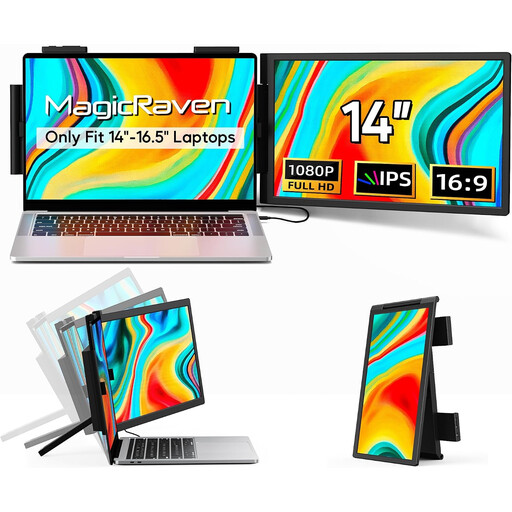 Image unavailable
Portable 14-inch dual-screen monitor, FHD 1080p, 60 Hz, IPS
Designed as an additional screen for a laptop workstation with two displays.
FHD 1080p, 60 Hz and IPS; HDMI, USB-A and USB-C. For laptops from 14 to 16.5 inches; the product details state that it’s compatible with Windows, macOS and Android.
View at Joybuy
 Image unavailable
INNOCN CB27U1, 27 inches, 4K UHD
Designed as a primary monitor for viewing photos if you’re planning for a larger 4K screen and extra connections.
3840 × 2160 pixels, IPS and 120 Hz; USB-C with 90 W Power Delivery, HDMI and DisplayPort, plus a height-adjustable stand. The product description specifies 100% sRGB, 99% Adobe RGB and Delta E < 1.
View at Joybuy
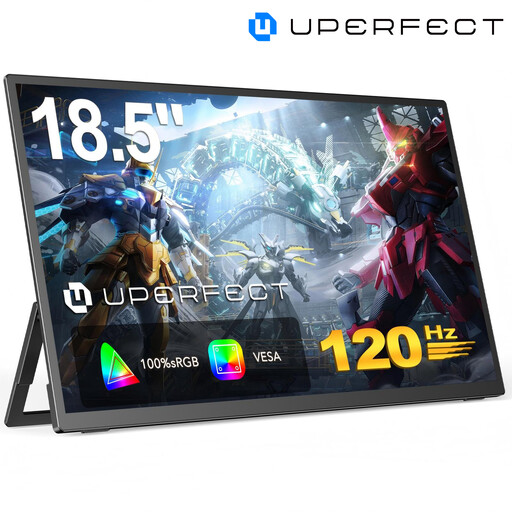 Image unavailable
UPERFECT portable 18.5-inch monitor, Full HD, 120 Hz
Designed as a portable extra screen for a laptop or PC, for example to keep selections and tools beside your photo view.
1920 × 1080 pixels, matte IPS display, USB-C and Mini-HDMI. The connected device must support video output over USB-C.
View at Joybuy
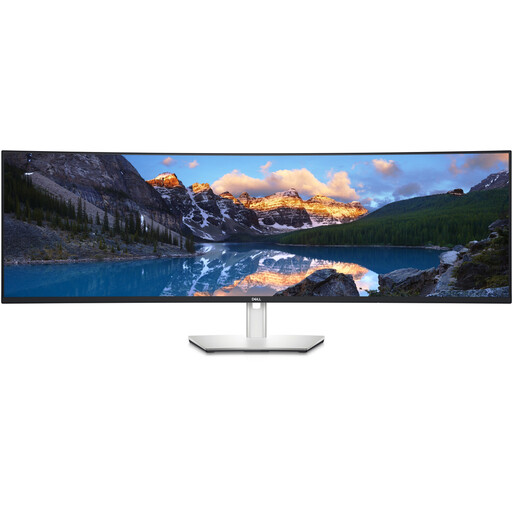 Image unavailable
Dell UltraSharp U4924DW, 49 inches, 5120 × 1440
Designed to give you a wide workspace for multiple windows if you’re considering one screen instead of two separate displays.
IPS, 5120 × 1440 pixels, 60 Hz and 98% DCI-P3 according to the product description; HDMI, DisplayPort and USB-C with 90 W Power Delivery. This is a single 49-inch monitor, not two separate displays.
View at Joybuy
 Image unavailable
UPERFECT portable 15.6-inch monitor, 100% sRGB
Designed as a second screen beside a primary monitor if you’re looking for a portable display with a stated sRGB figure.
1920 × 1080 pixels, IPS, USB-C and Mini-HDMI; the product description specifies 100% sRGB, a built-in adjustable stand and VESA compatibility.
View at Joybuy
Frequently asked questions about monitors for product photography
Do both monitors need to be the same model?
No, if you assess colour corrections on a suitable primary monitor and mainly use the second for selections or tools. If you want to use both displays to make colour decisions, you’ll need to take both monitors and their profiles into account. Having the same model name alone doesn’t prove they’ll look the same.
How do I use Lightroom Classic on two screens?
Adobe describes several views for the second Library window, including Grid, Loupe and Compare. Arrange the displays in your operating system to suit your setup, and assign the right profile to each screen for colour-critical work. Microsoft Support documents these settings for Windows.
What else should I allow for when it comes to calibration and connections?
Check whether your chosen calibration workflow requires a separate measuring device and whether you’ll need suitable cables, a compatible dock or a mounting bracket. If the video signal paths and charging power aren’t compatible with your computer and monitor, you may need additional suitable accessories.
What are my rights if a product is faulty or I change my mind after buying in Germany?
For a consumer purchase from a business seller, European Union guidance provides for a legal guarantee of at least two years from the date you receive the goods. A voluntary manufacturer’s guarantee doesn’t replace it. Online consumer contracts of this kind generally come with a 14-day right to cancel, subject to the terms and exceptions of the specific contract. These statements don’t necessarily apply to business purchases.


