For product sketching at a dedicated home-office desk, a graphics tablet is a natural choice if you already work with a computer and monitor. If you want to draw directly on your sketch, consider a connected pen display. A standalone drawing device is a good fit if you want to sketch without a computer too – check that it supports the apps and file formats you need. The work area, desk space and connections available on the specific model also matter.
Which type is right for you?
For sketching at a desktop computer
If you mainly develop product ideas using your existing monitor, a screenless graphics tablet can fit neatly into your desk-based workflow. Wacom lists USB and Bluetooth connectivity for the Intuos Pro Medium; ugee describes the M908 as a wired model.
For drawing directly on screen
If you want to work on shapes and make changes directly on the displayed sketch, and have room for an additional display, consider a connected pen display. XPPen, Huion and Wacom offer a range of models and features.
For capturing ideas without a computer
If you want to draw away from your desk as well, consider a device specifically designed to work on its own. Wacom describes the MovinkPad 11 and XPPen the Magic Drawing Pad as Android drawing devices that do not need to be connected to a PC for drawing.
What should you look for?
First decide whether you want to draw using your existing monitor, directly on a connected display or without a computer. Then check that the work area and connections on the exact model suit your desk and drawing software.
Screenless graphics tablet
A good fit if: you already use a suitable computer and monitor, and prefer to draw on a separate surface.
The trade-off: you draw on the tablet while viewing the result on a separate screen.
Connected pen display
A good fit if: you want to draw directly on your sketch and have room for the screen, stand and cables.
The trade-off: a pen display is not automatically a standalone computer; connections and any power supply requirements depend on the model.
Standalone drawing device
A good fit if: you want to capture ideas without a connected computer.
The trade-off: check that the drawing and editing software you need, along with the relevant file formats, are available on the device.
| What you need |
What to check before buying |
Who it matters to |
| Drawing directly on the sketch |
Check the display size and resolution, the space needed for the stand, and the video and power connections on the exact model. |
If I want to work on outlines directly beneath the pen tip, the right screen and its connections matter to me. This is the main priority for around 36% of consumers. |
| Using an existing monitor |
Check that the active drawing area, connection, driver and button mapping work with your computer and software. |
If you want to use your existing monitor at a dedicated workstation and keep your drawing area flexible, pay particular attention to the work area and connection. This is the main priority for around 29% of consumers. |
| Sketching without a connected computer |
Check the operating system, the drawing app you need and compatible export formats. |
If I want to capture ideas away from my computer, the apps and files I need must work on the standalone device. This is the main priority for around 21% of consumers. |
| Assessing details and colours on the display |
Compare the resolution, screen size and colour modes available on the specific model. |
If you want to assess fine sketch details and colours directly on the drawing screen, check that its display characteristics suit your software. Around 14% of consumers put this need first. |
Avoiding common buying and planning mistakes
-
Assuming a pen display works without a computer
A connected pen display needs to be linked to a computer. The XPPen Artist Pro 16 (Gen 2) manual also describes an additional power connection if the display does not light up.
First decide whether you need to draw without a computer, then check the connection diagram for the exact model.
-
Assuming similar model names or generations are identical
Models in the Huion Kamvas 16 range differ in areas including resolution and pen technology. The Wacom Cintiq DTK1660 is also a different model number from the DTK168K0B.
Before buying, compare the full model number and generation, as well as the display, pen and included accessories.
-
Relying on screen size or pressure levels alone to judge suitability
A single specification does not tell you whether you will have enough desk space or whether the work area and connections will suit your workflow.
Measure the space available, then check the active area, device dimensions and connections against the way you usually sketch.
Key brands at a glance
Wacom
The models featured include a graphics tablet, a connected pen display and a standalone drawing device.
- Wacom lists an active area of 263 × 148 mm and USB and Bluetooth connectivity for the Intuos Pro Medium. The Cintiq 16 DTK168K0B is a pen display, while the MovinkPad 11 works without a PC, according to Wacom.
- These features apply to the specific models and are not standard across all Wacom devices. Pay particular attention to the full Cintiq model number.
XPPen
The models featured range from the Deco Pro (Gen 2) graphics tablet to connected pen displays and the standalone Magic Drawing Pad.
- XPPen lists a built-in folding stand for the Artist Pro 16 (Gen 2). The Magic Drawing Pad is a standalone Android device, according to the manufacturer.
- According to its manual, the Artist Pro 16 (Gen 2) connects to a computer; an additional power supply may be needed in the circumstances described. Check the generation of the specific model.
Huion
The Kamvas 16 (Gen 3) is a connected pen display for a workspace where screen space and fine detail matter.
- Huion lists a 15,8-inch screen, 2.560 × 1.440 pixels and selectable colour modes for this model.
- Resolution and pen technology vary across the Kamvas 16 range. Do not assume that a feature applies to other variants without checking.
ugee
The M908 is a wired, screenless graphics tablet for use with an existing computer.
- ugee lists an active area of 10 × 6,25 inches, a scroll wheel and eight shortcut keys.
- For setup, the manual describes connecting the tablet to a computer and installing the driver for that model. Check operating system and software compatibility.
Joybuy products for simple sketches
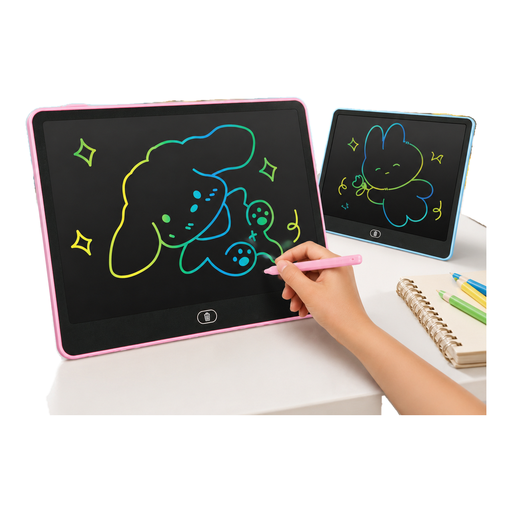
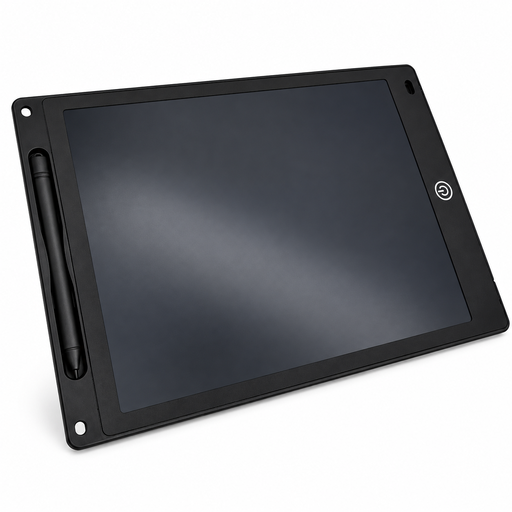
The Joybuy products featured here are LCD drawing boards for simple sketches that can be erased instantly. Check that their features suit your design workflow.
 No image available
14-inch LCD drawing board, pink/blue mix, 1 CR2032 button cell included
For simple sketches you can erase at the touch of a button.
The colour or design is selected at random. Keep button cells and small parts away from young children, and supervise children when using the product.
Joybuy
 No image available
12-inch LCD drawing board with pen, erase and lock functions, 5 mm thin, black
For simple sketches and notes on a reusable drawing surface.
The stated drawing area measures 230 × 165 mm. The button cell for the erase function may not be included; keep batteries away from children and supervise use.
Joybuy
Frequently asked questions
Do I need a computer to use a pen display?
Yes. A connected pen display such as the XPPen Artist Pro 16 (Gen 2) connects to a computer. The manufacturer’s manual also describes an additional power connection if the display does not light up. Standalone Android devices such as the XPPen Magic Drawing Pad and Wacom MovinkPad 11 can be used for drawing without a connected PC.
How do I set up a graphics tablet with my computer?
Connect the specific model as described in its manual and install the driver for your operating system. The ugee M908 manual starts with connecting the tablet via USB, then explains how to download the driver for the model and operating system. The steps may differ for other devices.
Can I return a drawing tablet bought online if I don’t like how it feels to draw on?
For online consumer contracts, you generally have a 14-day right to cancel, starting from the day you receive the goods. You must notify the other party to the contract that you wish to cancel; any exceptions or consequences of using the product should be checked for your specific circumstances. The Verbraucherzentrale explains these general rules for online purchases.
What does CE marking mean when buying in Germany?
It indicates that the manufacturer declares the product meets the relevant requirements, where applicable harmonised EU rules expressly require CE marking. According to the Your Europe information portal, CE is not a central EU approval or an assessment of drawing quality; which rules apply depends on the product.
Are statutory consumer rights and a manufacturer’s warranty the same thing?
No. For a consumer purchase, statutory rights are a claim against the seller; a manufacturer’s warranty is a voluntary service governed by its own terms. If a product is faulty, the first step is generally to ask for it to be repaired or replaced. Also check who your seller is and which warranty terms apply. The Verbraucherzentrale explains the difference.


