Film night without a laptop
You want to play a local film file directly on the projector if possible. BenQ Europe describes playback via an installed media player app for the GP520 and GV50.


If you want to play a film without a laptop, choose a projector only after testing it with your specific film file, soundtrack and subtitles. BenQ describes this playback method for the GP520 using an installed media player app. If an existing laptop or media player will play the file, focus on choosing the right HDMI connection, positioning the projector in the room and making sure everyone can hear the dialogue clearly. A USB port alone doesn’t confirm that your files will work.
You want to play a local film file directly on the projector if possible. BenQ Europe describes playback via an installed media player app for the GP520 and GV50.
You already have a playback device and want to get the picture size, room lighting and clear dialogue working well together. BenQ Germany, Epson Germany and LG Germany list connection and feature details for specific models.
You set up the projector regularly and need to adapt the projection distance and alignment to each room. BenQ Germany, Epson Germany and XGIMI Germany describe different features for their models.
First decide whether the projector itself or an external device will play the film file. Then you can check the picture, sound and set-up to make sure they’re right for the room.
Best for: You want to present without a separate playback device. BenQ describes media playback on the GP520 via an installed app.
Bear in mind: Check that your file, soundtrack and subtitles work with the media player you plan to use.
Best for: A laptop or media player already plays the file, and you want to control playback there.
Bear in mind: Your set-up needs to include a playback device and the right connection. An HDMI input on the projector doesn’t confirm that the playback device supports your file.
| Requirement | What to check when buying | Who is this important to? |
|---|---|---|
| File playback | Check what the specific port and media player can do. BenQ describes the GP520’s USB-A port as a reader and says playback is available via an installed app. | If I want to start playback without a laptop, my specific film file, soundtrack and subtitles all need to work. That’s why around 33% of consumers prioritise playing local files directly. |
| Picture in ambient light | Consider the picture width and room lighting alongside the brightness rating for the specific model. Don’t compare different ratings unless they were measured under comparable conditions. | If the lights stay on during the discussion, I want to be able to see the picture clearly at the planned size. Around 27% of consumers prioritise picture visibility in their intended lighting conditions. |
| Clear dialogue | Check the specific model’s speakers and audio output, and listen to dialogue from the seats you plan to use. BenQ lists two built-in 12 W speakers for the GP520; LG lists a built-in 4 W mono speaker for the PU600U. | When several people are watching, I want everyone to be able to understand the dialogue from their seats. Around 20% of consumers prioritise speech clarity. |
| Positioning in the room | Measure the projection distance and the picture width you want. BenQ lists a fixed throw ratio for the GP520; Epson lists lens shift and optical zoom for the EH-TW7100, while XGIMI lists a rotating stand for the HORIZON S Pro. | When I’m at different venues, I need to be able to adapt the projector to the available position. Around 20% of consumers prioritise flexible positioning. |
The GP520’s USB-A ports have different functions. BenQ describes media playback via an app that needs to be installed; the port alone doesn’t tell you whether a particular file will play.
Check what the port can do and test the film, soundtrack and required subtitles together with the player you plan to use.
A fixed throw ratio, as on the GP520, limits the picture width you can achieve from a particular position.
First measure the available distance, then check it against the specifications for the exact model.
Speaker specifications don’t guarantee that dialogue will be clear from every seat.
Test film dialogue from the seats you plan to use, and check the audio output and connection to an external sound system if needed.
Under § 15 para. 3 UrhG, whether a screening is public depends, among other things, on whether it is intended for a group of people and whether they are personally connected to one another or to the organiser. For a public screening of a film, § 52 para. 3 UrhG requires the rights holder’s consent. These provisions are published in the UrhG on the Laws on the Internet website.
Before holding an event open to the public, clarify who will attend and what screening rights you need.
The GP520 is worth considering if you’re deciding between playback via a media player app and an external HDMI device.
The EH-TW7100 is worth considering if you use an external HDMI device and want flexibility when positioning the projector.
The HORIZON S Pro is an option if you set up the projector regularly and want to adjust its position.
The CineBeam Q PU600U is a compact option if portability and a small footprint are important to you.
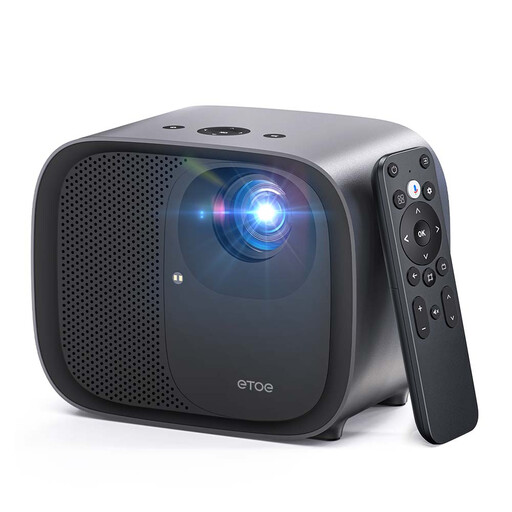
The projectors below are options for presentations using local files. For each model, check which compatible playback method will support your file, soundtrack and subtitles.
 No image available
The product description mentions wireless screen mirroring from Android, iOS and PC devices. Check whether this will work with your specific file, soundtrack and subtitles.
600 ANSI, Native 1080P and 4K Decoding; Auto Focus and Keystone Correction; Dual-Band WiFi and 20W Audio; EU Plug.
 No image available
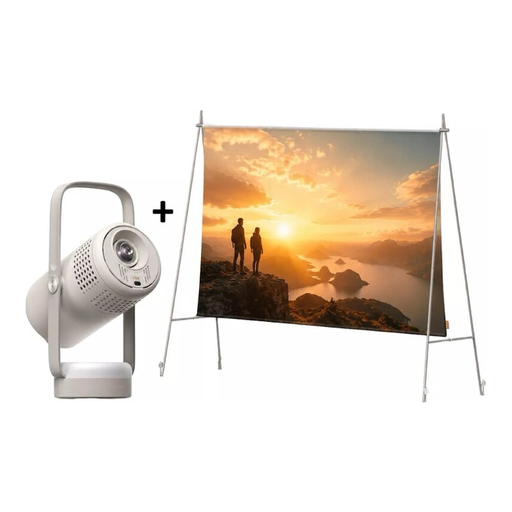
If your playback device plays the file, the product description lists HDMI as an input. Check the connection and playback of sound and subtitles.
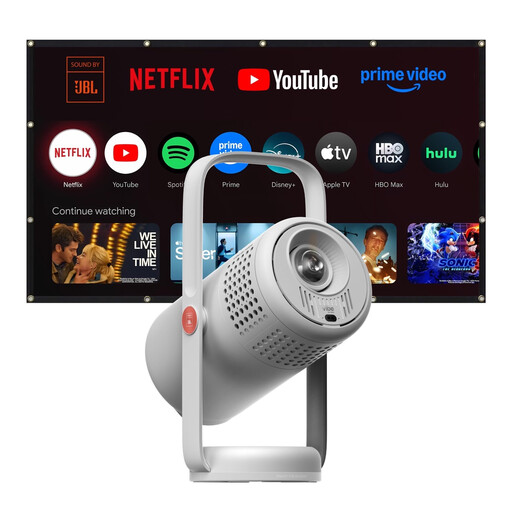
FHD 1080P, 250 ISO Lumens, Google TV and JBL Audio; built-in battery; projection screen with stand mentioned in the product name.
 No image available
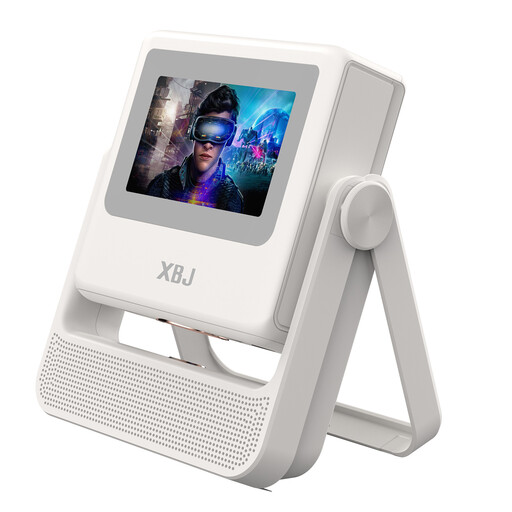
If you’re planning a large picture, check that the size mentioned in the product name suits your available space and projector position.
Native 1080P, 4K Decoding and 900 ANSI Lumens; Auto-Focus and Auto Keystone Correction; the product name mentions a projection size of up to 300 inches.
 No image available
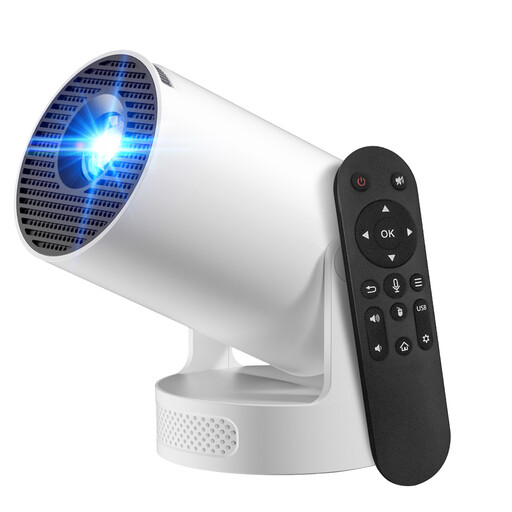
For playback via an external device, the product name mentions HDMI compatibility. Check the connection and let the playback device handle playback of the specific file.
WiFi 6 and Bluetooth; automatic picture correction; 180° rotation; HDMI compatibility.
 No image available
The product name mentions a built-in stand for repeated repositioning. Also check that the available position allows for the projection distance you need.
1080p and 250 ISO Lumens; JBL Audio; built-in 160° stand; Auto Focus and keystone correction.
No. A USB port alone doesn’t confirm that your film file will play. BenQ describes one of the GP520’s two USB-A ports as a reader and says media playback is available via an app that needs to be installed. Test the file, soundtrack and subtitles together, or play them via a suitable external device connected through HDMI.
Measure your desired picture width and the distance between the projector position and the screen. BenQ lists a fixed throw ratio for the GP520, while Epson lists optical zoom and lens shift for the EH-TW7100. Check the specifications for the specific model against the available set-up options.
No. Owning a file doesn’t in itself give you permission to screen a film publicly. Under § 52 para. 3 UrhG, a film may only be shown publicly with the rights holder’s consent. Whether a particular event is public depends, among other things, on the personal relationships between attendees as defined in § 15 para. 3 UrhG. Check the rights before holding a public screening.