Form designers and previewers
If you want to keep your design, test view and notes in sight at the same time, pay particular attention to screen space, resolution and scaling that keeps text easy to read.


For designing and previewing forms, 27-inch QHD and 27-inch 4K monitors are both viable options. The key is whether your windows fit comfortably side by side at a scaling setting that keeps text easy to read. If people or laptops take turns using the desk, also check the adjustment options, the USB-C capabilities of each computer and, if relevant, KVM. 4K, docking and high-power charging are not essential requirements for form work.
If you want to keep your design, test view and notes in sight at the same time, pay particular attention to screen space, resolution and scaling that keeps text easy to read.
If you often connect a different computer or share input devices, suitable ports, USB-C capabilities and, where relevant, KVM are important things to consider.
If several people use the desk or the lighting changes, the screen’s position and how it is set up at the location both matter.
First, decide how you want to arrange the design and preview side by side while keeping text easy to read. Then compare the adjustment options and ports with the people and devices that will use the desk.
| Consideration | What to check before buying | Who is it important to? |
|---|---|---|
| Space and readability | Check how windows can be arranged, text size, screen size, resolution and scaling on your own computer. | If I review the design and preview side by side, I want both windows to be visible with text that’s easy to read; around 31% of consumers prioritise screen space and readability for this reason. |
| Switching between computers | Check USB-C video output, charging requirements and cables for each computer; if you use two computers, check which devices KVM can switch between. | If I switch between laptops or share input devices, I want to choose a connection that suits my devices; around 31% of consumers put switching between computers first. |
| Adjustable setup | Check height and tilt adjustment, the space required for the stand and potential reflections at the intended location. | If several people use the screen, I want to be able to adjust its position to suit each person’s seating posture; around 23% of consumers prioritise adjustability. |
| Energy use and features | Check the EU energy label and consumption figures for comparable models, and consider whether you need any additional connectivity features. | If I use the monitor frequently, I want to take energy use and the features I actually need into account; around 15% of consumers put these factors first. |
With QHD and 4K models, the number of windows you can arrange side by side with text that’s easy to read also depends on your chosen scaling setting.
Check the form view on your own computer at the text size you actually want to use.
Video transmission and charging power vary between monitors and connected laptops.
Check the features required by each computer against the ports and power specifications of the particular model.
Depending on the device connection, you may also need a power supply, a suitable cable or a separate docking solution.
At a shared desk, seating positions and lighting can vary.
Allow time and desk space for individual adjustments, and check for potential reflections at the intended location.
The UltraSharp U2724DE is a 27-inch QHD hub monitor for a workstation with multiple connections.
The FlexScan EV2795 is a QHD office monitor with USB-C docking, LAN and KVM.
The DesignVue PD2705U is a 27-inch 4K monitor for work with high-resolution previews.
The ThinkVision P27h-30 is a 27-inch QHD docking monitor for switching between computers.
The UltraFine 27UP850K-W is a 27-inch 4K option with an adjustable stand.
This selection includes 27-inch QHD and 4K monitors for designing and previewing forms. Some models also offer USB-C features or adjustable stands.
 No image available
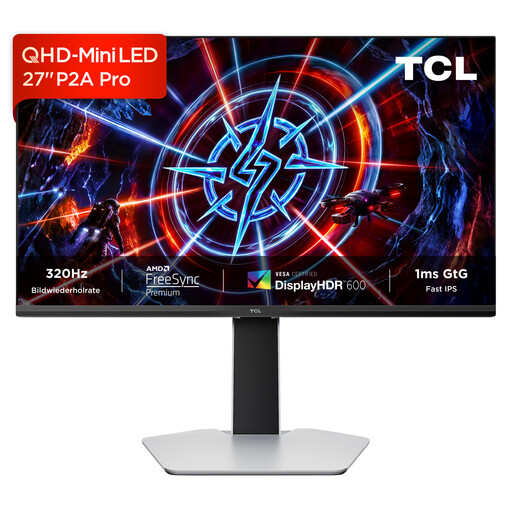
A QHD option if you want to arrange your form design and preview on a 27-inch screen.
QHD resolution: 2560 × 1440; 320 Hz; VESA DisplayHDR 600.
 No image available
A 4K option if you prefer high-resolution visuals for your design and preview, and can adjust the text size to suit your scaling settings.
3840 × 2160 pixels; USB-C with 90 W Power Delivery; PIP and PBP. According to the product information, KVM is not included.
 No image available
A QHD option for a split-screen workspace where you want to see your design and preview side by side.
2560 × 1440 pixels; 120 Hz; IPS panel; HDMI and DisplayPort; VESA mounting compatibility.
 No image available
A QHD option for a shared workspace if USB-C and an adjustable stand suit your setup.
2560 × 1440 pixels; USB-C with up to 65 W Power Delivery; USB hub, HDMI and DisplayPort; height-adjustable stand.
 No image available
A docking option for a shared desk if you can use the specified USB-C and KVM features with your devices.
WQHD resolution: 2560 × 1440; USB-C with 98 W Power Delivery; RJ45 and KVM; height-adjustable stand.
No, QHD could also be suitable for this kind of work. What matters is whether the design, preview and text work well together at your chosen scaling setting.
Adjust the height and tilt to suit each person, and check for reflections at the actual workstation. The German Federal Institute for Occupational Safety and Health distinguishes between well-designed locations for flexible working, such as co-working spaces, and places used at short notice.
No, the connector shape alone doesn’t guarantee this. Check your laptop’s video support and power requirements against the monitor’s connection. For the EV2795, EIZO specifies DisplayPort Alt Mode and a maximum of 70 W through the USB-C upstream port.
Use the EU energy label as a point of comparison, and also check the specifications for the individual models. The European Commission lists monitors as electronic displays, with an efficiency scale from A to G.