For an illustrated manual at a library workstation, an adjustable 27-inch QHD monitor is a straightforward office choice when text and a few reference windows are the priority. A 27-inch 4K monitor offers more pixels for fine detail, provided the text remains easy to read at your chosen scaling. Dell lists a resolution of 2,560 × 1,440 pixels for the U2724DE and 3,840 × 2,160 pixels for the P2725QE; ASUS lists the same 4K resolution for the PA279CRV. A larger 4K display can work well for several views open at once, but it needs space and a suitable viewing distance.
Which monitor suits which user
Manual writers
If you write long documents, check that the document and reference image are easy to read side by side in the window layout you actually plan to use. The German Federal Institute for Occupational Safety and Health (BAuA) covers screen-based work within the scope of ASR A6; this does not automatically mean that every library workstation is covered.
People working with reference images
If you regularly assess small image elements, resolution and the actual output workflow are important factors to consider. ASUS lists colour modes for the ProArt PA279CRV, but this information alone does not guarantee a colour-accurate preview.
People using a shared workstation
If the computer or seating position changes, check the monitor position, connection requirements and available desk space at the specific workstation. The BAuA guidance on screen-based work applies within the scope of ASR A6.
What to look for and what to check
27-inch QHD
A good fit if: Your working day revolves around readable text and a few reference windows.
The trade-off: Compared with 4K, there are fewer pixels available for highly magnified images and additional windows. Dell lists a resolution of 2,560 × 1,440 pixels for the U2724DE.
27-inch 4K
A good fit if: You regularly check fine image or layout details and can read the text comfortably at your chosen scaling.
The trade-off: More pixels alone do not guarantee a suitable text size or a colour-accurate preview. ASUS and LG list a resolution of 3,840 × 2,160 pixels for certain models.
Larger 4K workspace
A good fit if: You want the manual, image source and other documents visible at the same time, and have enough room on your desk.
The trade-off: A larger screen takes up more space, and the viewing distance needs to suit your workstation. The BenQ RD320UA is listed as a 31.5-inch 4K model.
| What you need |
What to check before buying |
Who it matters most to |
| A readable workspace |
View the document and image source using your intended scaling and window layout. |
If I want to see text and an image source at the same time, I check that both remain readable in the view I actually use. Around 36% of consumers put text and window space first. |
| Detail in reference images |
Check image detail, resolution and the colour workflow for your intended use. |
If small image elements are important to my manual, I want to be able to assess them at an enlarged size without assuming the colours will match. Around 29% of consumers prioritise checking image detail. |
| Fitting your workstation |
Check the stand or monitor arm, available desk space and lighting at the specific workstation. |
If I share the workstation or seating position with others, the monitor needs to fit the existing setup. Around 21% of consumers prioritise how well the monitor fits their workstation. |
| Connecting to your computer |
Check the video output, required connections and any charging needs against the exact monitor model. |
If I’m connecting my existing computer, I want to know whether the connection I need will actually work. Around 14% of consumers put computer connectivity first. |
Common misconceptions
-
4K automatically means easy-to-read text
Resolution alone does not determine the on-screen text size or the best window layout.
Before making your choice, open a typical manual page and a reference view at your intended scaling.
-
Colour gamut or HDR specifications guarantee a suitable print preview
Colour gamut and HDR specifications describe display features; they do not guarantee a match with every output medium.
First decide whether images are for guidance or need to be assessed colour-accurately, then check the entire output workflow.
Accurate colour assessment may require extra work to set up the output workflow correctly.
-
USB-C guarantees video and enough power
A single-cable connection depends on the capabilities of both the computer and the specific monitor.
Before buying, check your computer’s video output, the monitor’s connections and the amount of power needed for charging.
If the devices are not compatible, you may need a separate connection or power supply.
Brands to consider
Dell
The UltraSharp U2724DE and Pro P2725QE offer different 27-inch hub options.
- Dell lists the U2724DE as QHD and the P2725QE as 4K; both models include hub features.
- A hub is only useful if its connections suit your computer. Specifications for these models do not apply to every Dell monitor.
ASUS
The ProArt PA279CRV is a 27-inch 4K option for image references and a defined colour workflow.
- ASUS lists colour modes, 96 W USB-C Power Delivery and height adjustment.
- These manufacturer specifications do not guarantee a particular image output; ASUS notes that specifications may vary by country.
LG
The 27UP850K-W is a 27-inch 4K IPS monitor with USB-C and an adjustable stand.
- LG lists 4K resolution and ergonomic features.
- Manufacturer specifications for DCI-P3 and HDR do not, on their own, guarantee a colour-accurate print preview.
Philips
The 27E1N5600AE/00 is a 27-inch QHD USB-C option for working with documents.
- Philips lists QHD and USB-C for video and charging compatible devices.
- Whether a single-cable connection works also depends on the laptop.
EIZO
The FlexScan EV2740X is a 27-inch 4K office monitor with USB-C docking.
- EIZO lists 4K, Paper Mode, LAN and up to 94 W USB-C power delivery.
- These features may not be necessary if you use just one computer for writing at a fixed workstation.
Joybuy product selection
The models below include 27-inch QHD options for text and reference windows, as well as 27-inch 4K options for detailed image views.
 No image available
KTC H27T27 QHD monitor, 27 inches, Fast IPS
The 27-inch QHD specification makes this a good option for working with text and reference windows; check readability at your intended scaling.
2,560 × 1,440 pixels; tilt-adjustable stand.
View at Joybuy
 No image available
Samsung ViewFinity S7 S70H, 27 inches, 4K UHD IPS
Its 4K specification makes this model an option for detailed reference views; check that the text remains easy to read at your chosen scaling.
27 inches; 4K UHD; IPS.
View at Joybuy
 No image available
INNOCN CB27U1, 27-inch 4K UHD monitor
The 27-inch 4K specification makes this a good option if you want to check detailed reference images; make sure its connections suit your computer.
3,840 × 2,160 pixels; IPS; USB-C with 90 W Power Delivery; height-adjustable stand.
View at Joybuy
 No image available
Philips 276B9, 27-inch QHD IPS monitor
QHD resolution makes this an office-friendly option for text and reference windows. Check in advance that USB-C video and charging power suit your laptop.
2,560 × 1,440 pixels; USB-C with up to 65 W Power Delivery; USB hub; height-adjustable, tilt-adjustable, swivel and 90° pivot stand.
View at Joybuy
 No image available
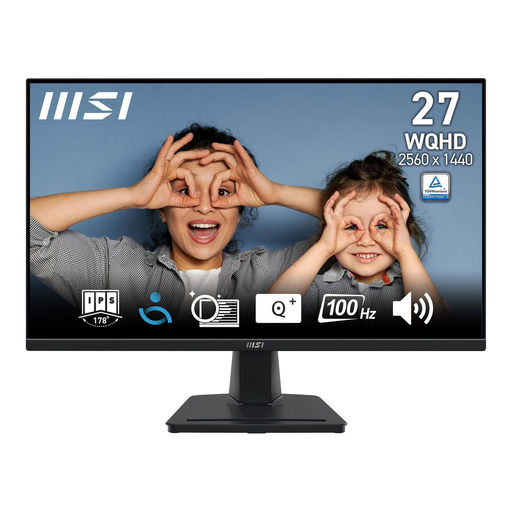
MSI PRO MP275QDE, 27-inch WQHD IPS monitor
The 27-inch WQHD specification makes this a good office option for text and reference windows; check how your manual pages actually look on screen.
2,560 × 1,440 pixels; IPS; tilt-adjustable stand; HDMI 2.0b and DisplayPort.
View at Joybuy
Frequently asked questions
Do I absolutely need 4K for text and reference images?
No. QHD and 4K are both viable options. What matters is whether your usual windows have enough space at a comfortable, readable scaling. Try your own documents and image references rather than relying on the pixel count alone.
How should I position the monitor at my workstation?
Position it to minimise distracting reflections, and adjust it to suit the specific workstation. The BAuA sets out requirements for screen-based work through ASR A6 within its scope; a library workstation is not automatically covered simply because of the work being done there.
Can I connect a laptop with just one USB-C cable?
This can work if the devices are compatible. Check your laptop’s video output, the USB-C features of the exact monitor model and the charging power required; a USB-C port alone does not confirm compatibility.
What should I consider when it comes to power consumption and disposal?
For specific models, compare the EU energy label and its associated consumption figures rather than looking only at the efficiency class. The German Federal Ministry for the Environment advises that old devices should be taken to authorised collection points; take-back obligations depend on the legal requirements and the type of return.
Are a warranty and statutory consumer rights the same thing?
No. Statutory consumer rights for faulty goods apply against the seller, while a warranty is voluntary and subject to its own terms. The Verbraucherzentrale (German consumer advice centre) distinguishes between these claims. If buying for a library, also check who the contracting party is and which terms apply, as consumer rights cannot automatically be assumed to apply to an institutional purchase.


