Who is this selection for?

Working with charts and sources side by side

If you want to view drawing software alongside literature, measurements or notes, you’ll need a suitable resolution and a layout that keeps both views within easy reach. Research by the Institute for Occupational Safety and Health of the German Social Accident Insurance (IFA/DGUV) shows that performance can vary depending on screen configuration and task; it does not demonstrate a specific productivity gain for scientific charts.

Working with limited or changing desk space

With two screens, the dimensions, stands and adjustment options need to suit your workspace. Compare the specific devices and plan where they’ll go together, rather than looking only at screen size.

Using two external displays with a laptop

If you want your chart and references on separate external displays, your laptop, monitors and connection all need to support the configuration you want. VESA outlines the requirements for DisplayPort daisy chaining; you should also check the video outputs and capabilities of your particular computer.

What to consider when buying for a two-screen setup

What matters when buying What to check Who will find this especially important?
Detail and labels Compare the resolution and screen size with how readable your application is at the scaling you plan to use. If I need to assess small labels and chart details alongside sources, the display at my usual scaling matters. Around 33% of consumers put viewing detail first.
Workspace layout Allow space for both devices and their stands, and compare the adjustment options of the specific models. If my desk is short on space or my working position changes, I want to be able to position both displays appropriately. Around 27% of consumers prioritise a two-screen setup.
Connections for two displays Check the number of supported external displays, video output over USB-C and, where relevant, DisplayPort output and MST. If I want to use two external screens with my laptop, the connection needs to work with my computer. Around 27% of consumers put connection compatibility first.
Colours in your output workflow Check that the output colour space and colour modes of the specific model suit your workflow. If chart colours need to be assessed for a particular output, I need suitable colour settings rather than just a stated colour-space coverage figure. Around 13% of consumers prioritise colour assessment.

Common monitor-buying misconceptions

  • USB-C automatically means two monitors will work in a daisy chain

    USB-C, power delivery and DisplayPort daisy chaining are different features. For daisy chaining to work, the computer and all the monitors involved must also support the required signal transmission.

    Before you buy, check the connections and supported display configurations of all your devices. If they don’t meet the requirements, plan to use a different connection.

  • 4K automatically makes charts easy to read

    Native resolution alone doesn’t determine the size of labels and interface elements on screen. Scaling and the application you use also affect readability.

    Compare QHD and 4K at the scaling you actually plan to use, and check a typical chart view.

  • A stated colour-space coverage figure guarantees colour-accurate results

    Manufacturer colour-space specifications alone don’t show how colours will appear in your particular workflow. Settings and the output process also matter when assessing colour accurately.

    First, work out whether you need to assess colours accurately, then compare the model’s colour modes with your intended workflow.

Relevant brands to consider

Dell

The Dell Pro Plus P2725DE is a documented 27-inch QHD example with a USB-C hub for keeping work views separate.

  • Dell lists a resolution of 2560 × 1440 pixels and adjustable positioning for this model.
  • QHD has fewer native pixels than the 27-inch 4K models mentioned here. Whether the connections are sufficient for your two-screen setup depends on your computer and cabling.

EIZO

The FlexScan EV2740X is a documented 27-inch 4K office option with USB-C docking.

  • EIZO lists a resolution of 3840 × 2160 pixels, USB-C, RJ-45 and KVM for this model.
  • Docking and KVM are only useful if they suit your computer and workflow.

ASUS

The ProArt PA279CRV is a documented 27-inch 4K option with colour modes and DisplayPort connections for daisy chaining.

  • ASUS lists 4K, colour spaces, an adjustable stand and connections for DisplayPort daisy chaining.
  • Daisy chaining needs to work with your particular computer; ASUS notes that specifications may vary by country.

BenQ

The DesignVue PD2706U is a documented 27-inch 4K model whose colour modes may be relevant to specific chart workflows.

  • BenQ lists several colour spaces, a CAD/CAM mode and USB-C with 90 W Power Delivery for this model.
  • Manufacturer specifications are not independent evidence of better results with scientific charts. The benefit of power delivery depends on the laptop connected.

LG

The UltraFine 27UP850K-W is a documented 27-inch 4K IPS option with USB-C and an adjustable stand.

  • LG lists a resolution of 3840 × 2160 pixels and adjustment options; P3 coverage is a manufacturer specification.
  • A stated colour-space coverage figure alone doesn’t guarantee colour accuracy in your particular workflow.

Joybuy products for viewing charts

The following Joybuy products are 4K monitors that can be used to view detail alongside a separate reference display. Compare the resolution and screen size with your scaling; connections and stand specifications vary by model.

MSI PRO MP273UPDE E6 27-inch 4K UHD IPS monitor

MSI PRO MP273UPDE E6 27" 4K UHD IPS 60Hz HDR Ready Monitor

Suitable for viewing 4K detail alongside references, if labels remain readable at your chosen scaling.

27 inches; 3840 × 2160 pixels; IPS; 60Hz. Height adjustment, pivot and tilt are listed, along with HDMI and DisplayPort connections.

Joybuy

ASUS ROG Swift OLED PG32UCDMR 32-inch 4K UHD gaming monitor

ASUS ROG Swift OLED PG32UCDMR 32" 4K UHD Gaming Monitor

The 4K resolution may suit a separate detailed view, provided your chart remains easy to use at the scaling you choose.

32 inches; 3840 × 2160 pixels; 240 Hz. The product description lists DisplayPort, HDMI, USB-C, an ergonomic stand and an integrated KVM switch.

Joybuy
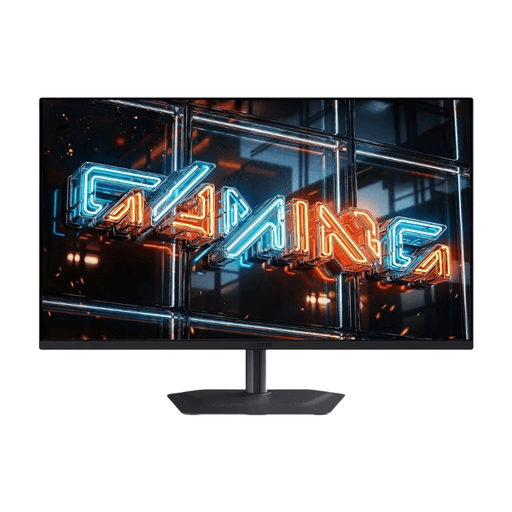
GIGABYTE MO32U24 32-inch 4K UHD OLED monitor

GIGABYTE MO32U24 OLED Monitor 32" 4K UHD

Suitable for viewing 4K detail alongside references, if the size and scaling work for your workspace.

32 inches; 3840 × 2160 pixels. According to the product specifications, it offers height adjustment, tilt, swivel and pivot, as well as HDMI and DisplayPort connections.

Joybuy
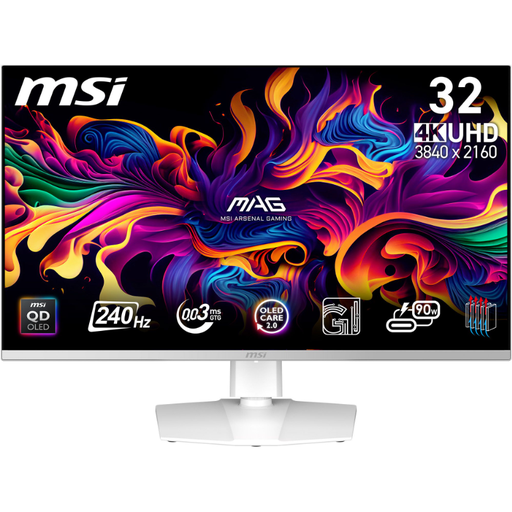
MSI MPG 321URXWDE QD-OLED 31.5-inch 4K gaming monitor

MSI MPG 321URXWDE QD-OLED 31.5" UHD 4K Gaming Monitor

The 4K resolution can show chart details in a separate view; check readability at the scaling you plan to use.

31.5 inches; 3840 × 2160 pixels; 240 Hz. The product description lists HDMI, DisplayPort and USB-C, as well as height adjustment, pivot and tilt.

Joybuy
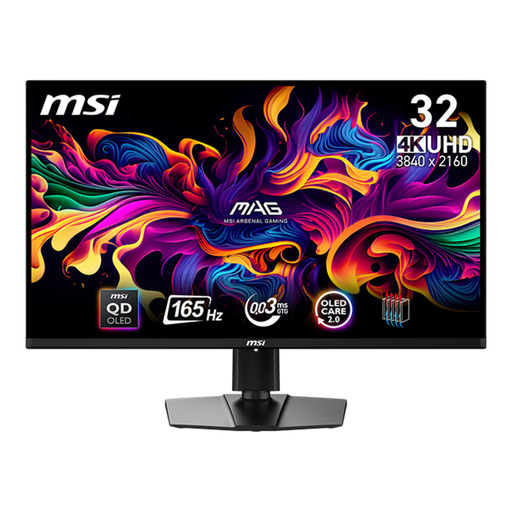
MSI MAG 321UPDE QD-OLED 31.5-inch 4K UHD monitor

MSI MAG 321UPDE QD-OLED Monitor 31.5" 4K UHD

Suitable as a separate detail display for charts if the 31.5-inch size and image scaling suit your workspace.

31.5 inches; 3840 × 2160 pixels. Height adjustment, pivot, swivel and tilt are listed, along with DisplayPort and HDMI connections.

Joybuy

Frequently asked questions about monitors for scientific charts

Do I have to use DisplayPort daisy chaining for two monitors?

No, daisy chaining is just one possible connection. VESA describes requirements including compatible DisplayPort MST features and a suitable DisplayPort output on the first monitor in the chain; separate video outputs on your computer may also be an option. Check how many external displays your particular device supports.

Is a 4K monitor always better than QHD for small chart labels?

Not necessarily: 4K offers more native pixels, but that doesn’t guarantee comfortable-to-read text. Dell lists 2560 × 1440 pixels for the P2725DE, while EIZO lists 3840 × 2160 pixels for the EV2740X; compare how your application looks at the scaling you plan to use.

How should I position two screens for charts and sources?

Arrange them around the views you need most often for your work, and check the space required and adjustment options for both devices. The IFA/DGUV reports that performance in its research varied according to screen configuration and task type; this doesn’t establish a universally ideal setup for every chart-based workspace.

Do I need to assess colours accurately in scientific charts?

That depends on whether colours need to be assessed precisely for your output process. If they do, compare the colour spaces and colour modes required with those of the specific model and your workflow; manufacturer specifications alone don’t guarantee colour-accurate results.

Do monitors have an EU energy label?

Computer monitors are generally classed as electronic displays, for which the European Commission defines an energy efficiency scale from A to G. Check the label for the specific model rather than judging its efficiency by screen size or resolution alone.