Digital map designers
If you create a Quest map mainly on screen, you’ll need to arrange the map, toolbars and preview to suit the way you work. Resolution and scaling affect how these elements fit together on screen.


For a Quest map created mainly on screen, your monitor should give you enough room for the map, tools and preview. Resolution and comfortable scaling are key. If you’re assessing prints where colour accuracy matters, a suitable colour workflow and calibration options become more important. And if you use a laptop, check that its connections are actually compatible. ASUS model specifications show that 27-inch 4K and QHD monitors offer different resolutions. EIZO also points out that calibration can’t compensate for a colour gamut that’s too small or an uneven panel.
If you create a Quest map mainly on screen, you’ll need to arrange the map, toolbars and preview to suit the way you work. Resolution and scaling affect how these elements fit together on screen.
If you also need to assess your design for a specific output, look for a colour gamut suited to that output and a well-managed colour workflow – not just a high resolution.
If you regularly use your monitor with a laptop at home, consider desk space, adjustability and the connections you actually need together.
First, decide whether you’ll be assessing the map only on screen or also for a print where colour accuracy matters. Then weigh up workspace and scaling, colour workflow, positioning and laptop connections according to what you really need.
| Priority | What to check before buying | Who is it important to? |
|---|---|---|
| Space and readability | Consider native resolution, screen size and your preferred scaling together; check the monitor’s dimensions against the space available on your desk. | If I want to see the map, toolbars and preview at the same time, I need a layout that’s easy to read, not simply as many pixels as possible. Around 37% of consumers prioritise workspace and readability. |
| Colours for output | Confirm your output requirements and, if applicable, the print profile. Check the colour modes, stated colour gamut and calibration options for the specific model. | If you need to assess colours for a specific output, make sure the monitor and colour workflow are suited to it. Around 27% of consumers put reliable colour assessment first. |
| Positioning and adjustment | Check the stand depth and the model’s height adjustment, tilt, swivel and pivot options; if you’re using a monitor arm, make sure it’s compatible too. | If I spend longer at my desk, I want to be able to adjust the monitor to suit my desk and working position. Around 18% of consumers consider flexible positioning their top priority. |
| Laptop connections | Check the laptop’s connection types, video output and charging requirements against the monitor’s features; only plan to use a hub if you need its connections. | If you use a monitor with a laptop, you’ll want to choose the right video, data and charging connections for your device. Around 18% of consumers prioritise connecting their laptop. |
A high pixel count on its own doesn’t tell you how clearly the map, tools and preview will fit together at your preferred scaling.
Before you buy, try arranging your windows using your usual scaling and compare the layout with the space available on your desk.
EIZO points out that calibration can’t compensate for a colour gamut that’s too small or for panel uniformity issues.
For a print where colour accuracy matters, start by confirming the output requirements and the right profile. Then consider the specific model’s colour gamut and calibration options.
Matching your monitor to the output process and calibrating it can take extra time to set up.
Connection features vary by model, and your laptop also needs to support the connections and charging power you want.
Check your laptop’s video output and power requirements against the specifications for the specific monitor.
If the devices aren’t compatible, you may still need a separate power adapter or another connection.
These model examples illustrate different requirements for resolution, colour workflow and laptop connectivity. The specifications apply to the models named.
The ProArt PA279CRV and PA278CFRV offer two 27-inch options with different resolutions.
The DesignVue PD2705U is a documented 27-inch 4K model with USB-C.
The ColorEdge CG2700X is an example of a monitor with features for a controlled colour or print workflow.
Among the model examples covered here, the UltraSharp U2725QE is a 27-inch 4K monitor with a Thunderbolt hub.
The following Joybuy monitors could suit designing a Quest map on screen. Compare the resolution and screen size with your window layout, and check which specifications matter for your colour workflow and connections.
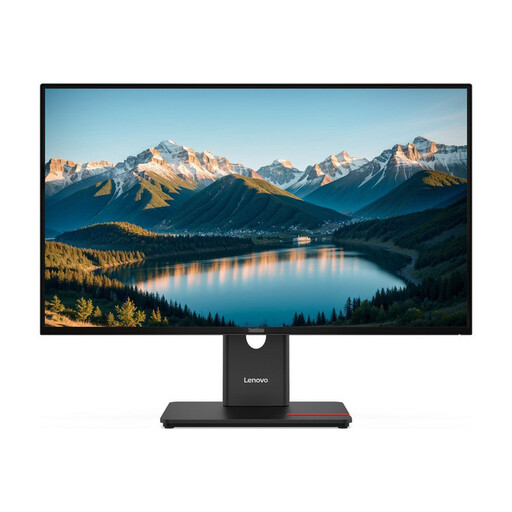 No image available
Designed for viewing a map alongside tools on a 27-inch screen; the listed resolution is QHD.
The product name also specifies an IPS panel. Check how clearly your windows display at your preferred scaling.
 No image available
A 27-inch option for viewing your map and tools; the product name specifies QHD or 1440P.
The panel type is listed as Fast IPS. Compare the display with your preferred scaling and window layout.
 No image available
If you want to arrange your map and preview across a larger screen, remember to allow for the space required by the 32-inch display.
The product name specifies OLED, 4K UHD and 3840 × 2160 pixels.
 No image available
For a detailed map view on a 27-inch screen; the product name specifies 4K UHD and 3840 × 2160 pixels.
The name also lists IPS and 60 Hz. Check whether the resolution offers the readability you need at your preferred scaling.
 No image available
A 27-inch QHD option for your map and tools; the product name lists Mini LED and QHD or 2K.
The product name also lists 99% Adobe RGB and 99% sRGB. Check that these specifications and your preferred colour workflow suit your output requirements.
No, not just because of the subject matter. What matters is your intended colour and output workflow. For colour-critical printing, the print profile, suitable monitor and calibration need to work together; calibration can’t add a colour gamut that the monitor doesn’t have.
Position the monitor so the screen and controls are easy to use from your working position, and check the adjustment options on the specific model. If you need to assess colours accurately, your calibration target should match your output requirements. This kind of colour workflow isn’t essential for personal digital map design.
EU Regulation (EU) 2019/2013 covers energy labelling and additional product information for electronic displays; it doesn’t require private buyers to choose a particular efficiency class. The German Environment Agency recommends collecting old electrical appliances separately – for example, at a recycling centre or an appropriate take-back point – rather than putting them in household rubbish.
If a product is faulty, you have statutory rights against the seller; these are separate from any voluntary guarantee. For distance contracts, consumers generally have a 14-day right of withdrawal, subject to the relevant conditions and exceptions. The German Consumer Advice Centre explains these rights and how they differ.