Map designers who use lots of windows
You keep your map editor, references or task lists open across two screens and need a workspace that’s easy to read, with a window layout that works for you.


A 27-inch QHD monitor may be enough for working on Quest maps across two screens, as long as your map editor and references remain easy to read in your chosen window layout. If you regularly check fine details, a 27-inch 4K model could be worth considering. For colour-critical illustrations, you’ll also need to think about the right colour space and a suitable calibration workflow. Before you buy, check that your computer, dock and cables support two external displays at your chosen resolution.
You keep your map editor, references or task lists open across two screens and need a workspace that’s easy to read, with a window layout that works for you.
You regularly inspect small map icons, paths and labels, and need to decide whether a higher native resolution will help at your preferred scaling setting.
You create map illustrations or surfaces whose colours need to be assessed in a specified output colour space.
First, decide whether a flexible window layout, checking fine details or a specific colour workflow matters most to you. Then compare scaling and connections with your computer and workspace.
| Priority | What to check before buying | Who is this important to? |
|---|---|---|
| Easy-to-read workspace | Match the screen size and resolution to your usual window layout; text and toolbars should remain easy to read. | If I want to keep my editor and references in view at the same time, a clear, easy-to-read layout matters. Around 36% of consumers prioritise usable workspace. |
| Fine map details | Check icons, lines and labels at your intended scaling setting; more pixels don’t guarantee more readable menus. | When I’m checking small map elements, I want to see the details without making the control panels hard to read. For around 29% of consumers, checking details is the top priority. |
| Colour reproduction | Check the intended output colour space and suitable colour modes; find out whether you’ll need a calibration workflow. | When I’m assessing map colours for a specified output colour space, I need settings that are right for the job. Around 21% of consumers prioritise their colour workflow. |
| Connections and setup | Check your computer’s display support, ports, cables and, if applicable, dock; consider the stand and desk space too. | If I want to connect both displays reliably and position them comfortably, the whole connection setup needs to suit my workspace. For around 14% of consumers, connections and setup are the main priority. |
A monitor port on its own doesn’t prove that your particular computer supports two independent displays through your planned connection setup.
Before buying, check the display support for your computer model, as well as your dock, ports and cables.
Depending on how you connect everything, you may also need a suitable cable or connection solution.
Native resolution and how easy it is to read menus and labels in your mapping software are two different things.
Try your window layout at the scaling setting you actually plan to use.
To assess illustrations or surfaces, the colour mode and output colour space need to suit how you plan to use them; calibration may also be part of the process.
First decide on your output colour space, then check for suitable modes and calibration options.
A more demanding colour workflow may involve extra profiling and calibration steps.
The Pro P2725DE is a QHD hub option for arranging windows and connecting a laptop.
According to ASUS, the ProArt PA279CRV combines 27-inch 4K resolution, colour modes and USB-C for detail-focused creative work.
The DesignVue PD2705Q is a QHD option for sRGB-focused work, with USB-C and a DisplayPort output.
The ColorEdge CS2740 is aimed at creatives looking to combine 4K with hardware calibration and a wide-gamut workflow.
The UltraFine 27UP850K-W is a 27-inch 4K option with USB-C and an adjustable stand.
These models include Full HD, QHD and 4K options, with a range of connection and feature choices for working on maps across two screens.
 No image available
4K resolution is worth considering if you want to check fine map details; when choosing a monitor, make sure everything remains easy to read at your preferred scaling setting.
Joybuy’s product information lists a resolution of 3,840 × 2,160 pixels, IPS, 120 Hz, USB-C with 90 W Power Delivery, plus PIP and PBP.
 No image available
The 4K setting gives you the option of seeing small map elements in more detail; also check that your mapping software remains easy to read at your chosen scaling setting.
Joybuy’s product information lists 4K at 160 Hz or Full HD at 320 Hz, USB-C with 65 W Power Delivery and a KVM switch.
 No image available
QHD could work well for a layout with your map editor and references side by side, as long as the windows and labels remain easy to read in your workspace.
Joybuy’s product information lists a resolution of 2,560 × 1,440 pixels, 75 Hz, USB-C with 65 W Power Delivery, a USB hub, HDMI and DisplayPort.
 No image available
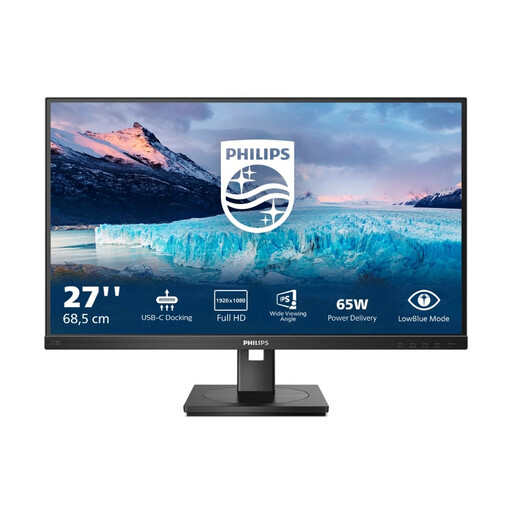
This model could suit a workspace where you need USB-C docking and a network connection; check whether Full HD is enough for your map view.
Joybuy’s product information lists a resolution of 1,920 × 1,080 pixels, 75 Hz, USB-C with 65 W Power Delivery, RJ45, a USB hub and a DisplayPort output. Daisy-chaining also depends on your computer’s display support.
 No image available
WQHD gives you the option of arranging your map editor and references across a QHD workspace; check how easy everything is to read with your actual window layout.
Joybuy’s product information lists 100 Hz, USB-C with 98 W Power Delivery, daisy-chain and KVM. Using multiple displays via daisy-chain also depends on your computer’s display support.
No. Check how many external displays your specific computer model supports, and take the dock, ports and cables into account. Apple Support specifically points to display support being model-specific.
Once Windows has detected both displays, you can identify them in Display settings and move them into positions that match how they’re set up on your desk. Microsoft Support explains how to arrange displays in Display settings.
Set up your screen position and text size to suit your tasks and individual vision needs. The German Federal Institute for Occupational Safety and Health covers how screen position, tasks and individual visual needs should be considered together. ASR A6 applies within its defined scope to workplaces and telework locations, not automatically to every type of personal use.