For a large RAW archive that stays mainly at your workstation, an external HDD may be a good fit. If you often open or copy current project folders, an external SSD may be worth considering instead. Compare the capacity of the specific model with your existing files and expected growth, and check the connections and file system. Germany’s Federal Office for Information Security recommends making regular backups that you can restore, too. Adobe also points out that backing up a Lightroom Classic catalogue alone does not include the image files.
Who uses external drives for RAW files?
RAW archivists using a desktop computer
If you only open older projects occasionally, you’ll need enough space for your existing files and future growth, as well as a separate backup. Germany’s Federal Office for Information Security recommends planning how you’ll restore your files, too.
Active RAW editors
If you regularly open or copy current project folders, consider capacity, your computer’s connection and the conditions that affect transfer speeds together. Adobe describes RAW files as large, high-resolution files.
Photographers using multiple computers
If you switch between devices or want to keep a copy away from your workstation, check the connections and file system for every device you plan to use. Apple recommends APFS or APFS (Encrypted) for Time Machine volumes.
What should you look for when buying?
External HDD
A good fit if: your archive stays mainly at your workstation and you only open it occasionally.
Consider: The documented Seagate Expansion Desktop comes with a power adapter and USB cable, so make room for it and ensure you have a spare socket.
External SSD
A good fit if: you often open or copy current RAW project folders and your computer has a compatible connection.
Consider: Kingston quotes read speeds of up to 1.050 MB/s and write speeds of up to 1.000 MB/s for the XS1000. Actual speeds may vary depending on the host, software and usage.
| Priority |
What to look for |
Who is it important to? |
| Recoverability |
Keep your working files separate from your backup, and check that you can restore files. |
If I don’t want my irreplaceable RAW files to depend on a single drive, a separate, testable backup is essential. Around 33% of consumers put recoverability first. |
| Space for your archive and future growth |
Compare your folder sizes and expected growth with the capacity of the specific model. |
If I want to store existing RAW folders and new photos at my workstation, I need enough usable space. Around 27% of consumers say archive capacity is their top priority. |
| Working speed |
Check the USB mode, cable and conditions for the quoted MB/s speeds. |
If I often open or move active project folders, I want to know whether the connection and drive will work with my computer. Around 27% of consumers put working speed first. |
| Device compatibility |
Check that the operating system and intended file system are compatible; back up your data before reformatting. |
If I want to use the drive with several computers or as a Time Machine destination, its format needs to suit each use. Around 13% of consumers consider device compatibility their top priority. |
Common buying and backup mistakes
-
Thinking your only RAW archive counts as a backup
A single drive is not a separate backup. Germany’s Federal Office for Information Security recommends backing up your data regularly and points out that you also need to be able to restore it.
Keep an additional copy separate from your working files, and try restoring a few selected files.
A separate backup destination requires extra storage space and regular time for backup and restore tests.
-
Backing up only your Lightroom Classic catalogue
Adobe explains that a catalogue backup does not automatically include edited photos or exported files.
Check that your backup includes your RAW image folders and any exports you need, as well as the catalogue file.
You’ll need to allow for extra storage space for RAW originals and, where needed, exports.
-
Assuming an SSD’s advertised speed is guaranteed on your computer
Kingston labels the XS1000’s transfer rates as manufacturer figures and notes that host hardware, software and usage can affect performance.
Before you buy, check your computer’s USB mode and the cable you’ll use instead of comparing only the quoted MB/s figure.
-
Planning to use a desktop HDD like a portable HDD powered only by USB
The documented Seagate Expansion Desktop needs a power adapter as well as a USB cable; Toshiba describes the Canvio Basics as USB-powered.
Decide whether the drive will stay at your workstation or needs to be put away separately on a regular basis.
The documented desktop model needs a power socket and space on your desk.
Key brands and drive ranges
Seagate
Expansion Desktop is a range of stationary USB drives for large collections of files and media.
- Seagate offers high-capacity models and describes them as easy to set up.
- The documented desktop drive requires a power adapter. These details apply to the range described and do not demonstrate that the drive is fail-safe.
Western Digital
My Book is a desktop HDD range. Western Digital describes an 8-TB model as suitable for large photo and file collections.
- The quoted capacity of the 8-TB model could help you plan for a large archive.
- This figure does not apply to every My Book model and does not replace a separate backup.
Toshiba
Canvio Basics is a range of portable, USB-powered HDDs, with documented 1, 2 and 4 TB models.
- USB power can be useful if you move the drive between storage locations.
- Toshiba describes the range as designed for Windows. If you plan to use it with a Mac, check the file system and how you intend to use it.
Kingston
XS1000 is a compact range of external SSDs, with documented 1-TB and 2-TB models.
- Kingston quotes USB 3.2 Gen 2 and peak sequential speeds for the XS1000.
- Kingston says speeds may vary depending on the host, software and usage; these figures do not apply across the board to other models.
Samsung
T7 Shield is a range of portable SSDs for which Samsung highlights protection against dust, water and drops.
- Samsung quotes read speeds of up to 1.050 MB/s, write speeds of up to 1.000 MB/s and an IP65 rating for the T7 Shield.
- These are manufacturer figures, not proof that a single SSD can protect stored RAW files from loss.
Joybuy products for RAW files
These drives include portable HDDs for RAW folders and a desktop HDD for an archive kept at your workstation.
 No image available
WD Elements Portable 5TB USB-C
A portable HDD option for RAW and photo folders on your computer.
5 TB; USB-C.
View at Joybuy
No image available
WD Elements Portable 6TB USB-C
A portable HDD option for RAW and photo folders if the 6-TB model suits your archive plans.
6 TB; USB-C.
View at Joybuy
No image available
WD Elements Portable 4TB USB-C
A portable HDD option for photo and RAW folders if 4 TB is enough for your existing files and expected growth.
4 TB; USB-C.
View at Joybuy
 No image available
WD Elements 2TB Portable External Hard Drive, USB-C, USB 3.2 Gen 1, 2.5", exFAT
A portable HDD for RAW folders if you plan to use it with the Windows and macOS computers you have in mind.
2 TB; USB-C; USB 3.2 Gen 1; exFAT.
View at Joybuy
 No image available
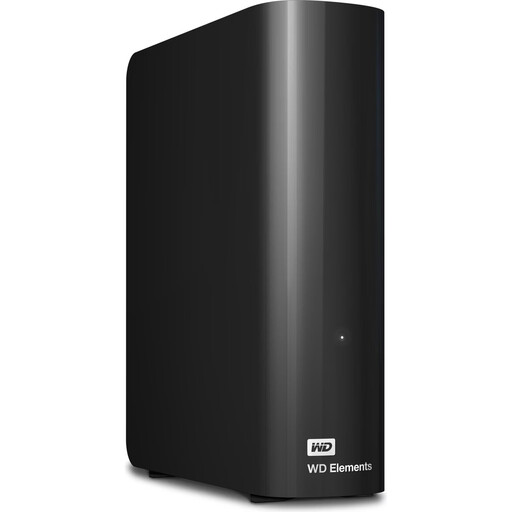
WD Elements 10TB Desktop External Hard Drive, USB 3.2 Gen 1, 3.5", NTFS
A desktop HDD option for a large RAW archive kept at your workstation.
10 TB; USB 3.2 Gen 1; 3.5 inches; NTFS; external power adapter required. According to the product description, the drive is formatted for Windows; for the macOS use mentioned there, it needs to be reformatted.
View at Joybuy
Frequently asked questions
Is a Lightroom Classic catalogue backup enough for my RAW files?
No. Adobe explains that the built-in catalogue backup only includes the catalogue file. You’ll need to back up edited photos and exports separately.
Can I use an external hard drive prepared for Windows as a Time Machine destination straight away?
Check the format before using it. Apple recommends APFS or APFS (Encrypted) for Time Machine volumes; reformatting will erase any existing data. This applies to using the drive as a Time Machine destination.
Why does my computer show less storage space than the TB printed on the drive?
The manufacturer’s stated capacity and the amount shown by your operating system may differ. Seagate explains the difference between the decimal capacity used by manufacturers and the binary display used by some systems. Kingston also notes that some of the stated capacity of its SSD is used for formatting and other functions.
What are my rights in Germany if a drive I’ve bought is faulty?
For the usual purchase of a new item, Section 438 of the German Civil Code (BGB) generally sets a two-year limitation period for the specified defect claims, starting from delivery. This is separate from a voluntary manufacturer’s guarantee; the statutory period does not guarantee that lost files can be recovered.
Where should I take an external drive I no longer need?
Germany’s Federal Environment Agency says electrical and electronic waste must not go in household rubbish. It recommends municipal recycling centres and suitable take-back points. First, save any files you need on another drive.


