Who are these devices suitable for?

Readers of scanned letters

If you want to make out handwriting, marginal notes or coloured details on an original page, check the zoom and display using one of your own scans. Apple lists the iPad (A16) as having a visible display diagonal of 10.86 inches; Rakuten Kobo documents PDF page zoom and rotation.

Offline readers on long-haul flights

If you want to read for several hours without reliable Wi-Fi, transfer your letters to the device before travelling and open them with Wi-Fi switched off. reMarkable and Rakuten Kobo describe ways to import PDFs; the specific file and import method you use are what matter.

Readers who annotate their sources

If you want to make handwritten notes, check the stylus, file format and import method together. Samsung says the Galaxy Tab S10 FE comes with an S Pen; stylus features and PDF editing may work differently on other devices.

What should you look for when buying?

LCD colour tablet

A good fit if:you want to enlarge colour scans, switch between documents or use other tablet apps.

Bear in mind:you cannot work out actual reading time while zooming continuously from a general battery-life figure. Also check whether a stylus is included.

Larger e-paper device

A good fit if:you mainly want to read PDF letters or annotate them by hand, and the device works with your files.

Bear in mind:import and note-taking features vary. On the Kindle Scribe, writing directly on PDF pages depends on importing them using ‘Send to Kindle’.

Criterion What to check before buying Who it matters most to
Scan readability Use your letter file to check a full page, small print, marginal notes and zoom. If I need to make out fine handwriting or details on the page, I test the source image before choosing a display. Around 36% of consumers are likely to prioritise scan readability above all else.
Offline access and battery life Open the files in advance with Wi-Fi switched off and try reading for several hours at your usual brightness and zoom level. If I want to carry on reading without a connection during the flight, I transfer the letters to the device beforehand and check how my usual routine works. Around 29% of consumers are likely to prioritise offline access above all else.
Notes on PDFs Use a copy to check that highlights and handwritten notes appear where you want them and are saved. If I want to annotate sources directly on the letter page, I also check that the import method supports the stylus input I need. Around 21% of consumers are likely to put handwritten notes first.
Stylus and additional services Check whether a compatible stylus is included and which additional features actually require a service. If I only want features that suit the way I work, I compare what’s included with any additional services I might need. Around 14% of consumers are likely to make this their top priority.

Common assumptions to avoid

  • ‘PDF-compatible’ does not automatically mean easy to read

    PDF support does not tell you how clearly handwriting will show up on a particular scan or how often you will need to zoom while reading.

    Try a tricky original page on the device, and test zooming, panning and landscape orientation.

  • Overlooking the PDF import method for the Kindle Scribe

    Amazon distinguishes between PDF files imported using ‘Send to Kindle’ and those loaded via USB-C when it comes to writing directly on PDF pages.

    Import a test copy using the method you plan to use, then check that the note-taking feature you want works.

    Using a different import method may mean you need to import the file again.

  • Assuming a battery-life figure in weeks guarantees a full flight

    reMarkable’s stated battery life of up to two weeks is based on around one hour of use per day and does not include the reading light.

    Try your PDF-reading routine at the brightness you plan to use. If you bring a power bank, you will also need to follow the airline’s baggage and short-circuit protection rules.

  • Not checking whether the stylus is included or whether cloud features are optional

    What’s included and which extra features are available vary by device: compatible Apple Pencil models work with the iPad (A16), while Samsung says the Galaxy Tab S10 FE comes with an S Pen. reMarkable includes certain cloud features with Connect.

    Check which stylus your workflow requires and whether you really want to use the additional features on offer.

    Depending on the model you choose, you may need to buy a compatible stylus separately; certain reMarkable features require Connect.

Brands and devices to consider

Apple

The iPad (A16) is a colour tablet for viewing scanned letters and using other apps.

  • Apple lists 128 GB as the smallest storage option and supports compatible Apple Pencil models.
  • An Apple Pencil is not listed as part of the standard package mentioned; how clearly historical handwriting appears depends on the source image.

Samsung

The Galaxy Tab S10 FE is an Android colour tablet to consider if you want to use a stylus as well as read.

  • Samsung lists a 10.9-inch display and an S Pen included in the box.
  • Check how it works with your own letter PDF and reading app.

reMarkable

The Paper Pro is an e-paper device with colour display and a reading light, designed for documents and handwriting.

  • The manufacturer documents PDF importing, including via USB transfer.
  • The battery life of up to two weeks is based on around one hour of use per day and excludes the reading light; certain cloud features are part of Connect.

Kindle

The Kindle Scribe combines reading with handwritten work on personal documents.

  • The 2024 model reviewed, with 32 GB, is listed as including a Premium Pen.
  • Writing directly on PDF pages depends on importing them using ‘Send to Kindle’; PDFs loaded via USB-C do not meet this requirement.

Rakuten Kobo

The Elipsa 2E is an e-reader for unprotected PDFs and handwritten notes with a stylus.

  • Rakuten Kobo documents PDF importing from a computer, as well as zoom and rotation in the PDF reader.
  • The computer import method described does not apply in the same way to DRM-protected files; test it with the letter you plan to use.

Joybuy products

This selection includes colour tablets for viewing and enlarging scanned letters, as well as an E Ink device for reading and handwritten notes.
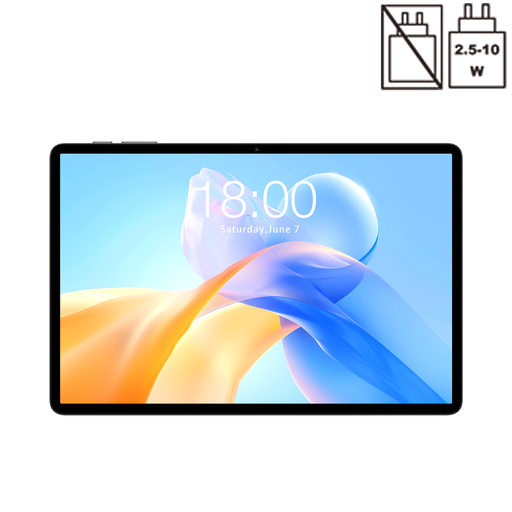
TECLAST P50T 11-inch tablet

TECLAST P50T, 11-inch tablet

For viewing and enlarging letter pages on a colour tablet.

11-inch IPS display, 128 GB storage, 90 Hz and 8000 mAh battery according to the product name; this does not indicate a specific reading time.

View at Joybuy
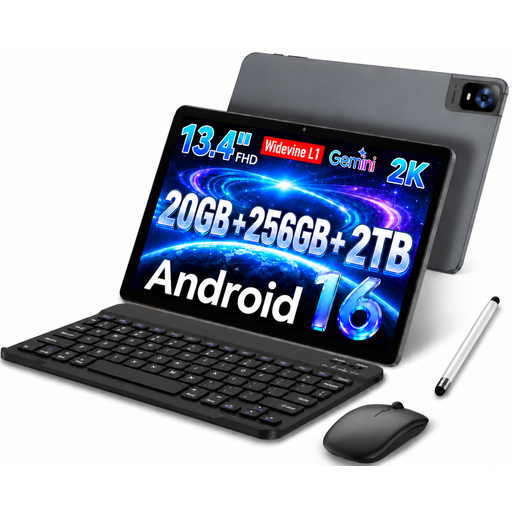
UXD 13.4-inch tablet with FHD IPS display and stylus

UXD 13.4-inch tablet with stylus

The larger screen is an option if you want to view letter pages or details on a colour tablet.

13.4-inch FHD IPS display; the product name also lists a stylus, keyboard and mouse in the bundle.

View at Joybuy

Teclast ArtPad Pro 2025 with 13.4-inch display and T-Pen

Teclast ArtPad Pro 2025, 13.4 inches

A colour tablet option if you want to view large letter scans and add handwritten comments.

The product name lists a 13.4-inch 2K display and a T-Pen with 4096 levels of pressure sensitivity. The stated battery capacity alone does not guarantee a particular battery life during a flight.

View at Joybuy
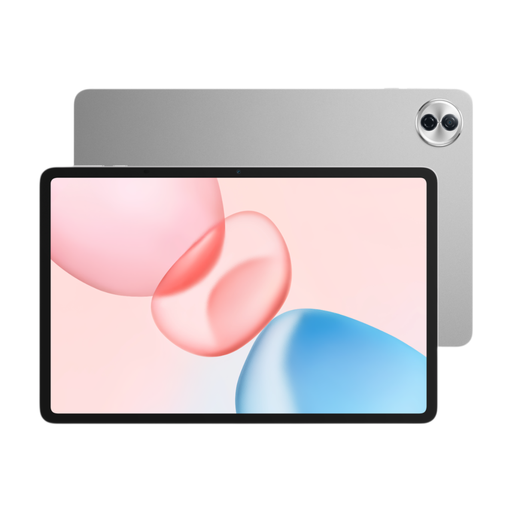
HONOR Pad 10 with 12.1-inch display

HONOR Pad 10, Wi-Fi, 256 GB

For anyone who wants to view letter pages on a larger colour tablet and store documents locally.

12.1-inch IPS display with 2560 × 1600 resolution and 256 GB storage, according to the product details.

View at Joybuy

iFLYTEK AINOTE 2 with E Ink display and protective case

iFLYTEK AINOTE 2, 10.65-inch E Ink tablet with protective case

An E Ink option for anyone who wants to read letters and make handwritten notes.

The product details list a 10.65-inch E Ink display and a stylus. The stated battery life is based on limited daily use and is not a guarantee of uninterrupted reading on a long-haul flight.

View at Joybuy

Frequently asked questions

How can I tell whether a historical letter scan is readable?

Open a representative original file and check the whole page, the smallest handwriting and how easy it is to move around after zooming in. Rakuten Kobo documents PDF zoom and rotation; screen size alone is no substitute for testing your own file.

How do I prepare letters for a flight without internet access?

Transfer the files before your trip and open each one you need at least once with Wi-Fi switched off. reMarkable documents PDF importing via USB; Rakuten Kobo describes importing unprotected PDFs from a computer. If your files are protected, check which import method is suitable.

Is the stylus included, and do I need a subscription?

Samsung says the Galaxy Tab S10 FE comes with an S Pen; Apple lists compatible Pencil models for the iPad (A16), but no Pencil in the standard package mentioned. On reMarkable, handwriting search and unlimited cloud storage are included with Connect. Check which features you actually need for the way you work.

Can I use my reading device on a plane, and where should I pack a power bank?

According to the European Union Aviation Safety Agency (EASA), e-readers and tablets can generally be used during much of a flight. The airline’s and crew’s instructions apply to your specific flight, including during particular phases of the journey. EASA recommends carrying spare batteries and power banks in your hand luggage and protecting each one individually against short circuits.

What are my rights when buying a device online in Germany?

The Verbraucherzentrale says that online purchases generally come with a 14-day right to cancel; you must notify the other party to the contract that you wish to cancel. If a product is faulty, your statutory rights against the seller are separate from any voluntary manufacturer’s guarantee. The Verbraucherzentrale says retailers are generally responsible for delivering goods free from defects for two years.