What should you look for when choosing?
First decide whether your source and index will run on one computer, two computers or separate monitors. This will determine the right display setup and the connections you need.
One ultrawide, one computer
A good fit if: you want to see your source and index side by side as two windows on the same computer.
Things to consider: A wide screen isn’t a substitute for two independently positioned monitors. Check that everything is easy to read at your preferred text size.
One ultrawide, two computers
A good fit if: you want to display content from both computers at the same time and the model has Picture-by-Picture and the right inputs.
Things to consider: The two signals share the screen. KVM and USB-C charging power are only relevant if they suit your devices and workflow.
Two separate monitors
A good fit if: you want your source and index on physically separate screens that can be positioned independently.
Things to consider: Compare both stands, the desk space available and the window arrangement you want.
| Requirement |
What to check before buying |
Who it matters most to |
| Two readable windows |
Try the windows at your preferred text size; compare the native resolution with the actual screen width. |
If I need to read my source and index side by side on one computer, both windows need to be easy to read. That’s why around 36% of consumers prioritise two clear work areas. |
| Two input signals |
Check the number of computers, inputs and Picture-by-Picture support on the exact model. Consider KVM only if you need to share input devices. |
If my source and index come from separate computers, I need both signals on screen at the same time. That’s why around 29% of consumers prioritise displaying two computer sources. |
| Desk space and adjustability |
Compare the monitor and stand dimensions, as well as height adjustment, with the space available. |
If my desk is small, I want to position the screen comfortably and still have room for paperwork. That’s why around 21% of consumers focus above all on desk space and positioning. |
| Laptop connection |
Check your laptop’s video output, cable and power requirements against the monitor’s connection features. |
If I connect my laptop regularly, I want to know whether the connection supports video and provides the power it needs. That’s why around 14% of consumers prioritise a straightforward laptop connection. |
Suitable products at Joybuy
This selection includes ultrawide monitors for using two windows on one computer, as well as models whose product details list PIP/PBP for multiple sources. Check the connections and features you need on each individual model.
 No image available
CRUA 49-inch DQHD ultrawide monitor
The 32:9 format is an option if you want to fit your source and index side by side on one computer.
49 inches; 5120 × 1440 pixels; 32:9; height-adjustable stand.
View at Joybuy
 No image available
INNOCN E34A1R 34-inch ultrawide monitor
The product details list PIP and PBP for use with multiple sources. Check that the inputs and screen split suit your devices.
34 inches; 3440 × 1440 pixels; 21:9; VA; 200 Hz; PIP and PBP; height-adjustable stand.
View at Joybuy
 No image available
INNOCN 40C1U 40-inch ultrawide monitor
The product details list PIP/PBP for multiple sources and a wide format for working with windows. Check that the features meet your connection needs.
40 inches; 5120 × 2160 pixels; IPS; 21:9; 100 Hz; PIP and PBP; USB-C PD 65 W; height-adjustable stand.
View at Joybuy
 No image available
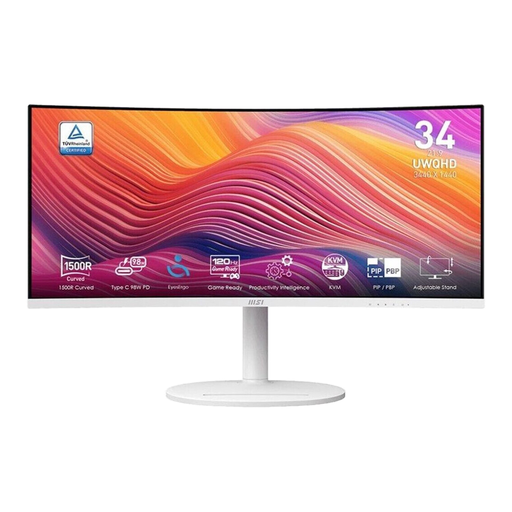
MSI Modern MD342CQPWDE 34-inch UWQHD monitor
The 21:9 format is worth considering for side-by-side windows. Check that text remains readable at your preferred size.
34 inches; 3440 × 1440 pixels; 21:9; VA; 120 Hz.
View at Joybuy
 No image available
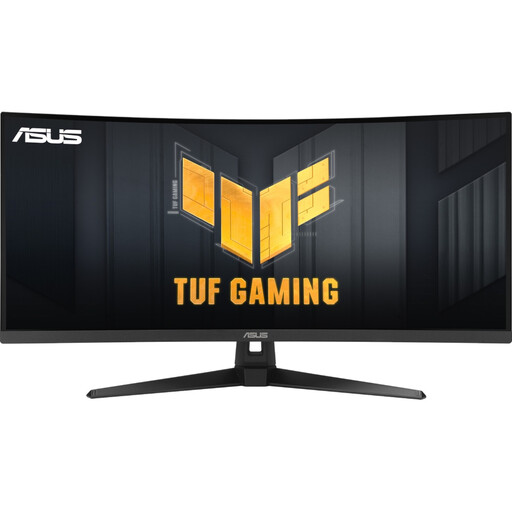
ASUS TUF Gaming VG34VQ3B 34-inch UWQHD monitor
The wide 21:9 format could be useful for two windows on one computer. If you’re using two computers, check the features and inputs you need separately.
34 inches; 3440 × 1440 pixels; 21:9; VA; DisplayPort and HDMI.
View at Joybuy
Frequently asked questions
Do I need Picture-by-Picture for a recipe source and index?
Not if both are open as windows on the same Windows computer: Windows can snap windows side by side. If you want to display signals from two computers at the same time, check for Picture-by-Picture and the inputs you need on the specific monitor.
How can I set up two text windows without making the text hard to read?
First, arrange the windows using Windows Snap layouts, then check the scaling and recommended resolution in the display settings. Microsoft Support notes that text can look blurry at a resolution below the native one.
What’s the difference between a warranty and your statutory rights?
Your statutory rights and a warranty are different: if a product is faulty, your statutory rights apply against the seller, while a warranty is an additional voluntary service subject to its own terms. The Verbraucherzentrale explains the distinction; if a warranty is offered, check its specific terms.
What labelling should I check when buying a monitor in Germany?
According to the European Commission, computer monitors are generally covered by EU rules for electronic displays. The energy label rates efficiency on a scale from A to G; it isn’t a general minimum efficiency rating for your purchase.


