If your slides and recording software are running on the same computer, a screen or window capture is often all you need to start with — no extra hardware required. For an external HDMI camera or a second source device, you could use a compatible HDMI-to-USB capture device. If you also need to send the signal to a presentation screen, your device will need a suitable HDMI output. Before buying, check the aspect ratio, audio setup and connections too.
Which solution is right for you?
Presenters using an HDMI camera
If you want to record footage from an external camera alongside your slides, the camera output and recording format need to be compatible with the capture device. The OBS Project lists capture cards as a possible video source.
Presenters using a second screen
If you also want the HDMI signal to appear on a separate screen, check whether the device has a suitable HDMI output. Elgato and AVerMedia list different passthrough formats for their respective models.
Presenters using a single computer
If your slides are already running on the computer you’re recording with, try a screen or window capture first and set up your microphone audio. The OBS Project describes screen capture and audio sources as separate features.
What should you look for when buying?
Screen capture without a capture card
A good fit if: your slides are running on the same computer and you don’t need to record an external HDMI source.
Trade-off: A screen source won’t automatically capture the HDMI signal from a separate camera or second computer.
HDMI-to-USB capture device without passthrough
A good fit if: you want to connect a compatible camera or another unencrypted HDMI source to your recording software.
Trade-off: You’ll need an additional signal path to connect a separate screen if the capture device doesn’t have an HDMI output.
Capture card with HDMI passthrough
A good fit if: you want to record an HDMI signal and send it to a screen at the same time.
Trade-off: The recording and passthrough resolutions may differ, so check both separately.
Multi-source switcher
A good fit if: you want to combine a camera and a computer displaying your slides live, and record directly to a USB drive with a suitable model.
Trade-off: A switcher takes more setting up and requires extra cabling compared with a basic capture device.
| What you need |
What to check before buying |
Who is this important to? |
| Recording slides from the same computer |
Select a screen or window source and check a saved test recording. The OBS Project describes screen capture as a separate source. |
If my slides are running on the computer I’m recording with, I want to check first whether screen or window capture will do the job. This is the main priority for around 29% of consumers. |
| Connecting an external camera |
Check the camera output, supported HDMI format, USB connection and any HDCP encryption against the exact model. Elgato notes that the Cam Link 4K cannot handle HDCP-protected signals. |
If I’m using a separate HDMI camera, its output needs to be compatible with the capture device. Around 29% of consumers say an external camera is their top priority. |
| Displaying and recording the image at the same time |
Check the HDMI input and output, and the recording and passthrough resolutions, separately. Elgato lists passthrough up to 2160p60 and recording up to 1080p60 for Game Capture Neo; AVerMedia lists 1080p60 as the maximum passthrough resolution for the GC311. |
If I need a separate presentation display while recording, a suitable HDMI output is essential. Around 21% of consumers say simultaneous display output is their top priority. |
| Recording the presenter’s audio |
Select the microphone and, if needed, HDMI audio source in your recording software, then listen to a saved test recording. The OBS Project warns that selecting the same audio device twice can cause an echo. |
If I want the presentation to be clear and easy to hear, I’ll check the saved audio as well as the video. Around 21% of consumers say presentation audio is their main priority. |
Common buying and setup mistakes
-
Assuming “4K” in the name means 4K recording
According to Elgato, Game Capture Neo’s maximum passthrough resolution differs from its recording resolution.
Check the specifications for both recording and HDMI output, rather than focusing only on the highest signal figure.
-
Planning to use a capture device without an output for a second screen
An HDMI-to-USB device without passthrough won’t automatically send the same signal to a separate screen.
Before buying, sketch out the signal path between your source device, screen and recording computer. Depending on your setup, you may need another signal path or a different device.
-
Testing only the camera image
A visible image doesn’t tell you whether the microphone or HDMI audio is included in the saved recording. The OBS Project also warns that selecting the same audio device twice can cause an echo.
Before your presentation, record a short test with speech and, if needed, HDMI audio, then listen back to it.
-
Assuming similar model names mean the same device version
Elgato’s 2160p60 specification for the Cam Link 4K requires a compatible camera and the latest device version. AVerMedia models GC311 and GC311G2 have different model numbers.
Check the full model name and the specifications for that exact version.
Key brands at a glance
Elgato
The models listed cover everything from a simple camera input to HDMI recording with passthrough.
- According to Elgato, Game Capture Neo records up to 1080p60 and supports passthrough up to 2160p60. Elgato lists recording up to 2160p60 for 4K S.
- For the Cam Link 4K, Elgato says 2160p60 requires a compatible camera and the latest device version; HDCP-protected HDMI signals are not supported.
AVerMedia
The Live Gamer Mini GC311 is designed for a compact 1080p60 signal path, while the GC553G2 is suited to more demanding HDMI signals.
- AVerMedia’s specifications list recording up to 2160p60 for the GC553G2.
- The specifications don’t list 4K or HDR support for the GC311. According to AVerMedia, the GC553G2’s 4K144 specification applies to Streaming Center on Windows with MJPEG.
Magewell
USB Capture HDMI Gen 2 offers one HDMI input. Choose USB Capture HDMI Plus if you need HDMI passthrough and an analogue audio connection.
- Magewell lists an HDMI output and a 3.5 mm socket for a microphone or headphones for the Plus model.
- These connections are specific to the Plus model and aren’t automatically available on USB Capture HDMI Gen 2.
Blackmagic Design
The ATEM Mini Pro is designed for setups where you want to combine multiple sources live and record directly.
- Blackmagic Design lists multiple HDMI inputs and recording to USB drives for the ATEM Mini Pro.
- For a single HDMI source, a switcher takes more setting up than a basic capture device. Recording to a USB drive is a feature of the Pro model.
Capture cards for HDMI recording and passthrough
This Joybuy product selection is for setups where you want to record an external HDMI source and send the signal to a screen at the same time.
 No image available
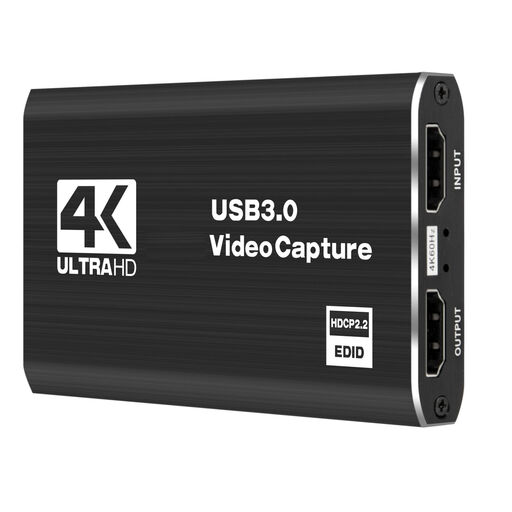
4K USB 3.0 capture card with five ports
For an HDMI source you want to record and send to a screen at the same time.
USB 3.0 and five ports. According to the product description: 4K input and passthrough, with 1080p recording at 60 Hz.
View at Joybuy
 No image available
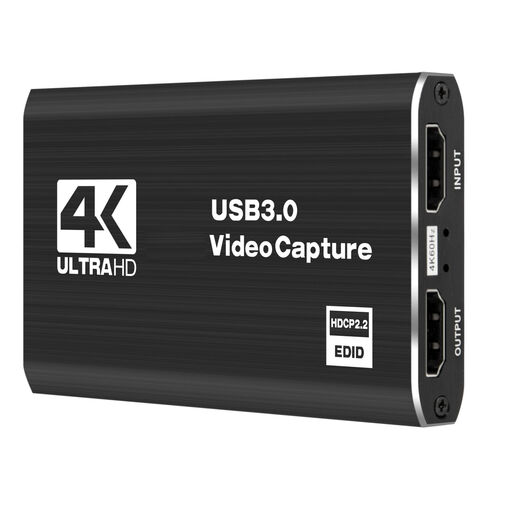
4K capture card with passthrough, five ports
For a camera or another HDMI source device when you also want to send the signal to a screen.
USB 3.0 and five ports. According to the product description: 4K input and passthrough, with 1080p recording at 60 Hz.
View at Joybuy
 No image available
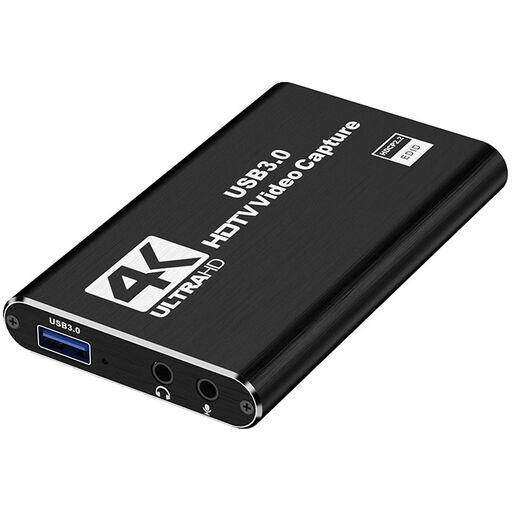
HDMI capture card with 4K30 input and 1080p60 recording
For a setup where you want to record an HDMI source and send it on through the HDMI output.
According to the product title: HDMI input up to 4K30 and 1080p60 recording. The description also lists a microphone input and headphone output.
View at Joybuy
 No image available
USB 3.0 capture card with five ports and audio recording
For a camera or recorder when you want to record and pass through the HDMI signal at the same time.
USB 3.0 and five ports. According to the product description: 4K input and passthrough, with 1080p recording at 60 Hz; audio recording is also listed.
View at Joybuy
 No image available
VIELLAN 4K HDMI video capture card USB 3.0
For an HDMI camera or another source device when you want to connect a monitor at the same time and set up the presentation audio.
USB 3.0. According to the product description: 4K input and passthrough, with 1080p recording; a microphone and headphone connection are also listed.
View at Joybuy
Frequently asked questions
Can I record my slides and presentation without a capture card?
Yes. If your slides are running on the computer you’re recording with, you can select its screen or a window as a source in OBS. Set up the microphone audio you need separately, then check a saved test recording.
Why is there no camera image even though my capture card is connected?
First, check whether your camera is outputting an HDMI format supported by that exact device, and whether the signal is HDCP-protected. Elgato explains that the Cam Link 4K can’t receive HDCP-protected signals.
How can I avoid recording the presentation audio twice?
Check that the microphone and, if needed, HDMI audio are only being picked up through the sources you intend to use. The OBS Project warns that an echo can occur if the same audio device is selected both as a scene source and globally.
Who can help if a product develops a fault after purchase in Germany?
For consumer purchases, statutory rights are separate from a voluntary guarantee; you should initially contact the seller about a faulty product. Goods bought in the EU are generally covered by a statutory minimum period of two years. The German Consumer Advice Centre distinguishes between statutory rights and guarantees; the rights available in each case depend on the relevant circumstances.
Can I simply film people during a presentation and publish the recording?
There’s no blanket yes or no. According to information from the Federal Commissioner for Data Protection and Freedom of Information, footage of identifiable people is generally considered personal data; you should check the relevant data protection obligations, including those relating to providing information. Section 22 of the German KunstUrhG generally requires consent to distribute or publicly display images of people; Section 23 provides for limited exceptions, subject to further conditions. Which rules apply in a particular case depends, among other things, on the circumstances in which the footage was recorded and the purpose for which it will be published.


