For annotating research PDFs on a field trip, a versatile tablet is a good choice if you also want to use other apps; a digital paper tablet is worth considering if reading and focused writing are your priorities. The essentials are a compatible stylus, a display that’s easy to read where you’ll be using it, and a PDF workflow that lets you import, edit and export your files. If you’ll be working without reliable Wi-Fi, download your documents to the device before you go.
Which tablet is right for you?
Annotating PDFs in the field
If you want to mark up research papers by hand and use the edited file afterwards, check stylus compatibility and PDF export. Apple Support Germany explains how to mark up PDFs on iPad; test the export process with the app you plan to use.
Researchers without reliable Wi-Fi
Transfer your documents before you leave and plan how you’ll transfer them back afterwards. reMarkable documents PDF transfer via USB; automatic cloud syncing requires a Wi-Fi connection.
Reading outdoors
Compare screen size and readability in lighting conditions similar to those you’ll encounter on your field trip. Manufacturer claims about brightness or anti-glare coatings are no substitute for viewing a typical PDF page yourself.
What should you look for when buying?
Versatile iPad with Apple Pencil
A good fit if: You want to annotate PDFs and use other iPad apps or local files as well.
Bear in mind: You’ll need to budget separately for a compatible Apple Pencil. Display specifications don’t guarantee readability in every sunny location.
Galaxy Tab with S Pen
A good fit if: Having a stylus included is important to you, and you’ve checked that the PDF app you use can export files as needed.
Bear in mind: Samsung’s IP68 rating applies to the specified test conditions in fresh water; it doesn’t guarantee protection in every field situation.
reMarkable Paper Pro
A good fit if: You mainly want to read and annotate PDFs; reMarkable documents PDF import and export, as well as transfer via USB.
Bear in mind: Its own operating system doesn’t offer the same app workflow as iPad or Android; automatic cloud syncing requires Wi-Fi.
Lenovo Idea Tab Pro
A good fit if: You prefer a larger screen for working with research PDFs.
Bear in mind: The larger device takes up more space. Check exactly what’s included with the item number you’ve chosen, particularly whether it comes with a stylus.
| Criterion |
What to look for |
Who it matters most to |
| Annotating and exporting PDFs |
Check stylus compatibility, PDF import and export by testing an edited file. |
If I need to share my comments as a PDF, I want to test the entire file workflow beforehand. Around 29% of consumers would put PDF annotation and export at the top of their list. |
| Offline access |
Transfer PDFs to the device before you leave, then test editing and transferring them back without a network connection. |
If there’s no Wi-Fi where I’m going, I need my documents on the device itself. Around 29% of consumers would prioritise offline access. |
| Readability on the go |
View a typical PDF page in the expected lighting conditions and at your preferred screen size. |
If I’m reading long texts outdoors, I want to be able to make out the text and margin notes easily. Around 24% of consumers would put readability ahead of other requirements. |
| Device and accessories |
Check the weight and what’s included with the exact model, including a compatible stylus. |
If I’m taking a tablet on a field trip, the complete set-up, including the device and stylus, matters to me. Around 18% of consumers would consider portability and what’s included first. |
What mistakes should you avoid?
-
Assuming a stylus-compatible tablet comes with a stylus
A compatible stylus may be sold separately. Samsung says the Galaxy Tab S10 FE comes with an S Pen; the listing checked for Lenovo doesn’t make it clear whether a stylus is included.
Check stylus compatibility and what’s included with the exact device variant.
Depending on the listing, you may need to buy a compatible stylus separately.
-
Assuming cloud syncing means you can work offline
Automatic syncing on reMarkable requires Wi-Fi. If you haven’t transferred the file beforehand, the PDF may not be ready to edit where you’re going.
Transfer your PDFs before you travel, then test importing, annotating and exporting them back without a network connection.
-
Assuming IP68 means complete protection in the field
Samsung describes the protection offered by the Galaxy Tab S10 FE and included S Pen under specific test conditions: fresh water, a depth of 1.5 m and 30 minutes.
Only rely on the rating for those conditions, and take the actual environment of your field trip into account.
Key brands at a glance
Apple
The iPad Air (M4) is a versatile iPad option for annotating PDFs with a compatible Apple Pencil.
- Apple Support Germany explains how to annotate PDFs; Apple lists compatibility with Apple Pencil Pro and Apple Pencil (USB-C).
- Apple sells the Pencil separately. Check that the display and weight specifications suit the size and connectivity option you choose.
Samsung
The Galaxy Tab S10 FE is an Android option; Samsung lists a 10.9-inch display for the 5G model reviewed.
- Samsung lists a brightness mode and an S Pen included in the box. It describes the Galaxy Tab S10 FE as IP68-rated under specific test conditions.
- Samsung’s documentation on editing PDFs in Samsung Notes relates to a different Galaxy Tab model; check the specific app and device variant.
reMarkable
Paper Pro is a digital paper tablet designed for reading, writing and working with PDF documents.
- reMarkable documents PDF import and export, transfer via USB, and an 11.8-inch Canvas Color display.
- Having its own operating system doesn’t mean it runs the iPad or Android apps you need. Automatic cloud syncing requires Wi-Fi.
Lenovo
The Idea Tab Pro is a large-screen Android option; Lenovo lists a 12.7-inch display and 256 GB of storage for item number ZAE40020SE.
- The larger screen may be useful when viewing a PDF page.
- Lenovo describes the listing as ‘+ Pen’, but also lists the Tab Pen Plus as an optional accessory. Check what’s included with the specific item number.
Joybuy picks for taking notes on the go
The Joybuy picks below include tablets for taking notes and reading on the go. For each model, check PDF import, editing and export using one of your own files, and confirm whether the chosen variant comes with a stylus.
 No image available
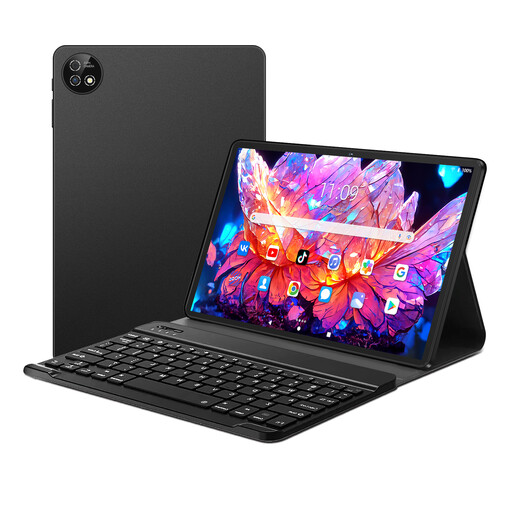
10.1-inch tablet with keyboard and stylus
The listing includes a stylus for taking handwritten notes on the go, as well as a detachable keyboard.
Android 16, 36 GB RAM, 256 GB ROM and 6000 mAh, according to the product name.
View at Joybuy
 No image available
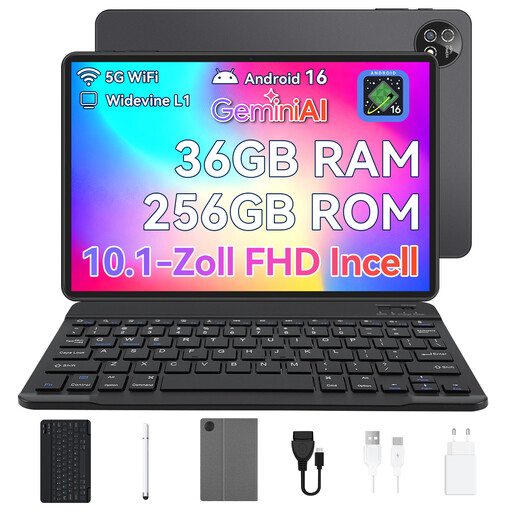
10.1-inch touchscreen tablet with keyboard and stylus
The product name lists a stylus for taking handwritten notes and a detachable keyboard.
Android 16, octa-core processor, 36 GB RAM (6+30) and 256 GB storage, according to the product name.
View at Joybuy
 No image available
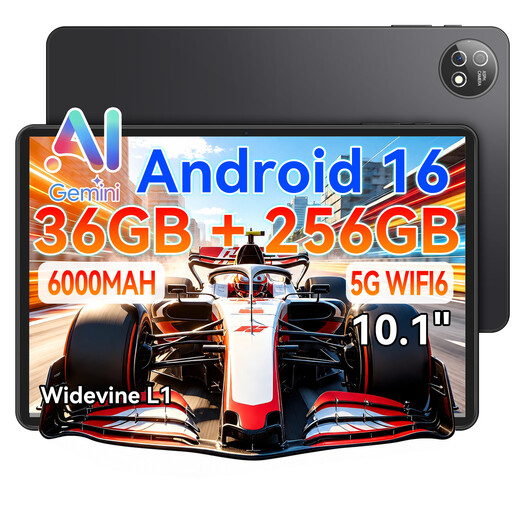
10.1-inch tablet with Unisoc T310, keyboard and stylus
The product name lists a stylus for taking notes and a detachable keyboard.
Unisoc T310, 36 GB RAM, 256 GB ROM and Wi-Fi 6, according to the product name.
View at Joybuy
No image available
10.1-inch Android 16 tablet with Unisoc T310 and touch pen
The listing includes a touch pen for taking notes and a keyboard.
Unisoc T310, 36 GB RAM, 256 GB ROM and 6000 mAh, according to the product name.
View at Joybuy
 No image available
iFLYTEK AINOTE 2, 10.65-inch E Ink tablet
The listing describes this as an E Ink tablet for reading and taking notes on the go.
According to the listing, an internet connection is required for speech transcription.
View at Joybuy
Frequently asked questions
What should I set up before a field trip without Wi-Fi?
Transfer a typical research PDF to your device beforehand, try annotating it without a connection and plan how you’ll transfer it back afterwards. reMarkable documents import and export via USB; according to the manufacturer, automatic syncing takes place when Wi-Fi is available. You can also save files locally on iPad.
Can I share my annotations as a PDF?
PDF import and export are documented for reMarkable; Samsung Notes lists PDF as an export format. Test this with your research file and the app you’ll actually be using to check that the exported document includes the annotations you need.
What’s the difference between statutory rights and a manufacturer’s warranty when buying in Germany?
According to consumer information from the European Union, when you buy from a trader you’re generally entitled to a minimum of two years’ statutory protection from the date you receive the goods. This right is against the seller. An additional manufacturer’s warranty doesn’t replace these rights. These rules don’t apply when you buy from a private individual.
Do I have a right to cancel an online purchase?
According to consumer information from the European Union, consumers generally have 14 days to cancel a distance purchase. Exceptions apply.


