First, check whether your internet connection or the Wi-Fi where you make calls is the bottleneck when sharing family videos and making video calls at the same time. A new router won’t increase the upload speed included in your broadband package. For files on your home network, you’ll also need to consider the storage connection and how you access it. If reception is poor in certain rooms, adding a suitably connected access point may be more useful than replacing your main router. Choose a new main router only once you’ve checked your connection type, phone requirements and storage features.
Who should consider this router question?
Families uploading files while making video calls
If you share large family videos during a call, it’s important to find out whether the bottleneck is your internet connection or your home network. Zoom sets out specific connection requirements for group video calls, but these don’t replace checking your own connection.
Families with shared video storage
If you want to access videos from several devices on your home network, consider the storage connection and access permissions, as well as the difference between local access and sharing over the internet. AVM explains how the FRITZ!Box 7690 makes connected USB storage available on your home network.
Families making calls from rooms far from the router
If calls work near the router but aren’t reliable in other rooms, the location and connection of any additional Wi-Fi access points matter. TP-Link notes that actual Wi-Fi coverage depends on the environment and the specific model.
What should you look for when buying?
First, work out whether your connection, storage access or Wi-Fi coverage is having the biggest impact on everyday use. This will help you decide whether a new router is the right solution at all.
| Buying priority |
What to check |
Who it matters most to |
| Reliable calls while uploading |
Check upload speeds and your connection during typical use; test prioritisation with the video-calling app you use. |
If a video is uploading while I’m on a call, I want to know whether my connection can keep up. Around 33 % of consumers prioritise reliable calls. |
| Accessing videos where you need them |
Check where the files are stored and who can access them; if you’re using USB storage, check the router’s connection. |
If family members need to open videos from different devices or outside the home network, the sharing method needs to suit how they’ll access them. Around 27 % of consumers prioritise video access. |
| Wi-Fi in the room where you make calls |
Compare the connection near the router with the one where you make calls; check where an additional access point could go and how it will connect back to the router. |
If calls drop out in a room further away, I want a reliable connection there, rather than just comparing the Wi-Fi figures on the box. Around 20 % of consumers prioritise coverage. |
| The right connection and ongoing support |
Check whether you have DSL, cable or fibre, and whether you already have a modem or ONT; consider phone requirements and ongoing updates. |
If I want to replace my router, it needs to work with my existing connection and be easy to manage day to day. Around 20 % of consumers prioritise compatibility and support. |
Common buying misconceptions
-
Confusing Wi-Fi speed with the upload speed your internet connection provides
A router’s Wi-Fi specification doesn’t tell you how much upload speed your internet connection actually provides. Replacing your router won’t fix a connection that’s too slow.
Check your connection and the room where you make calls separately, and test your connection during typical use. Treat advertised Wi-Fi speeds as device specifications, not guaranteed upload speeds.
An unnecessary router purchase may leave the real bottleneck unchanged.
-
Replacing only the main router when reception is poor in one room
A mesh system or access point can extend coverage to rooms further away, but performance also depends on its location and its connection back to the main router.
Compare the connection near the router with the one in the affected spot. Check whether you can position an access point suitably and, if needed, connect it using an Ethernet cable.
Depending on the solution, you may need additional devices, a suitable location or a wired connection.
-
Choosing a model with the wrong modem or WAN setup
DSL, cable and fibre connections each need a suitable connection solution. A separate Ethernet WAN router won’t automatically replace a required modem or ONT.
Before ordering, check the connection type, the equipment you already have and your phone requirements against the router’s specifications.
An unsuitable connection setup may mean you also need a compatible modem or ONT.
-
Assuming a router’s USB port makes it an unlimited-speed video store
According to AVM, the FRITZ!Box 7690 can make USB storage available on your home network. However, its USB 2.0 port is a factor in how quickly you can access files. The Wi-Fi data rate doesn’t describe the entire transfer route.
Check the storage location, access permissions and connection to make sure they suit the way you’ll share files.
If you have more demanding storage needs, you may need another storage solution.
Key brands to consider
FRITZ!
Worth considering if you’re looking for an all-in-one DSL router, a cable router or a DSL and fibre model with home network storage features.
- AVM lists DSL, mesh and NAS features for the FRITZ!Box 7690, DOCSIS 3.1 for the 6690 Cable, and DSL and fibre support for the 5690 Pro.
- For files stored on a connected device, bear in mind that the 7690 has a USB 2.0 port. These features apply to the models listed, not necessarily to every device from the brand.
TP-Link
Worth considering if you want to extend an existing network with Deco devices or set up a multi-unit Wi-Fi system.
- TP-Link documents Ethernet backhaul and an access point mode for supported Deco devices.
- According to TP-Link, some advanced router features in the Deco app aren’t available in access point mode. Coverage and features depend on the model, software and home environment.
ASUS
Worth considering if you’re looking for a separate Ethernet WAN router to use with a compatible connection setup.
- ASUS lists Ethernet WAN, access point mode, AiMesh and Adaptive QoS for the RT-AX58U.
- This model isn’t listed as having an integrated DSL or cable modem. If you have quality issues, Google Meet may recommend turning off QoS for Meet; test the setting with the video-calling app you use.
Telekom
Worth considering as a provider option, particularly if you have a compatible Telekom connection and want help with setup.
- Telekom lists DSL support, Wi-Fi 6 and automatic firmware updates for the Speedport Smart 4.
- Fibre use as specified requires an external fibre modem. An advertised Wi-Fi speed doesn’t guarantee call quality in every room.
Joybuy products for Wi-Fi and your home network
The selection ranges from mesh devices for extending Wi-Fi to standalone routers. Before buying, check that the connection type, equipment you already have and intended use are all a good match.
 No image available
TP-Link Deco BE22 Wi-Fi 7 (2-pack)
This two-device set is an option if a mesh network with router or access point mode suits your setup.
Wi-Fi 7, dual-band and Gigabit Ethernet.
Joybuy
 No image available
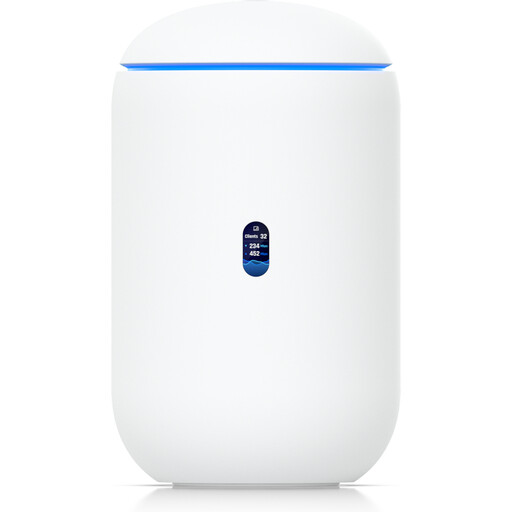
Ubiquiti UniFi Dream Router 7
This gateway may be worth considering if it’s compatible with your existing connection setup and the level of UniFi management you want.
Wi-Fi 7, 10G SFP+, 2.5 GbE, PoE output and 64 GB microSD.
According to the product description, management requires an active internet connection and UniFi Network version 9.0.108 or later.
Joybuy
 No image available
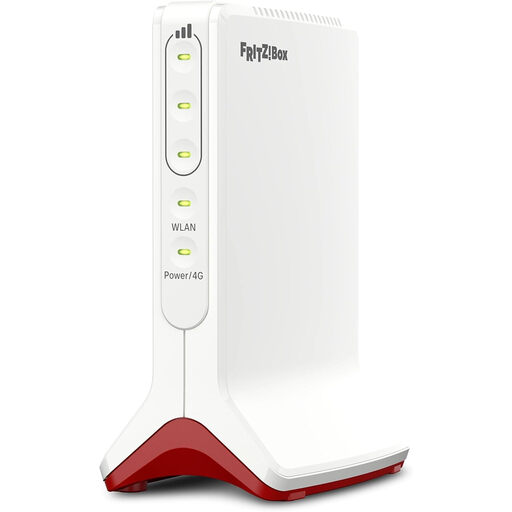
AVM FRITZ!Box 6825 4G LTE
This mobile broadband option is worth considering if you want to connect to the internet over LTE using a Nano-SIM. It isn’t a substitute for a DSL or cable modem.
LTE Cat 6, Wi-Fi 6 AX 600 Mbps, one Gigabit LAN port and USB-C power supply.
The product description lists LTE upload speeds of up to 50 Mbps.
Joybuy
 No image available
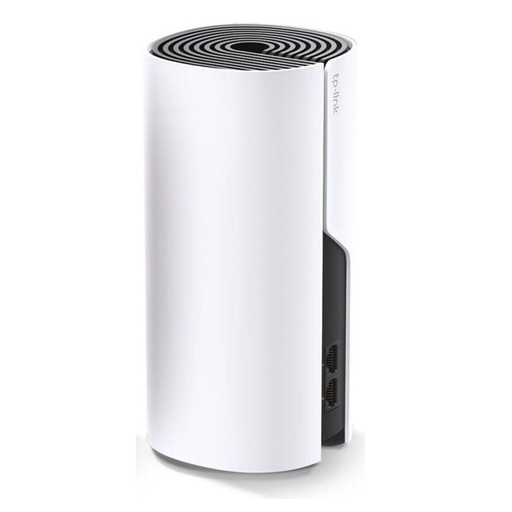
TP-Link Deco M4 AC1200 (1-pack)
This single unit is an option for extending an existing Deco network. Check that it’s compatible with your current devices first.
Dual-band AC1200 Wi-Fi and Gigabit ports; the product name indicates that it’s designed for mesh expansion.
Joybuy
 No image available
TP-Link Deco M4 AC1200 (3-pack)
This three-unit set may suit a mesh network covering several rooms. The best placement will depend on your home environment.
Dual-band AC1200 Wi-Fi and Gigabit ports on each unit.
Joybuy
Frequently asked questions
How can I tell if the router is causing call problems before I buy a new one?
Compare the connection where you make calls with a wired connection or a test near the router. Also check your connection while uploading a video as you normally would; the Bundesnetzagentur provides tests for internet connections. A single test can help narrow down possible causes, but it won’t automatically identify the exact one.
Do I need separate storage for family videos on my home network?
Not necessarily: AVM explains that the FRITZ!Box 7690 can share connected USB storage on your home network. Check that the connection and controls suit your files, and don’t confuse the advertised Wi-Fi speed with the transfer speed from the storage device. USB storage isn’t included with the router.
What should I bear in mind when setting up and updating my own router?
If you buy your own router, you’ll need to handle the setup and configuration yourself, as explained by the Verbraucherzentrale. The Federal Office for Information Security recommends keeping the firmware up to date.
Can I use my own router in Germany instead of the one provided by my internet provider?
Yes. The Bundesnetzagentur explains that you’re free to choose a suitable router, but it still needs to be technically compatible with your specific connection. In a statement dated 22 January 2025, the Bundesnetzagentur confirmed the freedom to choose terminal equipment for passive optical fibre networks.


