Uploading from a home office at the other end of the house
You upload portfolio files through thick internal walls and need a reliable connection there, not just a high advertised Wi-Fi speed.


You don’t automatically need a new router to upload portfolios through thick internal walls. Test your internet connection via Ethernet, then compare it with the connection at your desk. Ethernet connections are required for the Federal Network Agency’s broadband measurement verification procedure. If the Wi-Fi connection is the problem, a wired access point connected to your existing router may help. If you’re extending the network wirelessly, the extender needs to be placed somewhere with a decent connection to the main unit. Replacing your router makes most sense if you also need a different connection type or specific router features.
You upload portfolio files through thick internal walls and need a reliable connection there, not just a high advertised Wi-Fi speed.
Your internet connection and router are working well; you mainly want a suitable way to extend coverage to a room further away.
You’re also looking to replace your router, so you’ll need to check your connection type and Wi-Fi coverage separately.
A good choice if: You can run an Ethernet cable to the computer you use for uploads, and testing your internet connection via Ethernet shows no bottleneck.
Things to consider: This removes the wireless connection to your computer, but you’ll need to run a cable and it won’t provide extra Wi-Fi for other devices.
A good choice if: You want to keep your router and need Wi-Fi in an area further away.
Things to consider: The access point needs an Ethernet connection. Check that the specific device supports access point or LAN bridge mode.
A good choice if: You can’t run a cable and can place a unit somewhere with a decent connection to the router.
Things to consider: A unit placed directly in a Wi-Fi dead zone will also have a weak connection back to the router. A high advertised Wi-Fi speed doesn’t guarantee good upload performance in your home office.
A good choice if: As well as a Wi-Fi problem, you need a router that supports your connection type or has specific features you require.
Things to consider: Replacing your router alone won’t get around thick walls. Check your connection and possible ways to extend your network separately.
| Buying priority | What to check before buying | Who is it particularly important for? |
|---|---|---|
| Connection in the home office | Possible locations for units and existing Ethernet routes; for wireless mesh, also check the connection between the units. | If I’m uploading through thick walls, I need a decent connection where I actually work. Around 36% of consumers put coverage in that location first. |
| Actual internet upload speed | Test your internet connection via Ethernet where possible, then compare it with the connection at your upload workstation. | If an upload is slow, I want to check whether the internet connection or my home network is causing the bottleneck. Around 29% of consumers put actual upload speed first. |
| Connection type and router operation | Check your connection type, existing modem, and the router, access point or LAN bridge mode you need. | If I want to keep or replace my router, I need to know whether the new device will work with my connection type and existing network. Around 21% of consumers have this priority. |
| Setup and ongoing use | Consider how many units you need, whether cabling is required, and the right security and update settings. | If I’m weighing up the setup and maintenance involved, I only want to plan for the extension I actually need. Around 14% of consumers prioritise setup and ongoing use. |
The advertised Wi-Fi speed doesn’t tell you what upload speed your internet connection offers, or how well the signal reaches your workspace through internal walls.
Test your internet connection via Ethernet, then compare it with the connection at your upload workstation.
A mesh unit still needs a decent connection to the unit before it. A weak connection back to the main unit can limit the connection in the room further away.
Check possible locations between the two. If you have a route for a cable, a system designed for a wired backhaul could be an option.
A mesh device without a suitable built-in modem won’t automatically work as a DSL router. Depending on your connection type, you may still need your existing router or a separate modem.
Before buying, check your connection type and the router, access point or LAN bridge mode you need.
The FRITZ!Box 7690 is designed as a DSL router or for use with an external fibre modem. A FRITZ!Repeater can act as a LAN bridge in a compatible FRITZ! home network.
Deco systems such as the X50 and BE25 are mesh options. If you already have a router, check which operating mode is right for your setup.
The ZenWiFi XD5 is a Wi-Fi 6 mesh system with router, access point and AiMesh node modes.
The Speedport Smart 4 is designed for compatible DSL connections or fibre with an external modem. Telekom says it can be extended with compatible Speed Home devices.
The Joybuy products below include wired access points and mesh systems for extending an existing network. Before choosing, check the operating mode you need and whether an Ethernet connection is possible at your intended location.
 No image available
This 2-pack is worth considering if you’re planning a mesh extension with an Ethernet connection.
The product name lists Wi-Fi 7, dual-band and Gigabit Ethernet. For the access point setup described, an Ethernet connection to your existing network is required.
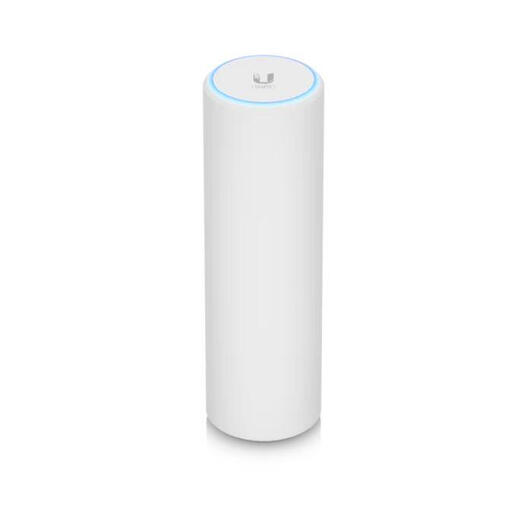 No image available
This access point is suitable for a planned extension if an Ethernet connection is available at the installation location.
The product name lists WiFi 6, 6 Spatial Streams and an included PoE adapter. The access point setup described requires an Ethernet connection.
 No image available
This set of three units is an option if you need to cover several areas and access point mode is suitable for use with your existing router.
The product description lists two Gigabit LAN/WAN ports per unit, as well as router or access point mode.
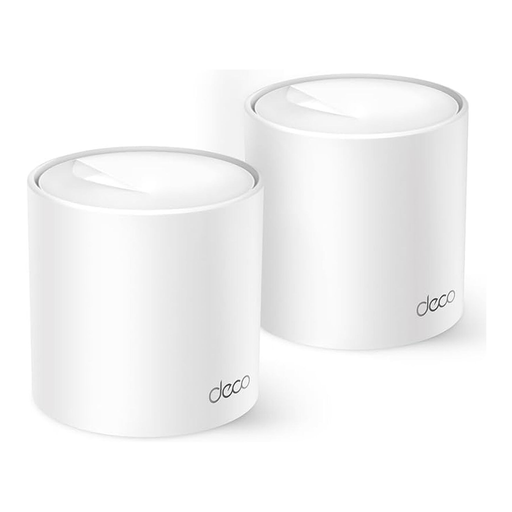 No image available
This 2-pack is designed for extending your network with multiple mesh units.
The product name lists Wi-Fi 6, AX1500 and dual-band. The product description lists Gigabit ports on the units.
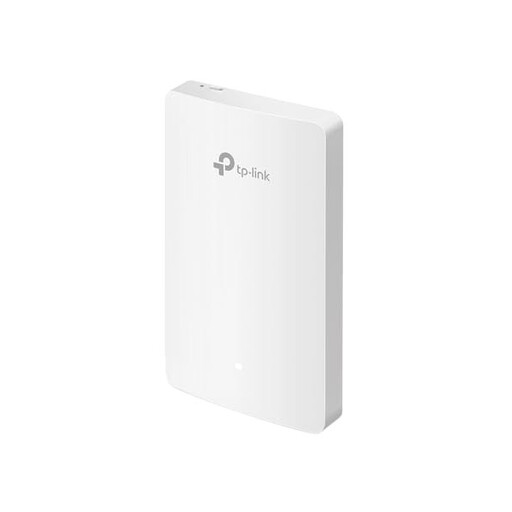 No image available
This wall-mounted access point is worth considering if an Ethernet connection to your existing network is available at the intended location.
The product name lists Wi-Fi 6, speeds of up to 1167 Mbps and four Gigabit ports. The access point setup described requires an Ethernet connection.
Compare a test via Ethernet with one taken at your actual workstation. Only Ethernet connections are accepted for the Federal Network Agency’s broadband measurement verification procedure. A difference between the test locations can help you investigate further, but it doesn’t guarantee how a new device will perform.
Place it somewhere it can still get a decent connection to the unit before it, while also covering the area you want to reach. If an Ethernet connection is available there, a system designed for wired backhaul can use that instead.
Yes, as long as the extender works with your existing network and supports the right operating mode. Check whether the specific device can run as an access point or LAN bridge, and whether there’s a suitable connection to your router.
A new router is worth considering if your existing one doesn’t support your connection type or lacks the router features you need. If the only issue is the Wi-Fi connection to your home office, consider an extender too; replacing the router alone won’t get around thick walls.
Check how many units are included and whether you’ll need an Ethernet cable, another access point or a modem that’s compatible with your connection type. What you need depends on the cable routes available and the network hardware you already have.