If your main problem is a weak connection through thick walls, first check how well Wi-Fi reaches the room where you want to watch. A new standalone router won’t reliably overcome this structural obstacle. If you can run a cable, a wired access point is an obvious option; wireless mesh requires a suitable midway location, while Powerline depends on the condition of your home’s electrical wiring. Also check whether your internet connection, rather than your Wi-Fi, is already the bottleneck.
Who needs to make this decision?
Viewers behind solid walls
If you want to watch a concert stream in a room with weak Wi-Fi, focus on the connection to that room rather than just the router’s maximum speed. Telekom’s help pages point out that certain materials can interfere with Wi-Fi signals; NETGEAR says Ethernet backhaul can help in buildings with challenging construction.
Homes without network cabling
If you can’t run a LAN cable, it comes down to whether you can place an additional node somewhere with a decent wireless connection, or whether Powerline could work for you. TP-Link says the Deco PX10 connects its units over your home’s electrical wiring; Telekom recommends placing a repeater closer to the router or another extender if the connection is weak.
Homes where the bottleneck isn’t clear
Before replacing your router, it’s worth checking whether your streaming is being limited by Wi-Fi coverage, your internet connection or your devices. The Bundesnetzagentur’s broadband measurement tool lets you compare your connection’s actual data rate with the rate stated in your contract.
What should you look for when buying?
First check the connection route to the room where you want to stream. Then make sure your existing router and internet connection are compatible with the device you plan to add.
| What you need |
What to check before buying |
Who is this most relevant to? |
| Connection through thick walls |
Check whether you can connect the TV or access point to Ethernet in the room where you want to stream, and whether the system supports wired backhaul. |
If I want to watch a stream in a room with weak Wi-Fi, the connection in that room matters most to me. Around 36% of consumers put the option of a wired connection first. |
| Extending your network without a network cable |
Check whether there’s a suitable midway location for a wireless node; if you’re considering Powerline, check whether your home’s electrical wiring is suitable. |
If I can’t run a LAN cable, I need a suitable location for a wireless node or a connection over the electrical wiring. Around 29% of consumers prioritise extending their network without running a cable. |
| Compatibility with your existing connection |
Check your connection type, existing modem or network termination equipment, and compatibility with your router, access point and mesh system. |
If I want to keep my current router, I need an additional device whose operating mode and mesh features work with my existing setup. For around 21% of consumers, extending their existing setup is the priority. |
| Check the cause and how the device operates |
Check your connection speed and Wi-Fi separately at the planned streaming location, and consider the firmware support available. |
If I want to find out what’s causing interruptions before replacing hardware, I check my internet connection and reception separately. Around 14% of consumers put troubleshooting and device operation first. |
Common buying and placement mistakes
-
Assuming the stated Wi-Fi speed is your guaranteed streaming speed
A high theoretical wireless speed doesn’t tell you how much data will reach your room through concrete or other obstacles. TP-Link’s BE25 guide notes that actual throughput and range depend on the surrounding conditions.
Choose how to connect to the room where you want to stream based on your situation, rather than simply choosing the highest number on the box.
-
Putting a wireless repeater in the room where there’s no usable signal
An additional node also needs a good connection to your existing network, so a location on the far side of the problem wall may not be suitable.
Find a midway location with a decent signal. If you can’t, look into a LAN connection or another option that works in your home.
-
Assuming a mesh system can replace your modem directly
Documented LAN ports or operating modes don’t prove that a mesh device can connect directly to a DSL, cable or fibre broadband service.
Before buying, check your network termination equipment and the router or access point mode you need against the specifications for the particular model.
Key brands at a glance
TP-Link
The Deco models covered in the documentation offer different ways to connect mesh units.
- TP-Link lists two 2.5 Gbit/s ports per Deco BE25 unit and support for wired backhaul. For the Deco PX10, the manufacturer describes connections between units over electrical wiring.
- These model specifications don’t guarantee an uninterrupted connection through the walls of a particular home.
ASUS
The ZenWiFi BD4 is an option for homes considering router or access point mode, or extending an existing network.
- ASUS lists two automatically assigned 2.5 Gbit/s WAN/LAN ports per BD4 unit, as well as 2.4 and 5 GHz Wi-Fi.
- The BD4 is a dual-band device; its theoretical wireless speeds don’t prove that it will reach through solid walls.
FRITZ!
A FRITZ!Repeater may suit homes that want to keep their FRITZ!Box and extend their Wi-Fi.
- FRITZ! documentation describes LAN bridge mode with a FRITZ!Box and mesh integration for the FRITZ!Repeater 2700.
- Check that the instructions apply to your specific model and its firmware; they don’t guarantee performance in other buildings.
Telekom
Speed Home WLAN is worth considering if your existing base unit is compatible with the intended mesh setup.
- Telekom provides instructions for setting it up with a mesh-capable router, as well as advice on where to place it when the connection is weak.
- According to Telekom, without a compatible mesh base unit, the device can instead operate as a repeater. Check the requirements for your specific models.
NETGEAR
With Orbi systems, Ethernet backhaul lets you connect the router and satellite using a cable.
- NETGEAR says Ethernet backhaul can be particularly useful when a building’s construction makes a wireless connection difficult.
- The manufacturer’s information is no substitute for checking the specific model or testing the connection in your own home.
Joybuy products for extending your Wi-Fi
The Joybuy products below include a two-unit mesh system and wired UniFi access points. The access points need an Ethernet connection and, depending on the model, a suitable PoE power supply.
 No image available
TP-Link Deco BE22 (2-Pack), Wi-Fi 7
This two-unit set could be a good fit if you want to set up a mesh network in router or access point mode.
Specifications include dual-band Wi-Fi 7 and two Gigabit WAN/LAN ports per unit. The system connects the units to form a single network and features automatic roaming.
View at Joybuy
 No image available
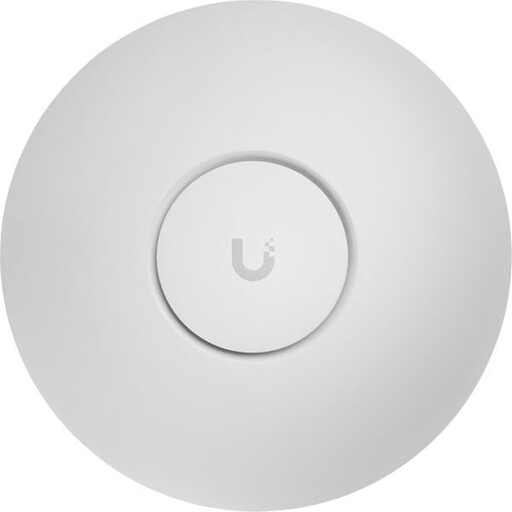
Ubiquiti UniFi U7 Pro, Wi-Fi 7
This access point is worth considering if an Ethernet connection and a PoE+ power supply are available where you plan to install it.
Specifications include tri-band, 2.5 GbE and PoE+. Setup is via UniFi Network, and both wall and ceiling mounting are supported.
View at Joybuy
 No image available
Ubiquiti UniFi U7 Lite, Wi-Fi 7
This access point could be a good option if you can extend an existing network over Ethernet and provide a suitable PoE+ power supply.
Specifications include dual-band Wi-Fi 7, 2.5 GbE and PoE+. Wall or ceiling mounting and setup via UniFi Network are supported.
View at Joybuy
 No image available
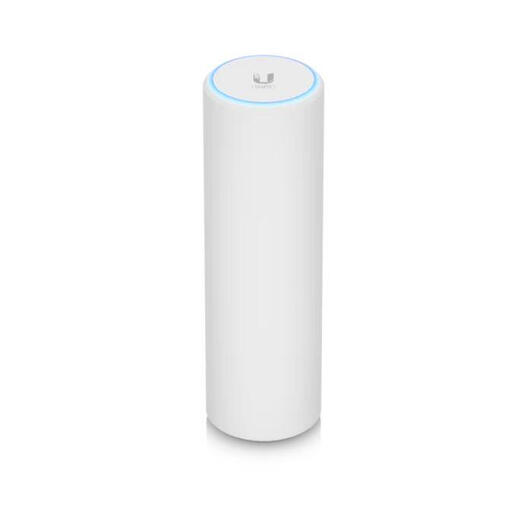
Ubiquiti UniFi U6 Mesh, Wi-Fi 6
This access point could suit a wired extension or mesh setup, provided you have the required PoE power supply.
Specifications include Gigabit Ethernet, PoE and a PoE adapter. The model is designed for indoor and outdoor installation; for outdoor use, follow the specified orientation and use the supplied mount.
View at Joybuy
 No image available
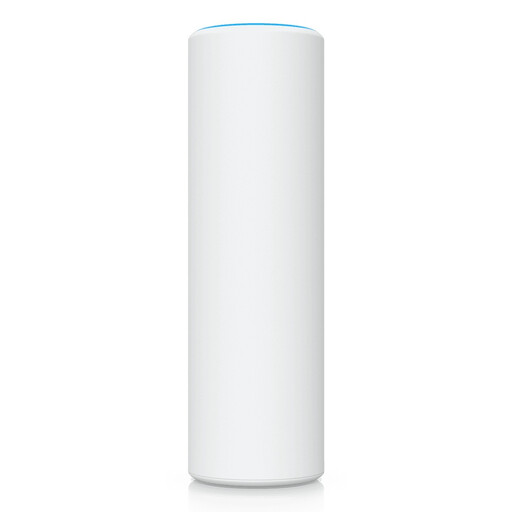
Ubiquiti U7 Mesh, Wi-Fi 7
This model could be a good fit if you want to add an access point with an Ethernet uplink to a UniFi network and can provide PoE.
Specifications include a 2.5 GbE PoE uplink. The product information describes configuration via UniFi Network, with wall, pole and tabletop mounting options.
View at Joybuy
Frequently asked questions
Do I need to replace my router if a concert stream keeps buffering only in a room further away?
Not necessarily. First check whether the Wi-Fi signal is weak where you want to watch, and whether a cable or a well-placed additional access point could help. You can also check your internet connection speed separately using the Bundesnetzagentur’s broadband measurement tool.
Where should I place a wireless mesh node?
Don’t place it somewhere where it can barely connect to the router. Telekom recommends moving Speed Home WLAN closer to the router or another extender if the connection is weak; you’ll need to check the best position in your home.
Will any additional node automatically work as mesh with my router?
No. Telekom distinguishes between mesh mode with a mesh-capable router and basic repeater mode. Check compatibility and setup requirements for your specific models.
Can a mesh system replace my broadband modem directly?
Not automatically. Check whether the specific device supports a direct connection to your DSL, cable or fibre broadband service, or whether you’ll still need your existing modem or another connection device.
Will a high maximum Wi-Fi speed give me better reception through concrete?
A stated maximum speed doesn’t guarantee a particular throughput through concrete. What matters is how the connection reaches the room where you want to stream, so check possible cable routes or find a suitable location for an additional node.


