Retouching scans on a cramped desk
If your scanner and monitor already take up most of the room, a small computer case can free up more desk space. Remember to leave room for cables and ventilation, too.


For correcting individual specks of dust on a small desk, a suitably specified mini PC is an obvious choice. A Mac mini is also worth considering if your scanner and image-editing software work with macOS. Before buying, check that your scanner and software are compatible, and confirm the ports and the exact RAM and SSD specifications. If you work with large files, have lots of images open at once or want the option to upgrade later, a differently configured compact desktop may suit your workflow better.
If your scanner and monitor already take up most of the room, a small computer case can free up more desk space. Remember to leave room for cables and ventilation, too.
If you work with large images or several files open at once, weigh up the RAM, SSD capacity and requirements of your image-editing software against the size of the computer.
If you want to keep using your scanner, monitor and input devices, first check operating system and driver compatibility, as well as the ports on the exact computer configuration.
A good fit if: you have limited desk space and your scanner and image-editing software work with Windows.
Things to consider: Specifications, upgrade options and what’s included vary by configuration.
A good fit if: you want to use macOS and your scanner, software and existing peripherals are compatible with it.
Things to consider: Check the exact RAM and SSD specifications, and whether you’ll need any cables or adapters.
A good fit if: you have more room and prioritise ports, storage options or access for maintenance over the smallest possible design.
Things to consider: Measure the space needed for the exact configuration and check which peripherals you’ll need to buy separately.
First decide what you want to keep using from your current workspace. Then compare the footprint and specifications of the exact configurations you’re considering.
| What you need | What to check before buying | Who is it important to? |
|---|---|---|
| Desk space | Measure the space needed, including room for cables and ventilation. Mounting the computer behind your monitor only makes sense if the mount and devices are compatible. | If I need to fit my scanner and monitor on a small desk, every bit of space matters. Around 28 % of consumers put desk space first. |
| Scanner and monitor connections | Check that the ports match your scanner and monitor, and that the drivers and required software support the operating system. | If I want to keep using my existing scanner and monitor, the connections and operating system need to work with both. Around 22 % of consumers say device compatibility is their main concern. |
| Performance and storage | Check the requirements for the version of the software you use and the specifications of the computer itself. For Photoshop 27.x on Windows, Adobe lists 8 GB RAM as the minimum and recommends at least 16 GB. | If I edit large scans or several files at once, I don’t want to lose sight of the software requirements or available storage. Around 22 % of consumers say editing performance is their top priority. |
| Keeping your scans safe | Allow space for both original and edited files, and plan a separate backup that you can restore. | If I want to keep my original scans and recover them after data loss, I also need a backup plan. Around 17 % of consumers put protecting their files first. |
| Complete workspace | Compare what’s included with the exact configuration against the monitors, input devices, cables and software you already have or need. For barebone configurations, check whether RAM, SSD and an operating system are included. | If I need to set up the whole workspace, it’s not just the computer that matters; I also need to consider any accessories I still have to buy. Around 11 % of consumers say the overall cost is the deciding factor. |
A product name can cover several configurations. For example, the GMKtec NucBox M6 Ultra is available as a barebone and with built-in storage; MSI also offers different versions of the Cubi NUC 1M.
Compare the full model code and what’s included before deciding whether the computer is ready to use.
With a barebone version, you may need to buy RAM, an SSD and an operating system separately.
Your scanner, monitor and cables still need space. A mounting option also doesn’t guarantee that the mount is compatible with your monitor and computer.
Plan for the whole workspace and check the mount and connections against your exact devices.
Depending on your setup, you may need additional mounts, cables or adapters.
Making a correction across a large area can change parts of the image you want to keep. GIMP recommends selecting the affected areas before using the Despeckle filter.
Work on a copy and check each local correction at a higher zoom level.
The A5 Pro 2026 Edition is one Windows mini PC option for a compact scanning setup. For the configuration described, GEEKOM lists a Ryzen 5 7530U, 16 GB RAM and a 1 TB SSD.
The Cubi NUC 1M family is a compact desktop option if ports and the possibility of mounting the computer on your monitor matter to you.
The Mac mini is a compact macOS option if your existing scanner and the software you need work with it.
The ThinkCentre Neo 50q Gen 5 Tiny is a compact Windows desktop option. Lenovo lists 16 GB RAM and a 512 GB SSD for model number 13B9009EEZ.
The ProDesk 4 Mini G1i is another compact desktop option. For version B6YZ6ET#ABD, HP lists 16 GB RAM and a 512 GB SSD.
The Joybuy models below include Windows mini PCs and Mac mini configurations for a compact scanning setup. For each model, check that your scanner and software are compatible, and confirm the specifications of the exact version.
 No image available
The mini PC design suits a workspace with limited desk space. Check that your scanner and image-editing software work with Windows 11.
The product details list 8 GB DDR4, a 256 GB SATA SSD and the Intel Core i5 8250U/8350U processor options.
The listed dimensions are 105 × 113 × 45 mm. The product details mention four USB ports, as well as HDMI and Type-C video outputs.
 No image available
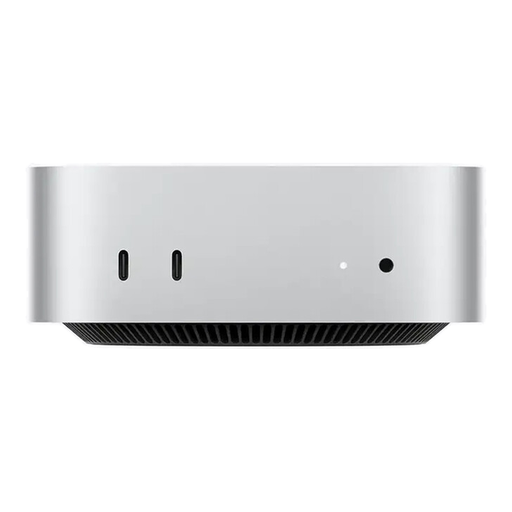
This macOS configuration is worth considering if your existing scanner and the image-editing software you need work with macOS.
The product details list 16 GB Unified Memory and a 256 GB SSD, as well as Thunderbolt 4, HDMI and USB-C.
 No image available
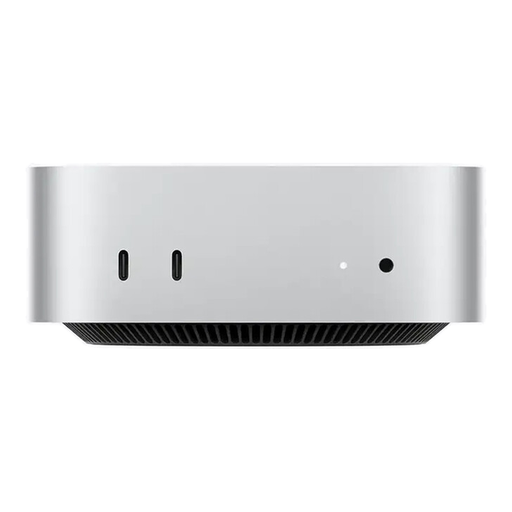
This macOS configuration is a good fit if your scanner and the programmes you need are compatible with macOS and you want the listed SSD capacity.
The product details list 16 GB Unified Memory and a 512 GB SSD, as well as Thunderbolt 4, HDMI and USB-C.
 No image available
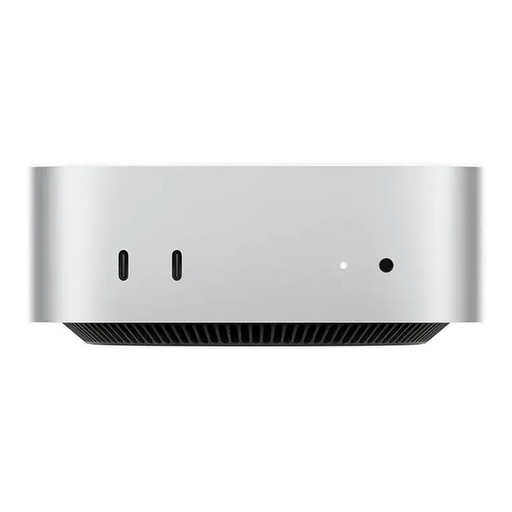
This macOS configuration is an option if your scanner and software work with macOS and the listed memory and storage suit your workflow.
The product details list 24 GB Unified Memory and a 512 GB SSD, as well as Thunderbolt 4, HDMI and USB-C.
 No image available
This mini PC is designed for a space-saving setup. Check that your scanner and image-editing software are supported on Windows 11 Pro.
The product details list 16 GB LPDDR4X, a 256 GB SATA SSD and HDMI 2.0 with 4K/60Hz.
Not for this task alone. Photoshop describes a Spot Healing Brush for small specks of dust in scans, while GIMP has a filter for dust and scratches. What matters is the requirements of the software version you use and the features you need; the tool descriptions don’t mean that a dedicated graphics card is always essential.
Work on a copy or a separate layer, and zoom in to check the area. Adobe describes the Spot Healing Brush as being particularly suitable for small imperfections with an appropriate surrounding area. GIMP recommends selecting the affected areas before using the Despeckle filter, so that other parts of the image remain as unchanged as possible.
Before setting everything up, check the available desk space, cable routes and connections for your monitor and scanner. Regularly back up original and edited files to a suitable additional storage device, and check that you can restore the files from your backup.