Anyone who retouches scans regularly
If you often check for small blemishes, you’ll need a clear, adjustable view of the details. Adobe explains how to remove small blemishes afterwards using an image-editing tool.


First, choose a monitor that makes scans easy to inspect at your usual scaling. Then check that it fits your shared desk and has the connections and adjustability you need. For colour-critical output, you’ll also need colour management and calibration: a wide colour gamut alone won’t set up a colour workflow. A monitor can show you dust spots, but it can’t remove them from an image – for that, you’ll need an image-editing tool, such as the one Adobe describes for removing small blemishes.
If you often check for small blemishes, you’ll need a clear, adjustable view of the details. Adobe explains how to remove small blemishes afterwards using an image-editing tool.
If you share a desk or switch between computers, the right connections, a suitable footprint and an adjustable screen position all matter. Germany’s Federal Institute for Occupational Safety and Health describes the scope of ASR A6 for screen-based work in workplaces and home offices.
If you’re preparing scans for colour-matched output or printing, you’ll need a well-maintained monitor profile and a suitable colour workflow. Adobe notes that factors including your monitor, calibration status and ambient light can affect how colours appear.
At a shared desk, resolution isn’t the only thing that matters. Space, switching between computers and any colour workflow you may need all affect which features make sense for you.
| What to consider | What to look for | Who is it important to? |
|---|---|---|
| Checking small details in scans | Check the resolution and scaling at your usual viewing size, as well as the space available for your image and tool palettes. | If I often check small areas of a scan, I want to see both details and tools clearly in my working view. Around 36% of consumers prioritise checking details. |
| Switching computers and desk space | Check your desk dimensions and the video and USB connections you need against your computers; only consider KVM if the connections are suitable. | If I share a desk or switch computers, I need the right connections and a screen that fits the available space. Around 29% of consumers prioritise switching computers and making the most of limited desk space. |
| Assessing colour | Consider your output requirements, the colour gamut of the specific model, calibration and your monitor profile. | If I’m preparing scans for colour-matched output, I want to assess colours as part of a suitable colour workflow. Around 21% of consumers put colour matching first. |
| Adjusting the screen for different people | Check the height and tilt adjustment, the depth of the stand and any reflections where the screen will sit. | If several people use the same screen, you should be able to adjust the display to suit each person’s seating position. Around 14% of consumers prioritise personalised adjustment. |
The screen lets you inspect your scan; spotting a blemish and removing it are two separate steps.
Choose a monitor for the viewing and workspace setup you need, and choose your retouching tool separately.
Colour reproduction also depends on your monitor profile, calibration status and ambient light. A colour gamut figure alone doesn’t show that the monitor is set up for your output requirements.
Prioritise colour gamut only if your output requires it, and check how you’ll set up calibration and colour management.
These features aren’t interchangeable, and they won’t automatically let you switch between two computers.
Check the exact model for the video, data and switching features you need, and make sure they’re compatible with both computers.
The ProArt PA279CRV and PA278CFRV models offer different combinations of resolution and features.
The SW242Q is a compact option designed for photo editing, suited to workspaces where colour control and switching between computers matter.
The ColorEdge CS2400S is a compact 16:10 option for workspaces where accurate colour reproduction is a priority.
The UltraSharp U2724DE is a 27-inch QHD monitor with a focus on connectivity and adjustability.
This selection from Joybuy includes monitors for viewing scan details. Compare the screen size with your available desk space, and check that the connections and adjustments suit your shared workspace.
 No image available
The 4K resolution may be useful for viewing scan details; check that the screen size and scaling suit your workspace.
Listed in the product name: 3840 × 2160 pixels, 120 Hz, 90 W USB-C Power Delivery, PIP and PBP, plus a height-adjustable stand.
 No image available
The 27-inch size and 4K resolution may suit detailed scan viewing; check the scaling on your computer.
Listed in the product name: Dual Mode with 4K at 160 Hz or FHD at 320 Hz, 65 W USB-C, KVM and a height-adjustable stand. Check that KVM and the connections work with both computers.
 No image available
The 27-inch size and 4K UHD resolution may suit scan viewing; also consider how much desk space you have available.
Listed in the product name: IPS panel and 4K UHD. Before buying, compare the connections and adjustment options you need for your workspace.
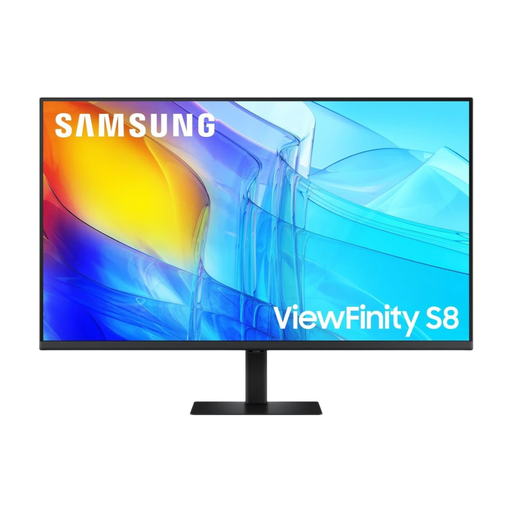 No image available
The large screen can give you plenty of room to work; check carefully that the 37-inch diagonal will fit on your shared desk.
Listed in the product name: 37 inches and UHD. Take the screen’s size into account when deciding where it will go.
 No image available
The wide 40-inch screen may be appealing if you want plenty of room to work; first check that there’s enough space on your shared desk.
Listed in the product name: 5120 × 2160 pixels, 21:9, 100 Hz, 65 W USB-C Power Delivery and a height-adjustable stand.
No. A monitor lets you inspect your scan; for small visible dust spots, Adobe describes using the Spot Healing Brush. Dust on the original or the scanner surface needs to be dealt with separately.
If colour matters for your output, calibrate and profile your monitor for your workflow, and take the lighting in your workspace into account. Adobe distinguishes calibration, which adjusts the monitor, from profiling, which describes how it actually reproduces colour.
ASR A6 is relevant to fixed-location screen-based work in workplaces and home offices; sharing a desk alone doesn’t determine whether it applies. The Committee for Workplaces and Germany’s Federal Institute for Occupational Safety and Health describe its scope in ASR A6, as at July 2024.
A monitor is electrical waste and shouldn’t go in unsorted household rubbish. Germany’s Federal Environment Agency lists free drop-off at local collection points and recycling centres; return options at retailers depend on the circumstances of the take-back.
Match the display and USB features you need to the connections on your computers and the cables you already have. For colour-critical work, also check how you’ll put calibration and profiling into practice; a stated colour gamut alone doesn’t mean you have a colour workflow in place.