Photo diary creators
If you want to stick in photos or arrange images and text together on A4 pages, first decide on the finished size, paper and whether you need borderless printing.


First decide whether you want to stick in individual photos or print a designed A4 page. Then check the paper size, paper feed and borderless printing capabilities of the specific model. A cartridge printer may be suitable for a one-off project, while a refillable photo tank is worth considering if you plan to print photo collections regularly. Also check for text printing, scanning and copying functions, as well as maintenance requirements: manufacturers’ stated photo yields don’t tell you how many pages of your diary you’ll be able to print.
If you want to stick in photos or arrange images and text together on A4 pages, first decide on the finished size, paper and whether you need borderless printing.
If you have more photo collections planned after the school project, look into refillable photo tanks and the photo paper you’ll need. Manufacturers’ stated yields don’t necessarily reflect the results you’ll get with your own images and pages.
If you also need to print schoolwork, scan or make copies, check that the specific photo printer offers these functions and see what paper feed it has for each task.
First decide on the page size and how often you’ll use the printer. Then you can compare tank or cartridge systems, paper feeds and extra features against the needs of your project.
A better fit if: you’re mainly planning a one-off diary project and also need to print schoolwork, scan or make copies.
Bear in mind: consider the cartridges and photo paper you’ll need. Document features don’t remove the need to check which photo sizes the printer supports.
A better fit if: you want to keep printing photo collections regularly after the school project.
Bear in mind: compare your planned use, paper and maintenance requirements. Advertised manufacturer yields aren’t a guarantee of how many pages you’ll get for your own diary.
| What you need | What to check before buying | Who it matters to |
|---|---|---|
| Photo size and layout | Check that the finished size you want, the supported borderless sizes and the specific model’s photo paper feed are compatible. | If you want to print a designed A4 page rather than individual photos to stick in, the size and paper feed must suit your layout. Around 33% of consumers put photo size and layout first. |
| Regular photo collections | Note down the planned number and sizes of prints, and consider the ink supply, paper and maintenance requirements for your own use. | If you’ll be printing more photo collections after your first diary, ink supply is a key consideration for you. Around 27% of consumers prioritise ongoing printing costs and consumables. |
| Photos and schoolwork | Check the specific model’s printing, scanning and copying functions, paper feed and supported device connections. | If you want to use one printer for photos, text, scans and copies, make sure it actually supports all these tasks. Around 20% of consumers prioritise photos and schoolwork together. |
| Occasional use | Think about how often you’ll use the printer. If print quality is poor, first follow the relevant nozzle-check procedure and the maintenance instructions for your model. | If you only print occasionally, easy operation and a suitable maintenance routine are particularly important. Around 20% of consumers prioritise infrequent use and ease of handling. |
The photo yields advertised by Canon and Epson are based on each manufacturer’s specific test conditions. They don’t automatically tell you how many pages you’ll get from a mix of photos and text.
Compare the figures with your planned size, images and expected usage rather than applying them directly to finished diary pages.
Remember to factor in photo paper and ink consumption, which depends on the size and image.
A stated duplex function doesn’t confirm that you can print on both sides of the photo paper you want to use.
Check the specific model and paper to confirm which paper types are supported and whether they suit your planned front and back page designs.
Epson points out that printhead cleaning uses ink and recommends running a nozzle check first.
Follow the maintenance instructions for your model, and only clean the printhead if the test results or print quality indicate that it’s necessary.
Cleaning uses ink and can reduce your supply if you do it unnecessarily.
Canon describes the PIXMA G650 as an A4 photo all-in-one printer with six refillable dye-based inks, making it relevant for printing photo pages regularly.
According to Epson, the EcoTank ET-8500 combines A4 photo printing and six refillable inks with separate paper feeds for photo and document tasks.
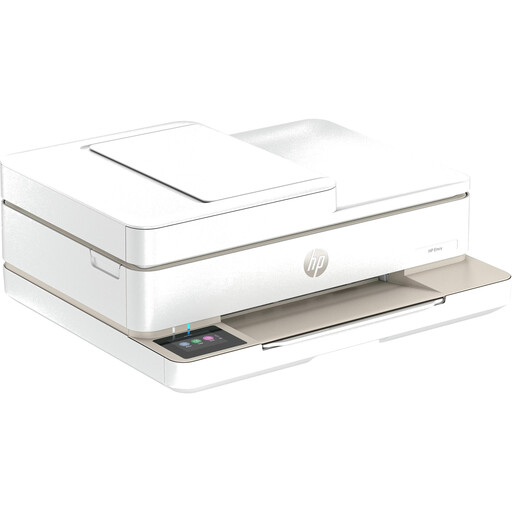
According to HP, the Envy Photo 7930 is a photo all-in-one printer with a photo paper tray, designed for homes that also need to scan or copy documents.
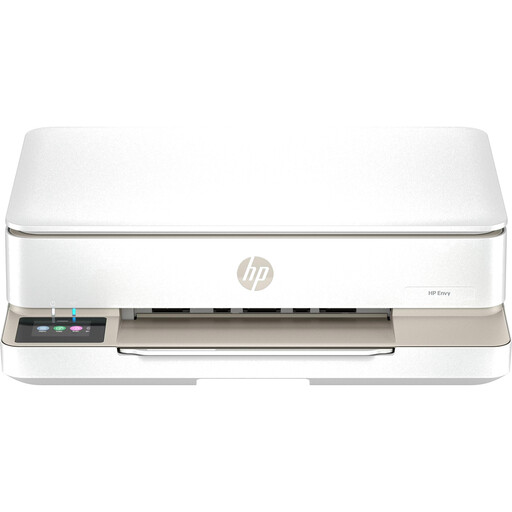
These wireless inkjet all-in-one printers are described as offering extra features for schoolwork, including printing, scanning and copying. For your photo diary, also check the photo sizes, paper feed and borderless printing options supported by each model.
 No image available
If you also need to print schoolwork alongside your diary, the product description lists printing, copying and scanning. Check separately which photo sizes and paper feed will suit your project.
Features listed include colour printing at up to 4800 × 1200 optimised dpi, automatic duplex printing and an automatic document feeder for scanning and copying multiple pages.
According to the product description, the device is not suitable for children under 14 without supervision.
 No image available
If you also want to print, copy or scan schoolwork as well as photos, these functions are listed in the product description. Check that the photo sizes and paper suit your diary layout.
Features listed include colour printing at up to 4800 × 1200 optimised dpi and automatic duplex printing.
According to the product description, the device is not suitable for children under 14 without supervision.
No, not for that reason alone. First decide whether you want to cut out individual photos or print a designed A4 page. Then check which photo sizes and paper the specific model supports. Canon and Epson list borderless printing up to A4 for the photo tank models described here.
Epson recommends running a nozzle check first if print quality is poor, and cleaning the printhead only if the test indicates a problem. Cleaning uses ink. Follow the maintenance instructions for your specific device.
No. The Consumer Advice Centre distinguishes statutory rights against the seller when goods are faulty from a voluntary guarantee. In the event of a fault, you generally need to ask for the seller to put things right first. Check any voluntary guarantee separately from your statutory rights.
There isn’t a straightforward yes-or-no answer. The Rhineland-Palatinate Commissioner for Data Protection and Freedom of Information distinguishes the legal basis for taking a photo from the rules on sharing it or displaying it publicly later. Whether and how a particular school project may use images depends, among other things, on how they’ll be used and on the school’s rules. Printing a photo doesn’t automatically give you permission to publish it.
According to the Federal Ministry for the Environment, old electrical equipment must be handed in at an authorised collection point, such as a local authority recycling centre or a retailer, subject to the applicable conditions. It must not go in your general household waste.