First, choose the operating system that works with your preferred screen reader and the directory tool you actually use. A Windows laptop is the right choice if you want to use NVDA; VoiceOver is built into Mac. Then check the complete data-entry process, the connections you need and your storage requirements. Laptop specifications alone cannot prove that a particular directory form is accessible.
Which workflow is right for you?
NVDA users managing lots of directory entries
If you regularly research workshops and update entries using the Windows screen reader you know, focus on how the keyboard works in the specific application. NV Access describes NVDA as a screen reader for Windows; that alone says nothing about how easy a particular editor is to use.
VoiceOver users with a Mac workflow
If you want to create your directory using VoiceOver on macOS, make sure your editor works with the forms you need and, if applicable, the braille display you use. Apple Support describes VoiceOver as the screen reader built into macOS.
On-the-go workshop researchers
If you also collect information while you’re out and about, check that the ports and keyboard work with your existing audio or braille equipment. Lenovo and Apple’s specifications can help you make this comparison, but you’ll need to check the exact configuration and the accessories you already own.
What should you consider when choosing?
Windows with NVDA
A good fit if: you already use NVDA or the applications you need are designed for this Windows workflow.
Consider: Check your browser, editor and, if applicable, braille display separately. Having a screen reader available doesn’t automatically make every website accessible.
Mac with VoiceOver
A good fit if: you want to use VoiceOver and have tested the Mac or web applications you plan to use with it.
Consider: VoiceOver is the macOS option, but it’s no substitute for a Windows application or NVDA if you specifically need either of those.
| What you need |
What to check before buying |
Who should consider this? |
| Screen reader and software |
Choose your screen reader, browser, editor and, if applicable, braille display. Use them to create and edit a complete entry. |
If you’ve settled on a familiar screen reader and directory tool, make sure they work together first; around 36% of consumers prioritise screen reader and software compatibility. |
| Keyboard and forms |
Try the keyboard layout and the screen reader keys you use most. Check field labels, focus order, error messages and saving in the actual editor. |
If you enter lots of workshop names and other details without a mouse, forms need to be easy to reach and understand; around 29% of consumers prioritise keyboard and form accessibility. |
| On the go and peripherals |
Check the keyboard, ports and supported connections on the exact model against your assistive equipment. Make sure they work with the screen reader version you’ve chosen. |
If you use your existing audio or braille devices while out and about, your laptop and accessories need to work together; around 21% of consumers prioritise using their peripherals on the go. |
| Files and backups |
Estimate how much storage you need based on your files, and plan a separate backup that you check regularly. |
If local notes and directory files are important for your work, plan your storage and recovery options together; around 14% of consumers focus primarily on files and data backups. |
Common mistakes when buying a laptop
-
Assuming a built-in screen reader makes every website accessible
A screen reader can’t make up for missing or inadequate form labels through laptop hardware alone.
Before you decide, try completing an entire entry using only the keyboard, including entering, correcting and saving the details.
An editor that’s difficult to use may mean you need extra time to check or update entries.
-
Assuming similarly named Dell models are the same configuration
The Dell Pro 14 PC14250 and Dell Pro 14 Plus PB14250 are different model names. Specifications for one model don’t confirm what the other includes.
Compare the full model number and the features that matter to you before choosing a configuration.
-
Leaving ports and included items until after you’ve ordered
Your existing assistive equipment needs to work with the ports on the specific configuration. A Joybuy listing for the 13-inch MacBook Air M5 notes that a charger is not included.
Check the accessories and what’s included with the specific offer, and see whether you’ll need a compatible power adapter or other adaptor.
Depending on the equipment you already have, you may need to spend extra on compatible adaptors or a power adapter.
-
Treating local storage as a backup
An SSD stores files on your laptop, but it doesn’t replace a separate backup that can help you recover from data loss.
Plan regular backups independently of your laptop, and check that you can restore your files from them.
Without a backup you can restore, you could lose the directory entries you’ve collected and may have to gather them all again.
Relevant brands and model ranges
Lenovo
The ThinkPad E14 Gen 7 (AMD), part number 21T0CTO1WWDE5, is a documented Windows configuration you can use to assess an NVDA workflow.
- For this configuration, Lenovo Germany lists Windows 11 Pro, 16 GB RAM, a 256-GB SSD and a matt 14-inch WUXGA display.
- These specifications don’t prove that your directory editor is accessible. Decide whether the storage is sufficient based on the files you actually have.
Apple
The 13-inch MacBook Air M5 is a documented macOS option for a VoiceOver workflow.
- For the 13-inch base model, Apple lists 16 GB of unified memory, a 512 GB SSD and two Thunderbolt 4 USB-C ports. VoiceOver is built into macOS.
- Check any Windows- or NVDA-dependent workflows and your existing peripherals separately. The ports listed alone don’t confirm compatibility with every accessory.
HP
The ProBook 4 G1a 14 in configuration CB4M5EA#ABD is another Windows option with specific published specifications for comparison.
- HP lists Windows 11 Pro, 16 GB RAM and a 1-TB SSD for this configuration.
- These specifications apply to the configuration shown and shouldn’t be assumed to apply to other versions without checking.
Dell
The Dell Pro 14 PC14250 is a range of Windows models with a German manufacturer’s manual covering the different configurations.
- The manual covers, among other things, the operating system, keyboard, audio and external connections.
- Features and storage vary by configuration. Similarly named models, such as the Pro 14 Plus PB14250, are not the same as the PC14250.
Joybuy laptops for a Windows workflow
This selection includes Windows laptops for an NVDA workflow. For each model, check the specific combination of software, the connections you need for your directory work and your storage requirements.
 No image available
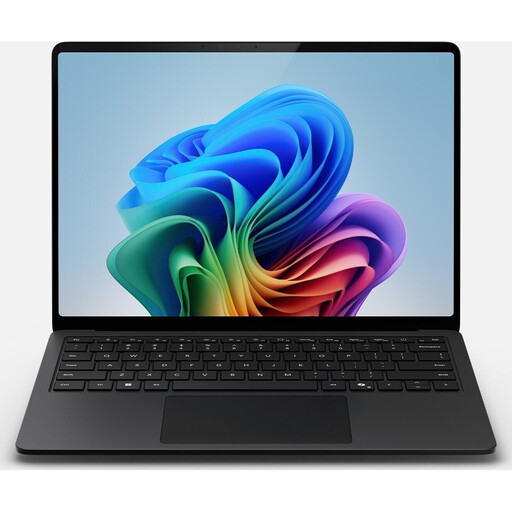
Microsoft Surface Laptop 7 Snapdragon X Plus
Worth considering for a Windows workflow with NVDA; try the editor you’ll actually use with your screen reader before deciding.
16 GB RAM and 512 GB SSD.
View at Joybuy
 No image available
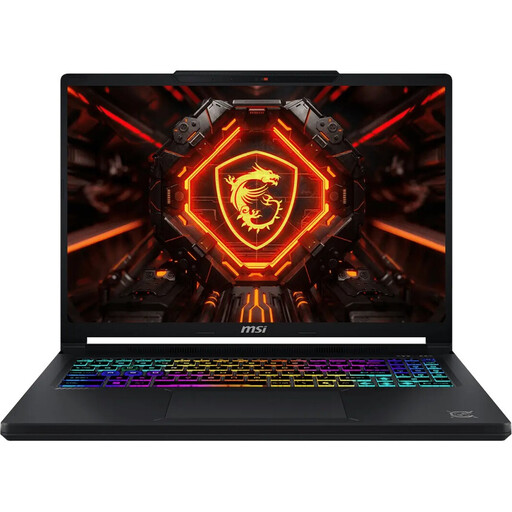
MSI Crosshair 16 Max HX E2WGXK-023
Worth considering for a Windows workflow with NVDA; try the complete data-entry process in the directory editor you plan to use.
Windows 11 Home, 16 GB DDR5 and 1 TB SSD. The product name also specifies a QHD+ OLED display with a 165 Hz refresh rate.
View at Joybuy
 No image available
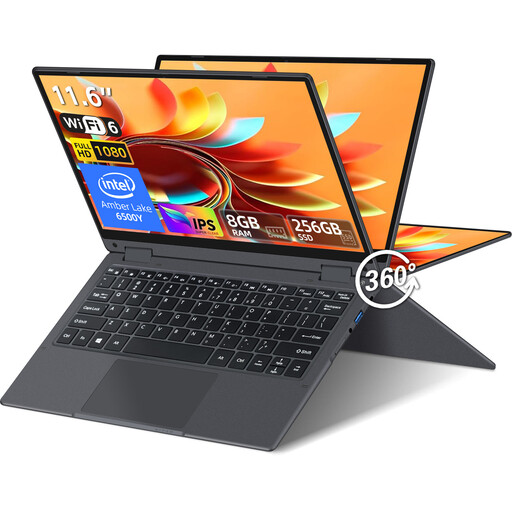
YOGA laptop, 11.6-inch, 360° touchscreen
Worth considering for a Windows workflow with NVDA. Check that the keyboard layout and device controls suit the repeated data entry you’ll be doing.
Windows 11 Pro, 8 GB RAM and 256 GB SSD. The product name specifies an Intel Pentium Gold 6500Y.
View at Joybuy
 No image available
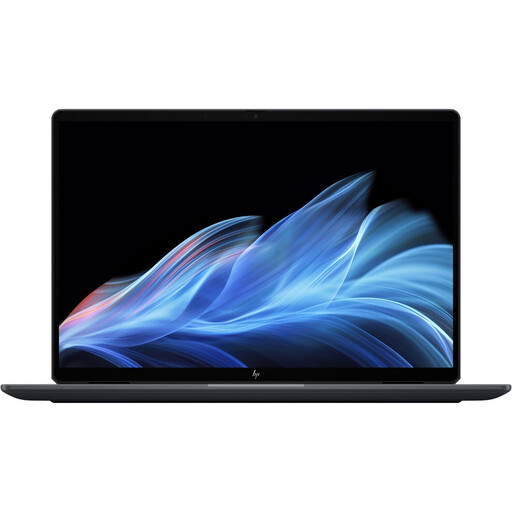
HP OmniBook Ultra Flip 14-fh0670ng
Worth considering for a Windows workflow with NVDA; check the editor and peripherals with the screen reader version you prefer.
Windows 11 Home, 32 GB RAM and 1 TB SSD. The product name specifies a 2-in-1 touchscreen.
View at Joybuy
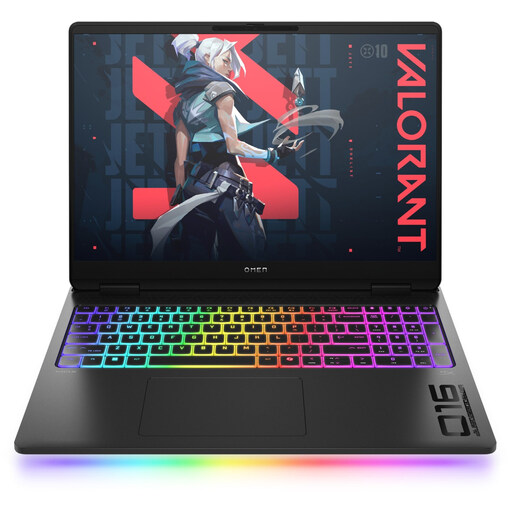 No image available
HP OMEN MAX 16-ah0698ng
Worth considering for a Windows workflow with NVDA. Compare the stated local storage with the actual size of your directory files.
Windows 11 Home, 64 GB RAM and 2 TB SSD.
View at Joybuy
Frequently asked questions
Will a particularly fast laptop make my directory work with a screen reader?
No. What matters is how your screen reader, browser and directory editor work together in practice. The W3C Web Accessibility Initiative explains that labelled form fields help screen reader users identify controls; laptop specifications alone can’t prove that a website is accessible.
How do I get started on a new Windows or Mac laptop?
First, set up the screen reader you want to use, then try completing a full directory entry. Microsoft Support describes Narrator, which is built into Windows 11; NVDA is another option for Windows. Apple Support describes VoiceOver as the screen reader built into macOS. Practise navigating, entering and correcting details, and saving them in the editor you’ll actually use.
How should I back up my workshop data?
Set up regular backups stored separately, and check that you can restore your files from them. Germany’s Federal Office for Information Security recommends regular backups to help prevent irretrievable data loss. Choose how often to back up and where to store the files based on how often you make changes.
What are my rights when I buy a laptop online?
For online consumer purchases, you generally have a 14-day right to cancel, which you must exercise with the party you entered into the contract with. Verbraucherzentrale distinguishes the right to cancel from warranty claims for faulty products; a voluntary manufacturer’s guarantee is separate too. Check the terms and exceptions that apply to your contract.
Are laptops or workshop directories required to be accessible in Germany?
The BFSG covers certain consumer computer hardware placed on the market after 28 June 2025. Whether a workshop directory is covered as an e-commerce service depends in particular on whether the website is intended to enable consumers to enter into a contract. Germany’s Federal Ministry of Justice and the Federal Accessibility Agency explain the scope of the law; the fact that it’s a directory alone doesn’t answer the question.


