What to look for when buying
First, think about how you’d like to view text and marking grids side by side. Then check that the resolution, connections and stand suit your laptop and the space available.
| What matters |
What to check before buying |
Who is this important to? |
| Readability of text and comments |
Check the native resolution and screen size of the specific model. View a PDF and your marking software using your preferred scaling. |
If I’m reading and commenting on longer texts, I want a display that suits my viewing distance and software. Around 36% of consumers are likely to prioritise readability. |
| Arranging two screens |
Check the space the stand takes up alongside your existing screen, as well as the stand’s height and adjustability. |
If I want to view a piece of work and a marking grid separately, I need a setup that suits my desk and seating position. Around 29% of consumers put this need first. |
| Connecting to a laptop |
Check video output through the laptop’s connection, its power requirements and whether the specific device supports additional external screens. |
If I want to use my laptop with as few connections as possible, both the monitor and laptop need to support the required video output and, where applicable, power delivery. This is the top priority for around 21% of consumers. |
| The right set of features |
Check your existing screens and computer connections, then see which cables or adapters you’ll need for your planned setup. |
If I only want features that suit my existing workspace, I want to avoid unnecessary extras. Around 14% of consumers focus on choosing only the features they need. |
Monitors at Joybuy
This selection includes additional QHD and 4K screens for digital marking, including desktop and portable models. Check that the resolution, connections and stand suit your laptop and workspace.
 No image available
MSI PRO MP273UPDE E6, 27-inch, 4K UHD, IPS, 60 Hz
For a high-resolution document view on an additional screen; the right text size also depends on your scaling settings.
27 inches, 3840 × 2160 pixels, HDMI and DisplayPort. According to the product description, the stand is height-adjustable, swivels and tilts, and rotates.
View at Joybuy
 No image available
KTC H27T27, 27-inch QHD monitor
A QHD option for an additional screen displaying text and marking grids; check how it looks with your preferred scaling.
27 inches and 2560 × 1440 pixels. The stand can be tilted, and VESA mounting is specified. Inputs: HDMI and DisplayPort.
View at Joybuy
 No image available
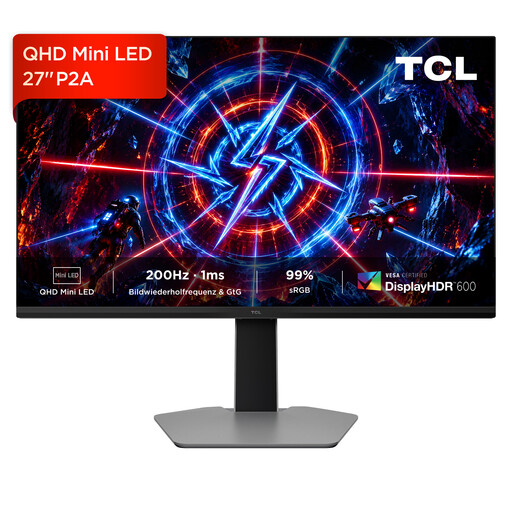
TCL 27P2A, 27-inch QHD monitor, Mini LED
An additional QHD screen for marking documents; the text will also look different depending on your scaling settings.
27 inches and 2560 × 1440 pixels. The description lists a stand that can be adjusted in multiple directions.
View at Joybuy
 No image available
INNOCN CB27U1, 27-inch 4K UHD monitor
For a high-resolution document view and fewer laptop connections, as long as the laptop’s ports support the setup.
27 inches and 3840 × 2160 pixels. USB-C with 90 W Power Delivery, HDMI and DisplayPort are listed. The stand is height-adjustable; USB-C video output and charging depend on the laptop.
View at Joybuy
 No image available
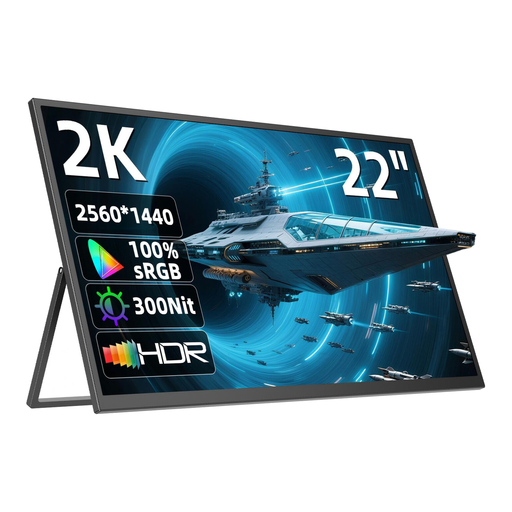
UPERFECT, portable 22-inch QHD monitor
A portable additional screen for a laptop or PC if you need a flexible setup at your marking station.
22 inches and 2560 × 1440 pixels. The description lists USB-C and Mini HDMI inputs, as well as a stand that adjusts by up to 180°.
View at Joybuy
Frequently asked questions
Do I need to buy two new monitors to use two screens?
No, your existing laptop display can be one of the two screens. What matters is whether your computer supports the simultaneous display output you need, so check the specifications of your specific device.
How should I set up two screens for marking?
Position the screens so that the view you read most often suits your seating position, and check the text size on both. The German Social Accident Insurance (DGUV) compared office tasks across different setups; this doesn’t mean there’s one arrangement that suits every marking task.
Can a USB-C monitor charge my laptop at the same time?
Some models can carry video, data and power over USB-C. Whether this works for you depends on your laptop’s USB-C port and power requirements, as well as the features of the specific monitor.
What are my rights when buying a monitor online for personal use?
When buying online from a business seller, you generally have 14 days from delivery to cancel your order; exceptions and possible return costs may apply. If goods are faulty, you also have a statutory guarantee from the seller for at least two years. This is separate from any voluntary manufacturer’s warranty.
Do rules on working with screens also apply to my home marking setup?
ASR A6 sets out requirements for screen-based workstations in workplaces and telework settings. It doesn’t apply to use outside these kinds of workstations, such as in a private home. So the fact that you’re working at home doesn’t, by itself, determine how your specific workstation is classified.


