Recipe book designers who use lots of templates
You want to keep recipes, image selections and layouts in view at the same time. Adobe explains how to customise InDesign workspaces, while Microsoft Support covers arranging multiple displays.


If you mainly want to move recipe text, templates and tool panels onto a second screen, choose it for a readable workspace, the space available on your desk and the right connections. It doesn’t need to handle the same colour-critical work as your main monitor. If you’re assessing food photos for a specific print job, you’ll need a suitable, calibratable main screen and the right output profiles as part of your workflow. Fogra describes soft proofing as a simulation of a specific print condition, while EIZO points out that a colour gamut that’s too small can’t simply be fixed through calibration.
You want to keep recipes, image selections and layouts in view at the same time. Adobe explains how to customise InDesign workspaces, while Microsoft Support covers arranging multiple displays.
You’re assessing photos for a specific print job, so you need to consider the output profile and viewing conditions. Fogra describes soft proofing as a simulation of a specific print condition under defined conditions.
You switch between devices or need a flexible two-screen setup. Check that both displays and their stands will fit your workspace, and make sure you know which connections your computer provides.
First decide whether the new screen will mainly be used for recipe text and tool panels, or whether you’ll also use it to view colour-critical food photos. This will determine whether readability, positioning and connections are your priorities, or whether colour management and output profiles need to be part of your workflow.
| Priority | What to check before buying | Who it matters most to |
|---|---|---|
| Readable layout workspace | Try a typical double-page spread at your preferred font size. Consider whether you’ll move templates or tool panels to the second monitor. | If I want to keep recipe pages, image selections and tool panels open side by side, I need a workspace that’s easy to read. Around 33% of consumers put layout space first. |
| Food photos for print | Confirm the output requirements with your printer. Check which screen will be your colour-critical main monitor and how it will be calibrated. | If I’m assessing photos for a specific print job, the colour gamut, profile and viewing conditions all need to work together. Around 27% of consumers prioritise judging print colours. |
| Ergonomics and desk space | Measure the monitor stands and the space available on your desk. Check the height adjustment, swivel and pivot options on the specific model. | If I need to fit two displays on my desk, their positioning and adjustability are especially important. Around 20% of consumers put their workspace and available desk space first. |
| Connections and running costs | Check that your computer, cables and monitor support video transmission and, where needed, Power Delivery. If you’ll be running two displays, compare their EU energy labels and calculate electricity costs based on your usage and tariff. | If I want to connect my second monitor to the devices I already have and estimate the running costs, I check the connections and power consumption. Around 20% of consumers prioritise connectivity and ongoing costs. |
A colour gamut figure on its own tells you neither the specific print condition nor the viewing conditions for a soft proof.
Check the output profile and print requirements before buying based on a single colour gamut figure.
Depending on your workflow, you may also need a measuring device, calibration and coordination with the print process.
The monitor’s connection specifications alone don’t tell you which video output your computer supports through the connection you plan to use.
Before ordering a second screen, check the video capabilities of your specific computer, all the connections involved and the cable.
Depending on your setup, you may need a compatible cable, an additional video connection or a suitable dock.
Adjustability and resolution won’t help much if you can’t position the displays sensibly or the text is still uncomfortable to read.
Measure your desk and the monitor stands, then test your planned landscape or portrait setup and preferred scaling.
A suitable monitor arm or a different desk layout may require extra space or some rearranging.
The ProArt PA279CRV is a 27-inch 4K option for detailed layout work. ASUS specifies 99% Adobe RGB coverage for this model.
The PD2732U is a 4K model for creative work, while the PD2705U is a 4K model focused on sRGB.
The ColorEdge CS2740 is a 27-inch 4K graphics monitor for workflows where calibration is explicitly part of the plan.
The UltraFine 27UP850K-W is a 27-inch 4K monitor with USB-C and an adjustable stand.
The Pro P2725D is a QHD option if readable text and documents matter more on your second monitor than 4K photo detail.
These Joybuy models include screens for a colour-managed main monitor, as well as for recipe text, templates and tool panels on a second screen.
 No image available
If you’re editing layout details and food photos on your main screen, the product description lists a 27-inch IPS display with a resolution of 3840 × 2160 pixels.
The description also lists Adobe RGB coverage and USB-C with 90 W Power Delivery. These specifications alone don’t guarantee an accurate print preview.
Height adjustment, swivel and pivot are also listed. Before buying, check that your computer and cable support the video connection you want to use.
 No image available
As a second screen for recipe text and tool panels, the product description lists a 27-inch display with a resolution of 2560 × 1440 pixels.
It also lists USB-C with 98 W Power Delivery, KVM, daisy-chaining and a height-adjustable stand. Check your computer’s video output and the features you need for your setup.
 No image available
For recipe pages and other layout content on a second screen, the product description lists QHD resolution at 2560 × 1440 pixels.
Connections include USB-C with up to 65 W Power Delivery, a USB hub, HDMI and DisplayPort. The stand is height-adjustable; check that the connections are compatible with your computer.
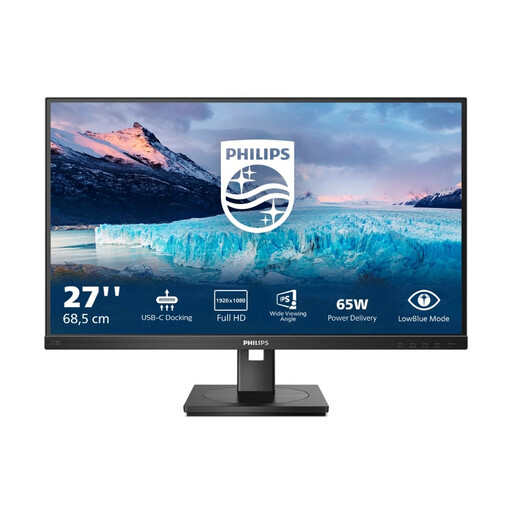 No image available
If your second screen will mainly be used for recipe text and tools, the product description lists a 27-inch IPS display with USB-C docking.
The resolution is 1920 × 1080 pixels, giving you fewer workspace pixels than QHD or 4K. Height adjustment, swivel and pivot are listed; check the layout and readability with your preferred scaling.
No, as long as you consistently do your colour-critical assessments on a suitably set-up main monitor and use the second screen only for templates or tool panels. If you want to assess photos on both displays, check each one individually as part of your intended colour workflow.
In Windows, you can arrange detected displays in the display settings to match their actual positions, as Microsoft Support explains. Adobe describes workspaces that let you organise InDesign windows and panels for different tasks. Try your setup with a recipe page and your templates.
First, confirm the print condition and the output profiles you need. Fogra describes soft proofing as a simulation of a specific print condition under defined lighting and environmental conditions. A wide colour gamut doesn’t replace these requirements. EIZO also points out that a colour gamut that’s too small or panel uniformity issues can’t simply be fixed through calibration.
Monitors covered by EU rules must carry energy labels, and the European Commission provides product information for them. Compare the specific models and calculate electricity costs based on your usage and tariff. According to Verbraucherzentrale, consumers in Germany generally have a 14-day right to cancel when buying online; statutory exceptions and the terms of the relevant contract should be taken into account.
The ASR A6 guidance from the Federal Institute for Occupational Safety and Health applies to screen-based workstations in workplaces and telework settings within its defined scope. It shouldn’t be treated as a blanket rule for every personal purchase without first checking whether that scope applies.