For regular work with records and source files, a monitor should make it easy to view both side by side and adjust to suit your workspace. If you need to assess digitised images closely, 4K resolution and relevant colour features may matter more. For a laptop setup, you’ll also need to consider video connectivity, charging power and the ports you need. Linking files to collection records is the job of catalogue or file management software, not the monitor itself – the Smithsonian Institution describes one example of this process.
Who this monitor comparison is for
Checking records and sources
If you open catalogue fields alongside related scans or documents, clear text and enough room for both windows are especially important. The Smithsonian Institution describes linking digital images to collection records as part of its digitisation process.
Checking image files
If you compare digitised material or edit images, pay closer attention to resolution and whether the colour display suits the task at hand. The colour features that matter depend on whether you actually need to assess colour.
Setting up a laptop workspace
If you want to connect a laptop with as few cables as possible, check video compatibility, the charging power required and the ports you need for your peripherals.
What to look for when buying
| What matters |
What to look for |
Who it matters to most |
| Room for records and sources |
Open both windows in your catalogue software and check them at the font size and display scaling you actually plan to use. |
If I need to read records and source files at the same time, a clear window layout matters to me. Around 36% of consumers put this side-by-side view first. |
| Readability and adjustability |
Check text size and stand adjustments, and consider the lighting and potential glare in your workspace. |
If I’m reading labels and metadata for long periods, I want to be able to adjust the display and screen position to suit me. Around 29% of consumers prioritise readability and a suitable screen position. |
| Checking detail and colour |
Distinguish between reading a label and carefully assessing an image or its colours. Compare resolution and colour features with the task in mind. |
If I need to assess image detail or colour, I need different features from those required simply to transcribe a label. Around 21% of consumers put image or colour assessment first. |
| Connecting a laptop and peripherals |
Check that your computer’s video output and charging requirements match the ports and charging power of the specific monitor. |
If I want to connect my laptop at my cataloguing station, the monitor needs to work with my computer. Around 14% of consumers prioritise laptop connectivity and docking. |
Common buying pitfalls
-
Assuming 4K automatically gives you more usable space
Higher resolution alone doesn’t determine how large or readable windows will appear in your catalogue software. Screen size, scaling and font size all matter too.
Try viewing two open windows at the font size you need for everyday use.
-
Assuming USB-C guarantees full laptop docking
Video connectivity and charging power depend on the specific features of both the monitor and the computer. The connector alone doesn’t confirm that both will work as needed.
Before buying, compare your laptop’s video and charging requirements with the specifications for the exact monitor model.
Depending on your devices, you may also need a separate power supply or another connection solution.
-
Confusing colour gamut specifications with accurate source-file colours
Monitor specifications don’t confirm the quality of the original image or how well the whole imaging workflow is calibrated.
Choose colour features based on the image assessment you actually need to do, and check capture and colour settings separately.
Brands worth knowing
Dell
The Dell P2725DE is a 27-inch QHD monitor with a USB-C hub, designed for document and catalogue work.
- Dell lists a 2560 × 1440 resolution, up to 90 W power delivery over USB-C and an RJ45 port for this model.
- QHD is not the same as 4K. These features apply to the P2725DE, not to all Dell monitors.
EIZO
The FlexScan EV2740X is a 27-inch 4K office monitor with docking features.
- EIZO lists LAN, KVM, USB-C with DisplayPort Alt Mode and up to 94 W charging power for this model.
- The extra ports are only useful if they suit your workspace and devices. These specifications apply to the EV2740X.
ASUS
The ProArt PA279CRV is worth considering if your catalogue work also involves carefully editing digitised images.
- ASUS lists a 27-inch 4K screen, colour modes, pivot adjustment and 96 W USB-C Power Delivery for this model.
- Manufacturer specifications for colour gamut and accuracy are only relevant to your choice if your workflow involves assessing colour closely.
BenQ
According to BenQ, the DesignVue PD2705U is designed for working with 4K images and sRGB content.
- BenQ lists 99% sRGB coverage and factory calibration for this model.
- These manufacturer specifications don’t automatically make this monitor the right choice for mainly text-based catalogue work or every colour workflow.
Monitors available at Joybuy
This selection includes 27-inch QHD and 4K monitors for viewing catalogue entries alongside source files. When choosing, check that the resolution, stand and, where relevant, laptop connections suit your workspace.
 No image available
MSI PRO MP273UPDE E6, 27-inch, 4K UHD, IPS, 60 Hz
An option if you want to check catalogue entries and source files side by side on a 27-inch 4K screen.
- 27-inch, 3840 × 2160 pixels
- IPS, 60 Hz
View at Joybuy
 No image available
Samsung ViewFinity S7 S70H, 27-inch, 4K UHD, IPS
This 27-inch 4K monitor may suit you if you want to view catalogue entries alongside high-resolution source files.
- 27-inch, 3840 × 2160 pixels
- IPS
View at Joybuy
 No image available
INNOCN CB27U1, 27-inch, 4K UHD, USB-C 90 W
An option if you’re considering a 27-inch 4K monitor and a USB-C connection to your laptop. Your computer must support video connectivity.
- 27-inch, 3840 × 2160 pixels
- USB-C with 90 W Power Delivery
View at Joybuy
 No image available
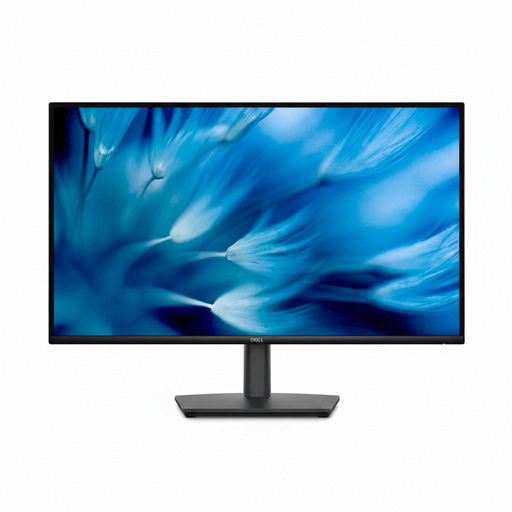
Dell Pro 27 E2726DS, 27-inch, WQHD, IPS
A QHD option for working with catalogue fields and source files on a 27-inch screen.
- 27-inch, 2560 × 1440 pixels
- IPS
View at Joybuy
 No image available
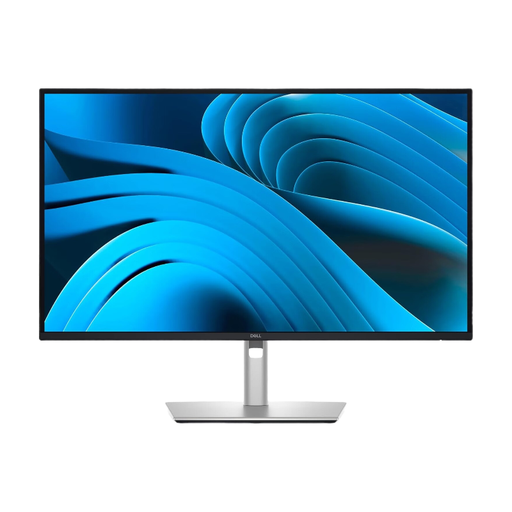
Dell Pro Plus P2725DE, 27-inch, QHD, USB-C hub
Could be a good fit for viewing documents side by side and using a compatible laptop setup. Check that video connectivity and charging power suit your computer.
- 27-inch, 2560 × 1440 pixels
- USB-C hub with up to 90 W Power Delivery
View at Joybuy
Frequently asked questions
Can a monitor link source files to seed records?
No. A monitor displays records and files; the link between them is created in the catalogue or file management software you use. The Smithsonian Institution describes linking digital images to collection records as part of its digitisation process.
Is USB-C enough for video and charging over one cable?
Only if both your computer and monitor support the video connectivity you need, and the specific model provides enough charging power for your computer. EIZO lists DisplayPort Alt Mode and up to 94 W for the EV2740X; these specifications apply to this model, not to every USB-C monitor.
How should I set up a monitor for long periods of screen work?
Adjust the screen height and viewing position to suit your workspace, then check readability and lighting with the software you actually use. Germany’s ASR A6 sets out requirements for screen-based workstations and teleworking locations within its scope; it does not apply generally to personal screen use.
Where can I check a monitor’s energy consumption and label?
For covered electronic displays, the EU Product Database EPREL provides energy labelling and model information. Check the exact model name; an energy class alone won’t tell you whether the monitor suits your catalogue work.


