What matters for different users

Cataloguers working with lots of fields

If you want to view records and references at the same time in a readable size, an adjustable QHD monitor can be a good starting point. Dell lists a resolution of 2560 × 1440 pixels for the P2725DE, as does BenQ for the GW2790QT. Whether your views fit side by side also depends on your software and text scaling.

Collectors with a photo archive

If you regularly check seed labels or photos alongside catalogue entries, test the display of your own files and your text scaling together. ASUS lists a resolution of 3840 × 2160 pixels for the PA279CRV, as does LG for the 27UP850K-W. For working with text, the higher resolution alone is not a reason to buy.

Collectors with limited desk space

If you need to leave room for seed packets and paper labels beside the screen, the stand and footprint matter as well as the resolution. EIZO lists a 23.8-inch screen with a resolution of 1920 × 1080 pixels for the EV2490. Check that your catalogue view is easy to read on a screen of this size.

What to look for when buying

Priority What to check when buying Who is this especially important for?
Reading several catalogue fields Check the window layout, column widths and text size in your actual catalogue view. When I’m reading record fields and references side by side, the window layout needs to work with text set to a comfortable size. Around 42% of consumers prioritise being able to read several catalogue fields at once.
Checking details in photos and on labels Test your own image files and preferred text scaling on the computer you plan to use. When I regularly check seed images or labels alongside entries, I want to see fine details without compromising the readability of the catalogue text. Around 25% of consumers prioritise checking images and labels.
Desk space and screen position Measure the footprint, including the stand, and check the adjustment options at your intended workstation. When I need to make room on my desk for seeds and paper labels too, the footprint matters more than extra pixels. Around 17% of consumers prioritise limited workspace.
Connecting a laptop Check that your laptop’s video output and charging requirements match the monitor’s USB-C features and the cables you need. When I regularly connect my laptop at this desk, I want to know whether the monitor and computer support the video and charging features I need. Around 16% of consumers prioritise laptop docking.

Common misconceptions

  • More pixels automatically mean more readable fields

    Resolution doesn’t determine the text size or window layout in your cataloguing software.

    Open your actual catalogue view and check QHD or 4K with scaling set to a size you find easy to read.

  • USB-C always provides a complete docking solution

    Video transmission and charging power vary between monitors and laptops. A USB-C port alone doesn’t guarantee that all the features you need will be available.

    Compare your laptop’s video output and charging requirements with the features of the specific monitor and the cables you need.

    Depending on the features, you may still need a separate power supply or additional connections.

  • Only the screen size affects how much space it takes up

    When cataloguing, seeds and paper labels may need space beside the screen, and the stand takes up room too.

    Measure your available workspace, including the stand, and compare it with the dimensions of the specific model.

Relevant brands at a glance

Dell

The Pro Plus P2725DE is an example of a 27-inch QHD monitor with a USB-C hub for working with catalogues side by side.

  • Dell lists a resolution of 2560 × 1440 pixels and adjustment options for this model.
  • The resolution doesn’t guarantee that all your views will fit side by side at your preferred text size, and these specifications don’t apply to every Dell monitor.

BenQ

BenQ says the GW2790QT combines a 27-inch QHD display with a height-adjustable stand and USB-C.

  • BenQ lists pivot, 110 mm of height adjustment, and USB-C with 65 W Power Delivery and DisplayPort Alt Mode.
  • Whether the charging power is sufficient depends on your particular laptop.

ASUS

The ProArt PA279CRV is a 27-inch 4K model for working with digital image details alongside catalogue text.

  • ASUS lists a resolution of 3840 × 2160 pixels, pivot and height adjustment from 0 to 130 mm.
  • The stated colour gamut is a manufacturer specification and isn’t automatically a deciding factor for text entry alone.

EIZO

The FlexScan EV2490 is an example of a smaller 23.8-inch Full HD monitor.

  • EIZO lists a resolution of 1920 × 1080 pixels and USB-C docking for this model.
  • If you have lots of catalogue fields open at once, check the usable display area before buying.

Lenovo

The ThinkVision P27h-30 is a 27-inch QHD option for laptop docking, with a range of connections.

  • Lenovo lists USB-C charging up to 100 W, Ethernet and a USB hub.
  • Available features also depend on the connected computer. These specifications apply to this model, not all ThinkVision monitors.

LG

The 27UP850K-W is a 27-inch 4K option for working with digital images alongside catalogue text.

  • LG lists a resolution of 3840 × 2160 pixels, USB-C and an adjustable stand.
  • Test your own files and the text scaling you need. Manufacturer claims about image quality don’t replace checking these for yourself.

Joybuy products for cataloguing

The following 27-inch QHD monitors could be a good starting point for displaying catalogue fields side by side. Before buying, check that the window layout and text size work on your computer, and make sure you have the connections you need.
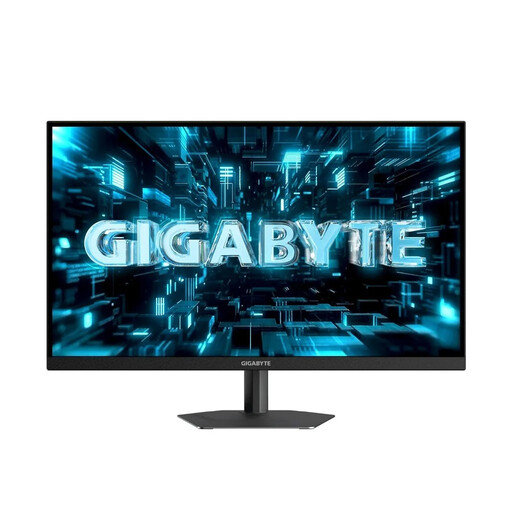
GIGABYTE G27Q26, 27-inch QHD monitor

GIGABYTE G27Q26, 27-inch QHD monitor

Described as a starting point for displaying catalogue fields side by side. Test the windows with your preferred text size.

27 inches; 2560 × 1440 pixels. Height adjustment up to 13 cm, plus tilt, swivel and pivot.

View at Joybuy
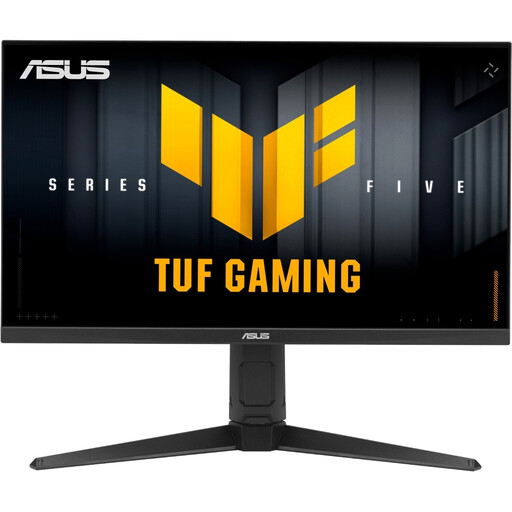
ASUS TUF Gaming VG27AQL5A, 27-inch WQHD monitor

ASUS TUF Gaming VG27AQL5A, 27-inch WQHD monitor

The QHD resolution could be a good starting point for viewing several catalogue screens. Check how it looks with your software.

27 inches; 2560 × 1440 pixels. Height adjustment, pivot, swivel and tilt.

View at Joybuy
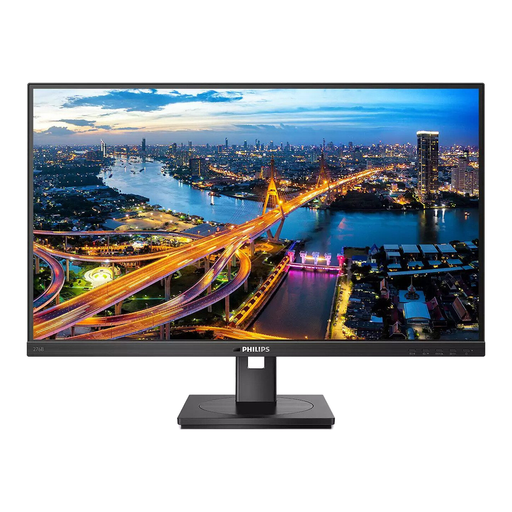
Philips 276B1, 27-inch QHD monitor

Philips 276B1, 27-inch QHD monitor

The QHD resolution is a useful starting point to test for displaying catalogue fields and reference information side by side.

27 inches; 2560 × 1440 pixels; 75 Hz. Features include USB-C docking with up to 90 W Power Delivery, Ethernet and a height-adjustable stand with tilt, swivel and pivot. Docking features require a compatible laptop.

View at Joybuy
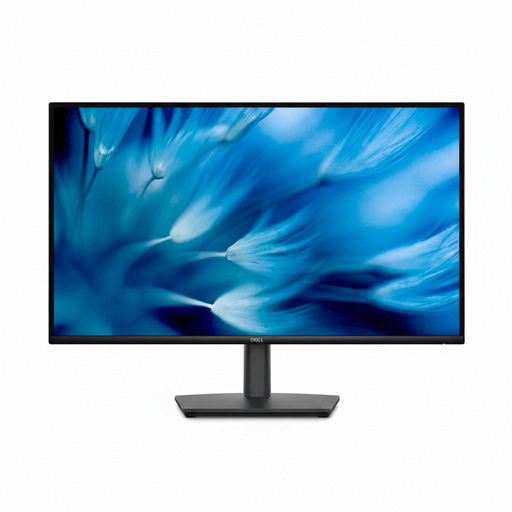
Dell Pro 27 E2726DS, 27-inch WQHD monitor

Dell Pro 27 E2726DS, 27-inch WQHD monitor

Described as a QHD starting point for displaying catalogue fields side by side. Check readability in your actual view.

27 inches; 2560 × 1440 pixels. 130 mm of height adjustment, plus tilt, swivel and pivot.

View at Joybuy
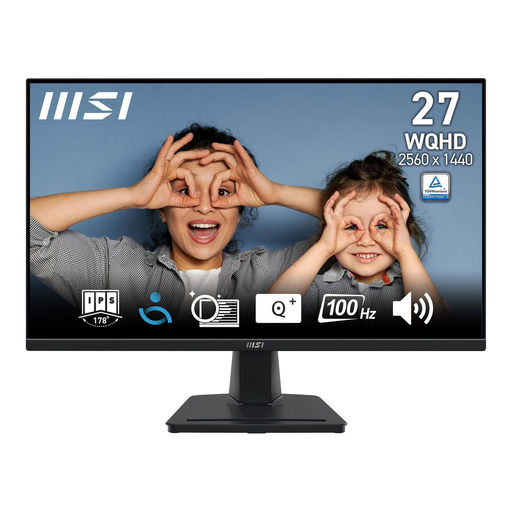
MSI PRO MP275QDE, 27-inch WQHD office monitor

MSI PRO MP275QDE, 27-inch WQHD office monitor

The stated QHD resolution could be a good starting point for viewing several catalogue fields. Check that they fit with your text scaling.

27 inches; 2560 × 1440 pixels. IPS panel and tilt-adjustable stand.

View at Joybuy

Frequently asked questions

Can a monitor create custom fields for seed records?

No. The monitor displays the interface; you create the fields in your cataloguing software. Airtable, for example, describes choosing a field type and creating a field. Check what your software can do separately from your choice of screen.

How should I set up my monitor for long cataloguing sessions?

At your workstation, check that text and images look clear and large enough at your viewing distance, and that you can position the screen comfortably. The ASR A6 from the German Federal Institute for Occupational Safety and Health covers screen work within its defined scope; it does not apply universally to private seed collectors.

What should I check when connecting a laptop?

Check your laptop’s video output and charging requirements against the connections and features of the specific monitor. BenQ lists USB-C with DisplayPort Alt Mode and 65 W Power Delivery for the GW2790QT; Lenovo lists charging up to 100 W for the ThinkVision P27h-30. This doesn’t mean they’re universally compatible.

What should I consider about electricity costs and my rights?

To work out power consumption, consider the specifications of the specific model and how long you use it. EU energy labels for electronic displays use a scale from A to G. If a product is faulty, statutory consumer rights should be distinguished from a voluntary guarantee, as explained by the Verbraucherzentrale.

Can an old monitor go in household waste in Germany?

No. Germany’s Federal Environment Ministry classifies monitors as waste electrical equipment and lists authorised collection points, manufacturers and retailers as return options. Retailer take-back may be subject to conditions depending on the retailer and how you return the item; local collection points are another option.