A spreadsheet may be all you need for a simple list with custom columns. The LibreOffice Documentation Team describes Calc as a possible solution for straightforward database-like tasks, while Microsoft lists Access as PC-only. If you need linked records or forms, choose a laptop based on whether it’s compatible with the specific database software you plan to use. Whatever device you choose, make a separate backup and check regularly that you can read the backed-up files – this is also recommended by the Federal Office for Information Security.
The right laptop for different users
Collectors who need custom data fields
If you want to record your own details for each seed entry, first decide whether a clear, easy-to-use spreadsheet will do or whether you need database features and forms. The LibreOffice Documentation Team describes Calc as an option for simpler database-like tasks, while Microsoft documents features such as queries and forms in Access.
Collectors working at a fixed workstation
If you’re entering lots of records at a desk, make sure the screen, keyboard and ports suit the way you work. Lenovo and Dell’s product specifications list different configurations and ports across their respective model ranges.
Collectors cataloguing on the go
If you take your laptop to different storage or work locations, weigh portability against screen size and the ports you need for your accessories. Lenovo and Apple list different port options for their respective models; Apple’s technical specifications for the 13-inch MacBook Air with M5 include two Thunderbolt 4/USB-C ports.
What to look for when buying
Start by choosing your cataloguing software and identifying the database features you need. Then check the operating system, typing comfort, portability and backup options to make sure they’re a good fit.
| What matters |
What to check when buying |
Who it matters most to |
| Software and custom fields |
Choose your software and identify the file formats you already use; check the operating system, licence and software requirements. |
If I want to use custom fields and keep working with my existing files, I’ll choose a laptop that suits my cataloguing software first. Around 36% of consumers put software compatibility first. |
| Comfort when entering data |
Compare screen size, keyboard layout and ports on the specific configuration; consider an external monitor or separate keyboard if needed. |
When entering lots of records at a desk, I want to be comfortable using the keyboard and viewing spreadsheets for extended periods. Around 29% of consumers prioritise comfort when entering data. |
| Working in different locations |
Check the dimensions and ports against the accessories you need, such as USB drives or other input devices. |
If I catalogue my collection in different places, I want a device that’s easy to carry and can connect to my accessories. Around 21% of consumers prioritise mobile data entry. |
| Backing up your collection |
Plan for a backup option separate from your laptop and check regularly that the files are readable. |
If my collection already includes lots of custom records, I want to be able to recover it if something happens to my device. Around 14% of consumers prioritise protecting their collection data. |
Avoiding common mistakes
-
Choosing a laptop before deciding on your database software
A simple spreadsheet and a database have different requirements. Microsoft lists Access as PC-only, so if you use this programme, you’ll need to take the operating system into account.
First decide which files and features you want to keep using. Then check the operating system on the specific laptop configuration and the software licence you’ll need.
You may need to change your planned workflow or buy an additional software licence.
-
Assuming USB accessories will connect directly just because there’s a USB-C port
Ports vary between devices. Apple lists two Thunderbolt 4/USB-C ports for the 13-inch MacBook Air with M5, while Lenovo also lists USB-A for the ThinkPad E14 Gen 7 (Intel).
Check the plugs on your existing devices against the ports on the specific laptop configuration you’re considering.
You may need a suitable adapter or hub for accessories with a different plug.
-
Keeping the only copy of your collection on your laptop
Your own spreadsheets, databases and photos could be affected if your device is lost or damaged; buying a laptop doesn’t create a separate backup.
Keep an additional copy somewhere other than your laptop and check from time to time that you can open the backed-up files. The Federal Office for Information Security recommends checking that backups are complete and readable.
Keeping a separate backup takes extra effort and may require another storage device or a storage service.
Key brands to consider
Lenovo
The ThinkPad E14 range offers a 14-inch option for a compact work laptop with ports for your existing peripherals.
- Lenovo’s specifications for the ThinkPad E14 Gen 7 (Intel) list USB-A, HDMI and Ethernet.
- Processors and some port features vary by configuration, so check the specific model against your accessories.
Dell
The Dell 15 DC15250 is a 15-inch option for mostly desk-based use.
- Dell’s technical documentation covers ports, keyboard and battery options across the model family.
- Check the specific listing to see which combination of features and battery it includes.
Apple
The 13-inch MacBook Air with M5 could suit mobile data entry, provided your chosen cataloguing software works with macOS.
- Apple lists two Thunderbolt 4/USB-C ports for this model, along with a choice of memory and SSD configurations.
- You may need an adapter for USB-A accessories. Microsoft describes Access as PC-only; Apple’s battery life figures are manufacturer claims, not measurements for this particular use.
HP
The ProBook 440 G11 is another 14-inch business range to compare with mobile work laptops.
- HP documents several possible Windows editions for this model range.
- HP says features and components vary by configuration, so check the operating system and specifications of the specific model you’re considering.
Joybuy products for cataloguing seeds
This selection includes Windows laptops for recording custom fields. Before buying, check that your specific cataloguing software is compatible with the configuration you choose.
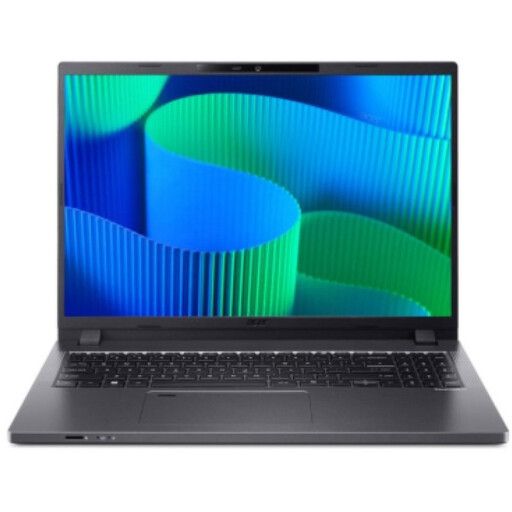 Image unavailable
Acer TravelMate TMP216-41-TCO
The 16-inch screen is an option for entering data at a fixed workstation if you prefer a larger spreadsheet view.
Listed in the product name: 16-inch WUXGA display, AMD Ryzen 3 PRO 7335U, 16GB DDR5, 512GB SSD, AMD Radeon 660M and Windows 11 Pro Education.
View at Joybuy
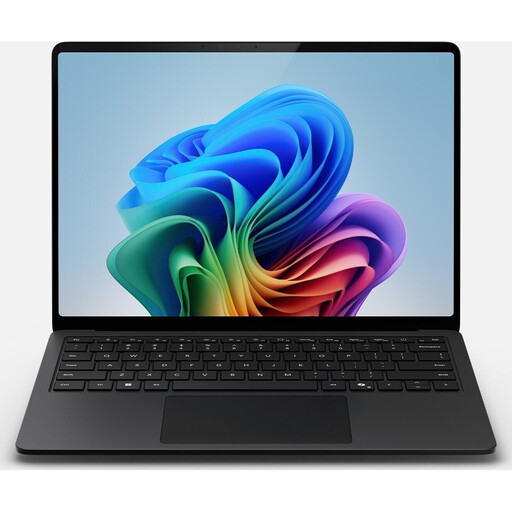 Image unavailable
Microsoft Surface Laptop 7 Snapdragon X Plus
If you’re looking for a more compact device for cataloguing in different locations, this model is one option to compare.
Listed in the product name: 16GB memory, 512GB storage and a Black finish.
View at Joybuy
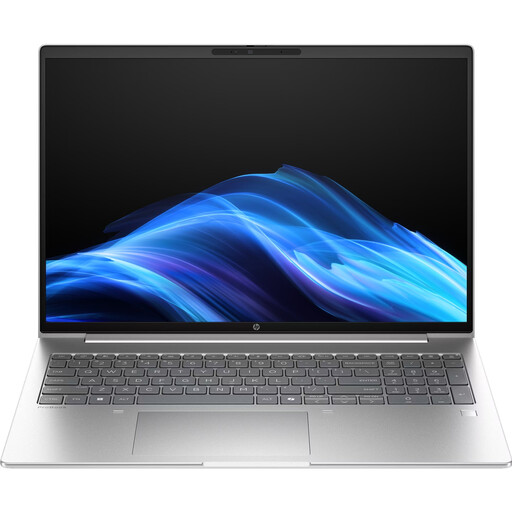 Image unavailable
HP ProBook 4 G1a 16-inch business laptop
The German keyboard with numeric keypad is worth noting if you enter lots of records at your workstation.
Listed in the product name: AMD Ryzen 5 230, 16GB DDR5, 512GB SSD, WUXGA IPS display and Windows 11 Pro.
View at Joybuy
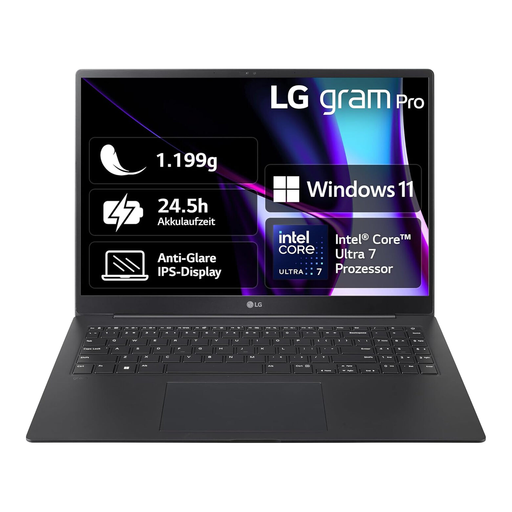 Image unavailable
LG Gram 16 Pro Core Ultra 7 155H
If you want a 16-inch screen for working with spreadsheets but also need to carry your device around, compare this model with other 16-inch options.
Listed in the product name: 16GB memory, 1TB SSD and Windows 11; model number 6Z90SP-G.AA78G.
View at Joybuy
 Image unavailable
MSI VenturePro A16 AI+ A3HWEG-003
The listed keyboard variant and ports may be useful for repeated data entry at a fixed workstation; check the specifications against your accessories.
Listed in the product name: Solid Gray, Ryzen AI 7 350, 16GB RAM, 1TB SSD and GeForce RTX 5050. Keep the ventilation openings clear under heavy load; MSI recommends using the supplied power adapter in these conditions.
View at Joybuy
Frequently asked questions
Do I need a database to create custom seed fields?
No. Calc may be enough for a simple list with columns you name yourself. If you need additional database features, compare LibreOffice Base or Microsoft Access with your planned setup and existing files.
Can I keep using an existing Microsoft Access collection on any laptop?
No. Don’t assume Access will work on every laptop without checking compatibility: Microsoft describes Access as PC-only. Before buying, check which version of Windows and Access you need, as well as your existing files. Being able to open other spreadsheets doesn’t guarantee full Access compatibility.
What should I know when setting up LibreOffice Base?
Check the system requirements for the version of LibreOffice you plan to use. LibreOffice notes that Java is relevant to Base, so factor this requirement into your planned installation.
How do I back up my seed data after buying a laptop?
Set a regular backup schedule, keep an additional copy somewhere other than your laptop and check from time to time that your files are complete and readable. The Federal Office for Information Security recommends checking that backups can be read.
Who should I contact if a laptop I bought as a consumer from a business seller is faulty?
The seller is responsible for your statutory guarantee rights. The European Union’s consumer information states that for goods bought in the EU, you have at least two years from the date you receive them. This does not apply in the same way to purchases from a private individual; a manufacturer’s additional guarantee is separate.


